author avatar
    Senior Program Developer
Last update by William Davis at 24 September 2026

Summary
This guide explains the technical differences regarding hidden files vs deleted files on pen drive, focusing on storage space diagnostics and file system attributes. It outlines systematic diagnostic steps, built-in unhide commands, and professional recovery workflows to restore data without overwriting critical sectors.


It’s jarring to open a pen drive and find an empty folder where important documents, photos, or work files used to be. The files may still be on the drive, but hidden by attributes, malware, or third-party software. Or they may be truly deleted, with the file system already marking their space as reusable.
hidden vs deleted
Choosing the wrong fix can make recovery harder, because writing new data or running repair tools can overwrite deleted files. Start by checking whether used space is still occupied. If it is, move to the built-in unhide checks. If free space has increased, go to the recovery workflow.

Hidden vs Deleted Files on a Pen Drive: What the Difference Means

The technical difference determines the correct fix. A hidden file still has a file system entry; its data and name are intact, but it isn’t shown. A deleted file has had its entry removed and its space released for reuse. That is why unhide commands cannot restore deleted files, and recovery scans cannot simply reveal hidden files unless the file system entries were also lost.
Aspect 👻 Hidden Files 🗑️ Deleted Files

File System Entry

✅ Still exists

❌ Removed

File Name & Metadata

✅ Intact

❌ No longer accessible through normal file system records

Storage Space

✅ Still occupied

🔓 Marked as free for reuse

Data Status

✅ Fully preserved

⚠️ Usually remains until overwritten

Visible in File Explorer

❌ Hidden from view

❌ Not visible

Can Be Restored by "Unhide" Commands?

✅ Yes

❌ No

Can Be Recovered by Data Recovery Software?

❌ Usually unnecessary

✅ Often possible if not overwritten

Typical Causes

Hidden/System attributes, malware tricks, file explorer settings

User deletion, formatting, file system corruption

Best Solution

Remove hidden attributes or enable hidden-file view

Run data recovery software immediately

Risk of Permanent Loss

🟢 Very low

🔴 Increases as new data is written

- Analogy: Hidden files are like a book still on the shelf but turned spine-in; deleted files are like a book removed from the shelf, leaving empty space.
- Diagnostic goal: Check if the used space on the pen drive still matches the missing files before choosing an unhide method or recovery software.

How to Tell if Pen Drive Files Are Hidden or Deleted

Compare Symptoms and Storage-Space Clues

The pen drive’s used space is usually the clearest clue. If files disappeared but the drive still shows high used space, they are probably hidden. If free space increased, the files were likely deleted or the drive was formatted.
Symptom Used Space Common Cause Safest First Action

Files invisible but used space remains high

High

Hidden via attributes or software

Try built-in unhide checks

Free space increased after disappearance

Increased

True deletion or formatting

Stop writing and use recovery software

Shortcut files replacing originals

Often high

Shortcut virus/malware

Remove malware, then clear hidden/system attributes

Drive empty on another OS but fine on original

High

Cross-platform attribute differences

Check hidden items on the current OS

Drive empty after virus exposure but used space remains

High

Malware-hidden files

Unhide manually and scan for malware

Try Built-In Unhide Checks First

Before you reach for recovery software, try the built-in Windows unhide checks. Windows can hide files through the Hidden and System attributes, and File Explorer sometimes protects operating system files from view. A quick settings change or an attrib command often brings missing files back.

Windows build-in methods
Method 1: Using Options in File Explorer
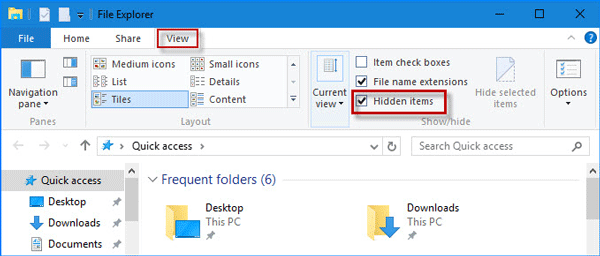
In File Explorer, open the View tab, enable Hidden items, then go to Options > View and uncheck Hide protected operating system files.
Windows File Explorer View tab with Hidden items selected
Method 2: Using attrib command
1. Open an elevated Command Prompt: press the Windows key, type cmd, right-click Command Prompt, choose Run as administrator, and click Yes when prompted.
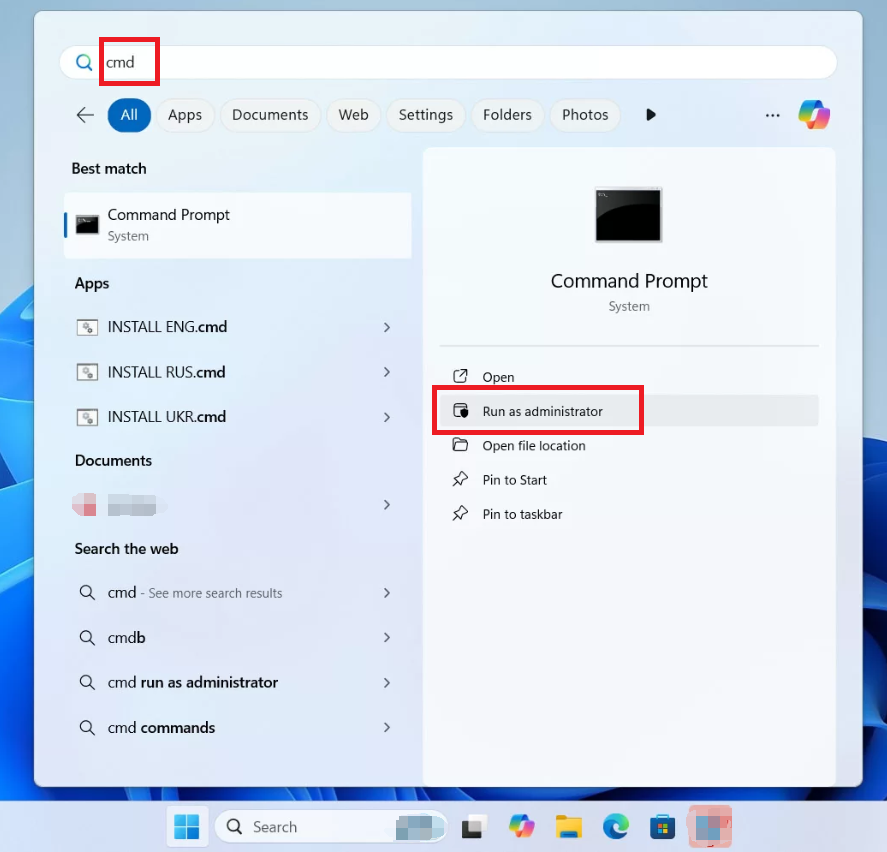
Screenshot of Windows 11 Start menu with 'cmd' typed and 'Run as administrator' option highlighted
2. In the Command Prompt window, replace X with your pen drive’s actual letter, not your Windows drive, then run the following command:

attrib -h -r -s /s /d X:\*

3. Open the pen drive again and check whether the files are visible.
In this command:
- -h removes the Hidden attribute.
- -r removes the Read-only attribute.
- -s removes the System attribute.
- /s processes matching files in all subfolders.
- /d includes folders as well.
If those built-in checks do not reveal the files, the cause may be more advanced software hiding or true deletion. Move to the next check, and do not format the drive.

Watch for Software- or Malware-Based Hiding

Some files are hidden through methods that File Explorer and attrib cannot reverse. These techniques are common in privacy tools, malware, and shortcut viruses, and they explain why a pen drive may look empty even after standard unhide checks.
- Encryption/container tools: Software converts original files into a single encrypted, unreadable container, making the original files disappear from normal view.
- Special characters/reserved names: Files may be renamed with invisible Unicode characters or Windows reserved names such as CON and PRN, making them hard to display or select normally.
- File system manipulation: Advanced tools alter the File Allocation Table (FAT) or Master File Table (MFT) to orphan file entries, keeping data on the disk while removing normal directory access.
If these methods are involved, you may need specialized file system tools or a recovery scan rather than only changing folder options.

Know When Unhiding Is Not Enough

Use the pen drive’s used-space reading to guide the next action. If the used space is still roughly equal to what it was before the files disappeared, continue with unhide checks and malware scanning. If free space increased and the files are not in the Recycle Bin, treat the files as deleted and switch to recovery software.

Stop writing to the pen drive immediately if deletion is suspected.

When Renee Undeleter Is the Right Choice

Renee Undeleter is the right next step when files are truly deleted, the drive has been formatted, or built-in unhide checks fail after used space has increased. It’s a professional data recovery application for Windows computers, memory cards, and external storage devices. It supports NTFS, FAT, FAT32, exFAT, and macOS/Linux file systems, so pen drives formatted on different devices remain recoverable. The software includes multiple scan modes and file preview, helping you confirm file integrity before recovery.
Advantages:
  • Multiple scan modes
  • 400+ file formats
  • Preview before recovery
  • Cross-platform file system support
  • Image creation backup

Disadvantages:

  • Must install on another drive
  • USB scan speed can be slower
  • Deep scans take time
  • Backup requires equal free space
  • Severely overwritten data may not recover

Hot Topic Recover Lost Data from Pen Drives and Other Storage Devices

Strong to recover Recover data from the storage devices sustaining many bad sectors.

Supported devices SD card, SDHC, SDXC, USB flash drive, hard disk, computer, etc.

Supported file types Image, video, audio, text, email, etc.

Easy to use Recover by 3 steps and support to preview scan results.

Multiple scan modes Fast partition/whole partition/whole disk scan.

Easy to use Recover by 3 steps.

Multiple scan modes Fast partition/whole partition/whole disk scan.

Supported devices SD card/USB/hard disk, etc.

Free TrialFree TrialFree Trial 800 people have downloaded!


How to Recover Deleted Files from a Pen Drive with Renee Undeleter

Use this workflow when the diagnostic checks indicate true deletion or file system damage. The order matters because every additional write to the pen drive can reduce the chance of recovery.

Do not save new files, format, or run repair tools before scanning.

1. Launch Renee Undeleter from a different disk and select the pen drive as the target.
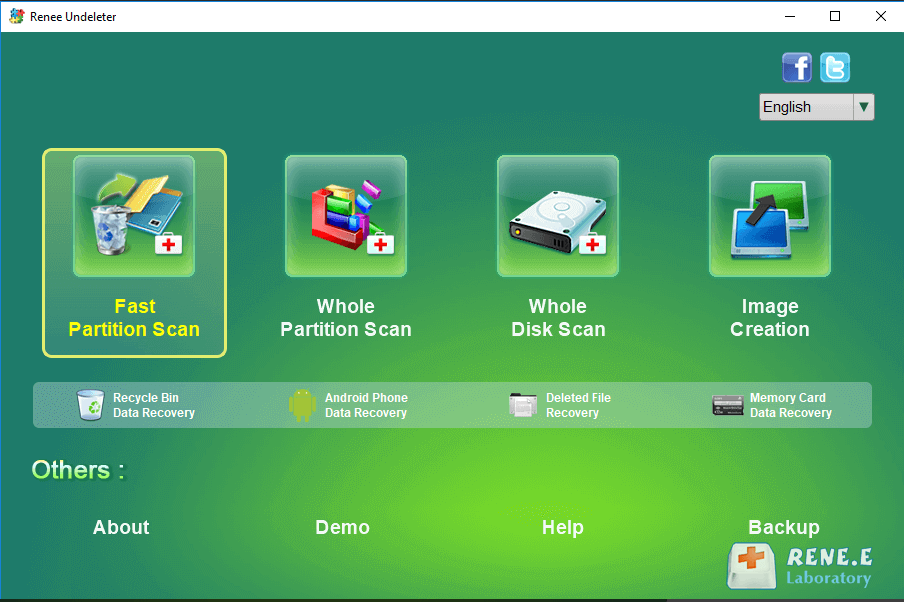
2. Choose Fast Partition Scan for recently deleted files or Whole Partition Scan for formatted, corrupted, or difficult cases.
Renee Undeleter, select Fast Partition Scan
3. Recover the selected files to a different location, never back to the same pen drive.
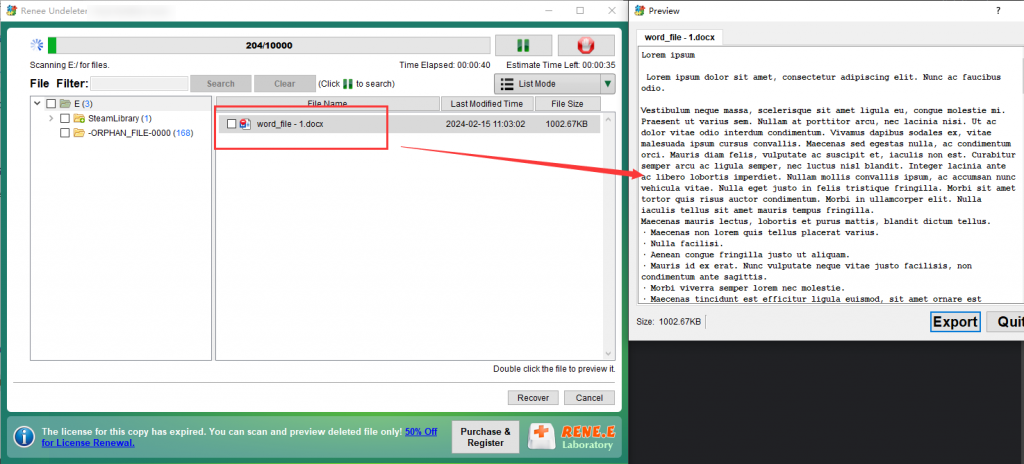
Renee Undeleter: File preview window showing file details before recovery

If a partition-level scan does not find the files, the Whole Disk Scan may rebuild the partition structure and scan more deeply.

Common Questions

Will hidden files ever show up on their own after reconnecting the drive?

Usually not. Standard Windows hidden/system attributes do not change automatically, so files remain hidden until view settings are adjusted or attributes are cleared with attrib. Malware or shortcut viruses may re-hide files; they can appear after the malware is removed or after running the unhide command. Files hidden by encryption containers or file system tricks will not show up without the original tool or more advanced recovery.

Does deleting files from a pen drive send them to the Recycle Bin?

No. In most Windows configurations, files deleted from a removable drive bypass the Recycle Bin and are marked as free space immediately. That means you should not rely on the Recycle Bin for pen drive recoveries. If you have just deleted files, stop using the drive and run recovery software before new data overwrites the sectors.

Can I recover files if the pen drive shows 0 bytes or is not recognized?

Possibly, but the drive must first be detected by Windows as a disk. Try another USB port, cable, or computer to rule out connection issues. If the drive is detected with 0 bytes or an unreadable file system, a whole-disk or partition recovery scan may still locate data. If the drive is not detected at all, recovery software cannot access it, and professional data recovery may be needed.
Renee Undeleter - Powerful Data Recovery SoftwareRenee Undeleter data Recovery software

Easy to use Only simple steps to recover data from storage devices.

Multiple scan modes Fast partition scan, whole partition scan and whole disk scan for different recovery needs.

File types Support to recover pictures, videos, audios, documents, mails, etc.

Supported storage devices Recover data from recycle bin, SD card, external disk, etc.

Supported systems Windows 11,10, 8.1, 8, 7, Vista, XP, 2000 and Mac OS X10.6, 10.7, 10.8+.

Easy to use Only simple steps to recover data from storage devices.

Multiple scan modes - 3 scan modes for different recovery needs.

Supported storage devices Recover data from recycle bin, SD card, external disk, etc.

Free TrialFree TrialFree Trial

3000 users have downloaded Renee Undeleter and found data back!

User Comments

Page 1

Leave a Comment


Your comment has been submitted and is awaiting moderation.