author avatar
    Technology Manager of Test Dept.
Last update by William Davis at 8 October 2026

Summary
Creating a pen drive disk image before recovery ensures a secure, sector-by-sector copy of failing USB hardware for safe data extraction. This guide outlines the technical prerequisites, step-by-step imaging procedures, and verification methods required for successful file retrieval.

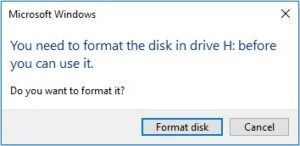

Pen drives can fail unexpectedly. Warning signs include a RAW file system, a “You need to format” prompt, frequent disconnects, read errors, or extremely slow file access. Repeatedly scanning a failing drive can make things worse and reduce your chances of recovery. That’s why making a pen drive disk image before recovery is often the safest first step: you capture a complete copy in one go and work from the image, not the fragile hardware.
Windows dialog box prompting to format the disk in drive before use

When imaging is the safer first step: quick signs and pre-checks

Use the table below to decide whether you should image your pen drive first or scan it directly:
Symptom Likely condition Image first?

RAW file system or “You need to format” message

Damaged file system or partition table

Yes

Drive keeps disconnecting or disappearing

Unstable USB connection or failing hardware

Yes

Read/write errors or I/O errors

Bad sectors or degrading flash memory

Yes

Very slow access or copying

Degraded flash memory

Maybe

Accidental deletion on a healthy drive

Logical deletion only

No, unless other warnings appear

If your pen drive appears healthy, direct scanning is usually faster and safe. For unstable or failing drives, imaging first minimizes hardware stress and risk.
If you notice any warning signs, stop using the pen drive immediately.

Safe preparation rules before creating the USB image

Before imaging, follow these practical rules—no matter which recovery tool you use:
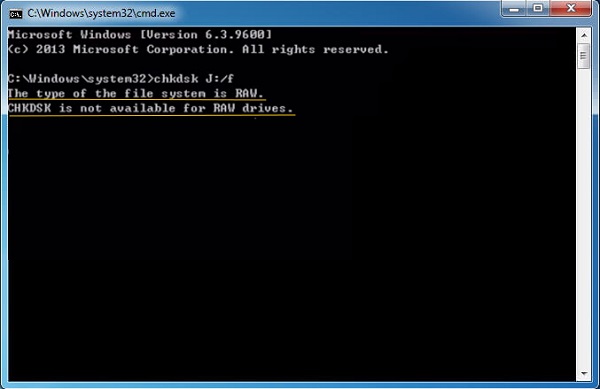
1. Avoid new writes, formatting, CHKDSK, or repeated reads.
Don’t save new files, reformat, run CHKDSK, or repeatedly browse the pen drive. Any write or repair attempt can overwrite data you still hope to recover.
Windows alert: CHKDSK cannot run on RAW file system
2. Plan your destination.
Save the image to a different, healthy internal or external drive. Make sure you have enough free space—at least equal to the pen drive’s capacity.
3. Ensure a stable connection.
Plug the pen drive directly into a rear USB port on your computer (if available). Avoid USB hubs, front-panel ports, and loose adapters.

How Renee Undeleter helps create a disk image before recovery

Renee Undeleter is a Windows-friendly data recovery tool with a dedicated Image Creation feature. This module creates a byte-by-byte copy of your pen drive—including unallocated and damaged areas—so you can safely scan the image file instead of the original device.
Key benefits of making a pen drive disk image before recovery:
- Minimized hardware stress: The pen drive is read just once, reducing wear.
- Safer scanning: All recovery scans are performed on the image, not the unstable USB hardware.
- Simple interface: No command-line steps—everything is accessible through a clear GUI.
- Broad compatibility: Supports signature scanning for over 400 file formats.
Renee Undeleter: Image-First Data Recovery for Pen DrivesRenee Undeleter data Recovery software

Image Creation for safer recovery Create a byte-by-byte copy of your pen drive, including unallocated and damaged areas, then scan the image file instead of the original device to minimize hardware stress and protect a failing drive.

Multiple scan modes Fast partition scan, whole partition scan and whole disk scan for different recovery needs.

File types Support to recover pictures, videos, audios, documents, mails, etc.

Supported storage devices Recover data from recycle bin, SD card, external disk, etc.

Supported systems Windows 11,10, 8.1, 8, 7, Vista, XP, 2000 and Mac OS X10.6, 10.7, 10.8+.

Easy to use Only simple steps to recover data from storage devices.

Multiple scan modes - 3 scan modes for different recovery needs.

Supported storage devices Recover data from recycle bin, SD card, external disk, etc.

Free TrialFree TrialFree Trial

3000 users have downloaded Renee Undeleter and found data back!

Alongside Image Creation, Renee Undeleter offers Fast Partition Scan, Whole Partition Scan, and Whole Disk Scan—so you can recover after imaging or scan directly if the drive is healthy.

Steps: create the pen drive image and recover files

Here’s how to use Image Creation first, followed by Whole Disk Scan on the saved image:

1. Create the pen drive image

a. Connect your pen drive directly to a stable USB port on a healthy computer.
b. Download and install Renee Undeleter on that computer.
Do not install Renee Undeleter on the pen drive or any disk you’re recovering from.

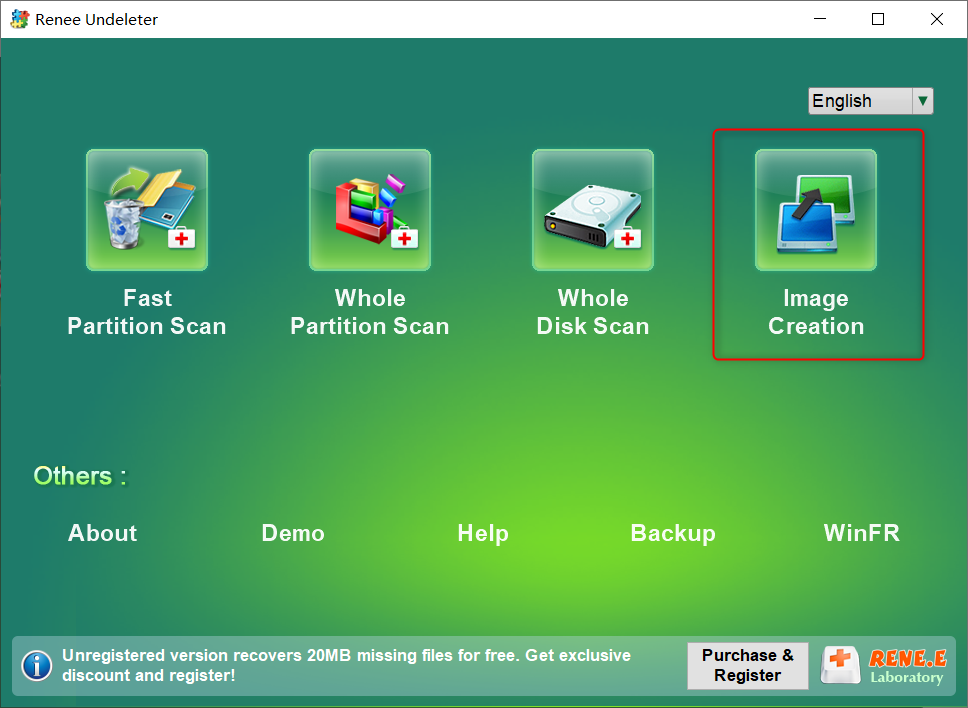
c. Open Renee Undeleter and choose Image Creation from the main menu.
Create image in Renee Undeleter
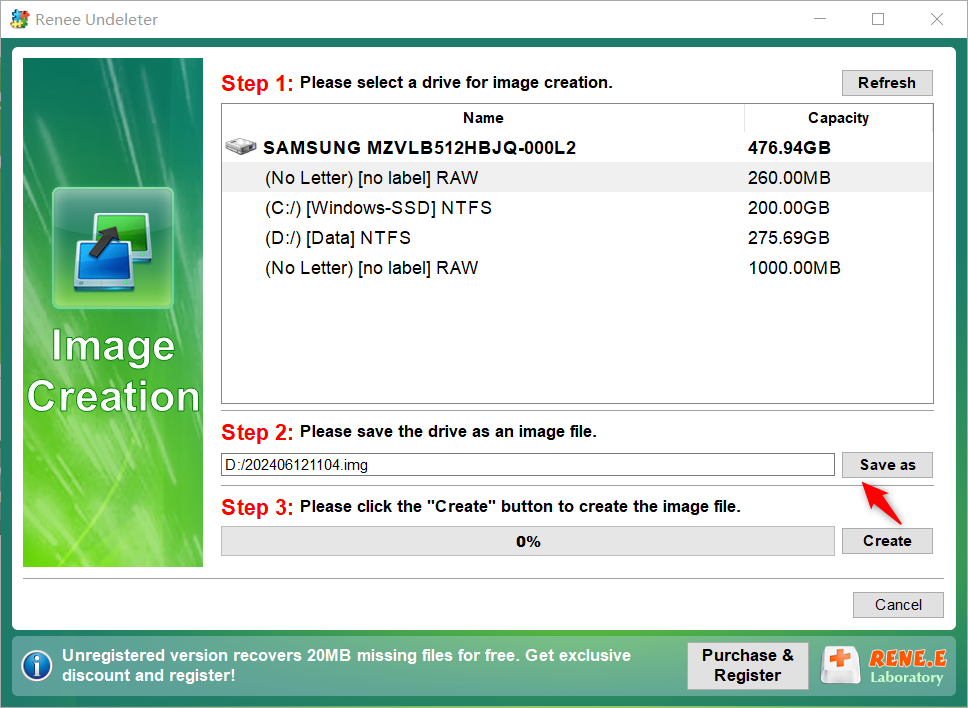
d. Select your pen drive from the list, pick a different healthy disk as the destination, and click Create.
Select disk drive in Image Creation
e. Wait for the image creation to finish without disconnecting the pen drive. Make sure your destination disk has enough free space for the entire pen drive.

2. Load and scan the image file

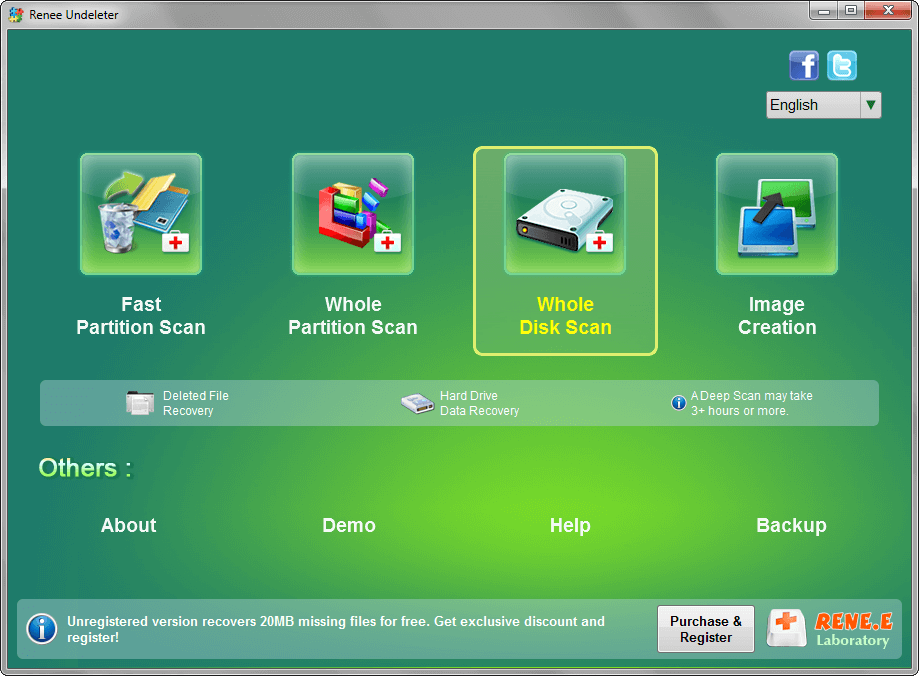
a. After imaging, go back to the main Renee Undeleter interface and select Whole Disk Scan.
select whole disk scan to scan disk in renee undeleter
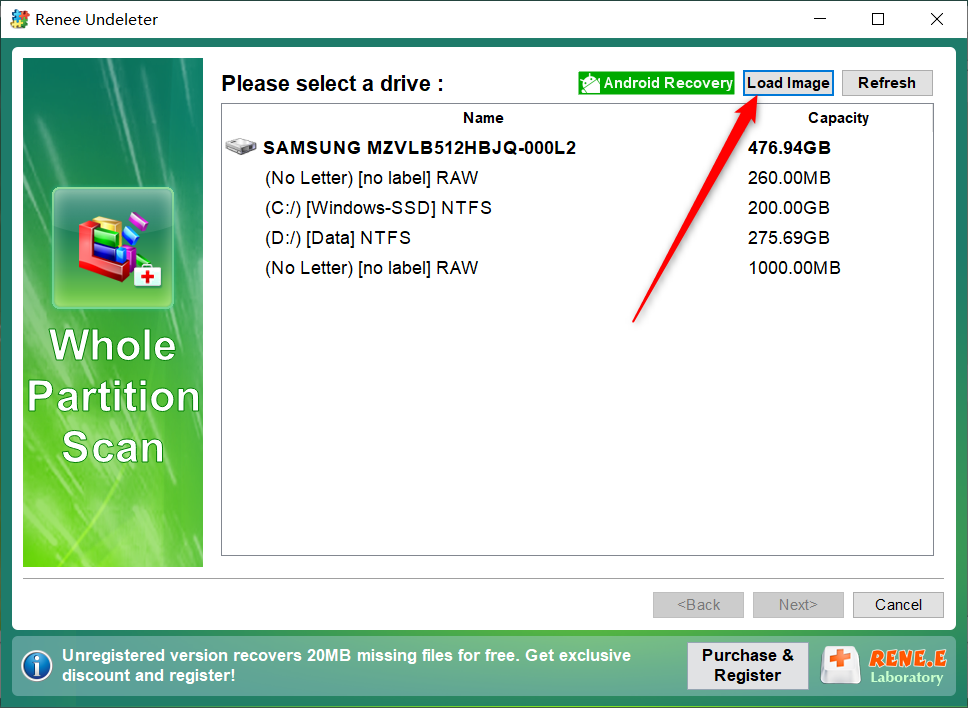
b. Click Load Image and choose the image file you just saved.
Load image in Renee Undeleter
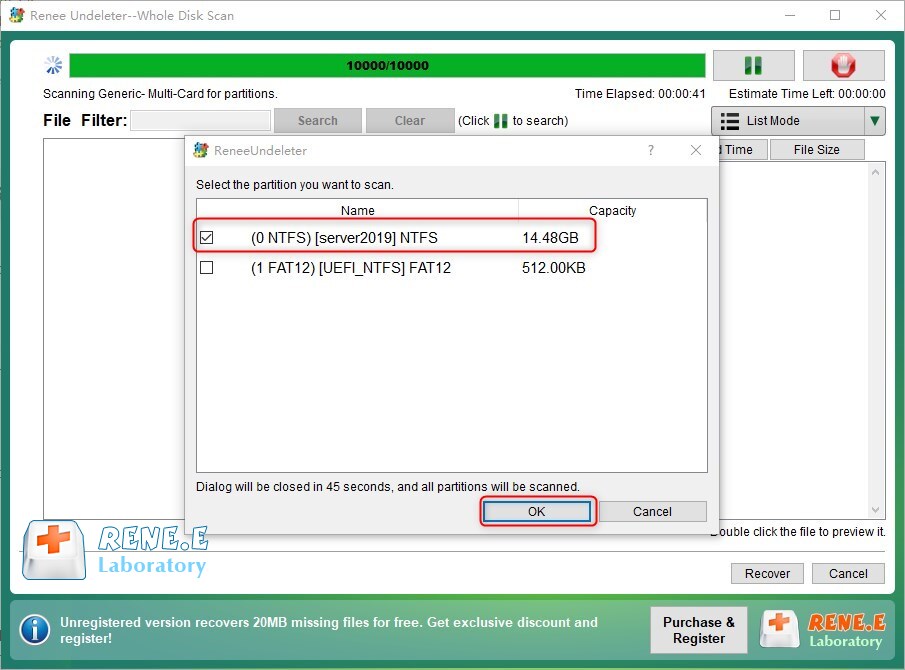
c. The software will scan the image. If prompted, select the partition you want to scan.
Select the partition you need to scan
If the pen drive disconnected during imaging, reconnect it to a stable port and try creating the image again before scanning. A complete image is always safer than a partial one.

3. Preview and recover files

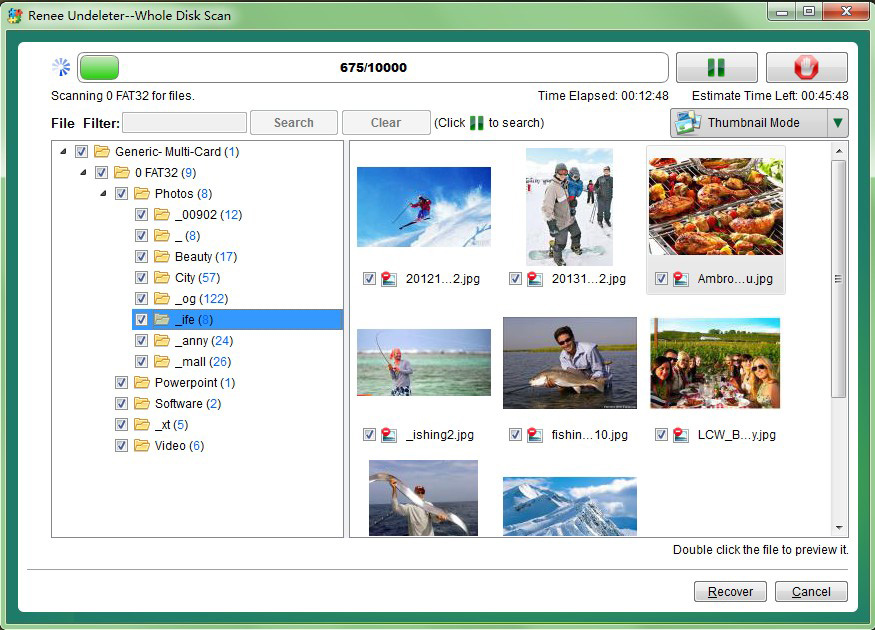
a. After scanning, double-click files to preview and confirm their contents.
preview before recovery
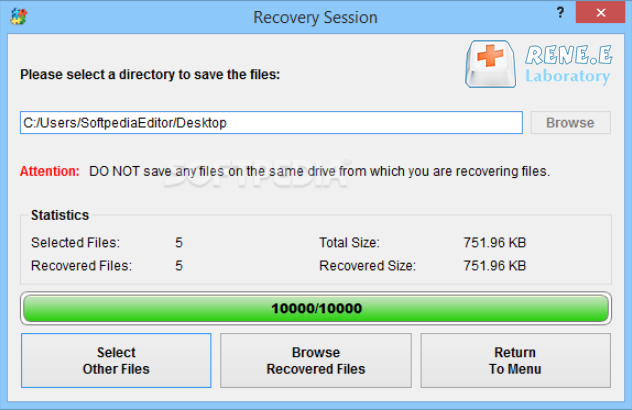
b. Select the files you want to recover, click Recover, and save them to a different healthy drive.
recover the whole disk data
Never save recovered files back to the original pen drive.

FAQ

How large will the pen drive image file be?

A sector-by-sector image is typically about the same size as your pen drive’s full capacity. For example, a 32 GB pen drive will produce an image close to 32 GB, regardless of how much data is stored. Ensure your destination disk has at least that much free space.

Can I image a RAW pen drive?

Yes. Image Creation works at the disk level, so you can usually image a RAW or unreadable pen drive as long as Windows detects the physical device. If the drive isn’t detected, check your USB port, cable, or card reader.

Should I scan the original drive or the image first?

For an unstable pen drive, always scan the image first to avoid stressing the failing hardware. For a healthy pen drive with only accidental deletion, direct scanning is generally safe and faster.
Renee Undeleter - Powerful Data Recovery SoftwareRenee Undeleter data Recovery software

Easy to use Only simple steps to recover data from storage devices.

Multiple scan modes Fast partition scan, whole partition scan and whole disk scan for different recovery needs.

File types Support to recover pictures, videos, audios, documents, mails, etc.

Supported storage devices Recover data from recycle bin, SD card, external disk, etc.

Supported systems Windows 11,10, 8.1, 8, 7, Vista, XP, 2000 and Mac OS X10.6, 10.7, 10.8+.

Easy to use Only simple steps to recover data from storage devices.

Multiple scan modes - 3 scan modes for different recovery needs.

Supported storage devices Recover data from recycle bin, SD card, external disk, etc.

Free TrialFree TrialFree Trial

3000 users have downloaded Renee Undeleter and found data back!

User Comments

Page 1

Leave a Comment


Your comment has been submitted and is awaiting moderation.