author avatar
    Senior Program Developer
Last update by William Davis at 14 October 2026

Summary
This guide provides a comprehensive windows hello pin no longer available fix by detailing built-in troubleshooting steps such as NGC folder cleanup and TPM verification. It also outlines advanced recovery methods using Renee PassNow for users who are completely locked out of their systems.


Windows Hello PIN is no longer available

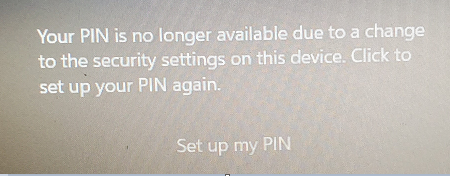
User Description: I’m having this issue when trying to login to my Dell laptop. When I start my laptop, I get the message in the first image saying my PIN isn’t available. When I click on “Set up my PIN”, I get the grey box on my screen in the 2nd image, but it quickly disappears, preventing me from changing anything that would allow me to get in.

When the Windows Hello PIN is no longer available message pops up, it’s rarely because you forgot your PIN. More often, a Windows update, TPM change, or corrupted PIN storage causes Windows Hello to fail. Sometimes, the standard “I forgot my PIN” reset process may get stuck in a loop, or selecting “Set up my PIN” may have no effect and fail to resolve the issue.

Quick Decision Path:

- Can you sign in with your account password? → Go to Sign-in options → Recreate your PIN.
- PIN reset loops or you’re locked out? → Skip to Renee PassNow recovery.
- Is this a work or school device? → Contact your IT department; organization policies may block local fixes.

Common Causes & Quick Checks:

🚩 Trigger 🔍 Likely Cause ✅ First Action

After Windows Update; eg. April 2025 Update (KB5055523)

NGC folder corrupted

Try "I forgot my PIN" or reset NGC

After BIOS/TPM/SecureBoot change

Security trust broken

Check TPM status or reset PIN

"Reset this PC" (Keep my files)

NGC container corruption

Rebuild PIN configuration

Sudden PIN lockout

Account sync issue

Use password fallback

Goal: Restore access and Windows Hello PIN without losing data or reinstalling Windows.

Note: If built-in resets don’t work, Renee PassNow is the safest way to recover from lockout.

When Built-in PIN Reset Fails and no other login methods, Use Renee PassNow

If the built-in PIN reset is stuck in a loop or fails due to system corruption, Renee PassNow is your direct path to recovery. It works by booting your computer from a USB drive, so you don’t need your PIN or password. You can clear corrupted PIN data, create a new admin account, and back up files before making any risky changes.
Fix 'Your PIN Is No Longer Available' with Renee PassNow

PIN removal without system access Clear a corrupted or unavailable Windows Hello PIN directly from a bootable environment, even when you cannot sign in to Windows.

Recover the files Recover the deleted files without Windows system.

Transfer the data Transfer the important files of the computer with system.
Multifuctional Data transfer, data recovery, bootable problem recovery can be run without system.

Highly compatible Windows 11/10/8.1/8/7/XP/Vista. UEFI boot.

Remove Login Password Support Windows 11/10/8.1/8/7/XP/Vista. UEFI boot.

Recover the files Recover the deleted files without Windows system.

Transfer the data Transfer the important files of the computer with system.

Free TrialFree TrialNow 2000 people have downloaded!
Core Recovery Features for This Issue:
- Clear All Password/PIN: Removes the corrupted local PIN data, allowing you to set up a new PIN.
- Create new account: Creates a new administrator account so you can regain control if your main account is locked.
- Data Transfer: Lets you move important files to an external drive before attempting further repairs.
Why it fits: No need for the old password, bypasses broken Windows Hello settings, and avoids data loss.

Note: The Basic edition does not support BitLocker Manager.

Renee PassNow main interface

Steps for fixing 'Your PIN Is No Longer Available' with Renee PassNow

Follow these steps in order:

Preparation

⚠️ Important: If BitLocker is enabled on your device, make sure you have access to your BitLocker recovery key before proceeding. Some of the steps in this guide may trigger a BitLocker recovery prompt.
If you do not know where to find your recovery key, see: How to Find and Use Your BitLocker Recovery Key.
Without the BitLocker recovery key, you may be unable to regain access to your encrypted drive if BitLocker recovery is required.

Step 1: Create Bootable USB

On a working PC, install Renee PassNow and insert a USB drive.
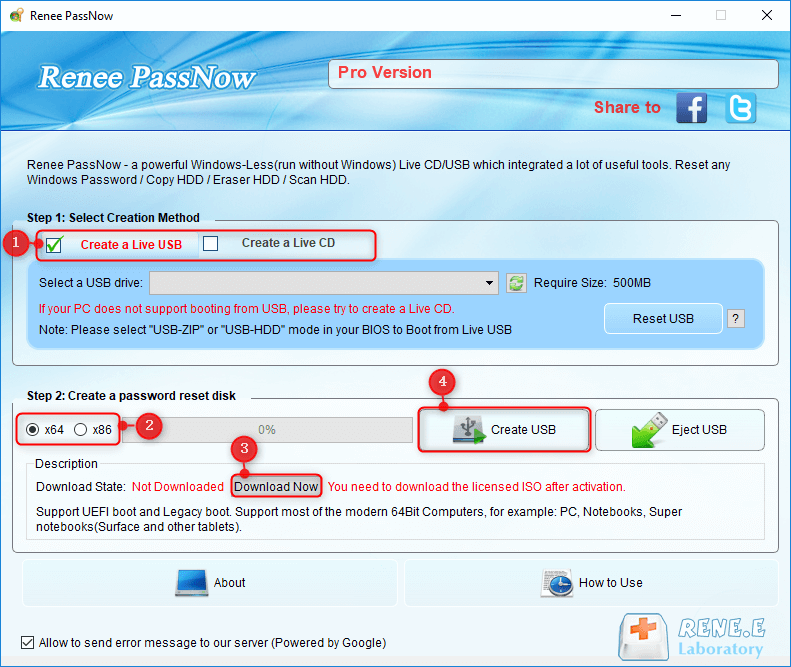
Launch Renee PassNow. In Step 1: Choose the creation method, select Create USB, choose x64 or x86, click download now, then Create USB, and finally Eject USB.
Use Renee PassNow to create a bootable USB

Warning: Creating the bootable USB will erase everything on the USB drive. Back up any important files on it first.

Step 2: Boot Target PC

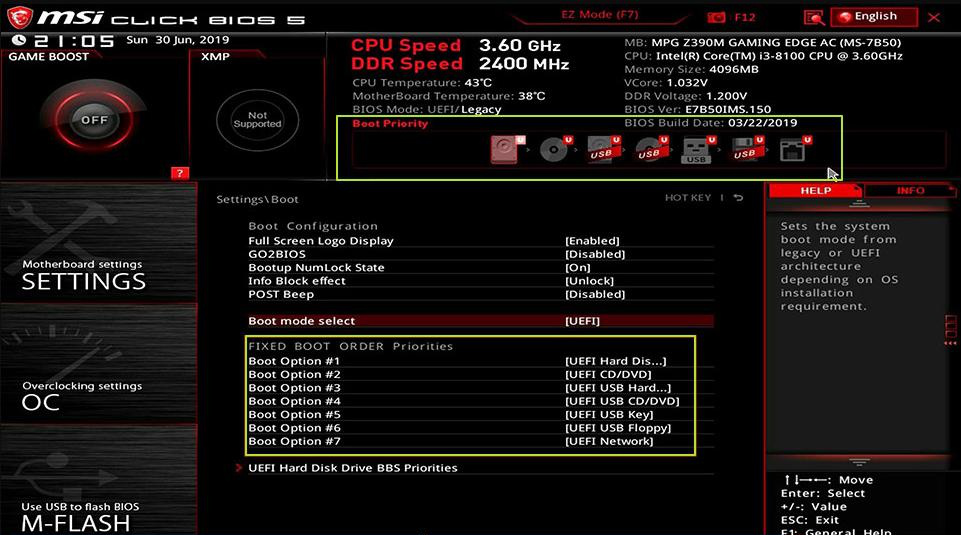
Insert the USB into the locked PC, restart, and press your device’s boot menu key. Set the USB as the primary boot device, save, and exit.
Insert the boot USB into the locked PC
Select boot order in BIOS
Boot Menu Keys Reference Table
Brand Boot Menu Key BIOS Key

Dell

F12

F2

HP

F9

F10

Lenovo

F12

F2

ASUS

Esc / F8

F2 / Del

Acer

F12

F2 / Del

Step 3: Unlock Drive (If Needed)

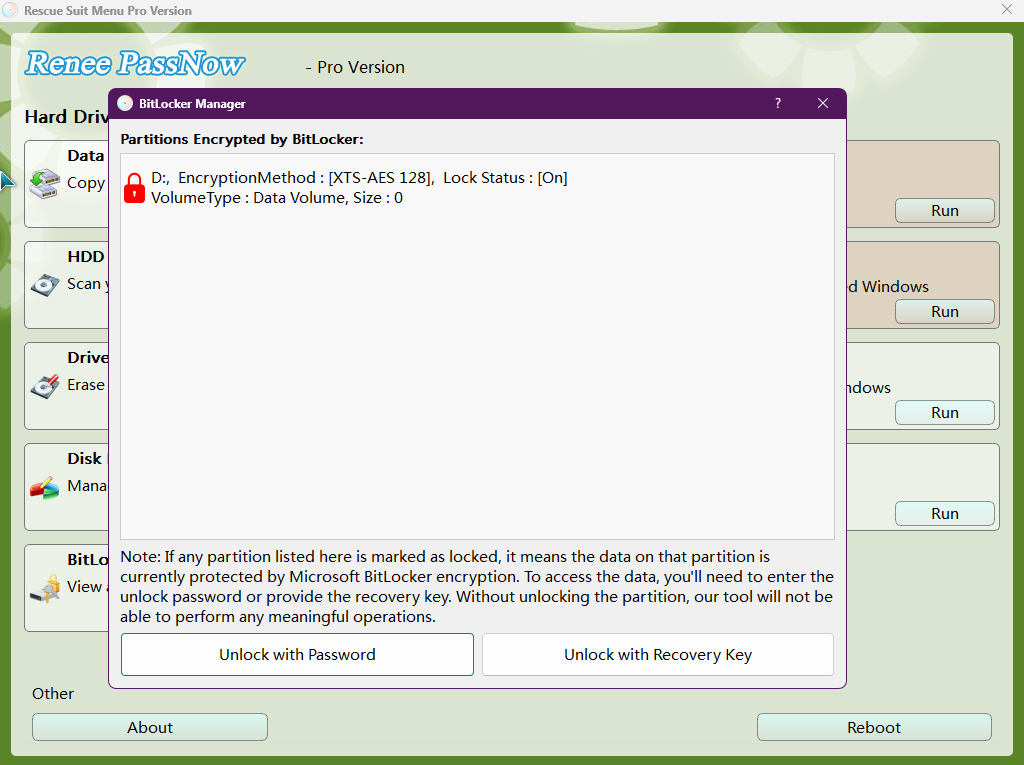
If Renee PassNow detects BitLocker encryption, use BitLocker Manager and select Unlock with Password or Unlock with Recovery Key.
Use BitLocker Manager to unlock the drive

The Basic edition does not support BitLocker Manager.

Step 4: Reset PIN or Create Account

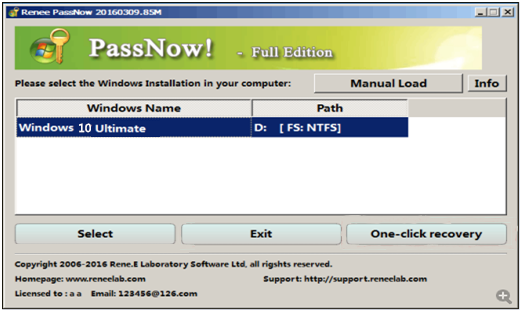
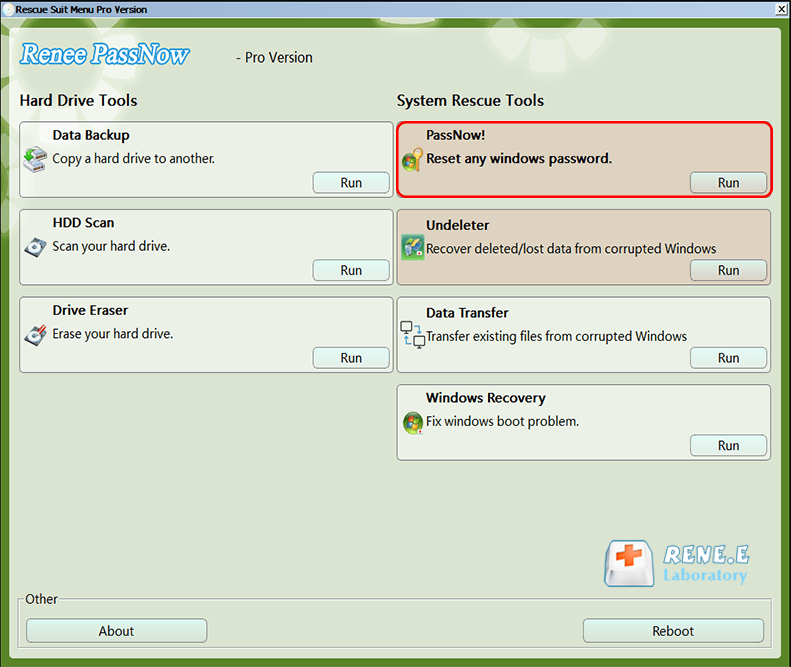
After booting, select PassNow! from the main interface.
Select PassNow! function
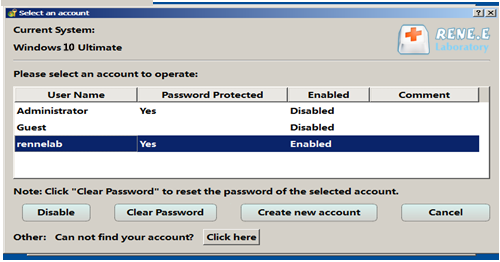
Select your Windows system and user account.
Select target Windows system
To remove the broken PIN, choose Clear All Password/PIN.
Clear All Password/PIN in Renee PassNow
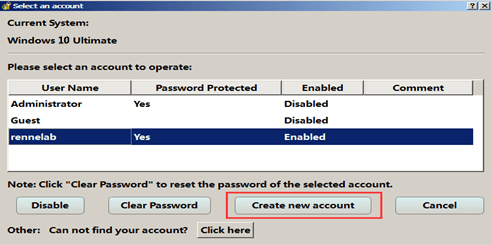
Or, to build a new admin profile, select Create new account.
Create new account in Renee PassNow

Tip: If your account is a Microsoft account, Renee PassNow may convert it to a local account. You can reconnect your Microsoft account after logging back in.

Step 5: Back Up Data Before Deep Repairs

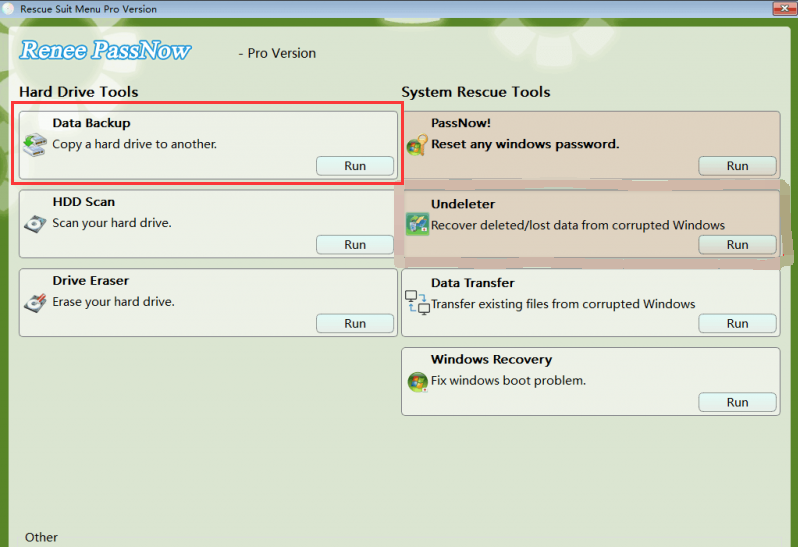
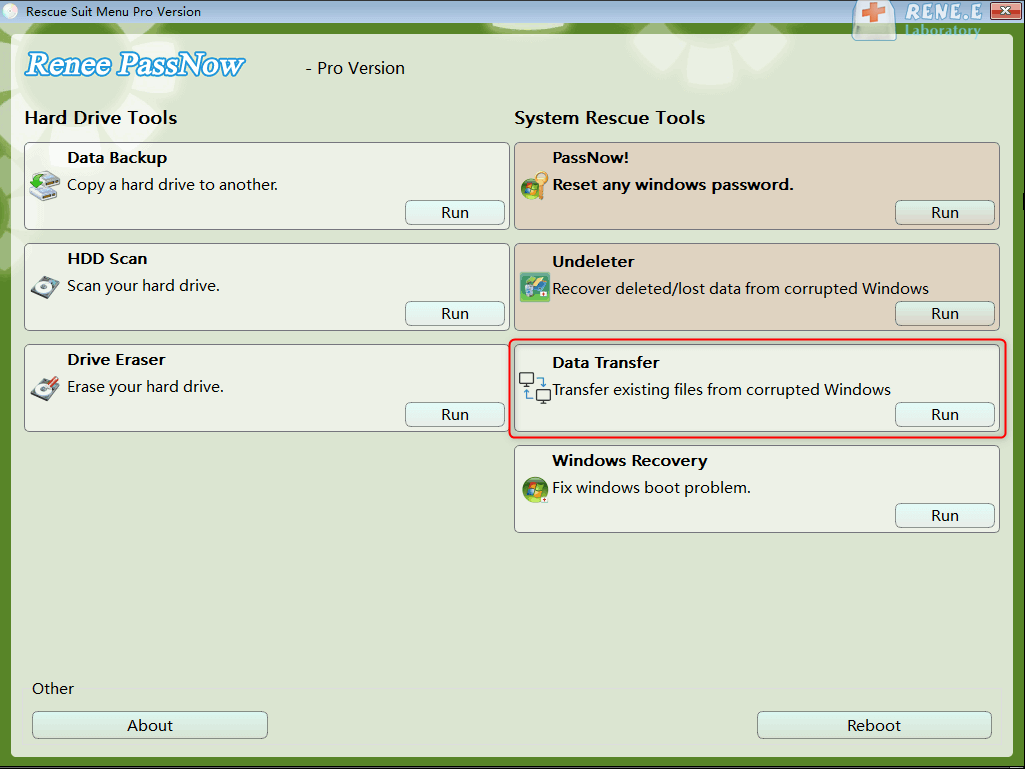
If your system is unstable, boot into Renee PassNow again and use Data Transfer to copy files to an external drive. For a full backup, use Data Backup.
Disk cloning options in Renee PassNow's Data Backup section
Data Transfer function in Renee PassNow
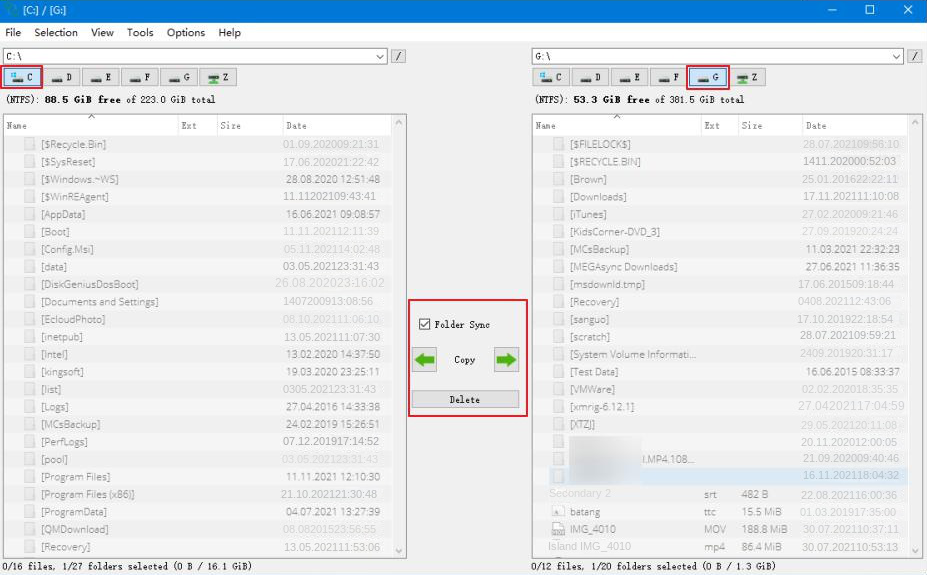
Select the source drive and destination drive, pick the files you want, and click Copy to move them to your external disk.
Transfer data interface in Renee PassNow
This ensures you have a safe backup before attempting any deeper Windows repairs.

How to Confirm the PIN Issue Is Fixed and Prevent It in the Future

Success Checks:
- PIN login works after a restart.
- Password fallback still works.
- Windows Hello PIN option is available in Settings.
Prevention Tips:
- Keep TPM firmware updated via Windows Update.
- Avoid toggling BIOS or Secure Boot settings unnecessarily.
- Make sure your Microsoft account sync is stable.
Verification Checklist
Check How to verify Expected result

PIN Login

Restart PC and use PIN

Logs in successfully

TPM Status

Run tpm.msc

"The TPM is ready for use"

Hello Settings

Settings > Accounts

PIN option is not greyed out

FAQ

Can I sign in with my password if the Windows Hello PIN is no longer available?

Yes. On the lock screen, click Sign-in options and select Password. If no password option appears, try your Microsoft account password. If that fails, use Renee PassNow to unlock your PC.

Does this fix work the same on Windows 10 and Windows 11?

For the most part, yes. Settings menus and the NGC folder path are similar. Windows 11 may prompt for BitLocker recovery if the system drive is encrypted. Renee PassNow works on both Windows 10 and Windows 11.

How do I know if a TPM or BIOS change caused the PIN error?

If you see the error right after a BIOS update, Secure Boot change, or TPM clear, it’s likely the cause. Check TPM status with tpm.msc and try reverting recent BIOS changes or recreate the PIN in Settings.

How do I avoid the 'PIN no longer available' error after a Windows update?

Keep TPM firmware up to date, don’t interrupt updates, and avoid changing Secure Boot or BIOS settings during an update. If the error returns, delete the NGC folder and recreate the PIN from Settings > Accounts > Sign-in options.
Renee Passnow – Professional Windows Password Remover

Remove Windows Login Password 3 steps for whole password remove process.

Enable/Create Administrator One click for creating new administrator and enable the disabled account.

Widely Use New version supports UEFI boot model, which can be used on more computers, laptops and even surfaces.

Multifuctional Data transfer, data recovery, bootable problem recovery can be run without system.

Highly compatible Windows 11/10/8.1/8/7/XP/Vista.

Remove Login Password Support Windows 11/10/8.1/8/7/XP/Vista.

Enable/Create Administrator One click for creating new administrator and enable the disabled account.

Easy to use No need of any professional knowledge or password reset disk.

Free TrialFree TrialNow 2000 people have downloaded!

User Comments

Page 1

Leave a Comment


Your comment has been submitted and is awaiting moderation.