
How to Fix ‘Something Went Wrong’ Error During Microsoft Account PIN Reset in Windows 10

Summary
This article outlines technical methods to fix something went wrong pin reset windows 10 errors, covering built-in Windows troubleshooting, NGC cache clearance, and offline recovery tools. The provided solutions address network connectivity checks, Microsoft service status verification, and bootable USB interventions for persistent lock screen failures.
Table of contents



Remove Windows Login Password 3 steps for whole password remove process.
Recover the files Recover the deleted files without Windows system.
Transfer the data Transfer the important files of the computer with system.
Multifuctional Data transfer, data recovery, bootable problem recovery can be run without system.
Highly compatible Windows 11/10/8.1/8/7/XP/Vista. UEFI boot.
Remove Login Password Support Windows 11/10/8.1/8/7/XP/Vista. UEFI boot.
Recover the files Recover the deleted files without Windows system.
Transfer the data Transfer the important files of the computer with system.
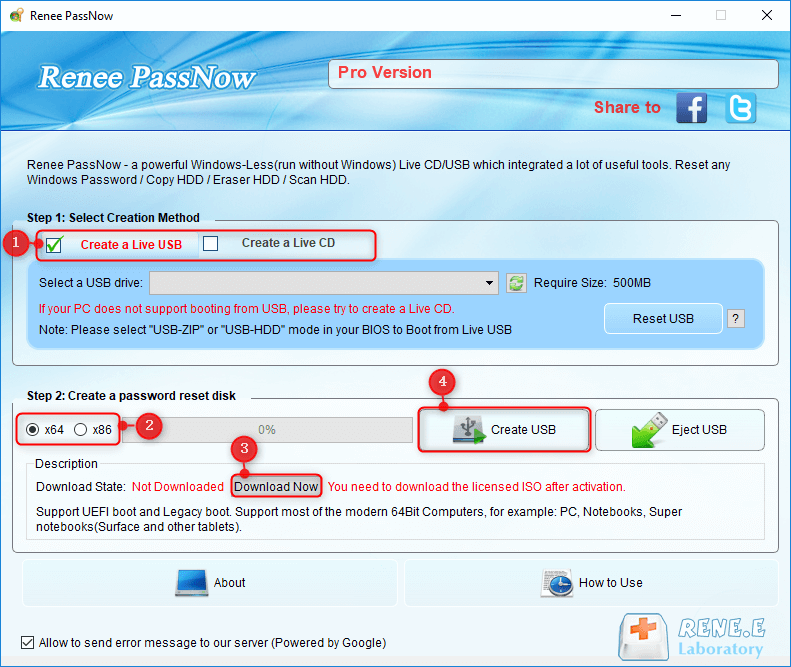
Step 1: Create a bootable USB on a working PC

Step 2: Boot the locked PC from the USB

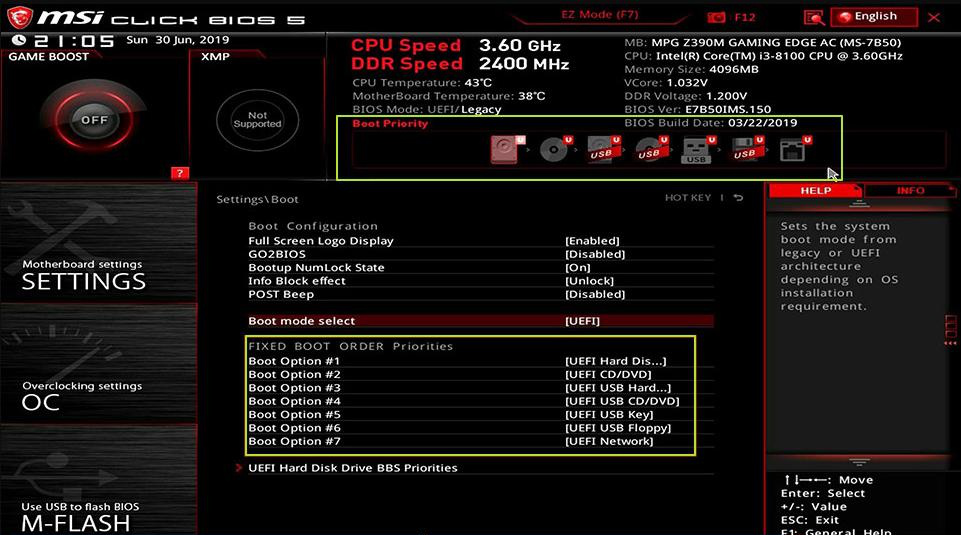
| Brand | Boot Menu Key | BIOS Setup Key |
|---|---|---|
DELL |
F12 |
F2 |
HP |
F9 or Esc → F9 |
Esc → F10 |
Lenovo |
F12 or Novo Button |
F2 or F1 |
ASUS |
Esc/F8 |
F2 or Delete |
Step 3: Unlock BitLocker if detected
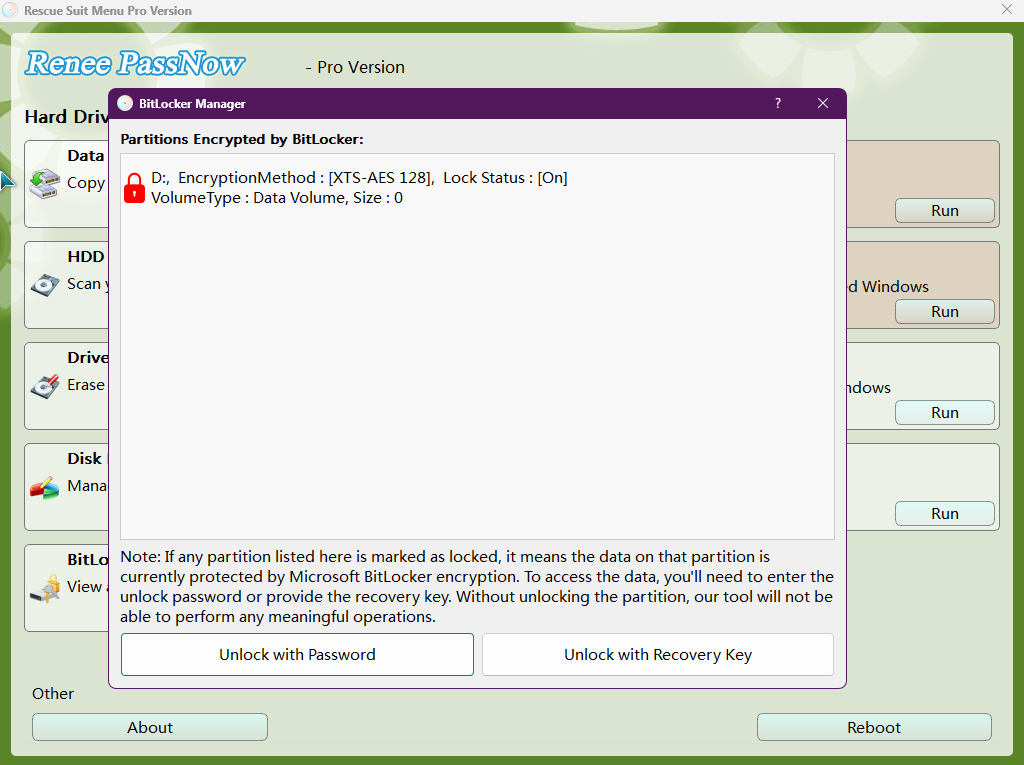
Step 4: Clear the PIN and password
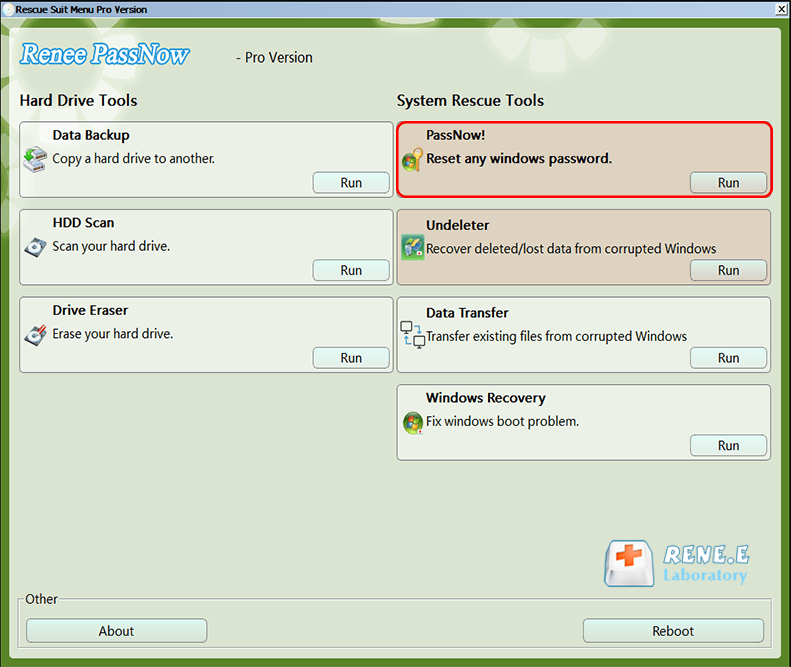
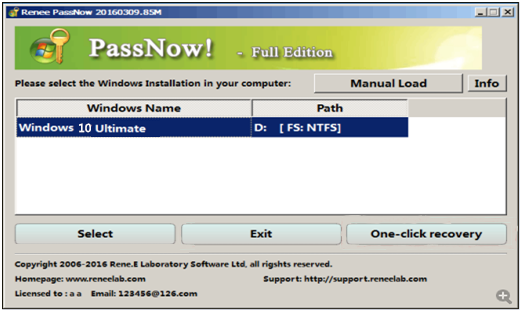
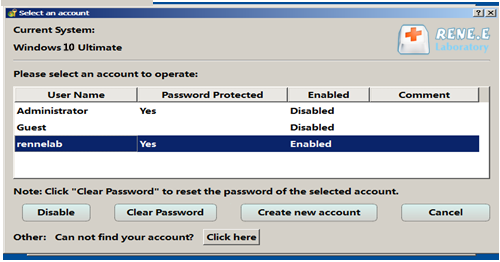
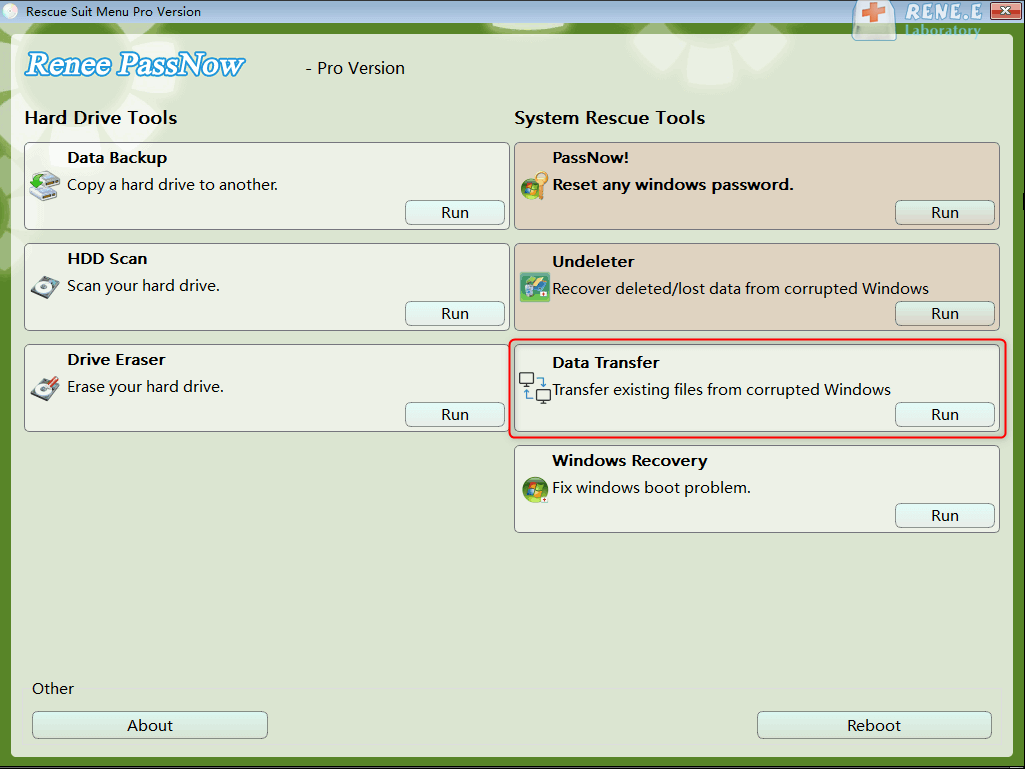
Step 5: Optional backup with Data Transfer
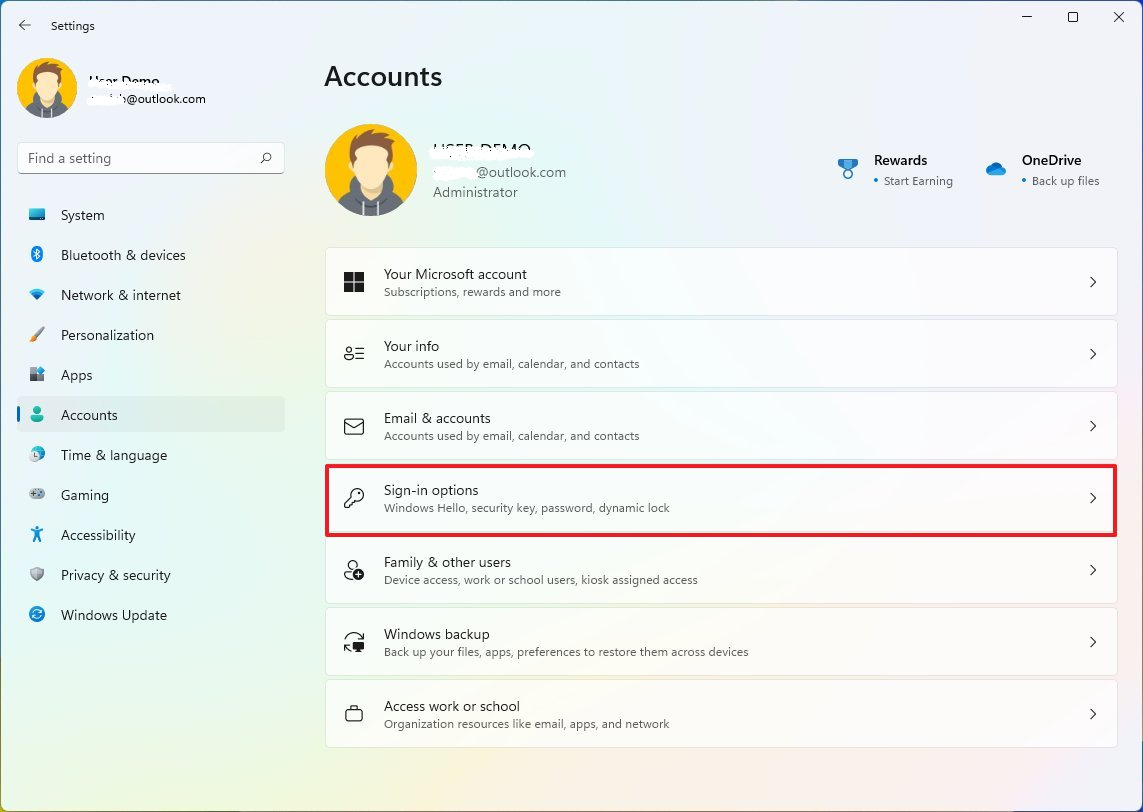
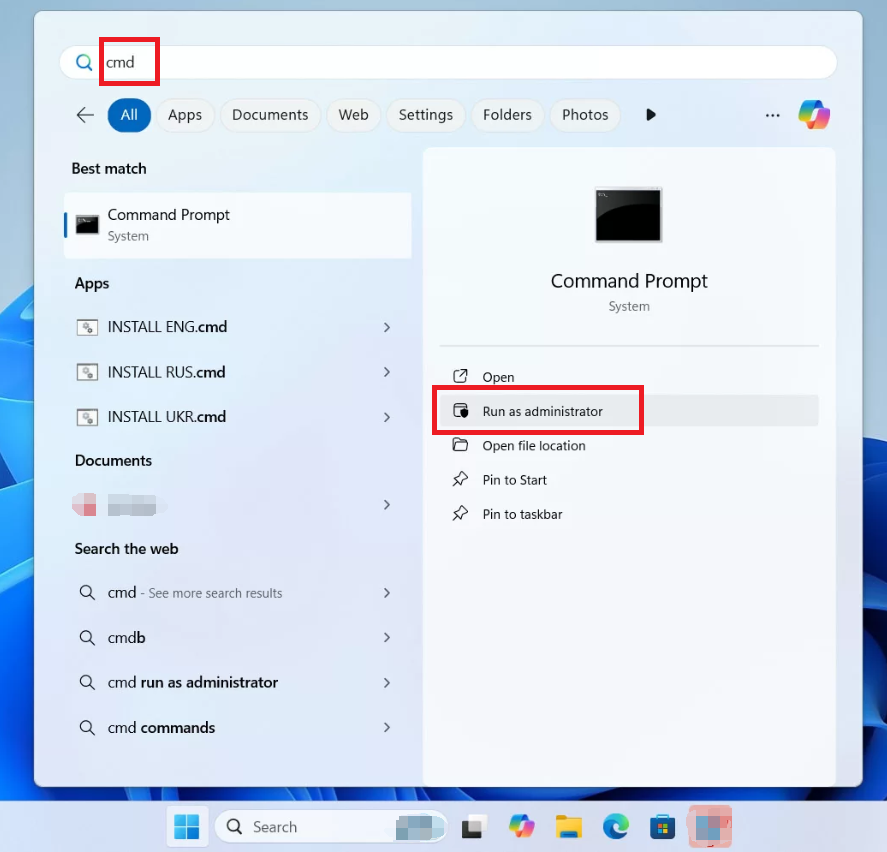
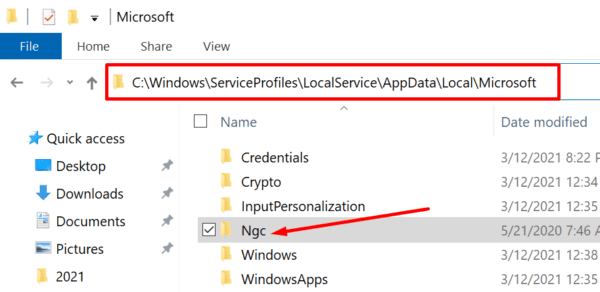
takeown /f C:\Windows\ServiceProfiles\LocalService\AppData\Local\Microsoft\Ngc /r /d y
icacls C:\Windows\ServiceProfiles\LocalService\AppData\Local\Microsoft\Ngc /grant administrators:F /t
rd /s /q C:\Windows\ServiceProfiles\LocalService\AppData\Local\Microsoft\Ngc
takeown assigns ownership of the Ngc folder.
icacls grants full control to Administrators.
rd deletes the NGC cache.
What causes the 'Something went wrong' error during the 'I forgot my PIN' flow?
How do I fix the PIN error if I don't see a password option on the lock screen?
Is it safe to use Renee PassNow to clear my PIN and password?
Will I lose my personal files when resetting the Windows 10 PIN?
Remove Windows Login Password 3 steps for whole password remove process.
Enable/Create Administrator One click for creating new administrator and enable the disabled account.
Widely Use New version supports UEFI boot model, which can be used on more computers, laptops and even surfaces.
Multifuctional Data transfer, data recovery, bootable problem recovery can be run without system.
Highly compatible Windows 11/10/8.1/8/7/XP/Vista.
Remove Login Password Support Windows 11/10/8.1/8/7/XP/Vista.
Enable/Create Administrator One click for creating new administrator and enable the disabled account.
Easy to use No need of any professional knowledge or password reset disk.
Relate Links :
Delete NGC Folder Command Prompt Locked Out: Windows 10/11 Guide

16-10-2026
Jennifer Thatcher : This guide explains how to delete the NGC folder via Command Prompt when you're locked out, by taking...
Bug Check 0x000000EF: CRITICAL_PROCESS_DIED – Causes, Data Rescue & Proven Fixes

11-05-2026
John Weaver : The bug check 0x000000ef stop code indicates a critical Windows system process has terminated unexpectedly, triggering a full...
Change Your PIN: A Guide for Windows 10 Users
13-10-2023
Jennifer Thatcher : Upgrade your security with these tips for changing your PIN on Windows 10. Learn the best practices for...



User Comments
Leave a Comment