data securitydata security

    Rene.E Laboratory
    Rene.E Laboratory
    Rene.E Laboratory|Professional at data recovery, system backup, restore & migration, data encryption, etc.
    • Products
      • Data ManageData Manage
        • Renee PassNow

          Download

        • Data Backup & Migrate

          100% Free

        • File Protector

          Download

        • USB Block

          Download

      • Windows ToolsWindows Tools
        • PDF Aide

          100% Free

        • Video Editor

          100% Free

        • Screen Recorder

          100% Free

        • Video Editor Pro

          Download

        • Audio Recorder

          Download

        • Audio Tools

          Download

      • Data Security & Password ResetData Security & Password Reset
        • Secure Silo

          Download

        • Renee iPassFix

          Download

      • Data Security & Password ResetData Security & Password Reset
        • Data Recovery SoftwareRecover files like photos, videos, contacts from Windows, Mac, iPhone and Android

        • For Windows & Mac For Android For iPhone

    • Download
    • Store
    • Tutorials
    • Contact Us
    • Company
    MENU CLOSE back  

    Easy Steps to Fix Corrupted User Profile in Windows

    You are here:
    1. Home
    2. Support
    3. Tips System Rescue
    4. Easy Steps to Fix Corrupted User Profile in Windows
    author avatar
    6 June 2023  Amanda J. Brook  Senior Product Manager
    Last update by William Davis at 6 April 2024

    Summary
    Discover the steps to effectively fix a corrupted Windows user profile and avert login difficulties. User profiles hold vital personalization details like desktop wallpapers and software preferences, making their repair crucial for a seamless computing experience.


    Table of contents

    table iconI. What is the user configuration file, and what are the reasons for the damage of the file?
    table iconII. Before repairing the fault, use Renee PassNow for data backup
    • 1. What is Renee PassNow?
    • 2. How to use Renee PassNow for data backup?
    table iconIII. How to repair damaged user profile in Windows?
    • 1. Create a new computer login account
    • 2. Repair corrupted user profiles using the Windows Registry
    • 3. Use SFC and DISM to repair Windows configuration files
    corrupted user profile

    I. What is the user configuration file, and what are the reasons for the damage of the file?

    A user profile consists of settings and files that define the system’s environment when a user logs in, including user-specific configurations such as registry and system-wide application settings. When a user initially logs on to a Windows computer, a unique configuration file is created.
    user profile cannot be loaded
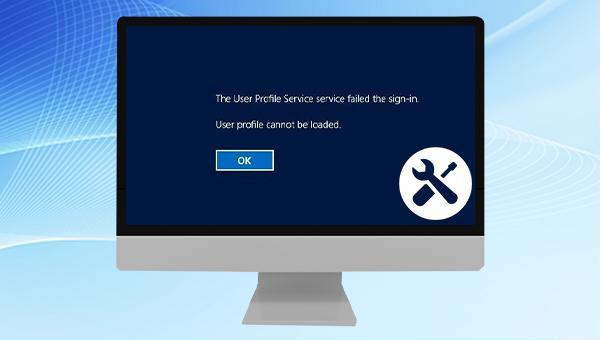
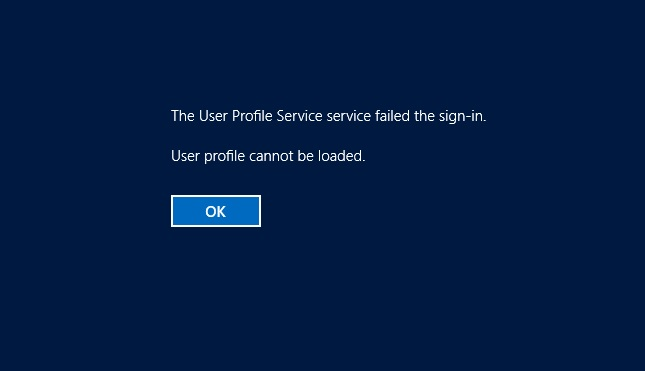
    If you encounter an error stating “The User Profile Service failed to log in. The user profile could not be loaded,” or if the user profile frequently locks up, vanishes, or becomes unreachable, it typically indicates an issue with your Windows user profile. This problem often arises from malware infections or corrupted system files.
    Having grasped the key concepts of user configuration files, let’s proceed to fix damaged Windows user configuration files. To safeguard important device data during error repair, it’s advisable to initially back up the data using a specialized system rescue tool, Renee PassNow. This tool facilitates data backup, transfer, and restoration when Windows access is compromised, and also provides features for creating new administrator accounts and resetting account passwords. Click here to learn more: Renee PassNow.

    II. Before repairing the fault, use Renee PassNow for data backup

    1. What is Renee PassNow?

    Renee PassNow is a versatile system rescue software designed for Windows users. It offers a wide range of functions including resetting Windows account passwords, creating new administrator accounts, data recovery from disks or memory cards, file transfer, and disk file erasure or scanning. The software also specializes in fixing Windows system issues such as MBR boot record repairs, DBR error parameters, the 0xc00000e error, startup failures, and black or blue screen errors. Compatible with Windows 10/8.1/8/7/XP/Vista, it caters to the system rescue requirements of diverse users.
    Hot Topic Renee PassNow – 3 Steps to transfer data from the crashed system

    Easy to use 3 steps to transfer the files.

    Transfer the files Transfer the important files of the computer without system.

    Preview the files Preview the files while transferring the data.

    Multifuctional Data recovery, Windows password reset, bootable problem recovery can be run without system.

    Highly compatible Windows 10/8.1/8/7/XP/Vista. Also supports UEFI boot mode.

    Easy to use 3 steps to transfer the files.

    Transfer the files Transfer the important files of the computer without system.

    Preview the files Preview the files while transferring the data.

    Free TrialFree TrialNow 2000 people have downloaded!

    2. How to use Renee PassNow for data backup?

    Before repairing the damaged user profile in Windows, you can create a startup disk through Renee PassNow, then start the computer through the startup disk, and then use this software to back up the data. Specific steps are as follows:
    Step 1: Install Renee PassNow on a functioning computer and attach a USB drive. Launch the software, select “Create a rescue USB disk” in “Step 1: Choose the creation method.” Ensure you back up the USB’s contents beforehand, as this process will erase all data on the drive.
    Step 2: Next, select (x64) or (x86) according to the system type, click the (Download Now) button to download the ISO file, click the (Create Rescue USB) button after the file is downloaded, and click the (Eject USB) button.
    use renee passnow to create usb to reset passnword
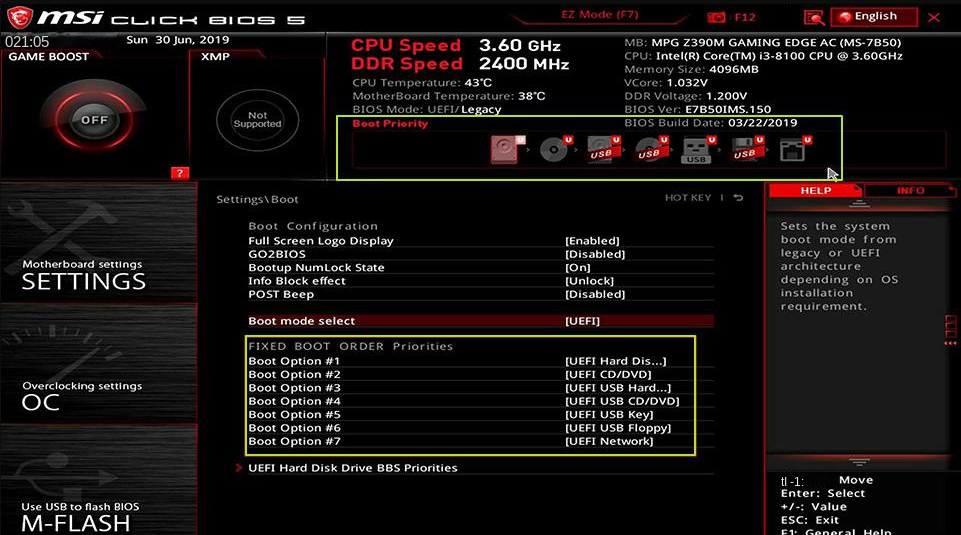
    Step 3: Insert the boot device into the target computer and power it on. Promptly observe for the BIOS shortcut key prompt on the screen—it’s displayed fleetingly, often just for 1-2 seconds. Press the indicated key repeatedly to enter the BIOS settings. Within the settings, proceed to Boot Priority and assign the USB drive as the primary boot device. Save your changes and restart the computer.
    select boot order
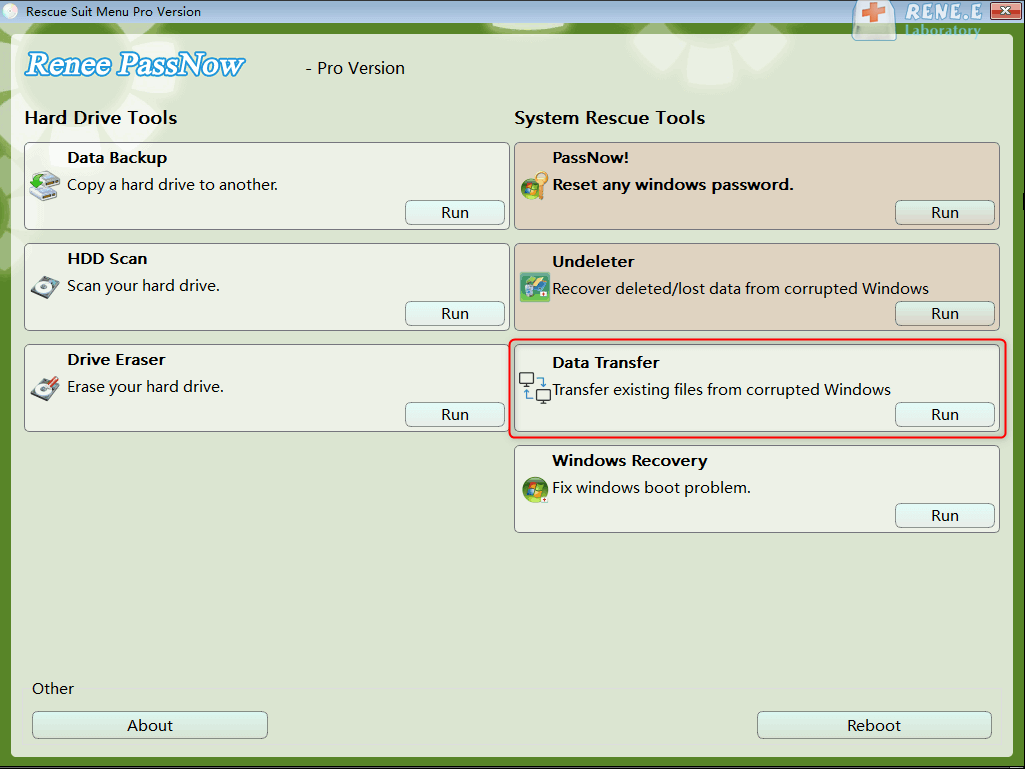
    Step 4: If you only need to transfer some important data in the hard disk, you can choose (Data Transfer).
    data transfer
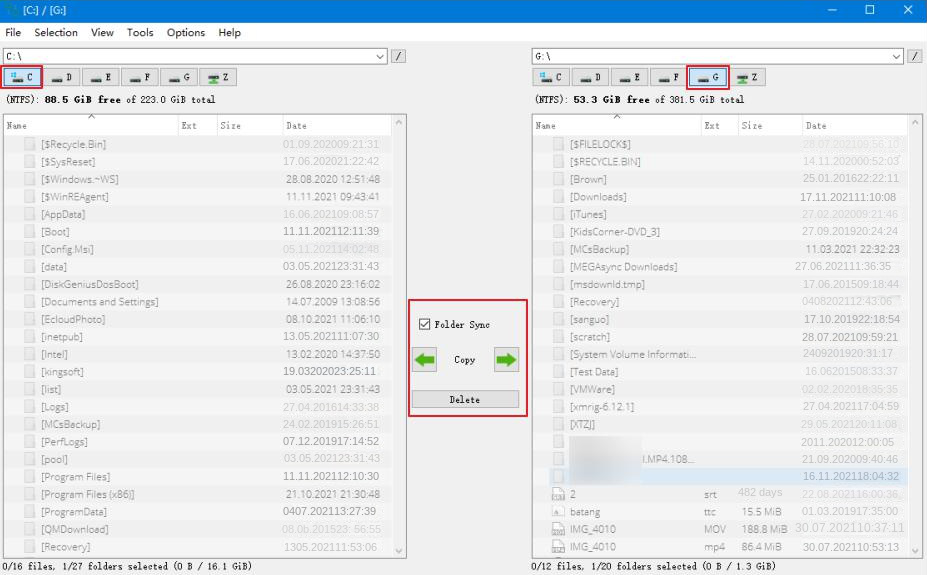
    Step 5: Click on the desired disk drive letter (C/D/E/F, etc.) to locate files for transfer, preferably to an external disk for safety. To transfer data, for instance from C to G drive, select C drive on the top left, G drive on the top right, choose the files in C, and then click the central Copy button. To delete a file, select it and press the Delete button in the middle, but remember that this action is irreversible, so proceed with caution.
    Schematic diagram of steps to transfer data
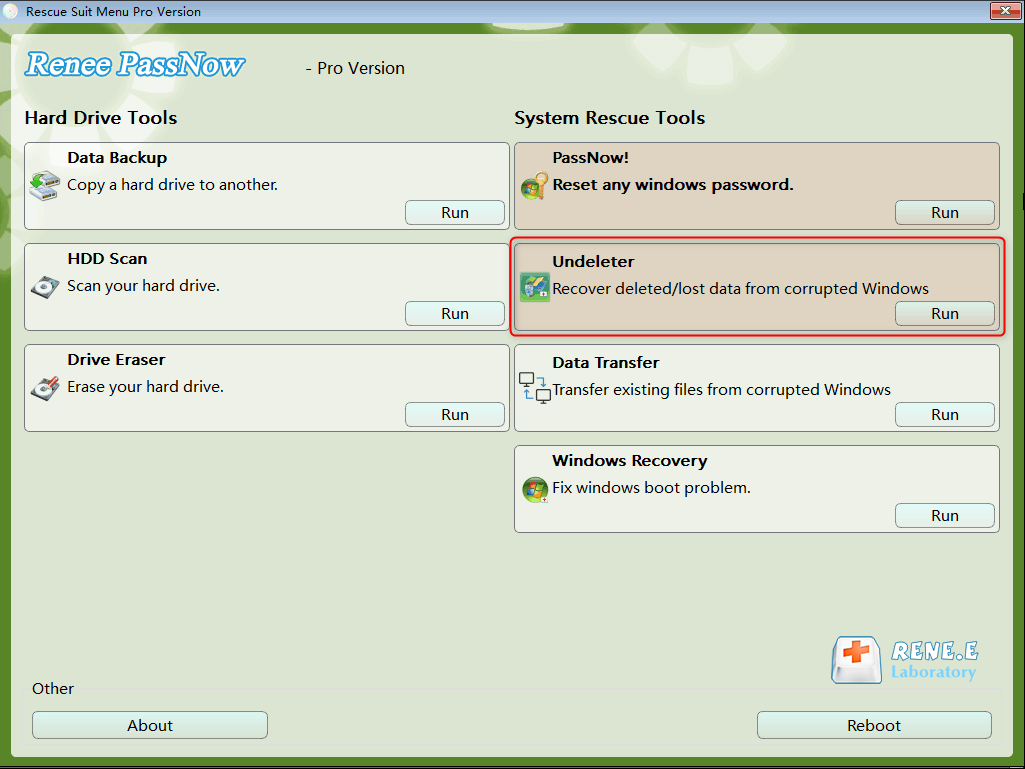
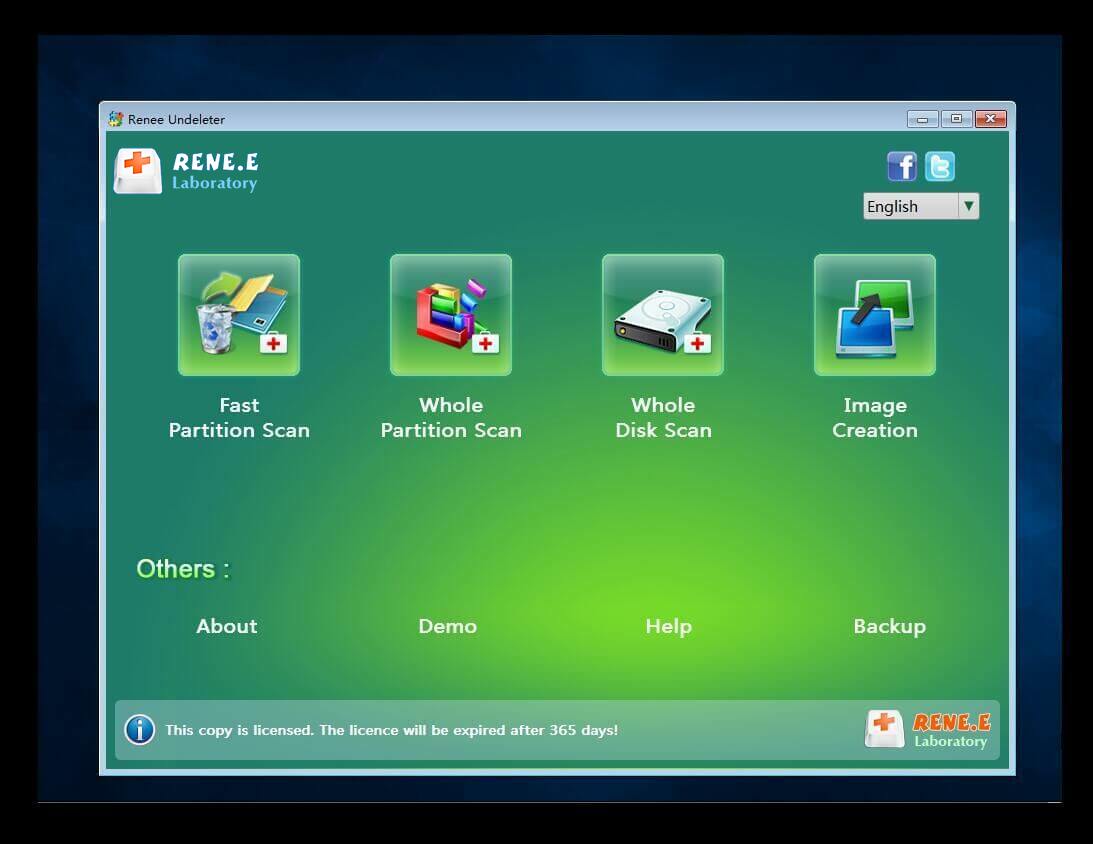
    Tip: If you find any files are lost during the process of backing up or transferring data, please select the (Undeleter) option on the main function interface to perform data recovery operations.
    data recovery function in Renee Passnow
    scan the whole partition with renee passnow recovery function to reinstall windows 7

    III. How to repair damaged user profile in Windows?

    1. Create a new computer login account

    If the user configuration file is damaged, preventing normal login to the original computer account, create a new administrator user account for system access. To do this, use the "Pass Now" feature of Renee PassNow. The procedure, using Windows 10 as an example, is as follows:
    To begin, create a rescue USB disk using Renee PassNow by following the detailed instructions provided in the second section, under Steps 1-2. Once you have successfully set up your rescue USB disk, proceed with the subsequent steps to complete the process.
    Step 1: Connect the bootable device to the Windows 10 machine requiring a new admin account. Power on the computer and look for the BIOS entry shortcut key displayed briefly on-screen (if missed, consult the computer’s manual for the key). Press this key repeatedly to access the BIOS settings. Within the BIOS (Boot) menu, prioritize the rescue USB drive as the primary boot device. Save changes and exit. Refer to: Entering BIOS and modifying boot sequence.
    Different BIOS interfaces are different. Take the following figure as an example. If you create a rescue U disk, select (Removable Devices) as the first boot item. If you create a rescue CD, select (CD-ROM Drive) as the first startup items.
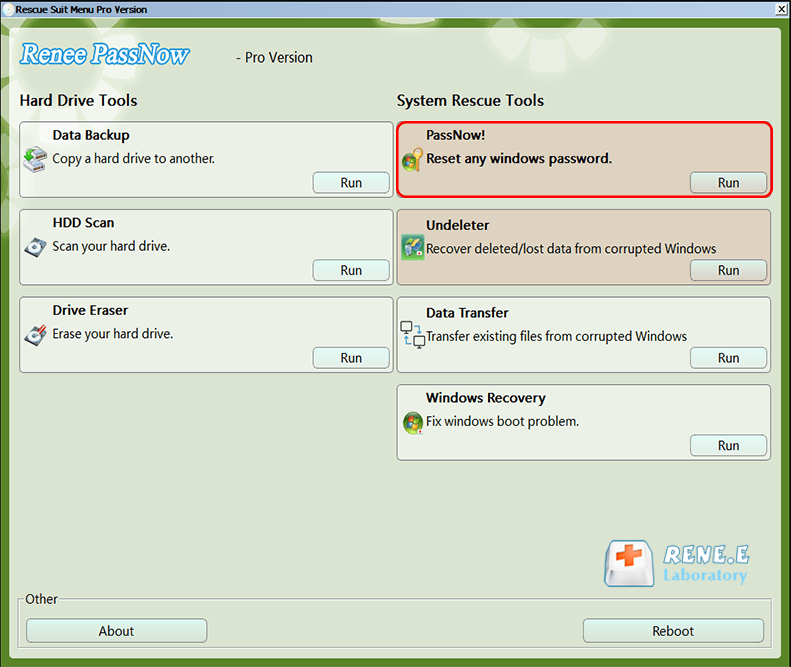
    Step 2: When the computer successfully boots from the rescue U disk and enters the function menu of Renee PassNow, please select the (PassNow!) option.
    click on passnow to reset login password
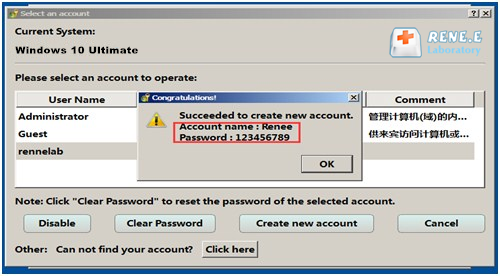
    Step 3: Create a new administrator account by selecting the “Create New User” button. Enter the account name "Renee" and set the password to "123456789". Click “OK” to finalize the creation. Eject the rescue USB flash drive and restart your PC. You can now log into Windows 10 using the new credentials.
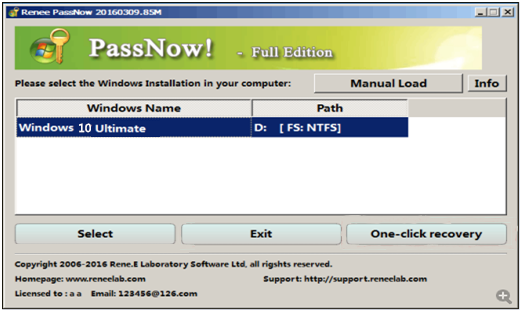
    Choose target account
    successfully create new account
    Tips

    To create a new administrator account, follow these steps:

    • Boot into Safe Mode.
    • Type CMD in the taskbar search, open Command Prompt, enter net user administrator /active:yes, and press Enter to enable the hidden admin account.
    • Restart your PC and log in without a password.
    • Press Windows+I to open Settings, navigate to Accounts > Other Users, and select “Add someone else to this PC.”
    • In the “Local Users and Groups” window, right-click on Users, choose “New User,” set the username and password, and click “Create.”
    • Locate the new account under Accounts > Other Users, click on it, choose “Change account type,” set it to Administrator, and confirm with “OK.”

    2. Repair corrupted user profiles using the Windows Registry

    We can also use the original or newly created administrator account to start the Windows system, and repair the damaged user configuration file through the registry. The specific steps are as follows:
    Step 1: Run the computer, click Windows Key + R, and enter (regedit.exe) to start the Registry Editor program.
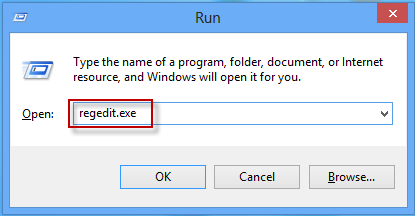
    run regedit exe and open registry editor
    Step 2: Next, copy and paste the following inside the search box to get to where your user profile is located.
    HKEY_LOCAL_MACHINE\SOFTWARE\Microsoft\Windows NT\CurrentVersion\ProfileList
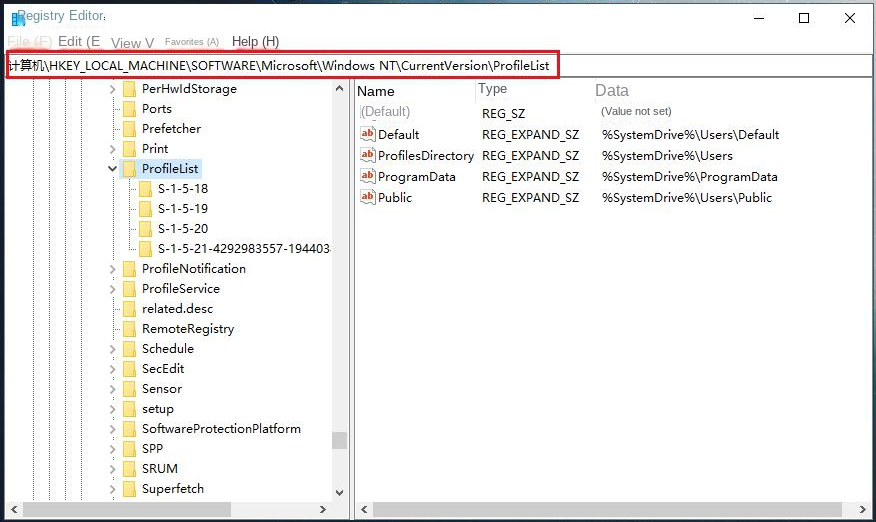
    Find where the user profile is located
    Step 3: Click on each S-1-5 folder and check the ProfileImagePath entry to identify the associated user account. If ProfileImagePath shows C:\Users\Administrator, this pertains to the Administrator account.
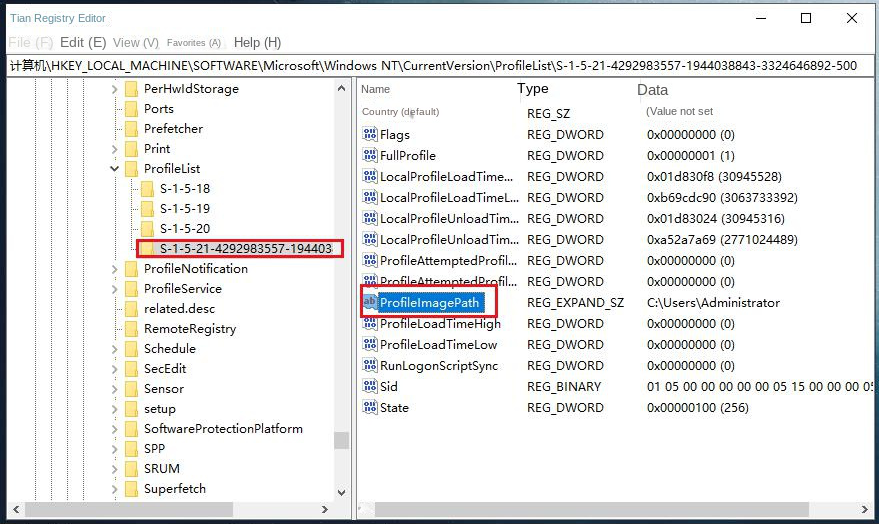
    Double-click the ProfileImagePath file
    Step 4: Locate the S-1-5 folder associated with the inaccessible account. Typically, you will find two S-1-5 folders relevant to the account in question: one with a .bak extension and one without. For instance, they may be labeled S-1-5-21-2988258472-2276251619-2181364210-1000 and S-1-5-21-2988258472-2276251619-2181364210-1000.bak.
    Step 5: Right-click the S-1-5-21-2988258472-2276251619-2181364210-1000 folder and rename it to S-1-5-21-2988258472-2276251619-2181364210-1000.bk (you may delete this later if desired). Then, select the folder with the .bak extension, double-click on the RefCount value in the right pane, and change the value data to 0 before clicking OK. If RefCount doesn’t exist, create it by right-clicking in an empty space, choosing New > DWORD (32-bit) Value, naming it RefCount, and setting its value to 0.
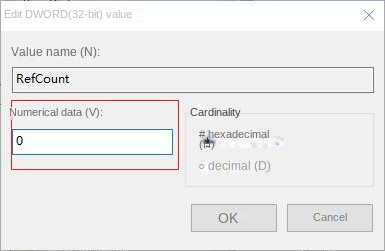
    Set RefCount value data to 0
    Step 6: In the right window, change the value of State to 0. Then, right-click the folder named S-1-5-21-2988258472-2276251619-2181364210-1000.bak, choose Rename, and delete the .bak suffix. Close the Registry Editor and reboot your computer to check if the issue has been resolved.
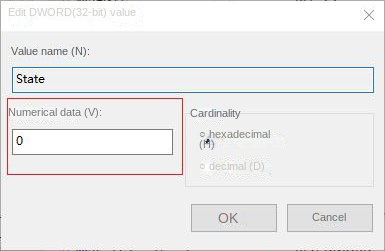
    Set the State value to 0

    3. Use SFC and DISM to repair Windows configuration files

    The SFC command scans all protected system files, checks the integrity of the system files, and replaces unhealthy, damaged, or missing versions of Microsoft programs with correct versions. Therefore, you can try to repair the damaged user profile with the help of SFC, the specific steps are as follows:
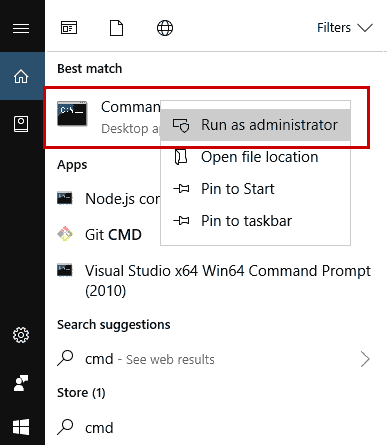
    Step 1: Search (cmd) directly in the search box in the lower left corner, and select (run as administrator) to open the command prompt tool.
    run as administrator
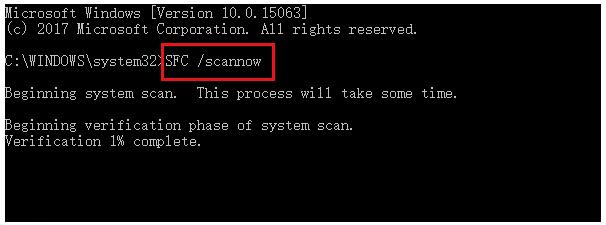
    Step 2: In the opened command prompt window, enter the command (SFC /scannow) and press the (Enter) key. Next, System File Checker will perform a system scan and fix problematic system files.
    Enter the SFC command
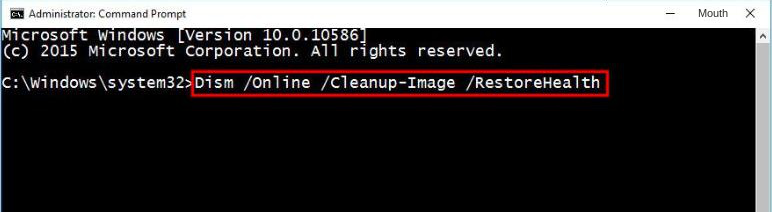
    Step 3: If the scan with the SFC command fails, you can use the same method to start the command prompt window as an administrator, continue to enter the following command (DISM /Online /Cleanup-Image /RestoreHealth) and press the (Enter) key. After the command is executed, restart the computer and check to see if the problem is resolved.
    Execute DISM command

    Relate Links :

    How to fix when the PC stuck on preparing automatic repair?

    01-08-2023

    Jennifer Thatcher : Learn how to fix the problem that the computer stuck on preparing automatic repair. This article provides insight...

    How to Reset BIOS and Unlock Your Device?

    27-12-2023

    John Weaver : Reset the BIOS to regain access or restore previous settings. Learn how to reset BIOS in this article....

    Master Bootrec.exe Tool: Your Guide to Easy Windows Recovery

    01-08-2023

    Amanda J. Brook : Learn what Bootrec.exe tool is and how to use it to solve common computer problems like sector damage...

    Fix GPT Partition Style Error When We Install Windows on Selected Disk

    15-01-2024

    Ashley S. Miller : Learn how to fix the error "Windows cannot be installed to this disk. The selected disk is of...


    Related Product
    Renee PassNow

    Renee PassNow

    Reset/remove forgotten Windows login Passnow with simple steps

    Get Free Version

    Related Solutions
    • Forgot Windows 11 Password? Here’s How to Reset It Easily in 2025
    • Reset Win 10 Password without Disk
    • Bypass Win 7 Password without Disk
    • Download Password Reset Disk
    • Reset Admin Password
    • Create Windows 10 Password Reset Disk For Another Computer
    • Remove Windows 8 Password

    More Solutions

    Home | News | Tutorial | Contact Us | Terms of Use | EULA | Privacy Policy | About Us

    Find us on:

    footer downloadfooter buy
    Become an editor

    Home | News | Tutorial | Contact Us | Terms of Use | EULA | Privacy Policy | About Us

    Find us on:

    footer downloadfooter buy
    Rene.E Laboratory
    Copyright © 2019 Rene.E Laboratory . All Rights Reserved.
    • English
      • Deutsch
      • Español
      • Français
      • Italiano
      • Português
      • 日本語
      • 繁體中文
      • العربية
      • 한국어
    English