author avatar
    Senior Program Developer
Last update by Emma Johnson at 27 September 2025

Summary
0xc0000098 is a common Windows boot error caused by BCD file corruption, disk cloning mistakes, or hardware issues. This guide provides reliable solutions to resolve 0xc0000098, helping users to get their systems running again.



Your Windows 10/11 PC won’t boot and flashes 0xc0000098? This 2025 guide covers data recovery first, then easy fixes—no tech degree needed.

Common Causes of the 0xc0000098 Boot Error

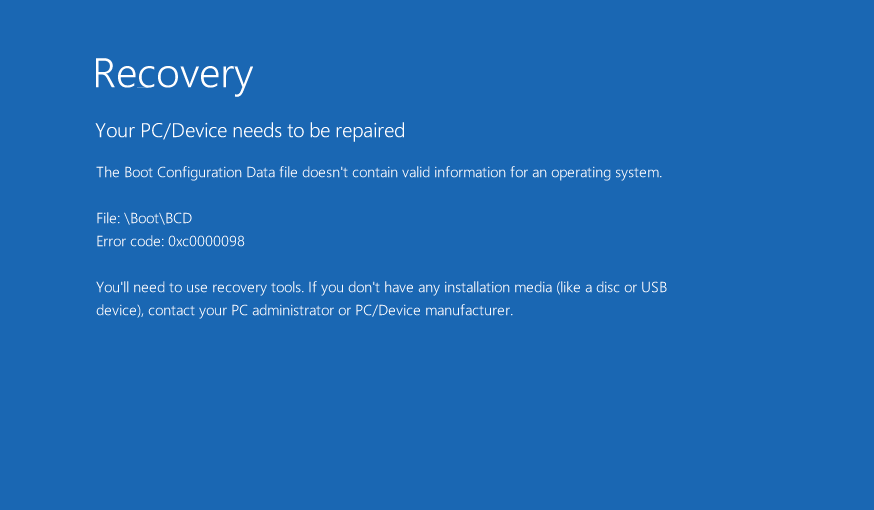
0xc0000098
The 0xc0000098 error typically appears when Windows fails to load properly due to problems with the Boot Configuration Data (BCD) file.

This file is located using a combination of the disk’s unique signature and a specific path—usually \Boot\BCD or \EFI\Microsoft\Boot\BCD in Windows Boot process.

If the disk signature changes—such as during a cloning process or hardware swap—but the BCD isn’t updated to reflect that change, Windows won’t be able to locate the file, triggering the 0xc0000098 error. Here are the most common reasons this issue occurs:

🔧 Reason 1: Corrupted or Missing BCD Files

Power outages, disk write failures, boot sector viruses, or manual misconfigurations can damage or delete the BCD file. Without it, Windows doesn’t know how to boot, resulting in the 0xc0000098 error.
The May 2025 Windows security update KB5058405 caused BSOD (blue screen) and BCD (Boot Configuration Data) corruption, affecting a large number of Windows 11 users.

🧬 Reason 2: Disk Cloning Mismatches

Poorly executed disk cloning can lead to mismatches between the original and cloned drive. Specifically, if the partition GUIDs (Globally Unique Identifiers) or disk signatures aren’t properly replicated, the BCD will reference boot data that no longer exists or points to the wrong location. This misalignment confuses the system during startup and causes the 0xc0000098 error.

⚙️ Reason 3: Hardware or File System Failures

Bad sectors, loose SATA cables, or file system corruption from improper shutdowns can prevent access to the BCD. In some cases, failed Windows updates or incompatible drivers may also interfere with the boot process and trigger this error.
Pro Tip: To avoid 0xc0000098 during backups or cloning, use reliable software like Renee Becca. It offers comprehensive tools for system backups, disk cloning, partition management, and file protection—with multiple safety schemes to ensure smooth recovery.

Backup data before fixing 0xc0000098

If your PC encounters the 0xc0000098 error and fails to boot, your top priority is likely recovering your files before attempting any system repairs. That’s where bootable recovery tools like GParted and Renee PassNow come into play. In this chapter, we will take Renee PassNow as an example to backup your important data first. Renee PassNow is a versatile Windows recovery solution designed to help you regain access to your system and safeguard your data.
Renee Passnow – Professional Windows Password Remover

Remove Windows Login Password 3 steps for whole password remove process.

Recover the files Recover the deleted files without Windows system.

Transfer the data Transfer the important files of the computer with system.

Multifuctional Data transfer, data recovery, bootable problem recovery can be run without system.

Highly compatible Windows 11/10/8.1/8/7/XP/Vista. UEFI boot.

Remove Login Password Support Windows 11/10/8.1/8/7/XP/Vista. UEFI boot.

Recover the files Recover the deleted files without Windows system.

Transfer the data Transfer the important files of the computer with system.

Free TrialFree TrialNow 2000 people have downloaded!
With just a few simple steps, you can access your files without risking data loss. Even if Windows fails to start, Renee PassNow’s built-in Data Transfer feature allows you to easily move files between drives or partitions. Additionally, if you’ve accidentally deleted or lost files, the integrated Renee Undeleter tool can help you recover them quickly and efficiently.

Here’s how to get started with Renee PassNow:

Step 1: Install Renee PassNow on a working computer. Hook up a USB drive to it, fire up Renee PassNow, and pick “Create a Live USB” under “Step 1: Choose the creation method”. Heads up—back up any key files on that USB first, since this will wipe it clean.
Step 2: Next, select (x64) or (x86) based on your system type, hit the Download Now button to grab the ISO file, then click Create Live USB once it’s done downloading, and finally Eject USB.
use renee passnow to create usb to reset passnword
Step 3: Plug the boot device into the affected computer, turn it on, and right away mash the BIOS key that flashes on screen (it might only show for a second or two).
Insert the boot device
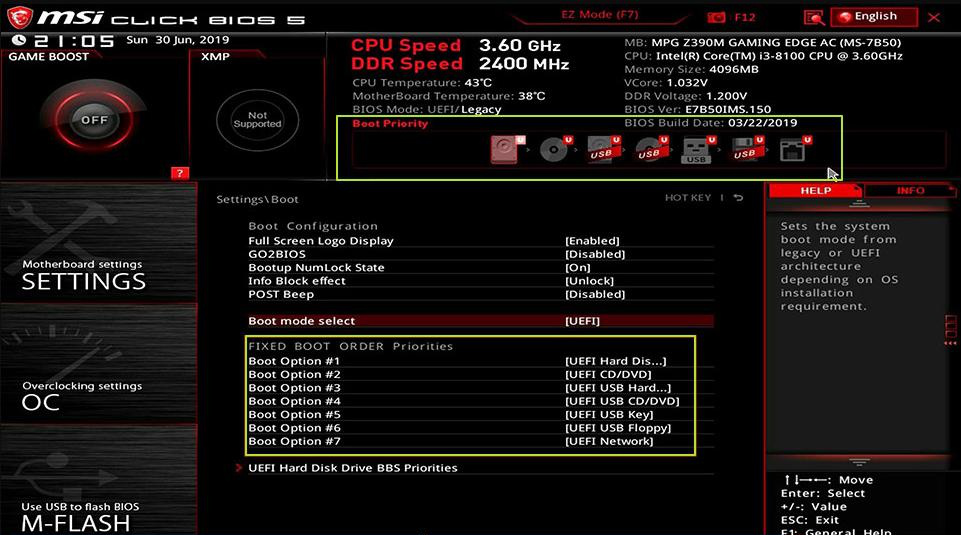
Keep tapping that key to jump into BIOS settings. Head to the Boot Priority menu, make the USB your top boot choice, save those changes, and restart.
select boot order
Common Server:
Server TypeEnter boot menu method

DELL

Press the F12 key repeatedly before the Dell logo appears on the screen.

HP

Press the F9 key multiple times when the HP logo is displayed.

Common Computers:
BIOS NameEnter boot menu method

ASRock

DEL or F2

ASUS

DEL or F2 for PCs/ DEL or F2 for Motherboards

Acer

DEL or F2

Dell

F12 or F2

ECS

DEL

Gigabyte / Aorus

DEL or F2

Lenovo (Consumer Laptops)

F2 or Fn + F2

Lenovo (Desktops)

F1

Lenovo (ThinkPads)

Enter then F1

MSI

DEL

Microsoft Surface Tablets

Press and hold Power and Volume Up buttons

Origin PC

F2

Samsung

F2

Toshiba

F2

Zotac

DEL

HP

Esc/ F9 for Boot Menu/ Esc/ F10/ Storage tab/ Boot Order/ Legacy Boot Sources

INTEL

F10

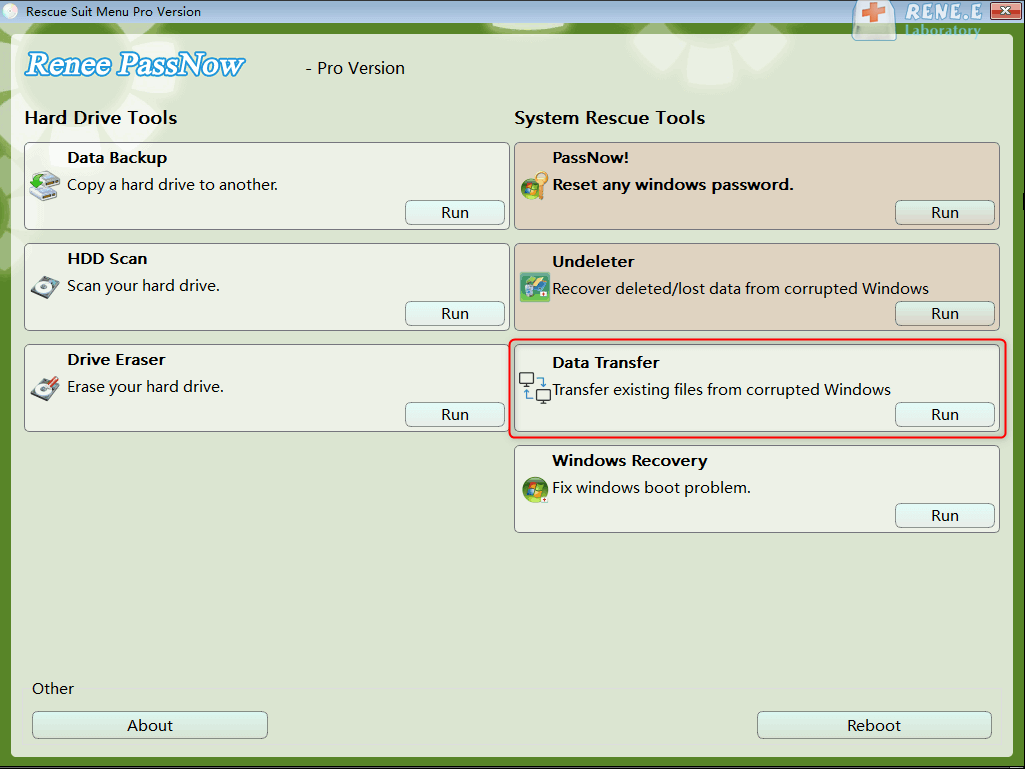
Step 4: Give it a minute—once Renee PassNow loads up, go for “Data Transfer”. If you want to back up the whole hard drive’s data, just pick the Data backup option instead.
data transfer
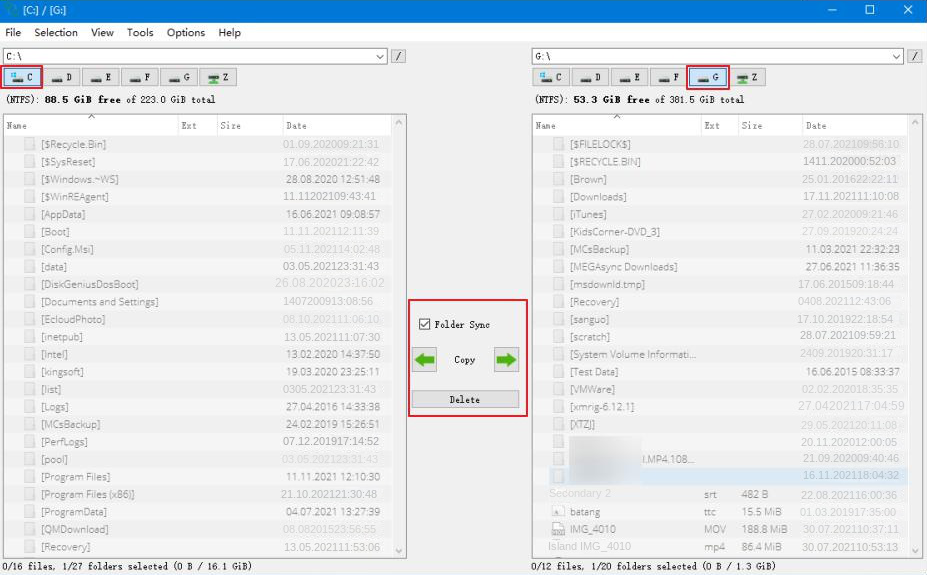
Step 5: Click through each drive letter (C/D/E/F, and so on) to double-check nothing important’s missing. If everything looks good, copy it over to an external drive for safekeeping. To transfer, pick your source drive (like C) on the top left, then the destination (say, G) on the top right. Select the files you want from the source and smack the “Copy” button in the middle to kick it off. Deleting? Select and hit “Delete”, but think twice—this one’s permanent, so be careful.
transfer data interface
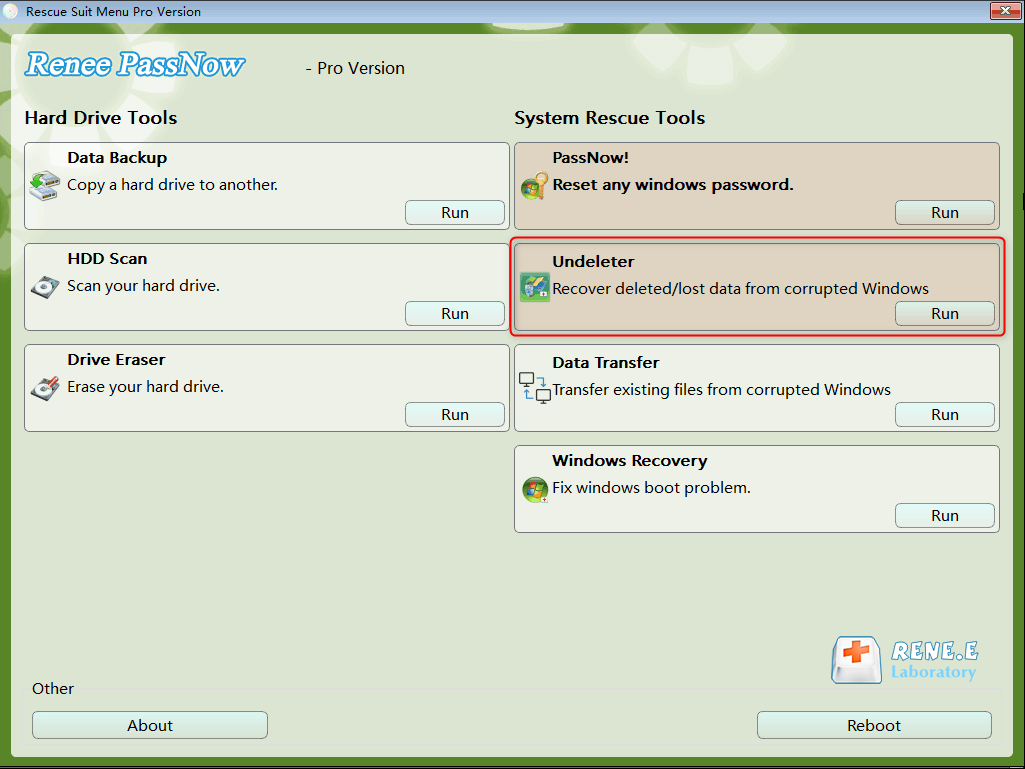
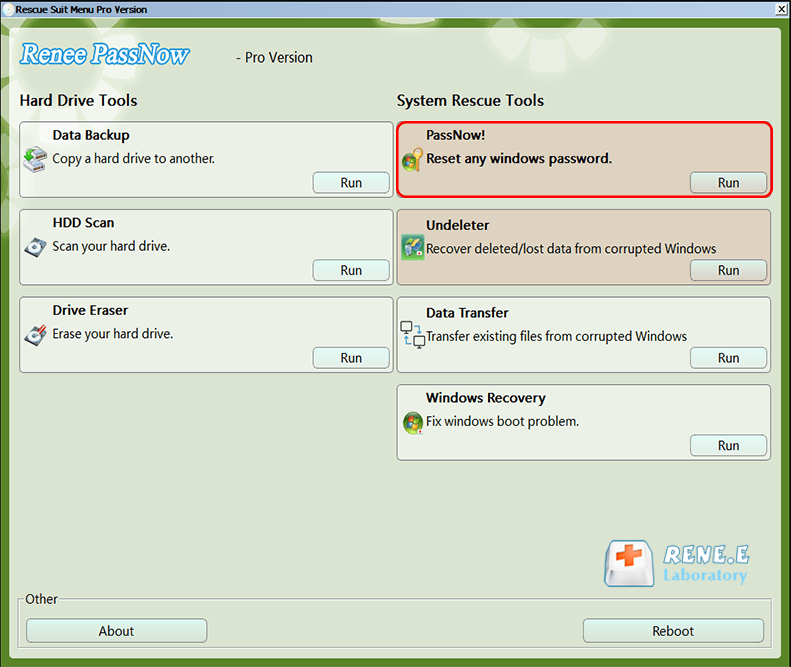
Step 6: Spot any lost data? Head back to the main interface, select “Undeleter”, and tap Run.
data recovery function in Renee PassNow
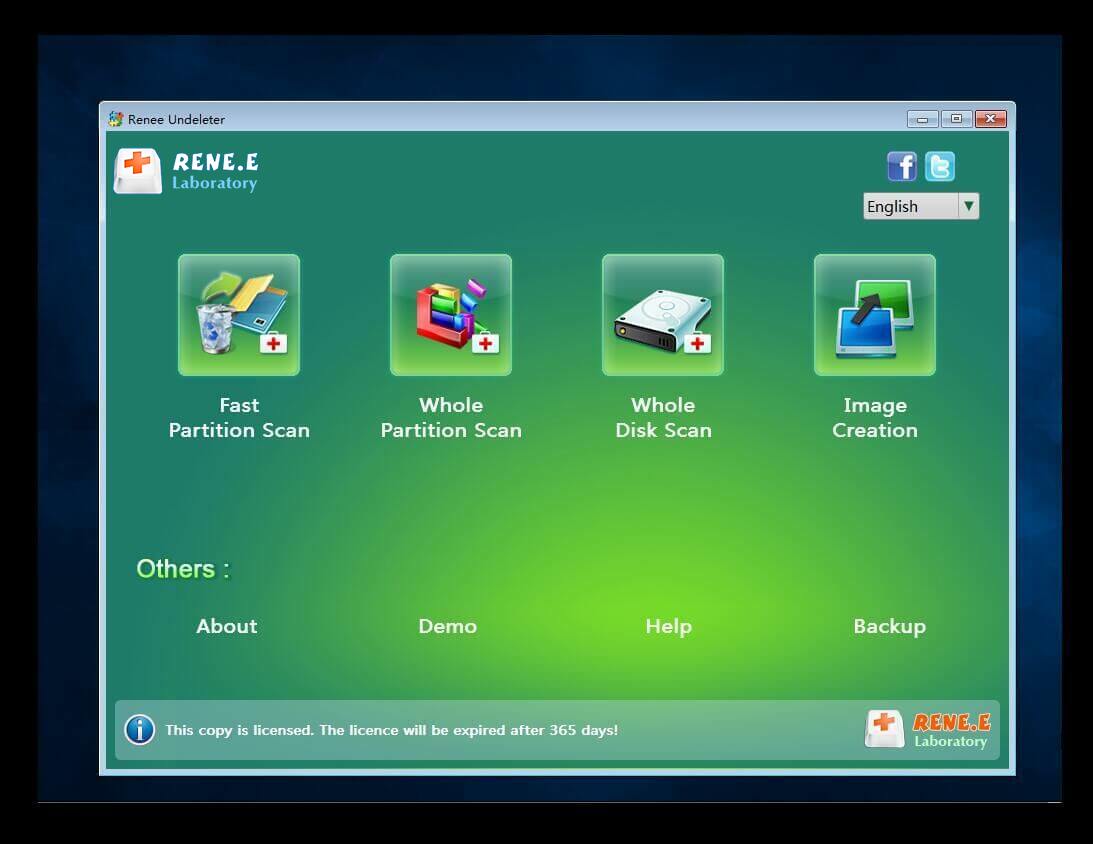
Step 7: Pick a scan option from the menu to check the target hard drive.
scan the whole partition with renee passnow recovery function to reinstall windows 7
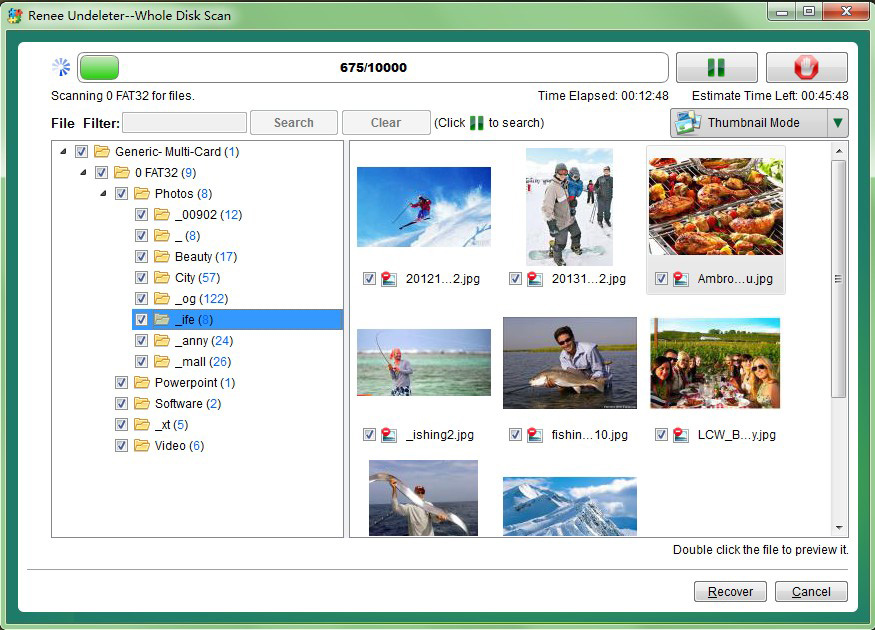
Step 8: Scan done? Choose the files you want back, hit “Recover” to start, and save them to a separate external drive. Once that’s wrapped up, eject the USB safely before moving on to other fixes.
preview before recovery
Once you’ve pulled or restored your key data from the machine, you can breathe easy and go ahead with repairing or reinstalling the system—no more sweating over potential losses from that 0xc0000098 headache.
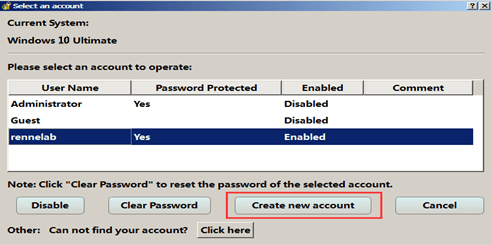
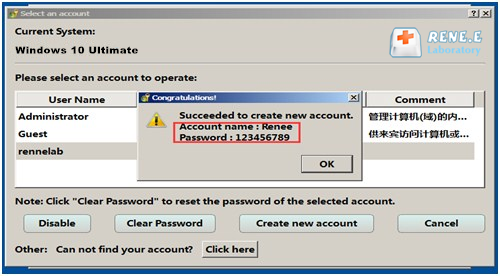
If you can’t log into Windows because your user profile’s vanished or corrupted—maybe tied to the boot mess—and there’s no other admin account handy, hang tight. Renee PassNow’s got a “Create a New User” trick up its sleeve to whip up a fresh local account with full admin rights in no time, letting you dive into Windows for other recovery tries.

Here's the quick rundown:

1. Boot up using the Renee PassNow USB you made earlier.
2. When Renee PassNow loads, pick “Create New User” from the main screen.
Create New User
3. It’ll default to username Renee and password 123456789.
Create New User
4. Log into Windows with this new account you just set up.
Now with that fresh admin access in your pocket, you’re all set to roll with the recovery methods coming up, like System Restore or tweaking the Registry Editor, with no permission roadblocks.

Solutions to Resolve 0xc0000098 Boot Error

The 0xc0000098 error blocks booting, so safe mode isn’t an option. You’ll need Windows installation media (USB/DVD) to access recovery tools. Below, we outline solutions tailored for both Windows 10 and Windows 11, noting any differences.

Solution 1: Run Automatic Repair for 0xc0000098

How it fixes 0xc0000098: The Automatic Repair tool scans your system for corrupted or missing boot files (including the Boot Configuration Data, BCD) and attempts to restore them, allowing Windows to start normally again.
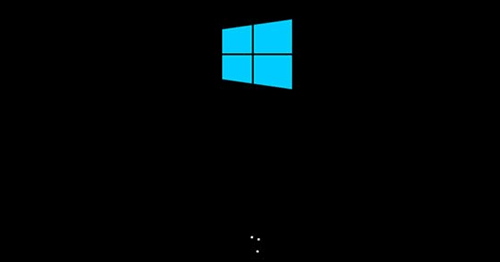
Step 1: Start your PC and force a shutdown by holding the power button when you see spinning dots.
stuck at the loading screen
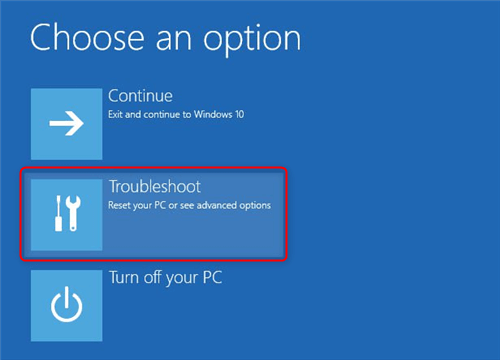
Step 2: Repeat this 2-3 times until you reach the “Choose an option” screen. Select “Troubleshoot.”
select troubleshoot in windows safe mode
Detailed Tip: If BitLocker active, enter recovery key first (printed during setup).
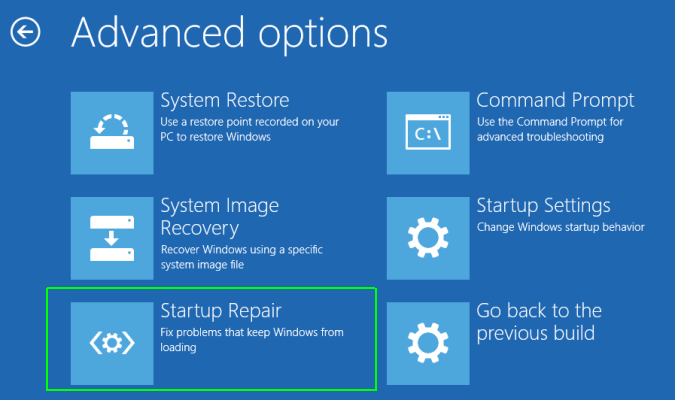
Step 3: Go to “Advanced options” > “Startup Repair” and follow the prompts to run the repair.
startup repair in Windows
Windows 10 vs. Windows 11: The process is identical for both, but Windows 11 might offer better diagnostics for UEFI systems. If the repair fails, try the next solution.
Note: Restart and check if 0xc0000098 is resolved.

Solution 2: Manually Rebuild BCD to Fix 0xc0000098

How it fixes 0xc0000098: This rebuilds the BCD file from scratch, fixing missing or mismatched entries (like disk signatures) that cause the error.

How to Get Windows Installation Media

MethodWindows 10Windows 11Notes

Upgrade Tool

Update Assistant – https://www.microsoft.com/en-us/software-download/windows10

Installation Assistant – https://www.microsoft.com/en-us/software-download/windows11

-

Hardware Requirements

Works on both 32‑bit and 64‑bit systems.

Only supports 64‑bit CPUs, requires TPM 2.0 and Secure Boot.

Check compatibility before downloading Windows 11 media.

Steps

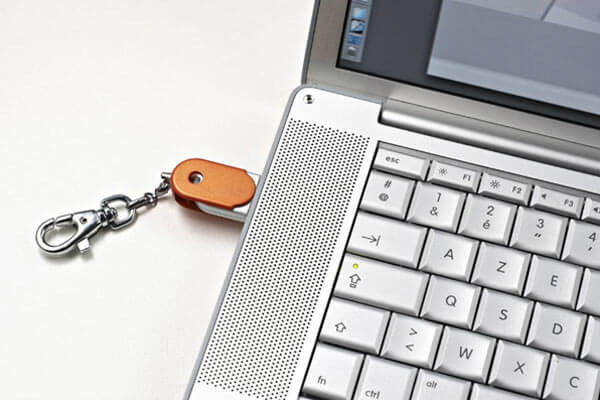
Step 1: Connect your Windows installation media (USB/DVD) to the PC.
connect usb to laptop
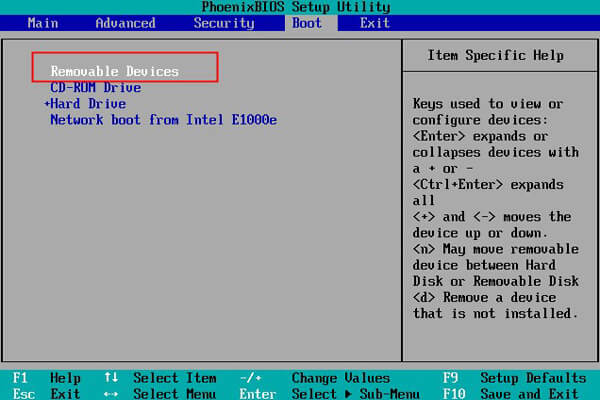
Step 2: Enter BIOS (F2, Del, or Esc) and set your media as the first boot option—choose “Removable Devices” for USB.
change boot order
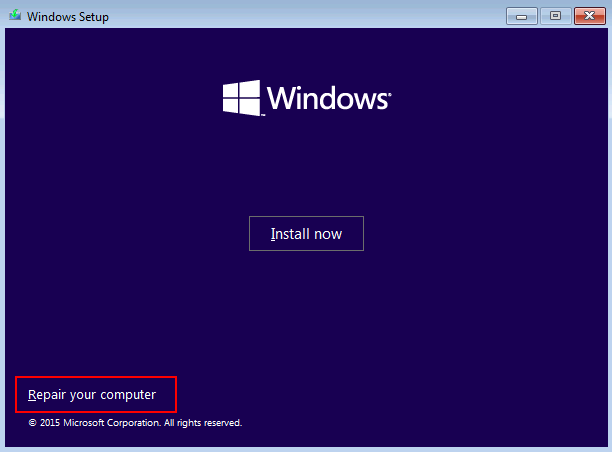
Step 3: Boot from the media and click “Repair your computer.”
Repair your computer
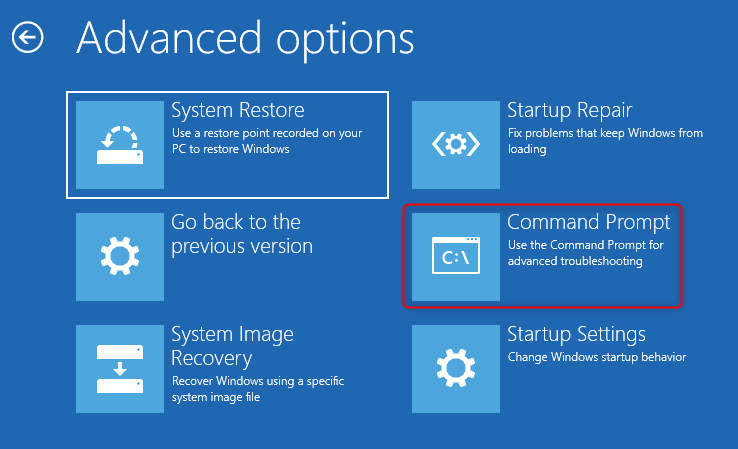
Step 4: Navigate to “Troubleshoot” > “Advanced Options” > “Command Prompt.”
command prompt
Step 5: Use the following commands to fix Windows boot records. If it detects Windows, press “Y” to add it to the boot list:

bootrec /rebuildbcd
bootrec /fixmbr
bootrec /fixboot
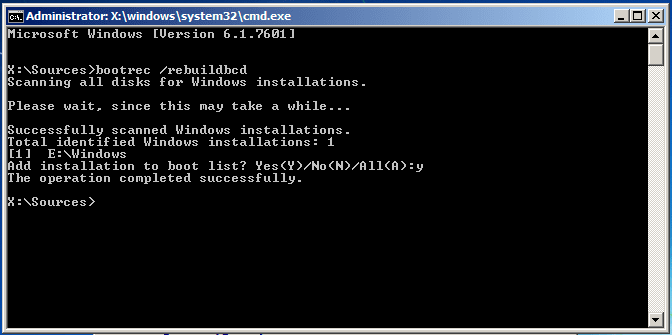
bootrec rebuildbcd
Windows 10 vs. Windows 11: Both use the same commands, but Windows 11 may require additional steps like bootrec /fixboot if access is denied due to stricter UEFI settings. If it doesn’t work, move to the next fix.
Renee Passnow – Professional Windows Password Remover

Remove Windows Login Password 3 steps for whole password remove process.

Recover the files Recover the deleted files without Windows system.

Transfer the data Transfer the important files of the computer with system.

Multifuctional Data transfer, data recovery, bootable problem recovery can be run without system.

Highly compatible Windows 11/10/8.1/8/7/XP/Vista. UEFI boot.

Remove Login Password Support Windows 11/10/8.1/8/7/XP/Vista. UEFI boot.

Recover the files Recover the deleted files without Windows system.

Transfer the data Transfer the important files of the computer with system.

Free TrialFree TrialNow 2000 people have downloaded!

Solution 3: Scan Disk with CHKDSK for 0xc0000098 Issues

How it fixes 0xc0000098: CHKDSK repairs file system errors or bad sectors on the drive hosting the BCD, ensuring the boot files are accessible.
Step 1: Plug in your Windows installation media.
connect usb to laptop
Step 2: Set the boot order in BIOS to prioritize the media.
change boot order
Step 3: Boot and select “Repair your computer.”
Repair your computer
Step 4: Go to “Troubleshoot” > “Advanced Options” > “Command Prompt.”
command prompt
Step 5: Type chkdsk C: /f /r (replace C: with your system drive) and hit Enter.
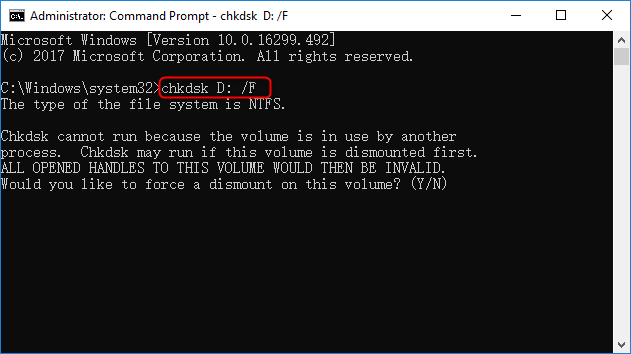
check disk
Windows 10 vs. Windows 11: The command is the same, but Windows 11’s stricter security might require you to run bootrec /fixboot first if the system partition is locked. Check your drive letter via Disk Management on another PC if unsure.

Solution 4: Reset Windows System to Eliminate 0xc0000098

How it fixes 0xc0000098: A reset reinstalls Windows, replacing corrupted system files and BCD, though it may remove apps or data unless you choose to keep files.
Step 1: Force shutdown during the spinning dots a few times to enter recovery.
stuck at the loading screen
Step 2: Select “Troubleshoot” on the options screen.
select troubleshoot in windows safe mode
Step 3: Choose “Reset this PC.”
reset PC
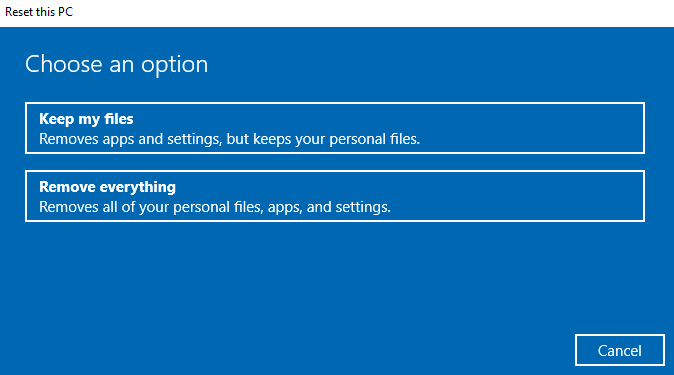
Step 4: Pick “Keep my files” or “Remove everything” (system drive only).
Remove everything in Windows 10
Step 5: After reboot, select your user account.
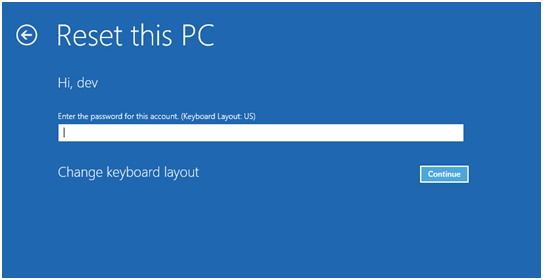
Step 6: Enter your password (or skip if none) and click “Continue.”
enter password for the account
Note: If you have forgotten your account password, you can try using the Windows Password Reset feature in Renee PassNow to reset it.
reset Windows password for the account
Renee Passnow – Professional Windows Password Remover

Remove Windows Login Password 3 steps for whole password remove process.

Enable/Create Administrator One click for creating new administrator and enable the disabled account.

Widely Use New version supports UEFI boot model, which can be used on more computers, laptops and even surfaces.

Multifuctional Data transfer, data recovery, bootable problem recovery can be run without system.

Highly compatible Windows 11/10/8.1/8/7/XP/Vista.

Remove Login Password Support Windows 11/10/8.1/8/7/XP/Vista.

Enable/Create Administrator One click for creating new administrator and enable the disabled account.

Easy to use No need of any professional knowledge or password reset disk.
Free TrialFree TrialNow 2000 people have downloaded!
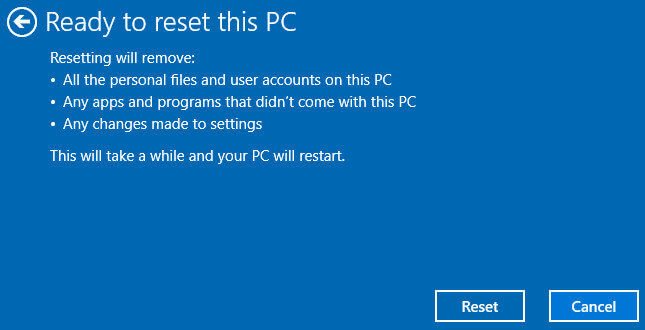
Step 7: Hit “Reset.”
reset this PC
Step 8: Wait for the reset to complete—it may take hours but should resolve 0xc0000098.
Windows 10 vs. Windows 11: The reset process is nearly identical, but Windows 11 may prompt for a Microsoft account login post-reset, and its “Keep my files” option is more refined, preserving more settings. Always back up first using tools like Renee PassNow.

User Comments

Page 1

Leave a Comment


Your comment has been submitted and is awaiting moderation.