
How to Factory Reset Your Gateway Laptop Without a Password: Easy Steps

Summary
Learn how to factory reset Gateway laptop without a password using clear, step-by-step instructions. Perfect for fixing system issues, removing viruses, or prepping your device for resale. Follow our guide for a clean, secure restart.

Table of contents
 How to Factory Reset Gateway Laptop
-
- Tips for Backing Up Data Before a Factory Reset Gateway Laptop
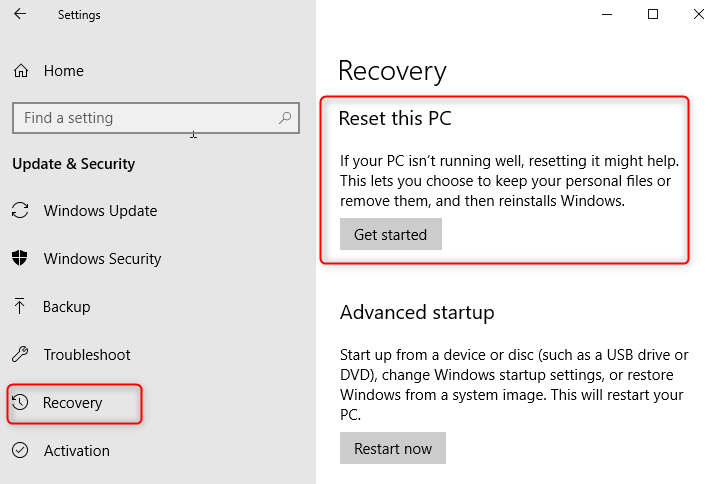
- Method 1: Factory Reset Gateway Laptop Using Windows Built-in Settings
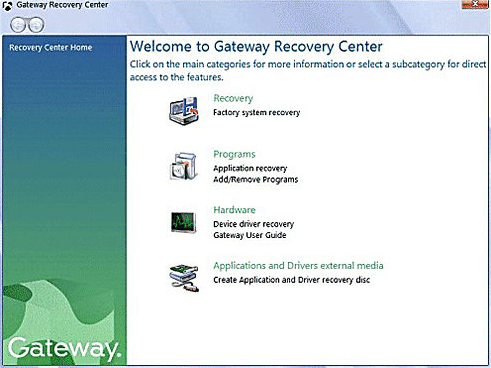
- Method 2: Factory Reset Gateway Laptop Using Gateway Recovery Center
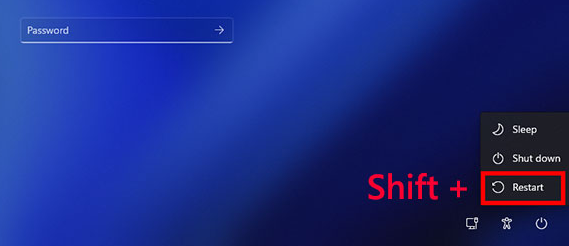
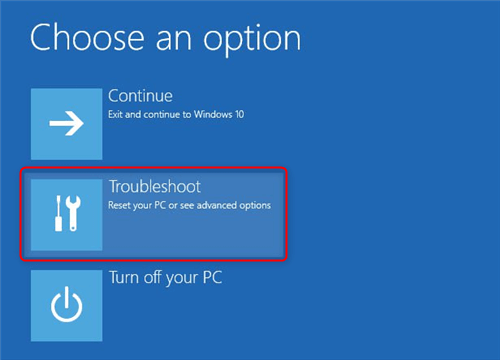
- Method 3: Factory Reset Gateway Laptop Through Restart with Shift Key
- Method 4: Factory Reset Gateway Laptop Using Recovery Partition (Alt + F10)

- System Problems: If your laptop is lagging, crashing often, infected with viruses or malware, or dealing with software clashes, a reset can give it that much-needed clean slate.
- Forgotten Password or Lockout: Getting stuck at the login screen because you’ve lost track of your admin password is a big reason people hunt for reset guides that skip the password step.
- Preparing for Transfer or Sale: A reset wipes away all your personal info, bringing the laptop back to its out-of-the-box condition to keep your data private before passing it along.
- Performance Optimization: As time goes on, leftover junk files and extra programs can slow things down, and resetting restores that original zippy feel.
- Other Issues: Botched updates, hardware mismatches, or just wanting to start over from zero can also call for a reset.


Remove Windows Login Password 3 steps for whole password remove process.
Recover the files Recover the deleted files without Windows system.
Transfer the data Transfer the important files of the computer with system.
Multifuctional Data transfer, data recovery, bootable problem recovery can be run without system.
Highly compatible Windows 11/10/8.1/8/7/XP/Vista. UEFI boot.
Remove Login Password Support Windows 11/10/8.1/8/7/XP/Vista. UEFI boot.
Recover the files Recover the deleted files without Windows system.
Transfer the data Transfer the important files of the computer with system.


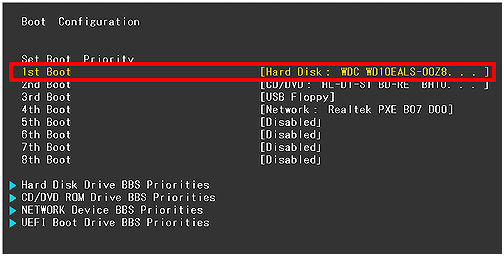
| Model/Series | BIOS Access Method |
|---|---|
DX, FX, GM, GT, GX, Profile, Astro |
Press F1 immediately after powering on |
NE Series (e.g., NE56R) |
Press F2 |
GWTN Series (e.g., GWTN156) |
Press Del or Esc (varies by model) |
Older Models |
Press F2 |
Other Gateway Models |
Press F1 or F2 |
- External Storage: Transfer critical documents, pictures, and videos to an external hard drive or USB stick.
- Cloud Services: Store files on platforms such as Google Drive, Dropbox, or OneDrive for safe keeping.
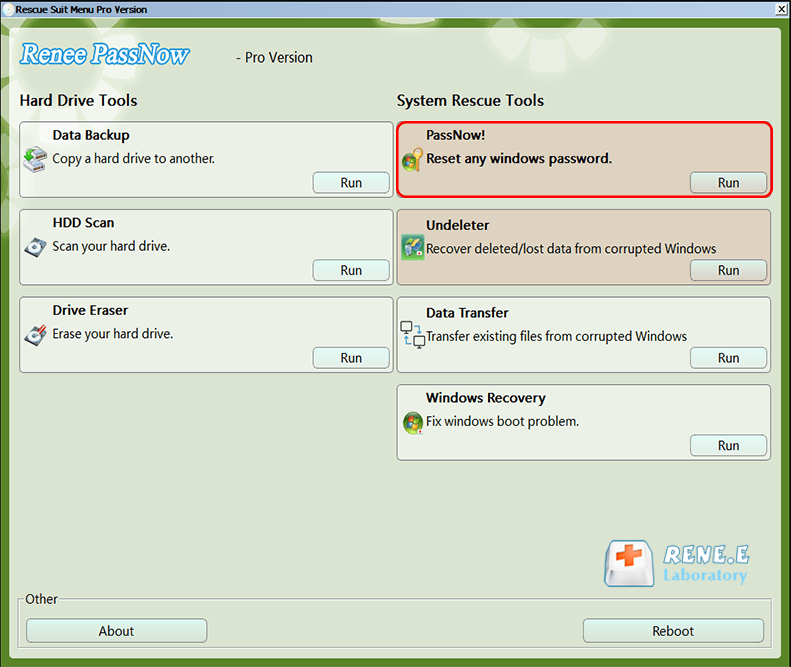
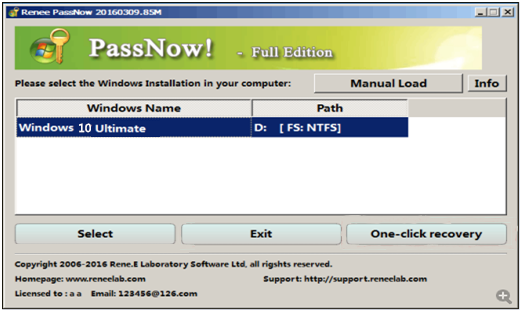
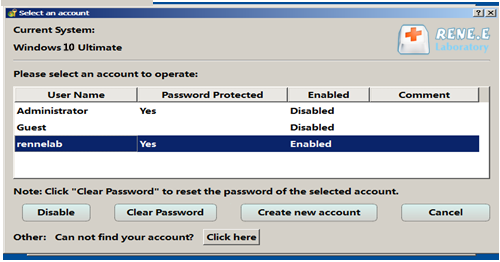
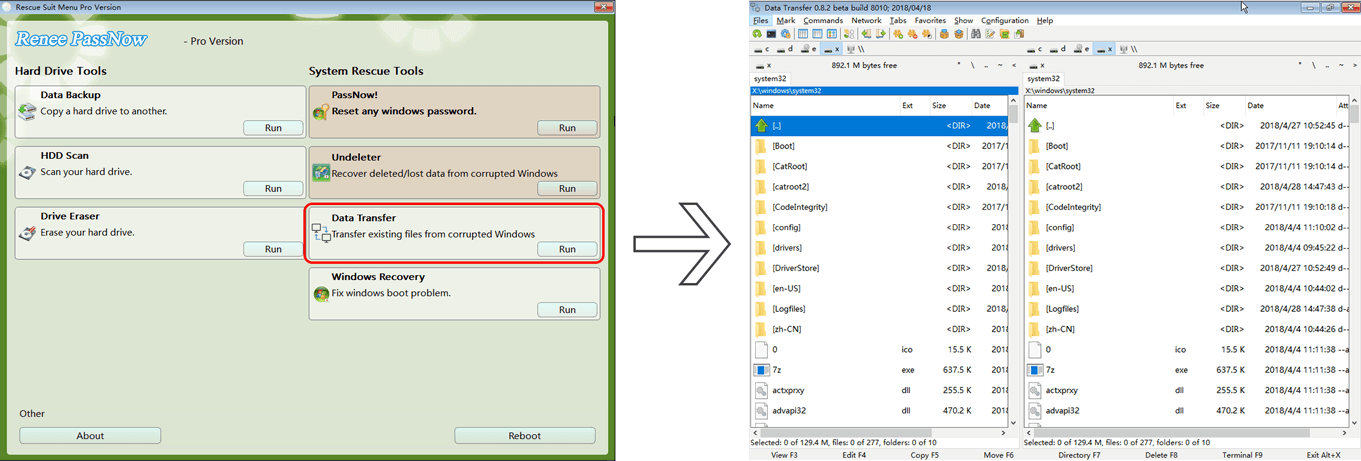
- Recovery Tools: If a forgotten password has you locked out of your Gateway laptop, something like Renee PassNow can assist. Use its Data Transfer tool before the reset to save important files, even if Windows won’t load or you can’t get into your account.
| Method | Brief Operation Steps | Requires Password? | Suitable For | Applicable Models |
|---|---|---|---|---|
Using Windows Built-in Settings |
Go to Settings > Update & Security > Recovery > Reset this PC; choose options and start reset. |
Yes, needs login access. |
When you can log in normally; ideal for minor software issues or performance tweaks without external tools. |
Modern Gateway laptops running Windows 10 or 11 |
Using Gateway Recovery Center |
From Start Menu, open All Programs > Gateway Recovery Center > System Recovery. |
Yes, if accessible via Windows. |
Gateway-specific restores; good for returning to original software and drivers when the system boots. |
Older Gateway models with Windows 7, 8, or 10 |
Through Restart with Shift Key |
Hold Shift, click Restart from login screen; go to Troubleshoot > Reset this PC. |
No, bypasses password for full reset. |
Locked-out scenarios or when Windows boots to login but has deeper issues; works even without password. |
All Gateway laptops that can reach the login screen, typically on Windows 8, 10, or 11 |
Using Recovery Partition (Alt + F10) |
Power on, press Alt + F10 at Gateway logo, select Completely Restore System to Factory Defaults, follow prompts. |
No, password-free. |
Older laptops or when locked out/boot fails; uses built-in partition without external media. |
Older Gateway models with intact recovery partition, typically Windows 7, 8, or 10 |
Additional Notes and Best Practices
Comparison: Gateway Recovery Center vs. Windows 11 Reset This PC
| Feature | Gateway Recovery Center | Windows 11 Reset This PC |
|---|---|---|
Availability |
Older Gateway models (Win 7/8/10) |
All modern Gateway models |
Data Erasure |
Full wipe (if factory reset selected) |
Optional (keep files or full reset) |
Access Method |
Start Menu > All Programs |
Settings > System > Recovery |
Internet Required |
No |
Optional (for cloud download) |

Troubleshooting Common Factory Reset Issues on Gateway Laptop
Will a factory reset remove viruses from my Gateway laptop?
How long does it usually take to factory reset a Gateway laptop?
Can I factory reset my Gateway laptop without a recovery disk or CD?
What should I do if the factory reset on my Gateway laptop fails or gets stuck?
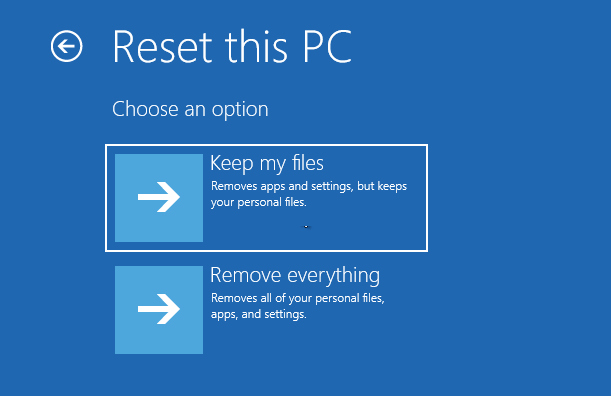
What's the difference between 'Keep my files' and 'Remove everything' during a factory reset?
Do I need an internet connection to factory reset my Gateway laptop?
Remove Windows Login Password 3 steps for whole password remove process.
Enable/Create Administrator One click for creating new administrator and enable the disabled account.
Widely Use New version supports UEFI boot model, which can be used on more computers, laptops and even surfaces.
Multifuctional Data transfer, data recovery, bootable problem recovery can be run without system.
Highly compatible Windows 11/10/8.1/8/7/XP/Vista.
Remove Login Password Support Windows 11/10/8.1/8/7/XP/Vista.
Enable/Create Administrator One click for creating new administrator and enable the disabled account.
Easy to use No need of any professional knowledge or password reset disk.
Relate Links :
Forgot Your Gateway Laptop Password? Here's How to Factory Reset Without It

29-11-2023
Ashley S. Miller : Forgot your Gateway laptop password? Don't worry, this article will guide you through 4 easy methods to factory...
Gateway Laptop Factory Reset: How to Bypass a Forgotten Password on Windows 7
15-01-2024
Jennifer Thatcher : Explore different methods to factory reset a Gateway laptop without a password on Windows 7. From using recovery...
The Ultimate Guide to Cracking Laptop Passwords with a USB Drive
04-12-2023
Ashley S. Miller : Discover the top methods for cracking laptop passwords with a USB drive in this ultimate guide. From factory...
Factory Resetting Windows 7 Without Password: A Step-by-Step Guide

13-10-2023
Amanda J. Brook : Struggling to factory reset your Windows 7 PC without a password? Look no further! In this article, we...



User Comments
Leave a Comment