author avatar
    Specialist of Customer Service Dept.
Last update by James Smith at 19 August 2025

Summary
Learn how to bypass Windows 11 password with Utilman exe using a secure, step-by-step method. This guide is perfect for users needing quick access while ensuring their data stays protected.


If you’re locked out of your Windows 11 computer because you’ve forgotten your password, or maybe you’re dealing with a corrupted profile that won’t let you in, don’t panic—this guide has you covered. Whether you need quick access to important files without resetting everything or you’re avoiding costly tech support, we’ll walk you through bypassing the password using the built-in Utilman.exe tool. It’s a reliable method that keeps your data safe and gets you back in control fast, perfect for those urgent moments when you can’t afford to wait.

Part 1: What Is Utilman.exe and How Does It Help Bypass Windows 11 Passwords?

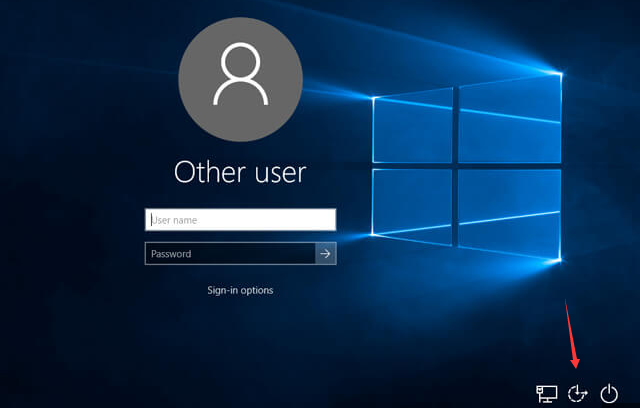
Utilman.exe, which stands for Utility Manager, is a key part of the Windows operating system. This file runs the Accessibility features you find on the login screen, such as Magnifier, Narrator, On-Screen Keyboard, and High Contrast Theme. It’s meant to help people with visual, hearing, or mobility needs interact with the computer even before they log in.
ease_of_access_in_login_screen
When you’re trying to bypass a Windows 11 password using Utilman.exe, its ability to start right from the login screen turns it into a handy workaround. By swapping Utilman.exe with something like the Command Prompt, you can get admin-level access to bypass the password. You can trust that the real Utilman.exe file, found in the Windows\System32 folder, is completely safe and not harmful to your computer.

Part 2: Is Utilman.exe Safe for Bypassing Windows 11 Passwords?

The genuine Utilman.exe is a safe, built-in part of Windows and isn’t malware at all. That said, you have to be careful. If you ever grab a file called Utilman.exe from a shady or unknown site, you could accidentally let in some nasty software. Stick to the version that’s already on your system when bypassing the Windows 11 password with Utilman.exe.
Tips for Using Utilman.exe Safely
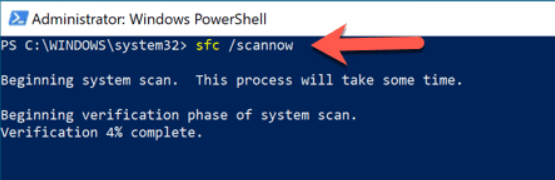
To safely bypass a Windows 11 password using Utilman.exe, keep your system secure by running regular antivirus scans, enabling automatic Windows updates, and using Disk Cleanup to remove unnecessary files. Disable unneeded startup programs, back up your data regularly, and run sfc /scannow to fix corrupted system files if issues arise.
powershell sfc scannow
With these safety tips in mind, you’re ready to dive into the actual steps. Let’s move on to the guide that will help you regain access without any hassle.

Part 3: How to Bypass Windows 11 Password with Utilman.exe step-by-step

Locked out of your Windows 11 PC? Don’t worry! You can bypass the password using the Utilman.exe method without additional software. This technique replaces the Accessibility tool (Utilman.exe) with the Command Prompt to reset your password. Follow these steps carefully.
Important: This method should only be used on a computer you own or have explicit permission to access. Unauthorized access to someone else’s system may be illegal and unethical.
1. Boot from a Windows Recovery USB: Create a Windows recovery USB using another PC (search for “Create a recovery drive” in Windows for instructions) or use a Windows installation USB/DVD. Restart your locked PC, enter the BIOS/UEFI (usually by pressing F2, Del, or Esc during startup), and set the USB/DVD as the primary boot device. Boot from the recovery media to access the Windows Setup screen.
create windows 11 installation media USB
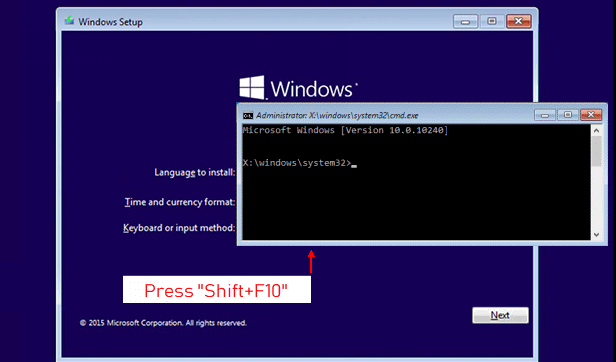
2. Open the Command Prompt: On the Windows Setup screen, press Shift + F10 to open the Command Prompt. If your drive is encrypted with BitLocker, you’ll need your recovery key (typically found in your Microsoft account or provided by your system administrator). Without the key, you may not be able to proceed.
shift + f10 while install Windows
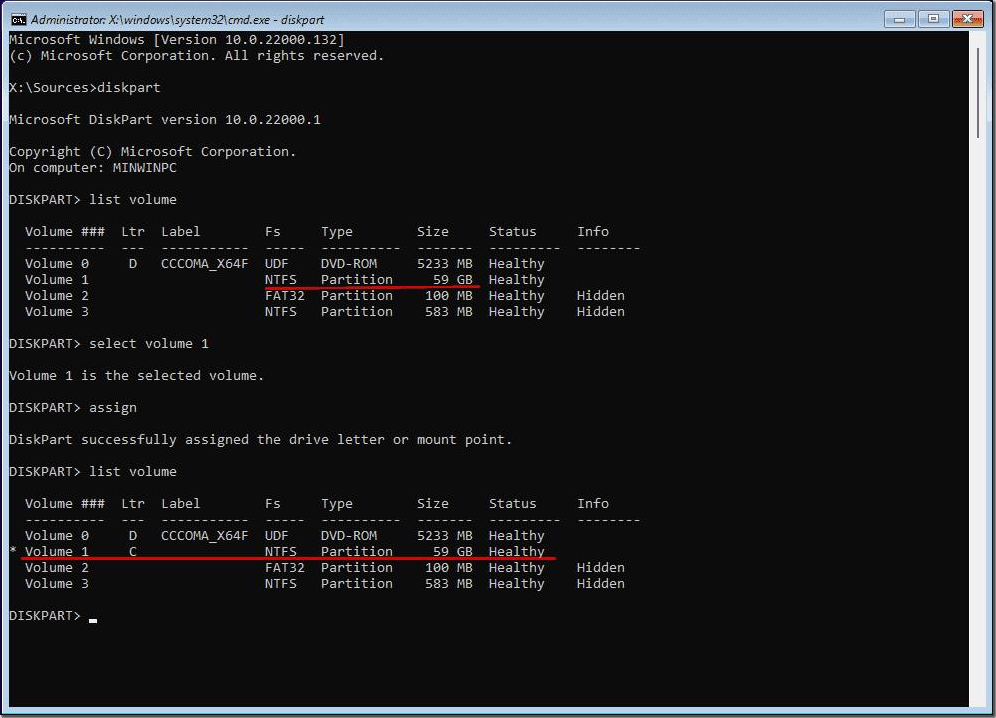
3. Navigate to the System32 Folder: In the Command Prompt, type the following to locate your Windows installation:

diskpart list volume

Find the largest NTFS partition (usually where Windows is installed). Select it with :

select volume X

(replace X with the correct volume number), then assign a drive letter:

assign letter\=Z
exit

Now navigate to the System32 folder with:

cd Z:\Windows\System32

Command Prompt
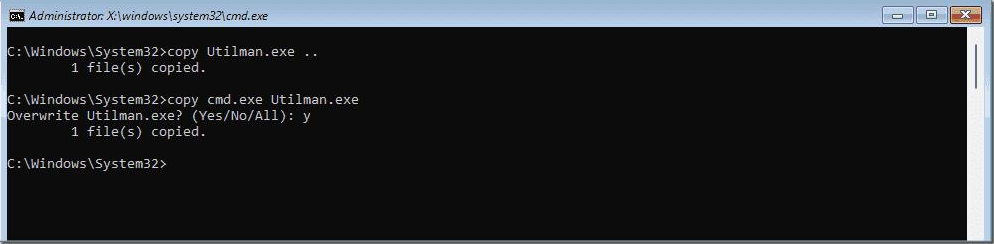
4. Replace Utilman.exe: Back up the original Utilman.exe file:

ren Utilman.exe Utilman.exe.bak

Then, replace it with the Command Prompt executable:

copy cmd.exe Utilman.exe

Command Prompt
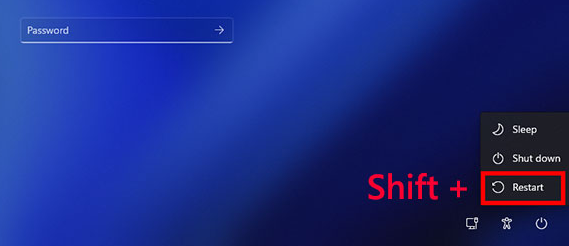
5. Restart in Safe Mode: Type exit to close the Command Prompt, then select Cancel in Windows Setup to reboot your PC normally. To enter Safe Mode, hold the Shift key while clicking Restart from the login screen. When the Advanced Startup menu appears, go to Troubleshoot > Advanced options > Startup Settings, then click Restart. Choose Safe Mode (option 4) from the list.
Restart
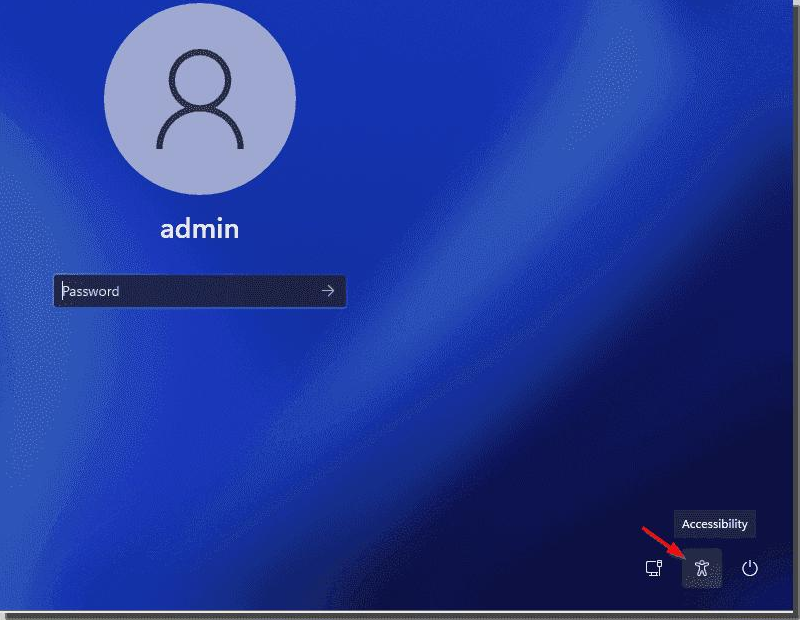
6. Open Command Prompt from Login Screen: On the login screen, click the Accessibility icon (bottom-right corner). This will launch the Command Prompt instead of Accessibility tool(Utilman.exe).
Accessibility
7. Reset the Password: In the Command Prompt, reset your account password with:

net user administrator 123456

Replace “123456” with a secure password (use a mix of uppercase, lowercase, numbers, and special characters). Alternatively, create a new admin account:

net user NewAdmin 123456 /add
net localgroup administrators NewAdmin /add
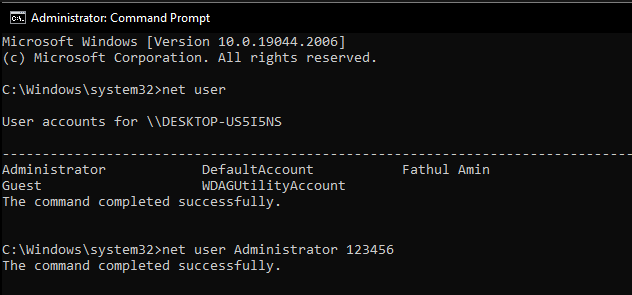
Reset the Password by net user
8. Log In and Restore Utilman.exe: Close the Command Prompt and log in with your new or reset credentials. To restore the Accessibility tool(Utilman.exe), open File Explorer, navigate to C:\Windows\System32, and rename the backup file:ren Utilman.exe.bak Utilman.exe
Congratulations! You’ve successfully bypassed the Windows 11 password. Be sure to store your new password securely to avoid future lockouts.
Tip: Please execute these commands with caution, as any mistake in any step may cause the modification to fail.
If bypassing the Windows 11 password with Utilman.exe seems a bit too hands-on or doesn’t quite work out—maybe because of BitLocker encryption or you’re not comfortable with commands—there’s a simpler option. A tool like Renee PassNow makes the whole thing easier, even if you’re not super techy. It lets you create a bootable USB or CD to reset or remove your Windows 11 password without touching system files or risking your data.

Part 4: Alternative Solution to Bypass Windows 11 Password with Renee PassNow

Why Choose Renee PassNow?

Renee PassNow is a strong Windows recovery program built to get you back into your PC when you’re stuck outside. It handles local accounts, admin accounts, or Microsoft accounts by resetting or removing the password with just a few clicks—no need for setups or hints ahead of time. The best part is it keeps all your data intact, so your files, photos, and documents are safe. It works with Windows 11, 10, 8.1, 8, 7, Vista, and XP, supports different languages, and has extras like secure file transfers, disk wiping, and file previews. If your PC won’t boot, its Data Transfer feature helps move important files to another drive or partition without trouble.
Renee Passnow – Professional Windows Password Remover

Remove Windows Login Password 3 steps for whole password remove process.

Recover the files Recover the deleted files without Windows system.

Transfer the data Transfer the important files of the computer with system.

Multifuctional Data transfer, data recovery, bootable problem recovery can be run without system.

Highly compatible Windows 11/10/8.1/8/7/XP/Vista. UEFI boot.

Remove Login Password Support Windows 11/10/8.1/8/7/XP/Vista. UEFI boot.

Recover the files Recover the deleted files without Windows system.

Transfer the data Transfer the important files of the computer with system.

Free TrialFree TrialNow 2000 people have downloaded!
Tip: If you’re using a Microsoft account, Renee PassNow will convert it to a local account during the reset process. After logging in, you’ll need to reconnect it to your Microsoft account.
Here’s how to bypass your Windows 11 password using Renee PassNow:
Step 1: Download and Install Renee PassNow
Visit the official Renee PassNow website on a different computer you have access to and download the software. Install it by following the straightforward setup instructions, ensuring you select the version compatible with your computer’s operating system.
Step 2: Create a Bootable USB or CD/DVD
Open Renee PassNow and insert a USB flash drive or a blank CD/DVD into the computer. In the software, choose the option to create a bootable media and follow the on-screen prompts to prepare your USB or CD/DVD.
Create New Windows 10 Password Reset Disk with Renee PassNow
Step 3: Boot the Locked PC from the Bootable Media
Plug the bootable USB or CD/DVD into your locked Windows 11 computer.
Boot the target PC with the created password reset USB/CD/DVD.
Restart the PC and enter the BIOS settings by pressing the appropriate key (often F2, F12, Delete, or Esc) during startup. Adjust the boot order to prioritize the bootable media. Here’s a quick reference for common systems:
Common Servers:
Server TypeEnter boot menu method

DELL

Press the F12 key repeatedly before the Dell logo appears on the screen.

HP

Press the F9 key multiple times when the HP logo is displayed.

Common Computers:
BIOS NameEnter boot menu method

ASRock

DEL or F2

ASUS

DEL or F2 for PCs/ DEL or F2 for Motherboards

Acer

DEL or F2

Dell

F12 or F2

ECS

DEL

Gigabyte / Aorus

DEL or F2

Lenovo (Consumer Laptops)

F2 or Fn + F2

Lenovo (Desktops)

F1

Lenovo (ThinkPads)

Enter then F1

MSI

DEL

Microsoft Surface Tablets

Press and hold Power and Volume Up buttons

Origin PC

F2

Samsung

F2

Toshiba

F2

Zotac

DEL

HP

Esc/ F9 for Boot Menu/ Esc/ F10/ Storage tab/ Boot Order/ Legacy Boot Sources

INTEL

F10

Step 4: Select Password Reset Function
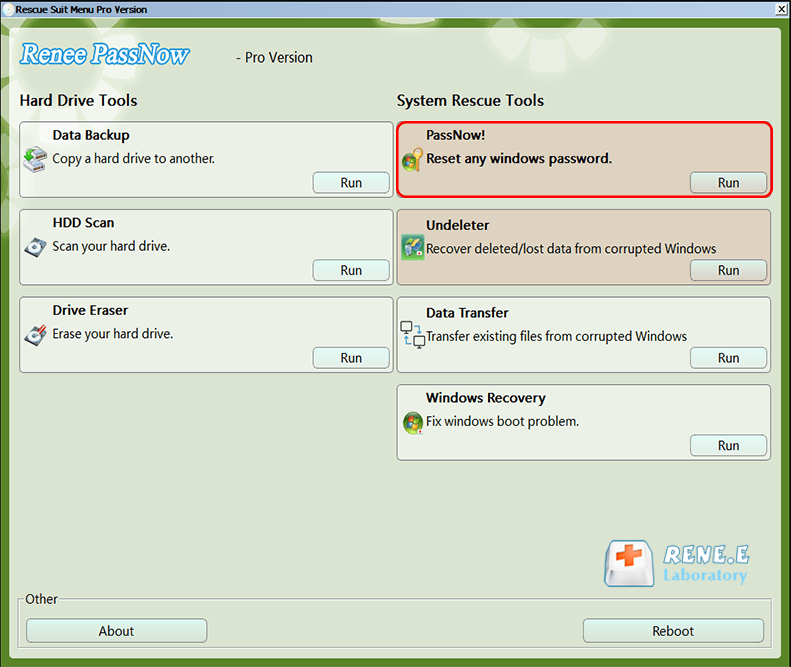
Once the PC boots from the media, Renee PassNow will load its interface. Select the “PassNow!” function to begin the password reset process.
After loading into main interface, please select the “PassNow!” function.
Step 5: Reset the Password
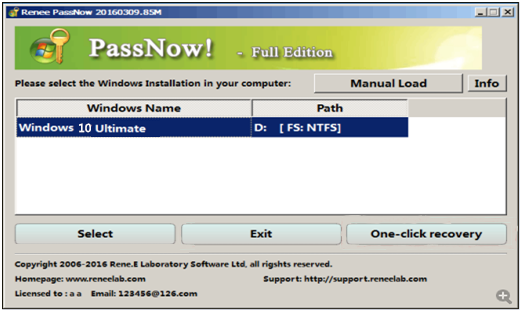
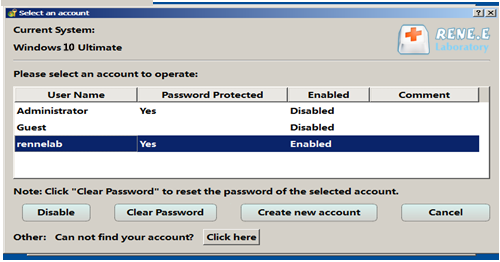
From the list, choose the Windows 11 system and the user account you want to reset. Click the “Clear Password” button to remove the password for the selected account.
Select target Windows system in the list
Select target user account in the list
Step 6: Reboot the PC
After the password is reset, safely remove the bootable media and restart your computer. You’ll now be able to log into your Windows 11 account without a password or simply click “OK” on the UAC password prompt to bypass it.
Tip: If you’re using a Microsoft account, you’ll need to reconnect it to your Microsoft account after logging in with the reset local account.

Why Renee PassNow Stands Out

Unlike the Utilman.exe method, which needs some technical skills and could lead to issues like file errors or BitLocker problems, Renee PassNow gives you a straightforward, easy-to-use process. It’s great for beginners and experts, with a high chance of success and no messing around with complex commands. It also handles both local and Microsoft accounts, making it a flexible fix for any Windows 11 lockout situation.

Final Notes

Bypassing the Windows 11 password with Utilman.exe is a solid way to get back into your PC, but it takes careful steps to do it right. Always back up your data before making system changes, and rely on good antivirus software to protect everything. If it seems tricky, something like Renee PassNow provides a more straightforward and secure choice. With these options, you’ll be logged in to your Windows 11 system before you know it!

Frequently Asked Questions (FAQs)

Will this Utilman.exe method cause me to lose any data on my computer?

No, the Utilman.exe bypass is designed to avoid data loss entirely—it’s all about resetting access without touching your files or programs. As long as you follow the steps precisely and don’t make extra changes, your documents, photos, and other personal stuff should stay perfectly safe. That’s why it’s a go-to for people who need urgent access but can’t risk wiping everything out.

Does this work for Microsoft accounts, or is it only for local accounts?

This method is mainly for local accounts on Windows 11, where you can directly reset the password through commands. If you’re using a Microsoft account, it might not work as smoothly because those are tied to online credentials. In that case, you’d likely need to convert it to a local account first or use an alternative like Renee PassNow, which handles both types by resetting and then letting you reconnect if needed.

What if I don't have a bootable USB or DVD ready—can I still try this?

You do need some form of bootable media, like a Windows installation USB, to access the Command Prompt outside of the locked system. If you don’t have one, you can create it on another computer using Microsoft’s media creation tool. Without it, you’d be stuck, so it’s worth preparing one ahead of time or borrowing from a friend if you’re in a pinch.

What should I do if the method fails due to a Windows update or security patch?

Sometimes newer Windows 11 updates can block or change how this works, especially if security features are tightened. If it doesn’t go through, try booting into Safe Mode as an extra step, or check for any BitLocker issues that might be interfering. If that doesn’t help, switching to a tool like Renee PassNow is a reliable backup plan, as it often gets around those updates without complications.

Is there a way to prevent getting locked out like this in the future?

Absolutely—after you get back in, set up a PIN or fingerprint login for easier access, and create a password reset disk through Windows settings just in case. Also, consider linking a Microsoft account if you’re not already, since it offers online reset options. Regular backups and using a password manager can save you from these headaches down the road, keeping everything more secure and convenient.
Renee Passnow – Professional Windows Password Remover

Remove Windows Login Password 3 steps for whole password remove process.

Enable/Create Administrator One click for creating new administrator and enable the disabled account.

Widely Use New version supports UEFI boot model, which can be used on more computers, laptops and even surfaces.

Multifuctional Data transfer, data recovery, bootable problem recovery can be run without system.

Highly compatible Windows 11/10/8.1/8/7/XP/Vista.

Remove Login Password Support Windows 11/10/8.1/8/7/XP/Vista.

Enable/Create Administrator One click for creating new administrator and enable the disabled account.

Easy to use No need of any professional knowledge or password reset disk.

Free TrialFree TrialNow 2000 people have downloaded!

User Comments

Page 1

Leave a Comment


Your comment has been submitted and is awaiting moderation.