author avatar
    Senior Program Developer
Last update by Olivia Brown at 3 February 2026

Summary
Learn how to factory reset your Dynabook laptop without password using proven methods for quick access. This guide is perfect for users facing lost or forgotten passwords.


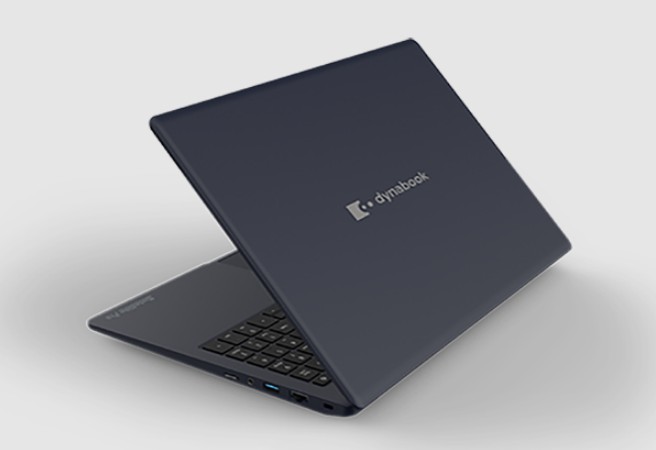
If you’re locked out of your Dynabook laptop and urgently need to get back in—but the login password has completely slipped your mind—it can feel incredibly frustrating. Whether you rely on your laptop for work, school, or everyday tasks, being suddenly unable to access Windows can bring everything to a halt. Many people assume this situation is difficult to fix, but with the right approach, you can still restore your Dynabook to factory settings even without knowing the password. This guide focuses on How to Reset Your Dynabook Laptop Without a Password, helping you regain access quickly and safely.
There are plenty of common scenarios that lead to this problem:
Forgetting your Windows login password — the most frequent cause.
Buying a used Dynabook where the seller didn’t provide the password.
Inheriting an old family laptop and no one remembers the original login.
A device left unused for years or affected by malware, resulting in a locked account.
Preparing to sell or give away the laptop and wanting to wipe all personal data.
No matter which situation you’re dealing with, the goal is simple: regain access to your device as quickly and safely as possible. The next section will begin with methods that allow you to bypass or remove the forgotten password and enter Windows without resetting anything, followed by several password‑free factory reset options you can use if you prefer to fully restore the system.
Dynabook laptop

Part 1: Forgotten Password? How to Quickly Regain Access to Your Dynabook Laptop?

If you’ve forgotten the password on your Dynabook laptop, the first step is to regain access quickly without jumping straight to a full factory reset. Here are two methods: one using an easy professional tool, and another free but more technical open-source option. Both can help you bypass the password lock screen and get into the system.

Method 1: Using Renee PassNow

For users who want to remove the login password without losing any data, Renee PassNow (from Renee Lab) is currently the most reliable and user-friendly tool. Unlike a factory reset that wipes everything, Renee PassNow can clear the password in just minutes while keeping all your files, apps, and settings completely intact.

What is Renee PassNow?

Renee PassNow is a professional Windows recovery toolkit designed specifically for resetting or removing local accounts, admin accounts, and Microsoft account passwordsno prior setup required, no password prompt needed. Even if Windows won’t boot, its built-in data transfer feature lets you copy files to an external drive. It’s fully compatible with Windows 11, 10, 8.1, 8, 7, Vista, and XP, supports multiple languages, and includes advanced features like secure file preview, disk wiping, and file extension repair.
Renee Passnow – Professional Windows Password Remover

Remove Windows Login Password 3 steps for whole password remove process.

Recover the files Recover the deleted files without Windows system.

Transfer the data Transfer the important files of the computer with system.

Multifuctional Data transfer, data recovery, bootable problem recovery can be run without system.

Highly compatible Windows 11/10/8.1/8/7/XP/Vista. UEFI boot.

Remove Login Password Support Windows 11/10/8.1/8/7/XP/Vista. UEFI boot.

Recover the files Recover the deleted files without Windows system.

Transfer the data Transfer the important files of the computer with system.

Free TrialFree TrialNow 2000 people have downloaded!
Tip: If your account is a Microsoft account, Renee PassNow will convert it to a local account during the reset. After logging in, you can manually re-link your Microsoft account.

Step-by-Step Guide to Reset Dynabook Password

To use Renee PassNow to reset your Windows password, follow these steps:
Step 1: Download and Install Renee PassNow
First, download Renee PassNow from the official site and install it on another accessible computer. Choose the version that matches your computer’s OS.
Step 2: Create a Bootable USB or Disc
Run Renee PassNow, insert a USB drive or blank CD/DVD. Select the option to create bootable media and follow the on-screen instructions to complete it.
Creating a new Windows 10 password reset disk with Renee PassNow
Step 3: Boot the Locked Computer from the Bootable Media
Insert the prepared bootable USB or CD/DVD into the locked Windows computer.
Booting the target computer using the created password reset USB/CD/DVD
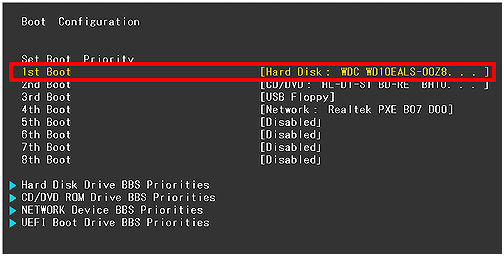
Restart the computer and press the appropriate key during startup (usually F2 or Delete) to enter BIOS setup. Change the boot order to prioritize the bootable media.
Changing the hard drive boot order in BIOS boot configuration
Dynabook Boot Key Tip: Most models use F12 to enter the boot menu. If that doesn’t work, try F2 to enter BIOS and manually set the USB as the first boot device.
Step 4: (Optional) Unlock the System Drive Using BitLocker Manager
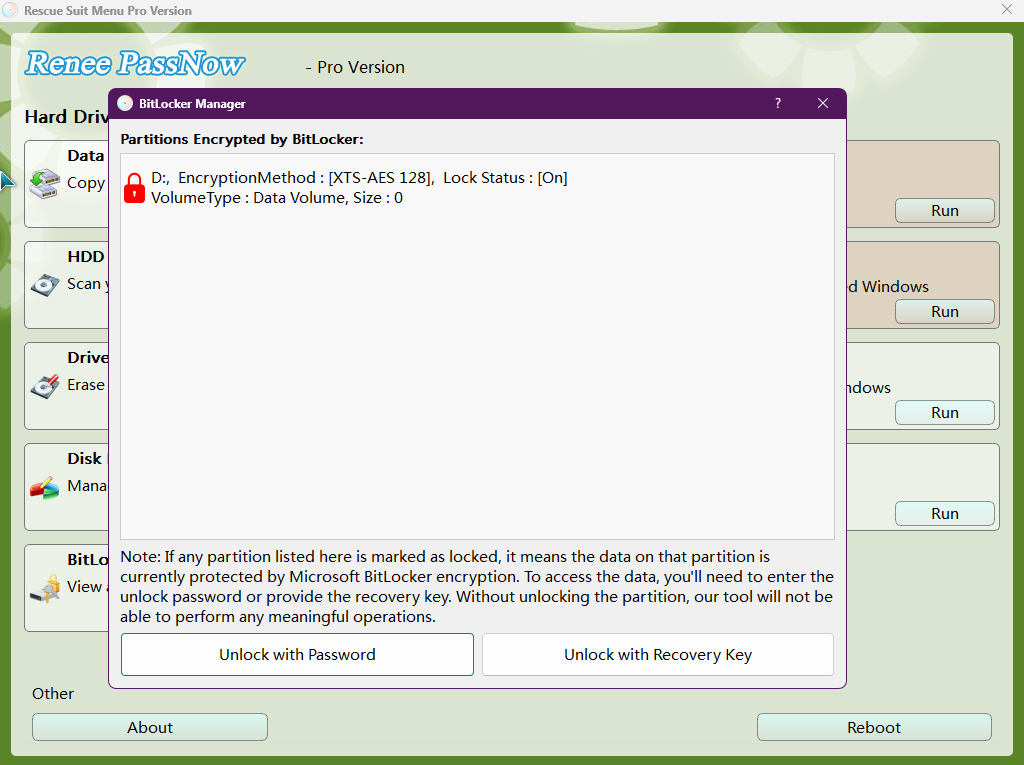
If PassNow detects BitLocker encryption on your system drive, it will prompt you to enter the correct BitLocker password or recovery key.
Unlocking the system with PassNow's BitLocker Manager
BitLocker Password: In Windows 10, this is usually the password you set when enabling BitLocker; in Windows 11, it’s often your Microsoft account password or PIN.
Recovery Key: If you’ve completely forgotten your account password, you likely don’t remember the BitLocker password either. In that case, you’ll need the BitLocker recovery key. If your computer is linked to a Microsoft account, you can retrieve it online even if you didn’t save it manually. Click here to learn how to find and use your BitLocker recovery key.
Note: The basic version does not support BitLocker.
Step 5: Select the Password Reset Function
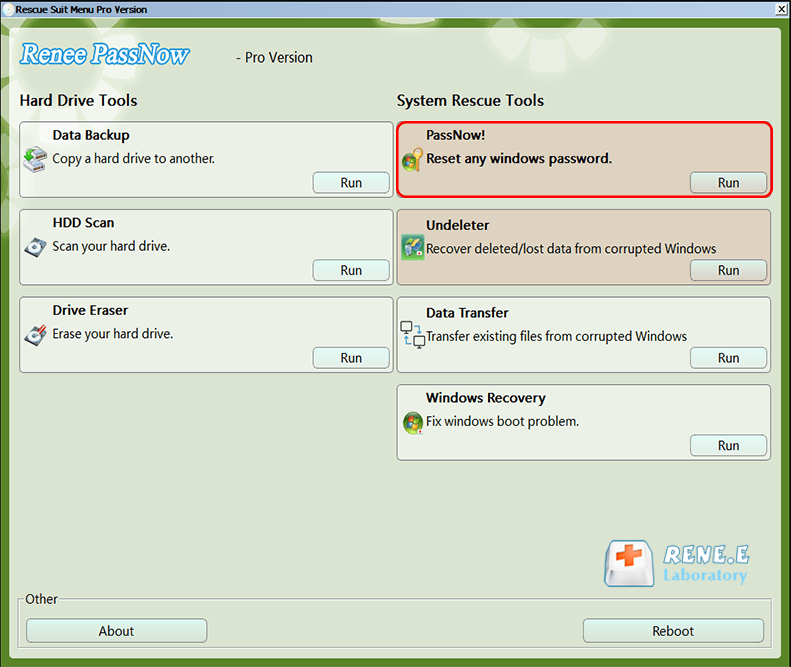
After successfully booting from the media, Renee PassNow loads its main interface. Select the “PassNow!” function.
After loading the main interface, select the “PassNow!” function
Step 6: Reset Password or PIN
Note: The latest version of PassNow supports clearing PIN passwords in Windows 10/11.
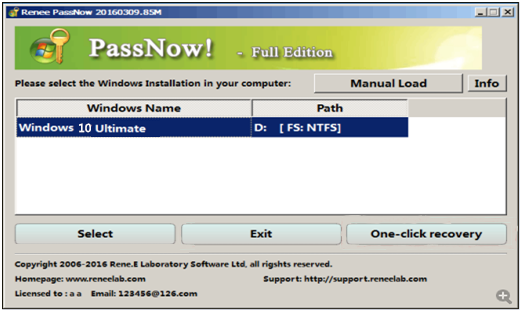
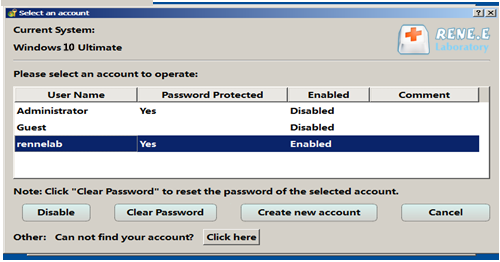
Select the user account you want to reset, then click the “Clear Password” button. Renee PassNow will remove or reset the password for the selected account.
Select the target Windows system from the list
Select the target user account from the list
Step 7: Restart the Computer
After the password reset is complete, remove the bootable media and restart the computer. You can now log into Windows without a password.
Third-party software like Renee PassNow lets you quickly and efficiently reset a Windows 10/11 password when you’ve forgotten it. It’s a good idea to create a password reset disk ahead of time to avoid this hassle. But if you don’t have one, Renee PassNow is a reliable alternative.
Tip: If you’re using a Microsoft account, you’ll need to re-associate it after the reset.

Method 2: Using Offline NT Password & Registry Editor

While free tools like Ophcrack, Offline NT Password & Registry Editor, and Hirens BootCD exist, they are not recommended for average users. These require knowledge of command lines, disk partitions, and registry editing—one wrong step can make the system unbootable.
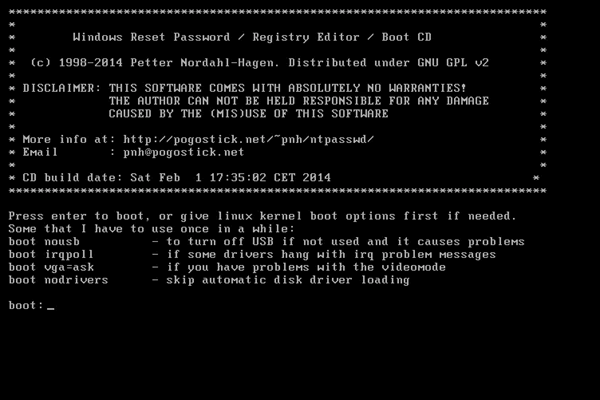
This open-source tool clears Windows passwords by directly editing the SAM registry hive from a bootable CD/USB.
Offline NT Password & Registry Editor
Pros:
  • Free and open-source
  • Supports most Windows versions
  • No internet required

Cons:

  • Command-line interface is hard to understand
  • High risk of registry damage
  • Often fails on UEFI/Secure Boot systems
  • Does not support Microsoft accounts

Basic Steps:
1. Download the ISO file and write it to a USB using Rufus.
2. Boot your Dynabook from the USB.
3. Use the text menu to select the disk, registry hive, and user.
4. Clear the password hash and reboot.
Reality Check: Over 80% of non-technical users fail at step 3, due to confusing prompts and UEFI compatibility issues. Even when successful, it can’t handle modern Microsoft accounts. Unless you’re an IT pro comfortable with Linux, skip this method and go straight to Renee PassNow—it does the same job with 3 clicks and zero risk.
Once you’ve regained access to your Dynabook laptop using the methods above, you may want to perform a full system reset to clean the device or restore factory settings. Next, we’ll cover all the different ways to reset your Dynabook laptop in detail.

Part 2: How to Reset Your Dynabook Laptop

After regaining access, a factory reset can help you completely clean the system, remove stubborn issues, or prepare the device for sale. Below is a summary of reliable reset methods, including official built-in tools and Microsoft’s clean install approach. These usually delete all data, so make sure to back up important files first.
Method NameApplicable Dynabook Models (Years) & Windows VersionsBrief Operation StepsRequires Windows Lock Screen Password?Best Used When
Press F11 or 0 at StartupPortégé/Tecra/Satellite series (post-2010), Windows 10/11Shut down, power on and repeatedly press F11 or 0, enter recovery, choose factory recoveryYesRecovery partition intact, great for beginners
Shift + Restart from Login ScreenAll Dynabook models (post-2015), Windows 10/11At login hold Shift + click Restart → Troubleshoot > Reset this PC > Remove everythingYesSystem reaches login screen, recovery not damaged
Microsoft Official USB ResetAll Dynabook models (all years), Windows 10/11Create Windows install USB on another PC, boot & delete partitions, clean installNoRecovery partition damaged, need clean install
Model-Specific Reset (After Password Removal)Portégé X30/X40, Tecra A40/A50, Satellite Pro C40 etc. (post-2018), Windows 10/11After password removal → Settings > System > Recovery > Reset this PCNo (must remove password first)Have system access, want clean model-specific reset
Make sure you’ve removed the password from your Windows account. Otherwise, when you reset the PC using the “Keep my files” option, Windows will ask you to enter that account password during the setup process.
windows 10 reset this pc require password
windows 7 reset require password-system recovery option

Method 1: Repeatedly Press F11 or 0 Key at Startup

Dynabook laptops usually come with a hidden recovery partition that you can access during boot.
1. Completely shut down your Dynabook.
2. Power it on, and before the Windows logo appears, immediately repeatedly tap the F11 key (some models may require the 0 key).
3. If successful, you’ll enter the “Dynabook Recovery Environment” or “Toshiba HDD Recovery” interface.
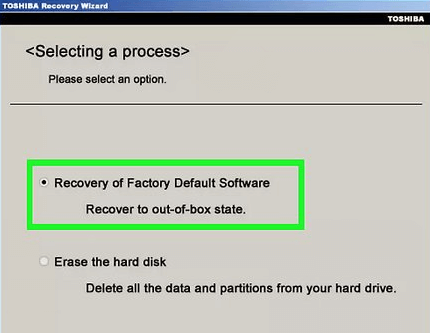
4. Select “Recover to Factory Default Software” and follow the prompts.
Recover to Factory Default Software
5. The system will wipe the entire hard drive and reinstall the original OS, clearing all passwords.
Note: On some newer Dynabook models with Windows 11, the F11 key may not work by default. Try holding Fn + F11, or enter BIOS and set “Function Key Behavior” to “Function Key” mode instead of “Multimedia Key”.

Method 2: Shift + Restart from the Login Screen

This trick uses a hidden recovery entry point in the Windows login screen:
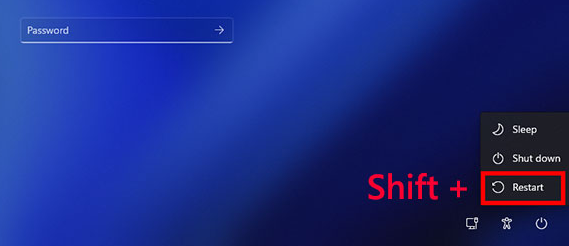
1. At the Windows login screen, click the power icon in the bottom right.
2. Hold down the Shift key while clicking “Restart”.
Windows, shift + restart
3. The laptop will reboot into the Windows Recovery Environment (WinRE).
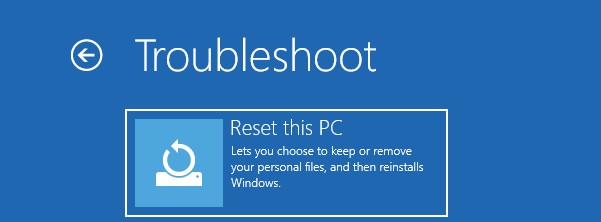
4. Choose Troubleshoot > Reset this PC.
select troubleshot and then reset this pc
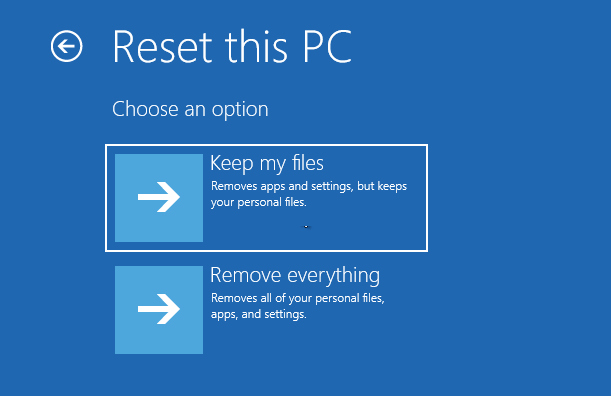
5. Select “Remove everything” to perform a full factory reset.
remove everything
Important: This only works if “Reset this PC” is available and the recovery environment is intact. If you see “There was a problem resetting your PC”, try another method.

Method 3: Microsoft Official USB Reset Method (When Recovery Partition Is Damaged)

Use Microsoft’s Media Creation Tool for a clean Windows reinstall.

Creating a Windows Installation USB

Requires another working computer and a ≥8GB USB drive.
1. Go to the official Microsoft download page for your Windows version:
Windows 11:  https://www.microsoft.com/software-download/windows11
Windows 10:  https://www.microsoft.com/software-download/windows10
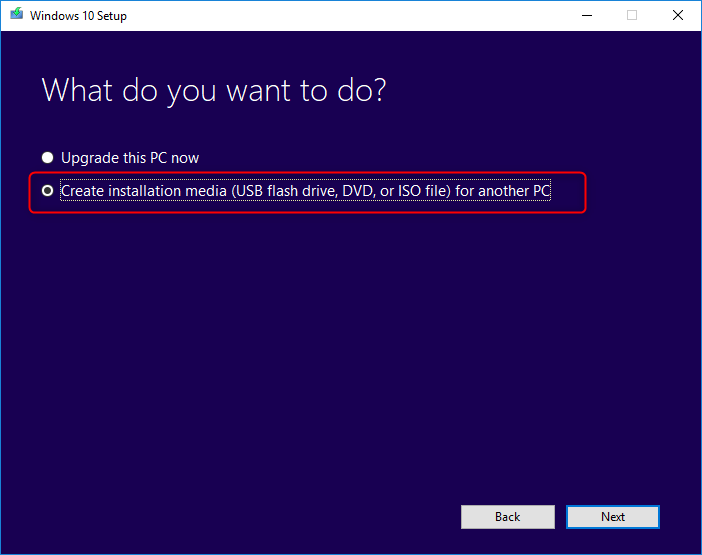
2. Download and run Media Creation Tool.
3. Choose “Create installation media for another PC” → make bootable USB.
Create installation media for another PC
4. Insert USB into locked Dynabook.
5. Boot from USB (usually press F12 → select USB).
6. In Setup, delete all partitions on the main drive, then install.
This gives a fresh, password-free Windows, but erases everything.
Best for: thorough wipe before selling/giving away. Not suitable if you need to recover files.

Method 4: Model-Specific Reset Guide (After Password Removal)

If you’ve already removed the login password—using a tool like Renee PassNow—you’re now ready to perform a full factory reset. At this point, you have two main options depending on your situation:
1. Use Windows built-in reset:
If your Dynabook boots normally after password removal, the easiest and most reliable method is to use the built-in reset feature:
For Windows 11:
Go to Settings > System > Recovery > Reset this PC
For Windows 10:
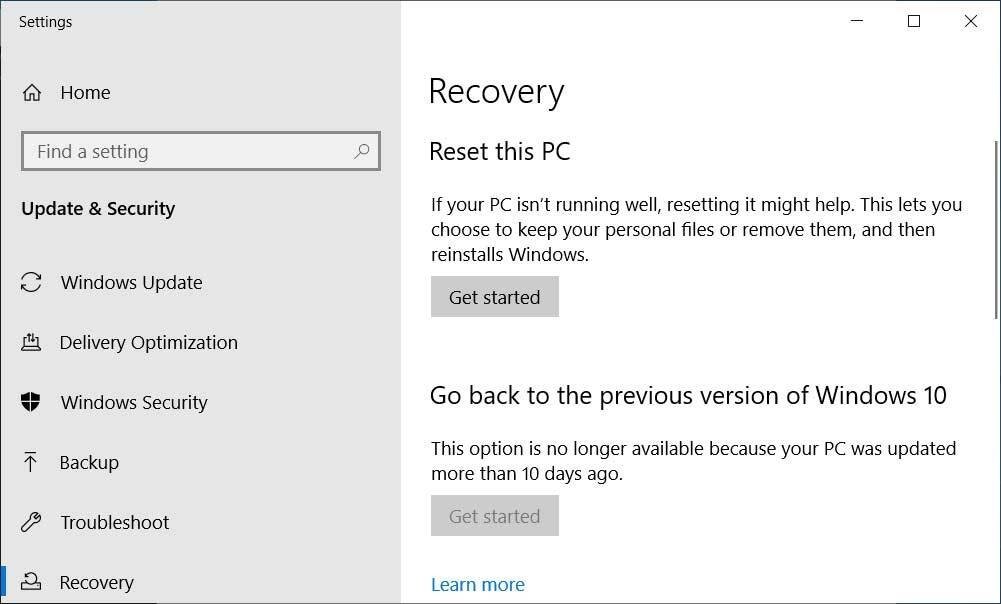
Go to Settings > Update & Security > Recovery > Reset this PC
Reset This PC
This allows you to perform a clean reset without needing any special key combinations.
2. Use hardware-based recovery keys:
If Windows is unstable, unresponsive, or you prefer to reset manually during startup, refer to the table below. It lists model-specific recovery and BIOS key combinations for various Dynabook series. These keys help you access the recovery environment or BIOS settings directly when powering on the device.
Dynabook SeriesRecovery KeyBIOS Entry KeyNotes
Portégé X30/X40F11 (may need Fn+F11)F2Disable Secure Boot in BIOS for third-party USB tools
Tecra A40/A50Press 0 at startupF2Supports traditional HDD recovery
Satellite Pro C40F12 → Recovery optionF2Prefer “Recover from HDD” if available
Eclipse G70/G80Shift+Restart (if boots)F2Windows 11 only; F11 may not work
Dynabook AZF11F2Enable Legacy Boot for USB-based recovery tools
Pro Tip: If you’ve already used Renee PassNow to remove the password and can log in, using Reset this PC from within Windows is often faster and more stable than relying on startup key combinations.

Frequently Asked Questions

What if I don't have another computer?

Borrow a friend’s, use a library/school/office computer to download Renee PassNow and create the USB. Takes <10 minutes.

Will factory reset remove BIOS password?

No. BIOS/UEFI passwords are hardware-level. Contact Dynabook support or clear CMOS (may void warranty).

Can Renee PassNow reset Microsoft accounts?

It converts Microsoft account → local account for login. Then re-link via Settings > Accounts > Your info.

Does F11 reset delete all files?

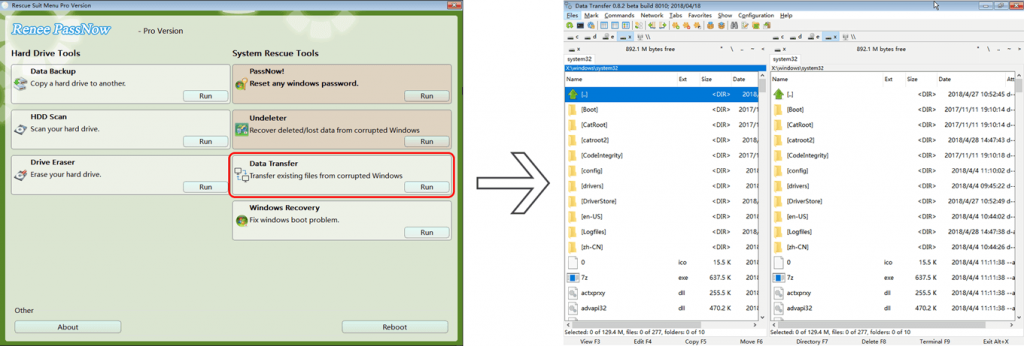
Yes — wipes C: drive completely. Use Renee PassNow’s data transfer to rescue files first if locked out.
Data transfer function of Renee Passnow

Is Renee PassNow safe?

Yes — only modifies password hashes, no OS/file changes. Used by millions, no viruses/adware when from official source.
Still stuck? Renee PassNow is simple, trusted, and usually gets you back in within 10 minutes.
Renee Passnow – Professional Windows Password Remover

Remove Windows Login Password 3 steps for whole password remove process.

Enable/Create Administrator One click for creating new administrator and enable the disabled account.

Widely Use New version supports UEFI boot model, which can be used on more computers, laptops and even surfaces.

Multifuctional Data transfer, data recovery, bootable problem recovery can be run without system.

Highly compatible Windows 11/10/8.1/8/7/XP/Vista.

Remove Login Password Support Windows 11/10/8.1/8/7/XP/Vista.

Enable/Create Administrator One click for creating new administrator and enable the disabled account.

Easy to use No need of any professional knowledge or password reset disk.

Free TrialFree TrialNow 2000 people have downloaded!

User Comments

Page 1

Leave a Comment


Your comment has been submitted and is awaiting moderation.