author avatar
    Specialist of Customer Service Dept.
Last update by James Smith at 12 October 2025

Summary
This guide on how to factory reset HP laptop without password walks users through step-by-step solutions, using built-in recovery tools and third-party software, ensuring a secure and simple reset process.



“I forgot the password to my HP laptop and want to reset it to give to my cousin. How can I factory reset my HP laptop without a password?”
Are you locked out of your HP laptop and need a quick, reliable way to reset it without the password? Whether you’re dealing with a forgotten password, a sluggish device, or preparing to sell or donate your laptop, this updated 2025 guide offers proven, step-by-step solutions tailored for Windows 11 and older versions. From unlocking your device to securely wiping data, we’ll cover built-in recovery tools, third-party software like Renee PassNow, and methods to handle missing recovery partitions. Our goal is to help you regain access, fix software issues, or prepare your laptop for its next user with confidence.
HP Laptop
Why reset your HP laptop? Common reasons include:
- Forgotten Password: You’re locked out and need access without the login credentials.
If you don’t know your account password, you usually won’t be able to reset Windows at all.
windows 10 reset this pc require password
- Performance Issues: Your laptop is slow or plagued by software glitches.
- Data Privacy: You want to erase personal files before selling or donating.
- Secondhand Device: You bought a used laptop with an unknown password.
Let’s explore clear, practical methods to factory reset your HP laptop without a password, ensuring you can get back to using your device or pass it on securely.

Part 1: Unlock Your HP Laptop with Renee PassNow to Enable a Factory Reset

If you’re locked out due to a forgotten password, removing the password is the first step to regain control. This allows you to decide whether a full factory reset is necessary or if you only need to log in to save files or troubleshoot issues. Renee PassNow is an intuitive Windows recovery tool that simplifies resetting or removing passwords for local accounts, administrator users, or even Microsoft accounts. No prior setup or password hints are needed, making it perfect for situations where you’re completely locked out. Designed to minimize data loss, it also offers a Data Transfer feature to safely move critical files to another drive or partition if your laptop won’t boot into Windows. Compatible with Windows 11, 10, 8.1, 8, 7, Vista, and XP, Renee PassNow supports multiple languages and includes extras like secure disk erasure, file extension adjustments, file previews, and safe file transfers.
Renee Passnow – Professional Windows Password Remover

Remove Windows Login Password 3 steps for whole password remove process.

Recover the files Recover the deleted files without Windows system.

Transfer the data Transfer the important files of the computer with system.

Multifuctional Data transfer, data recovery, bootable problem recovery can be run without system.

Highly compatible Windows 11/10/8.1/8/7/XP/Vista. UEFI boot.

Remove Login Password Support Windows 11/10/8.1/8/7/XP/Vista. UEFI boot.

Recover the files Recover the deleted files without Windows system.

Transfer the data Transfer the important files of the computer with system.

Free TrialFree TrialNow 2000 people have downloaded!
This section will guide you through using Renee PassNow to unlock your HP laptop, setting the stage for a factory reset if needed. It’s a dependable, user-friendly solution to bypass password barriers without navigating complex Windows recovery options.
Tip: If you’re using a Microsoft Account, Renee PassNow will convert it to a local account during the password reset. You’ll need to reconnect to your Microsoft Account after logging in.

Steps to Reset Your Windows Password with Renee PassNow

Step 1: Download and Install Renee PassNow
On another computer you have access to, visit the official Renee PassNow website and download the software. Follow the installation prompts, ensuring you select the version compatible with your operating system.
Step 2: Create a Bootable USB or CD/DVD
Open Renee PassNow on the accessible computer and insert a blank USB flash drive or CD/DVD. Select the option to create bootable media and follow the on-screen instructions to prepare it.
Create New Windows 10 Password Reset Disk with Renee PassNow
Step 3: Boot the locked HP laptop from the bootable media
Insert the bootable USB or CD/DVD into your locked HP laptop.
Boot the target PC with the created password reset USB/CD/DVD.
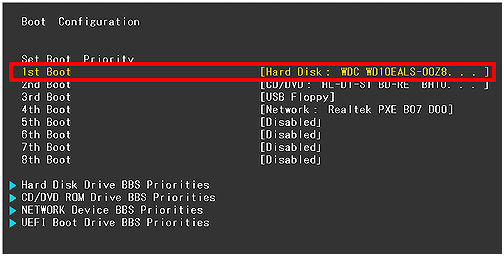
Restart the laptop and access the BIOS settings by pressing the appropriate key during startup (see table below). Set the boot order to prioritize your USB or CD/DVD, then save and exit.
Change the boot order in hard disk in boot configuration in BIOS
BIOS Access for HP Laptops:
HP Model/SeriesEnter BIOS Method

Pavilion, Envy, Spectre (most models)

Press Esc repeatedly at startup to open the Startup Menu, then press F10 for BIOS Setup.

ProBook, EliteBook

Press F10 repeatedly during boot.

Omen Gaming Laptops

Press Esc repeatedly, then F10 from the Startup Menu.

Stream, older Pavilion (pre-2015)

Press F2 or F10 repeatedly during boot.

Victus Gaming Series

Press Esc, then F10; for advanced settings, try Ctrl + F10 while powering on.

General HP Laptops (universal)

Press Esc repeatedly to access the Startup Menu, then select BIOS Setup (F10).

Notes for BIOS Access:
- Startup Menu Prompt: Most HP models display a brief “Press Esc for Startup Menu” message during boot.
- Fast Boot Warning: If Fast Boot is enabled, you may need multiple attempts to enter the Startup Menu or disable Fast Boot in BIOS first.
- Touchscreen Models: For Spectre or Envy models with touchscreens, using an external keyboard can improve key response during startup.
Step 4: Select the Password Reset Function
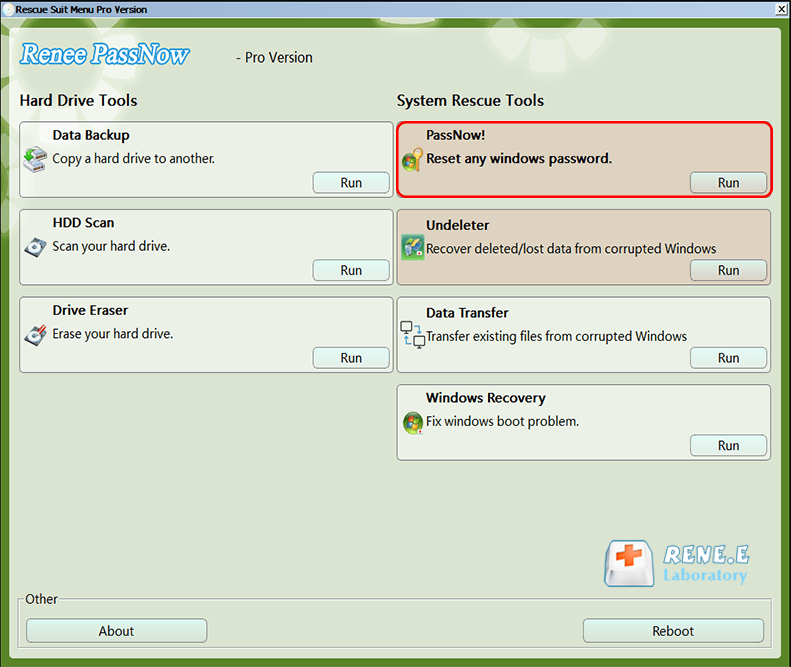
Once the laptop boots from the media, Renee PassNow will load. Choose the “PassNow!” function from the main interface.
After loading into main interface, please select the “PassNow!” function.
Step 5: Reset the Password
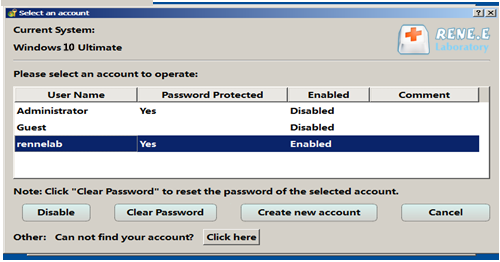
Select the user account you want to unlock from the list. Click the “Clear Password” button to remove or reset the password for that account.
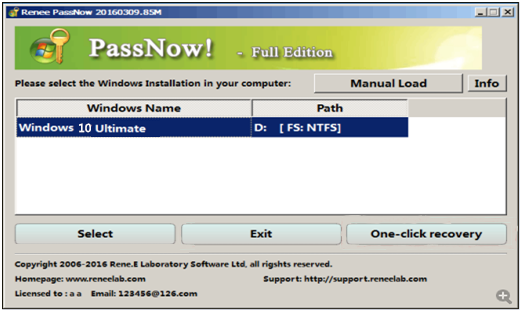
Select target Windows system in the list
Select target user account in the list
Step 6: Reboot the Laptop
After resetting the password, remove the bootable media and restart your HP laptop. You should now log in without a password.

Next Steps After Unlocking

With the password removed, you’re back in control of your HP laptop. If your goal is a factory reset—perhaps to prepare it for your cousin or wipe it clean for a fresh start—you can now access Windows Settings. Press Windows key + I, go to System > Recovery (for Windows 11) or Update & Security > Recovery (for Windows 10), and click “Get started” under Reset this PC. Select “Remove everything” to erase all files and apps, then follow the prompts. The process typically takes 30–60 minutes, with a few restarts.
If unlocking the password isn’t your goal, or you prefer to wipe your laptop without logging in, the following methods offer direct factory reset options. These are ideal if you’re preparing to sell, donate, or troubleshoot your device without needing Windows access.
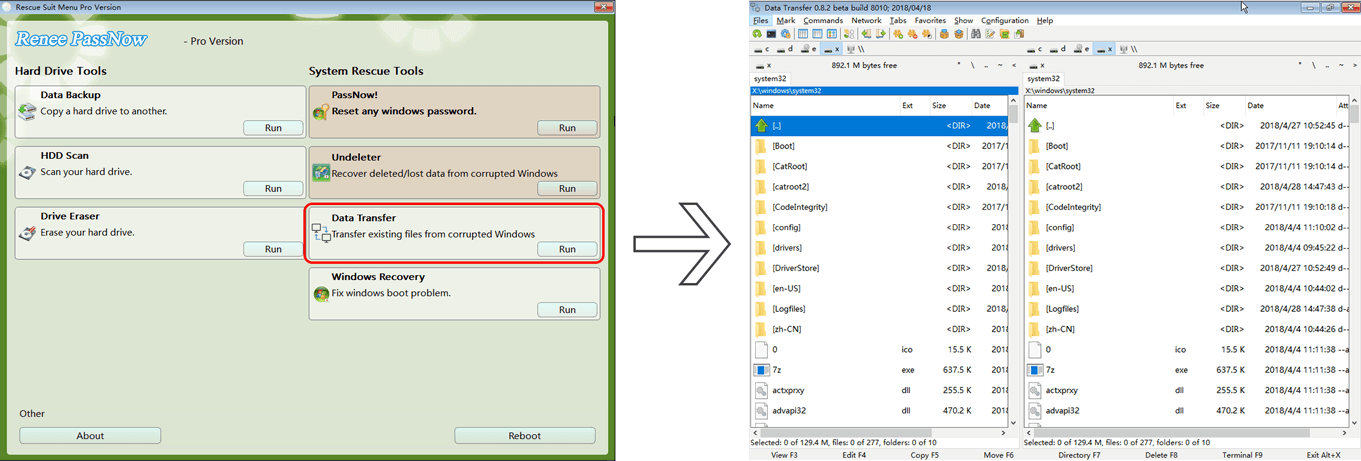
Warning: A factory reset will erase all personal data, apps, and settings. If you need to back up files but can’t access Windows, Renee PassNow’s Data Transfer feature can safely move important data to an external drive before resetting.
Data transfer function of Renee PassNow

Part 2: Direct Factory Reset Options for HP Laptops Without a Password

If you want to skip unlocking the password and go straight to wiping your HP laptop, the methods below allow a factory reset without logging into Windows. Below, we’ve outlined four methods, each suited to different scenarios, with a summary table for quick reference.
MethodOperation StepsRequires Windows Password?Applicable HP ModelsSupported Windows VersionsSuitable For

HP Recovery Manager (F11 or Esc + F9)

1. Shut down completely.

2. Press F11 (pre-2018 models) or Esc + F9 (newer models) at startup.

3. Enter recovery environment, select Troubleshoot > Recovery Manager or System Recovery.

4. Choose factory reset and confirm.

No

Most consumer HP laptops (e.g., Pavilion, Envy, Spectre, Stream, Omen; post-2018 use Esc + F9).

Windows 7, 8, 10(part)

Beginners or non-technical users; those with forgotten passwords and physical access.

Windows Recovery Environment (WinRE)

1. At login screen, hold Shift, click power icon > Restart.

2. Enter blue screen, choose Troubleshoot > Reset this PC.

3. Select Remove everything and follow prompts.

No

All HP Windows laptops (e.g., Pavilion, Envy, EliteBook).

Windows 10, 11

Intermediate users comfortable with on-screen prompts; ideal for selling or fixing software issues.

USB Installation Media or HP Cloud Recovery Tool

1. On another PC, download HP Cloud Recovery Tool or Windows Media Creation Tool, create 32GB+ USB.

2. Insert USB, boot via Esc > F9 to select USB.

3. Follow prompts to reset or reinstall, wiping all data.

No

All HP laptops, especially if recovery partition is damaged (e.g., Envy, Pavilion, Spectre).

Windows 7, 8, 10, 11

Tech-savvy users or IT staff; great for secondhand devices or major repairs.

Reset BIOS Password (CMOS Battery)

1. Shut down and unplug.

2. Open back cover, locate CMOS battery.

3. Remove the battery for 5-10 minutes, but note that in modern models (post-2018), this may not work due to TPM or soldered batteries; consult HP support instead.

4. Reinstall, reassemble, boot, and reset via software method.

No (for BIOS password, not Windows)

Older HP models with accessible hardware (e.g., older Pavilion, Envy; modern Spectre may be tricky).

N/A (hardware-based)

Advanced users or technicians; for BIOS-locked devices.

Before proceeding, ensure you’re ready to erase all data. Each method varies in complexity, so use the table to choose the best fit for your HP model, Windows version, and technical comfort level. If you’re unsure, start with the simplest option and move to alternatives if needed.

Method 1: Factory Reset Using HP Recovery Manager

This method uses the built-in recovery partition on most HP laptops to perform a factory reset without a Windows password. It’s ideal for users seeking a simple, no-login solution, provided the recovery partition is intact.
This factory reset method using HP Recovery Manager mainly applies to HP laptops released between 2010 and 2017, including popular series like HP Pavilion, HP Envy, HP Compaq, and HP EliteBook. These models typically came with a built-in recovery partition and the Recovery Manager tool preinstalled.

This method works best with: Windows Vista/7/8/8.1/Early versions of Windows 10 (some models still included Recovery Manager)

Step 1: Power off your HP laptop completely and disconnect any external devices or cables.
Step 2: Turn on the laptop and immediately press F11 (for pre-2018 models) or Esc + F9 (for newer models) repeatedly to access the recovery environment, which displays a “Choose an Option” screen.
Step 3: Select Troubleshoot from the menu.
Step 4: Choose Recovery Manager or System Recovery, depending on your laptop model.
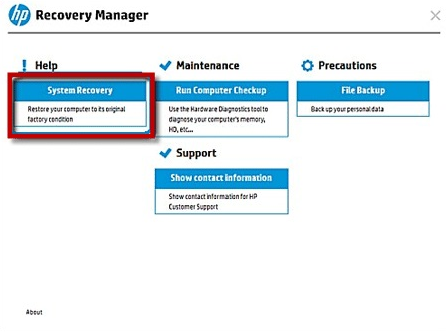
Step 5: In Recovery Manager, find System Recovery under the Help section and click it.
Use System Recovery to factory reset HP laptop without password
Step 6: You’ll be prompted to back up files. If you don’t need to save anything, select Recover without backing up your files and click Next.
Step 7: Follow the on-screen instructions to complete the reset. The process takes 30–50 minutes, with possible restarts.
Important Notes:
- Recovery Partition Availability: If the hard drive or SSD has been replaced or formatted, the recovery partition may be missing, making this method unusable. Try Method 3 instead.
- Recovery Manager Availability: Some newer HP models rely on Windows’ “Reset this PC” feature instead of Recovery Manager. If F11 or Esc + F9 doesn’t work, move to Method 2 or 3.
This method is perfect for beginners wanting a quick reset without external tools, as long as the recovery partition is present. If Method 1 doesn’t work—perhaps due to a missing recovery partition or newer HP model—don’t worry. The following methods offer alternative ways to reset your laptop without a password.

Method 2: Factory Reset via Windows Recovery Environment (WinRE)

If you can reach the Windows login screen but can’t log in due to a forgotten password, the Windows Recovery Environment (WinRE) provides a straightforward way to reset your HP laptop without accessing the account.
Supported HP Models :

HP laptops from 2015 to present, including:  HP Pavilion, Envy, Spectre, Omen, EliteBook, and ProBook series; Any model that shipped with Windows 10 or later pre-installed; Touchscreen and non-touchscreen models are both supported.

Note: Only works with Windows 10/11.

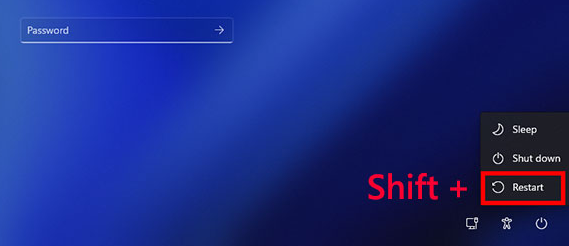
Step 1: At the login screen, hold the Shift key, click the power icon, and select Restart.
Windows shift + restart
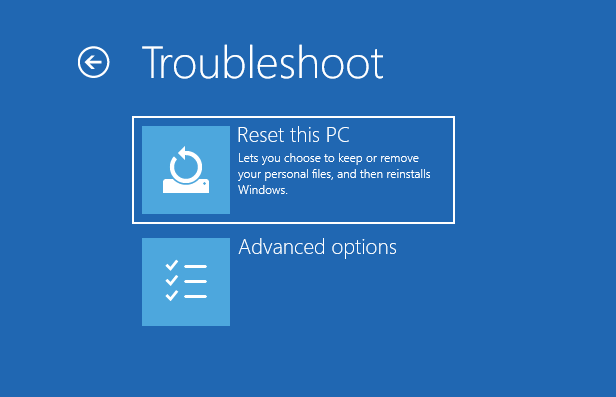
Step 2: The laptop will boot into a blue screen. Choose Troubleshoot > Reset this PC.
Troubleshoot + Reset this PC
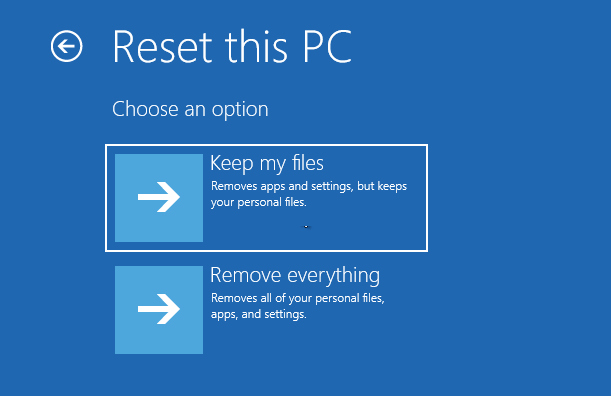
Step 3: Select Remove everything to erase all data and restore factory settings.
Remove everything
Step 4: Follow the on-screen prompts to complete the reset, which takes 30–60 minutes.
Important Notes:
- BitLocker Encryption: If your drive is encrypted with BitLocker, you may need a 48-digit recovery key during the reset. Check your Microsoft Account or setup records for the key. If unavailable, use Renee PassNow (Part 1) to remove the password, then retry the reset via Settings > System > Recovery (Windows 11) or Update & Security > Recovery (Windows 10).
- Password Prompt: If WinRE still asks for a password, use Renee PassNow to clear it, then retry this method or reset through Windows Settings after logging in.
This method suits users comfortable with on-screen menus and is ideal for selling the laptop or fixing software issues. If you can’t access the recovery environment or prefer a clean reinstall, the next method uses external media for a reliable reset, even without a recovery partition.

Method 3: Factory Reset with USB Installation Media or HP Cloud Recovery Tool

If your recovery partition is missing, damaged, or you want a fresh Windows installation, using a USB with the HP Cloud Recovery Tool or Microsoft’s Windows Media Creation Tool is a robust solution. This method is great for secondhand devices or major system repairs.
Step 1: On another computer, download the HP Cloud Recovery Tool or Windows Media Creation Tool from their official websites. Use a USB drive with at least 32GB to create bootable recovery media.
HP Cloud Recovery Tool
Step 2: Insert the USB into your HP laptop. Start the laptop, press Esc repeatedly, then F9 to access the boot menu. Select the USB as the boot device.
Step 3: Follow the on-screen instructions to reset or reinstall Windows, choosing to remove all files for a full factory reset.
Step 4: Complete the process, which may take 1–2 hours depending on your laptop and USB speed.
Supported Consumer PC Series for HP Cloud Recovery Tool:
Series NameDescription

HP Spectre Series

Includes premium touchscreen models like Spectre x360 and Spectre Folio.

HP ENVY Series

Covers lightweight models such as ENVY x360, ENVY 13/15/17.

HP Pavilion Series

Mainstream models including Pavilion x360, Pavilion 14/15/17.

HP OMEN Series

Gaming laptops such as OMEN 15, OMEN 16, OMEN 17.

HP Victus Series

New-generation gaming laptops like Victus 15 and Victus 16.

HP EliteBook (selected models)

Some high-end business models are supported but require the business version of the recovery tool.

HP ProBook (selected models)

Similar to EliteBook; selected models support the business edition of the Cloud Recovery Tool.

HP Stream / Notebook Series

Only certain models are supported—check your product number for compatibility.

How to Confirm HP Cloud Recovery Tool Support:
- Visit the HP official support page: HP Cloud Recovery Tool Supported Platforms.
- Find your device’s model or product ID (on the bottom label or in BIOS).
- For product IDs like JGT75AV#123, enter only JGT75AV to check compatibility.
- If your model isn’t listed, use the Windows Media Creation Tool or contact HP Support.
This method is ideal for tech-savvy users or those with laptops lacking a recovery partition, ensuring a clean slate regardless of the device’s state. If your laptop is locked at the BIOS level, the next method addresses this rare but challenging scenario before proceeding with a reset.

Method 4: Clear BIOS Password Using CMOS Battery for Factory Reset Access

If your HP laptop is locked at the BIOS level (not Windows), you must clear the BIOS password before performing a factory reset. This hardware-based method is advanced and suited for specific cases where BIOS access is restricted.
Step 1: Shut down the laptop and unplug it from power.
Step 2: Open the back cover (check your model’s manual—slim models like Spectre require extra caution). Locate the CMOS battery, a small, round battery on the motherboard.
Step 3: Carefully remove the CMOS battery and wait 5–10 minutes.
Note that in modern models (post-2018), this may not work due to TPM or soldered batteries; consult HP support instead.
remove the CMOS battery
Step 4: Reinstall the battery, reassemble the laptop, and power it on. The BIOS settings should be reset.
Step 5: Boot into Windows or use one of the above methods (like HP Recovery Manager) to perform a factory reset.
Important Limitations and Risks:
ItemDescription

Modern Model Restrictions

Many newer HP laptops (e.g., Spectre, EliteBook, OMEN) use TPM chips or EEPROM, so removing the CMOS battery may not clear the password.

Complex Physical Design

Ultrathin models like Spectre x360 have compact internals, and the CMOS battery may be soldered, risking damage during removal.

Warranty Risks

Opening the laptop may void the warranty. Check your warranty status or contact HP Support first.

Alternative Solutions

If the CMOS method fails, contact HP Support for a motherboard unlock code (Supervisor Password) or consider motherboard replacement.

BIOS vs. Windows Password

This method only clears BIOS passwords, not Windows login passwords. Use Renee PassNow for Windows passwords.

This method suits advanced users or technicians working with older HP models or BIOS-locked devices. For modern laptops, contacting HP Support is often safer.
If you’re using a newer HP laptop with Windows 11, the next section introduces a specialized reset option that leverages cloud technology for a seamless reset.

Part 3: Windows 11-Specific Reset Options Without Password

For users on Windows 11 (common in 2025 HP models), Microsoft’s Cloud download feature offers a modern way to reset your laptop by downloading a fresh Windows image from the cloud, bypassing local recovery partitions. This is ideal if your recovery partition is damaged or you’ve upgraded to an SSD.
Step 1: From the login screen, hold Shift and select Restart to enter the Windows Recovery Environment (WinRE).
Windows shift + restart
Step 2: Choose Troubleshoot > Reset this PC > Remove everything.
Remove everything
Step 3: Select Cloud download when prompted (requires a stable internet connection). Follow the prompts to complete the reset, which may take 45–90 minutes.
Important Note: Ensure a reliable Wi-Fi connection, as this method downloads a fresh Windows image. It’s recommended for SSD-upgraded laptops or devices with corrupted recovery partitions.
This method provides a cutting-edge solution for Windows 11 users, ensuring a clean reset without relying on local files.

Frequently Asked Questions (FAQs)

Will a factory reset remove all my personal files and apps?

Yes, a factory reset erases all personal files, apps, and settings, restoring your HP laptop to its original state. Back up important data beforehand if possible. If you’re locked out, use Renee PassNow’s Data Transfer feature to move critical files to an external drive before resetting.

Can I factory reset my HP laptop if it won’t boot into Windows?

Yes, use HP Recovery Manager (Method 1) or USB Installation Media/HP Cloud Recovery Tool (Method 3) to reset without booting into Windows. These methods rely on recovery partitions or external media, bypassing the need to log in.

What should I do if my HP laptop has a BitLocker recovery key prompt during reset?

If BitLocker encryption prompts for a 48-digit recovery key during a WinRE reset (Method 2), check your Microsoft Account or setup records for the key. If unavailable, use Renee PassNow (Part 1) to remove the password, log in, and disable BitLocker before retrying the reset.

How do I know if my HP laptop model supports the Cloud Recovery Tool?

Check your laptop’s model or product ID (on the bottom label or in BIOS) against the HP Cloud Recovery Tool’s supported platforms list at HP’s official support page. If unsupported, use the Windows Media Creation Tool or contact HP Support.

What if I can’t access the BIOS because of a password?

For BIOS-locked laptops, try Method 4 (CMOS Battery) for older models. For newer models with TPM chips or soldered batteries, contact HP Support for a Supervisor Password or motherboard unlock code. Avoid disassembling modern laptops like Spectre x360 unless experienced, as it risks damage or warranty issues.

How do I reset if my HP laptop’s recovery partition is missing after an SSD upgrade?

If you’ve replaced the hard drive or SSD, traditional methods like HP Recovery Manager may fail. Use Method 3 with the HP Cloud Recovery Tool, which downloads recovery files online. Download it from HP’s website on another PC, create a USB, and boot from it via Esc > F9. This works for most 2024–2025 models and takes about 1–2 hours.
Renee Passnow – Professional Windows Password Remover

Remove Windows Login Password 3 steps for whole password remove process.

Enable/Create Administrator One click for creating new administrator and enable the disabled account.

Widely Use New version supports UEFI boot model, which can be used on more computers, laptops and even surfaces.

Multifuctional Data transfer, data recovery, bootable problem recovery can be run without system.

Highly compatible Windows 11/10/8.1/8/7/XP/Vista.

Remove Login Password Support Windows 11/10/8.1/8/7/XP/Vista.

Enable/Create Administrator One click for creating new administrator and enable the disabled account.

Easy to use No need of any professional knowledge or password reset disk.

Free TrialFree TrialNow 2000 people have downloaded!

User Comments

Page 1

Leave a Comment


Your comment has been submitted and is awaiting moderation.