author avatar
    Specialist of Customer Service Dept.
Last update by William Davis at 3 November 2025

Summary
Learn how to factory reset Fujitsu laptop & PC without password using built-in tools or recommended software, perfect for overcoming system slowdowns, virus threats, or forgotten passwords—your authoritative guide for a smooth and secure reset process.



Locked out of your Fujitsu Lifebook series laptop or Esprimo PC with a forgotten Windows password? Don’t panic—in 2025, you can learn how to factory reset Fujitsu laptop & PC without password using simple built-in tools or our recommended local software. Whether it’s a sluggish system, stubborn virus, or pre-sale cleanup, this guide delivers proven methods to wipe and restart fresh. First, use Renee PassNow to regain password-free access (no factory reset required yet), then select a reset method below if needed. Back up first—let’s get you back in control!
fujitsu laptop 

Why Factory Reset Your Fujitsu Laptop or PC?

Performance boost: Clears junk, bloatware, and slowdowns.
Virus/malware removal: Wipes persistent threats.
Fresh start: Ideal before selling or gifting.
Software conflicts: Fixes crashes and glitches.
Password lockout: A last resort when all recovery options fail.
Unmountable boot or OS corruption: Resolves boot failures common in 2025 updates.
Forgot your Windows password? If login access is your only issue, there’s no need to wipe your data. Instead, use Renee PassNow to safely remove the Windows login password in minutes—no reset, no data loss.

Using Renee PassNow to Remove Windows Login Password Without Factory Reset

Renee PassNow is a powerful, offline Windows executable software that empowers users to bypass forgotten passwords without any internet dependency or cloud risks. As a native Windows tool, it runs offline on any accessible PC, ensuring lightning-fast scans and modifications directly on your drive—ideal for urgent Fujitsu lockouts. Updated for 2025, it fully supports Windows 11 24H2, including ARM-based Fujitsu models, with zero data loss for password resets. Beyond passwords, its built-in utilities like secure file transfer and disk preview make it a one-stop local solution for data migration before resets.
Renee Passnow – Professional Windows Password Remover

Remove Windows Login Password 3 steps for whole password remove process.

Recover the files Recover the deleted files without Windows system.

Transfer the data Transfer the important files of the computer with system.

Multifuctional Data transfer, data recovery, bootable problem recovery can be run without system.

Highly compatible Windows 11/10/8.1/8/7/XP/Vista. UEFI boot.

Remove Login Password Support Windows 11/10/8.1/8/7/XP/Vista. UEFI boot.

Recover the files Recover the deleted files without Windows system.

Transfer the data Transfer the important files of the computer with system.

Free TrialFree TrialNow 2000 people have downloaded!
In this section, we’ll guide you through using this software to reset your password on a Fujitsu laptop or PC and regain access without the need for a full factory reset.
Tips: If your account is a Microsoft Account, Renee PassNow will convert this account to a Local account. After resetting the login password, you need to connect your account to your Microsoft Account again.

To reset your Windows password using Renee PassNow on your Fujitsu device, follow these steps:

Step 1: Download and Install Renee PassNow
Start by downloading Renee PassNow from the official website and install it on a different computer that you can access. Download the version matching the bit architecture (32-bit or 64-bit) of the locked Fujitsu device’s Windows OS.
Step 2: Create a Bootable USB or CD/DVD
Launch Renee PassNow and insert a USB flash drive or blank CD/DVD into the computer. Select the option to create a bootable media. Follow the on-screen instructions to complete the process.
Create New Windows Password Reset Disk with Renee PassNow 
Step 3: Boot the Locked Fujitsu Laptop or PC from the Bootable Media
Insert the bootable USB or CD/DVD into the locked Fujitsu computer.
Boot the target PC with the created password reset USB/CD/DVD. 
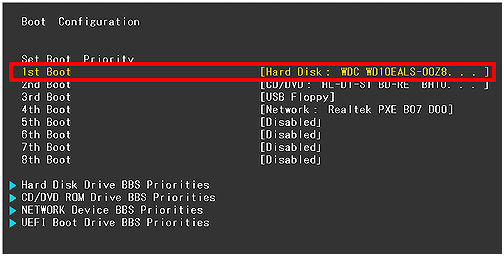
Restart the computer and enter the BIOS settings by pressing the appropriate key (usually F2 for most Fujitsu models). Configure the boot order to prioritize the bootable media.
change the boot order in hard disk in boot configuration in BIOS 
Fujitsu Laptop & PC BIOS Entry Keys by Model/Series:
Model/SeriesEnter BIOS Method
Lifebook Series (e.g., AH, UH, E)Repeatedly tap F2 as soon as the Fujitsu logo appears. If the logo disappears too fast, start tapping F2 before powering on.
Celsius WorkstationsPress F2 or Del repeatedly at startup.
Older Models (pre-2015, e.g., S Series)Press F2 or F12 for boot menu, then access BIOS.
Esprimo DesktopsPress F2 during POST (Power-On Self-Test).
Recent Models (2020+, e.g., UH-X)Press F2 or Del; some require rapid tapping.
Step 4: Select Password Reset Function
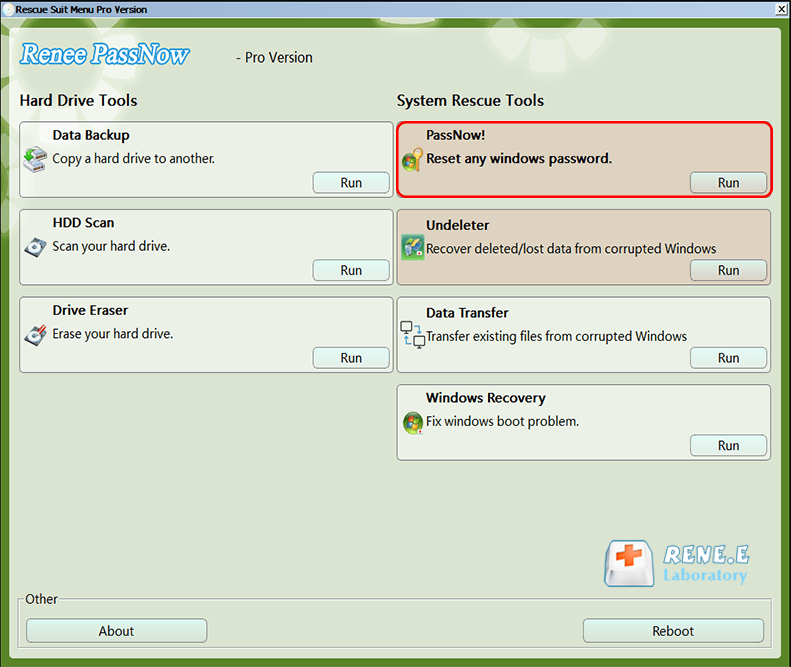
After successfully booting from the bootable media, Renee PassNow will load. Select “PassNow!” function after booting from the newly created Windows password reset disk.
After loading into main interface, please select the “PassNow!” function. 
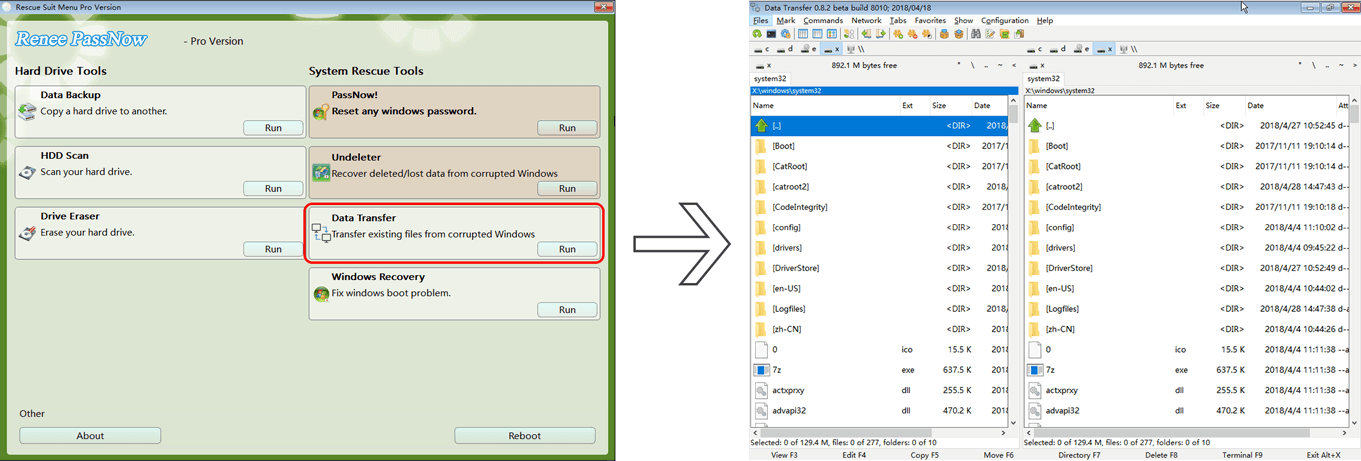
Tips: In addition to password removal, Renee PassNow offers a Data Transfer feature that lets you access and copy files from your hard drive—without booting into Windows. This is especially useful before performing a factory reset, allowing you to back up important data in bulk even if the system is locked or unbootable.
Data Transfer feature in Renee PassNow 
Step 5: Resetting the Password
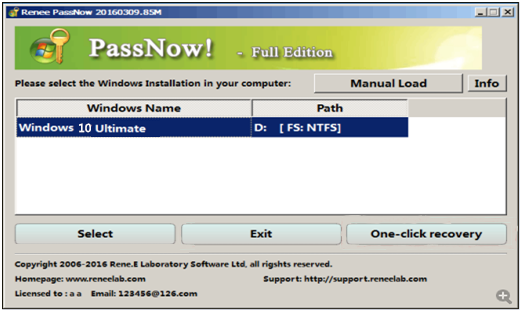
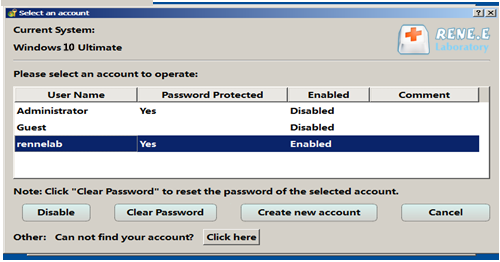
Choose the user account for which you want to reset the password. Then, click on the “Clear Password” button. Renee PassNow will clear the password (setting it to blank) for the selected user account.
Select target Windows system in the list 
Select target user account in the list 
Step 6: Reboot the PC
Once the password is reset, remove the bootable media from the PC and restart the computer. You will now be able to log in to your Windows Account without a password.
Using a third-party software like Renee PassNow can be a fast and efficient way to reset your Windows password on a Fujitsu laptop or PC if you forget it. It’s always recommended to have a password reset disk beforehand to avoid any hassle in such situations. But if you don’t have one, Renee PassNow can be a reliable alternative.
With access restored, you can now decide if a full factory reset is still necessary. Below are multiple proven methods—pick the one that fits your Fujitsu model and situation.

How to Factory Reset Fujitsu Laptop & PC

Factory resetting your Fujitsu laptop or PC can resolve a wide range of issues—from forgotten passwords to system instability. Depending on your model, Windows version, and access level, there are multiple reset methods available, each with different requirements and benefits.
The table below summarizes five common reset methods, including their applicable models, whether a login password is needed, how BitLocker encryption may affect the process, and which type of user each method is best suited for.
MethodApplicable Fujitsu ModelsOperation StepsLogin Password Required?BitLocker ConsiderationsSuitable For
1. Windows Settings ResetMost models (2015+, Windows 8/10/11)Go to SettingsUpdate & SecurityRecoveryReset this PCYes (unless launched from recovery environment)May prompt for 48-digit BitLocker recovery key if encryption is enabled. Suspend BitLocker first if possible.Users with full login access
2. Shift + Restart from Login ScreenMost models (2012+, Windows 8/10/11)On login screen, hold Shift and click RestartTroubleshootReset this PCNoMay require BitLocker key if encryption is active. No way to suspend BitLocker from this path.Locked-out users or forgotten password
3. Recovery Partition (F12 Boot Menu)Lifebook series (2005–2020+), all Windows versionsPower on → Press F12 → Select Recovery and Utility → Follow on-screen instructionsNoMay require BitLocker key if recovery accesses encrypted drives. Check Microsoft account first.Users with factory recovery intact
4. Windows Installation Media (USB/DVD)All models (Windows 7–11)Boot from USB/DVD → Choose Repair your computerTroubleshootReset this PCNoBitLocker key required if system drive is encrypted. Cannot bypass encryption.Advanced users or clean installs
5. Automatic Repair LoopAll Fujitsu Windows 11 devices (2021+), e.g., Lifebook UH-X seriesForce 3 failed boots → Automatic RepairAdvanced optionsTroubleshootReset this PCNoMay require BitLocker recovery key during reset.Windows 11 users; no media/login needed
Refer: https://global.fujitsu/en-us/support

General Notes for All Methods

Data Loss: A full reset will erase all personal files and apps. Back up important data beforehand.
Power Supply: Keep the device plugged in during the reset to avoid interruption or corruption.
BitLocker Encryption:
If BitLocker is enabled (common on Windows 10/11 with Microsoft account sign-in), some reset methods—especially Method 1 and Method 2—may prompt for the 48-digit recovery key. You can sign in with your Microsoft account and retrieve the key from account.microsoft.com/devices.
If you can log in, suspend BitLocker before resetting via:
Control PanelBitLocker Drive EncryptionSuspend Protection
Or run in Command Prompt (Admin):

manage-bde -protectors -disable C:

Without the recovery key, encrypted data cannot be accessed and will be lost.

Method 1: Through Windows Settings Reset Feature

Applicable Models: Modern Fujitsu Lifebook E/UH series (2015+), Esprimo desktops; Windows 8/10/11.
The Windows Settings reset function is a user-friendly way to factory reset your Fujitsu laptop or PC. It doesn’t require external media, and you can choose to keep your files or remove everything for a clean slate. Key benefits include no need for technical expertise and quick execution once started. This approach works well provided the OS is functional.
Advantages:
  • Built-in and easy to access
  • No external tools needed
  • Option to keep personal files

Disadvantages:

  • Requires login access initially
  • May not work if OS is corrupted
  • Time-consuming for large drives

Steps for this method

For Windows 11:
Step 1: Press Win + I to open Settings.
Step 2: Go to System > Recovery.
Step 3: Under Recovery options, click Reset PC.
select system and recovery in windows 11 settings 
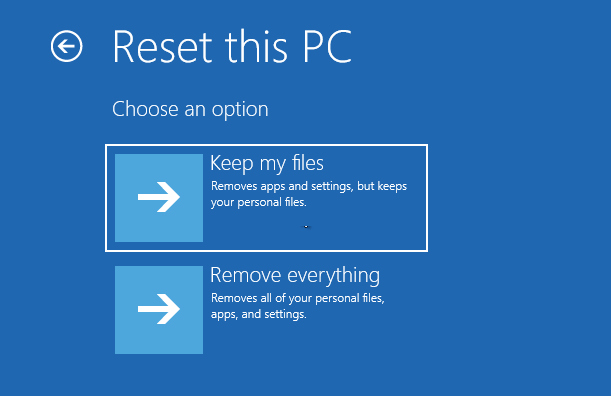
Step 4: Choose Keep my files or Remove everything, then follow the prompts.
windows 11 reset pc 
2025 Windows 11 Tip: For corrupted systems, choose Cloud download to reinstall fresh OS (requires internet).
For Windows 10:
Step 1: Press Win + I to open Settings.
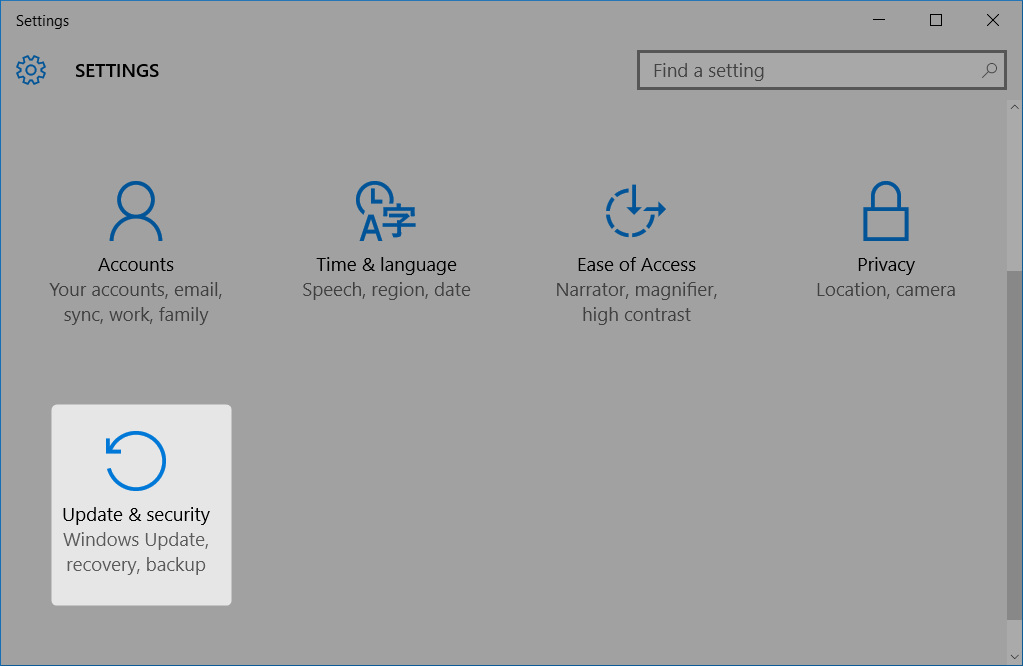
Step 2: Navigate to Update & Security > Recovery.
select update and security in windows 10 settings 
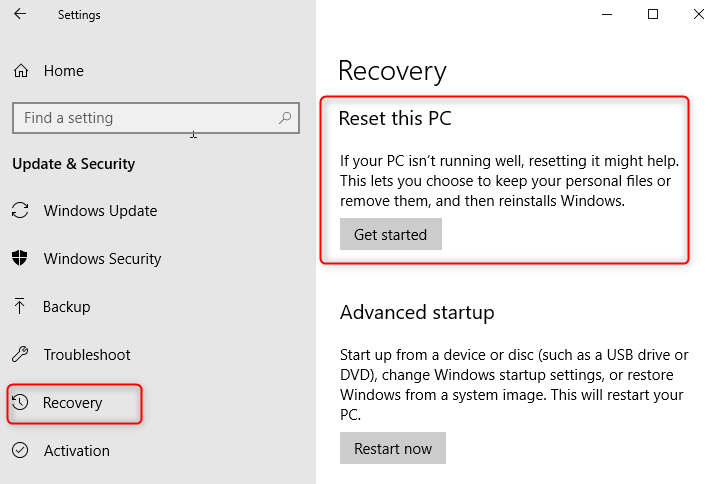
Step 3: Under “Reset this PC,” click Get started.
windows 10 reset pc 
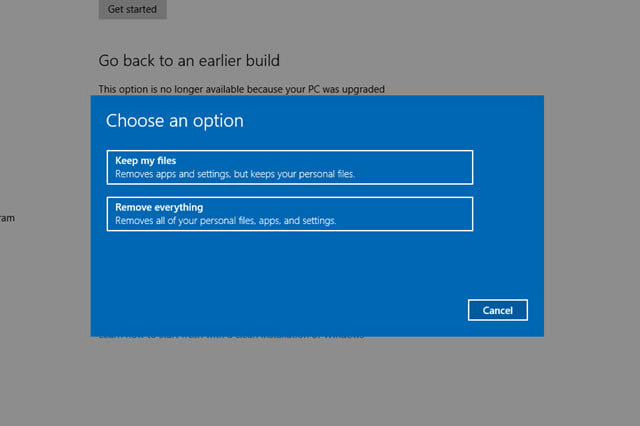
Step 4: Select Keep my files or Remove everything, then proceed.
Select Keep my files or Remove everything when windows 10 reset pc 
For Windows 8/8.1:
Step 1: For touch: Swipe from right edge; for keyboard: Press Win + C to open Charms bar.
Step 2: Click Settings > Change PC settings > Update and recovery > Recovery.
Step 3: Under Remove everything and reinstall Windows, click Get started.
windows 8 reset pc 
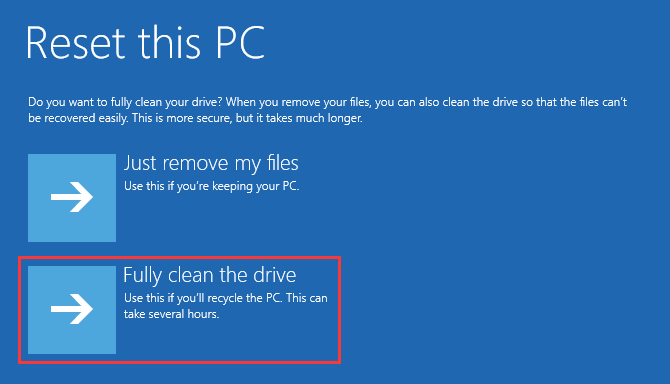
Step 4: Choose Just remove my files or Fully clean the drive, then continue.
Choose Just remove my files or Fully clean the drive when reset pc windows 8 
If locked out, use Method 2 to enter recovery mode first.
This method gets you a fresh start quickly if accessible. If it doesn’t suit your setup, consider the next option.

Method 2: Shift + Restart from Login Screen to Enter Troubleshoot

Applicable Models: Most Fujitsu Lifebook A/S series (2012+); Windows 8/10/11.
If you’re stuck at the login screen, the Shift + Restart method offers a direct path to reset without logging in. It boots into a troubleshooting menu where you can initiate a factory reset. It’s particularly handy for users without installation media or recovery partitions. Note that it requires the system to boot to the login screen. This is a reliable, no-cost Microsoft feature.
Advantages:
  • No password required
  • Quick access from login
  • Free and built-in

Disadvantages:

  • Erases all data
  • Needs functional boot to login
  • Not for Win 7 without mods

Steps for this method
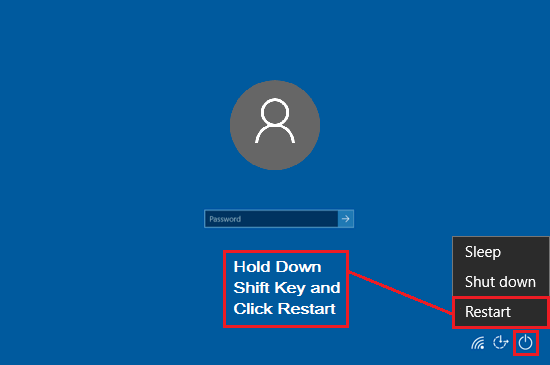
Step 1: At the login screen, hold Shift while clicking the Power icon > Restart.
Shift key and Restart button 
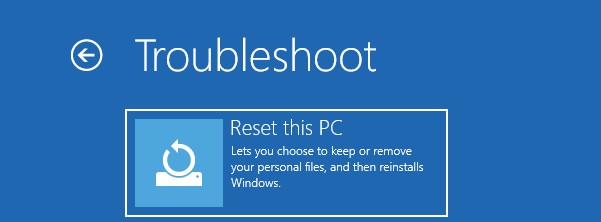
Step 2: Select Troubleshoot from the blue screen.
Step 3: Choose Reset this PC > Remove everything (or Keep my files).
Remove everything
Step 4: Follow the prompts; the process may take 30–60 minutes.
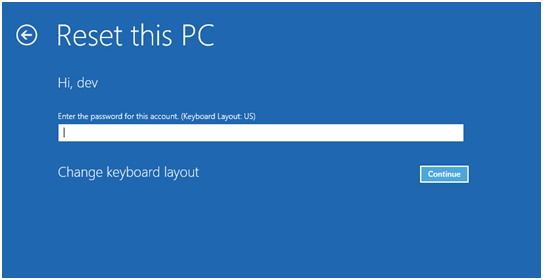
If prompted for account password here, switch to Renee PassNow first to remove it without data loss.
Resetting the PC requires a password 
Be cautious with interruptions. Once done, your Fujitsu is reset. If your model lacks this, try the recovery partition next.

Method 3: Via Manufacturer's Recovery Partition

Applicable Models: Lifebook series (2005–2020+), Esprimo desktops; all Windows versions with intact partition.
Many Fujitsu devices come with a pre-installed recovery partition to restore factory settings without external tools. Access it via specific boot keys during startup. Fujitsu’s recovery is user-friendly with guided steps, making it suitable for non-tech-savvy users.
fujitsu recovery cd 
Advantages:
  • No media needed
  • Restores original software
  • Fujitsu-specific optimizations

Disadvantages:

  • Partition can be lost
  • Full data wipe
  • Older models only

Fujitsu Laptop & PC Recovery Partition Entry Keys by Model/Year:
Model/YearEntry Method
Lifebook (pre-2015)Press F12 at logo; select Recovery and Utility.
Lifebook (2015-2020)Press F12 or F11; choose recovery option.
UH-X Series (2020+)Press F12 during boot; highlight recovery.
Esprimo Desktops (all)Press F12; select internal recovery.

Steps for this method

Step 1: Restart and press the designated key (e.g., F12) when the Fujitsu logo appears.
Step 2: Select Recovery and Utility from the boot menu.
Step 3: Choose Factory Recovery and confirm data erasure.
Step 4: Follow the on-screen instructions to finish.
This restores your device efficiently. For universal compatibility, check the next method using installation media.

Method 4: Using Windows Installation Media for Reset

Applicable Models: All Fujitsu laptops and PCs, any year; Windows 7–11.
Creating and using Windows installation media is a powerful way to factory reset, especially if other methods fail. You’ll need another PC to make the media. Download the ISO from Microsoft and use Rufus or Media Creation Tool. This reinstalls a clean OS, removing bloatware. It’s ideal for corrupted systems or when recovery partitions are gone.
Advantages:
  • Works on any model
  • Clean install
  • Free from Microsoft

Disadvantages:

  • Needs another PC
  • Downloads required
  • Post-reset setup time

Windows ISO Download Links (Windows 7–11)

Windows VersionDownload LinkRequirement
Windows 11https://www.microsoft.com/software-download/windows11Internet access; 8GB+ USB; TPM 2.0 required for install
Windows 10https://www.microsoft.com/software-download/windows10Internet access; 8GB+ USB
Windows 8.1https://www.techworm.net/2023/03/download-windows-8-1-iso-files.htmlProduct key required; 4GB+ USB
Windows 7HeiDoc.net ISO ArchiveRequires valid product key; use with Rufus to create bootable USB

Steps for this method

Step 1: On another computer, download the Windows Media Creation Tool from Microsoft.
Step 2: Create a bootable USB or DVD matching your Fujitsu’s Windows version.
Step 3: Insert the media into the Fujitsu, enter BIOS (usually F2), and set it as the first boot device.
Step 4: Boot from the media, select Repair your computer > Troubleshoot > Reset this PC.
select troubleshot and then reset this pc
Step 5: Choose your reset options and proceed.
ready to reset this PC 

Method 5: Automatic Repair Loop (Windows 11 Exclusive)

Applicable Models: All Fujitsu Windows 11 devices (2021+), e.g., Lifebook UH-X series.
Since 2025, Windows 11 includes enhanced recovery behavior: after three failed boots, the system automatically launches Automatic Repair, allowing access to Troubleshoot > Reset this PC—even if you’re locked out. No USB or installation media required.
Advantages:
  • Hands-free detection
  • Built-in diagnostics
  • No login password required to enter Automatic Repair.(If BitLocker is enabled, a recovery key is still required;)

Disadvantages:

  • Requires 3 consecutive failed boots
  • May loop indefinitely if hardware faults exist

Steps for this method

Step 1: Power on your Fujitsu. As Windows loads (spinning dots), press and hold the Power button for 5-10 seconds to force shutdown. Force shutdown means forcing off during load to simulate failure.
Step 2: Repeat this hard shutdown two more times.
Step 3: On the third boot, Automatic Repair will launch.
Step 4: Select Advanced optionsTroubleshootReset this PC.
select Reset this PC in Troubleshoot 
Step 5: Choose Remove everything and proceed (takes 30–90 minutes).
New 2025 Update: For Windows 11 24H2, select Cloud download for fresh OS installation if local files are corrupted.
Remove everything 
Note: If BitLocker is enabled, you may still be prompted for the recovery key during reset. If you run into this issue, refer to the section titled Using Renee PassNow to Remove the Windows Login Password Without a Factory Reset to unlock your account. Once the password is cleared, you can proceed to disable BitLocker.
With this, your reset is complete. Now, let’s address some common questions.

FAQs

Can I factory reset without losing my files?

Yes—if you’re using methods like Windows Settings Reset or Shift + Restart, you can choose the “Keep my files” option to preserve personal documents. However, apps and system settings will still be removed, and BitLocker encryption (if enabled) may affect access.
For extra safety, especially if your system is locked or unstable, consider using Renee PassNow’s Data Transfer feature. It lets you access and copy files from your hard drive without booting into Windows—ideal for backing up important data before a full reset.
Data Transfer feature in Renee PassNow

How long does a factory reset take on a Fujitsu PC?

It varies by model and method—typically 30 minutes to 2 hours. Newer models with SSDs are faster; ensure the device is plugged in to avoid interruptions.

What should I do if the recovery partition is missing?

If deleted (common after OS upgrades), use Windows installation media or Renee PassNow for access. You can also download Fujitsu-specific drivers post-reset from their support site.

Is Renee PassNow safe for my Fujitsu device?

Absolutely—it’s designed for Windows recovery without data loss risks. It supports all Fujitsu models and has been used successfully on recent Lifebook series, as per user reports from 2025.

How do I find my Fujitsu model's specific drivers after reset?

Visit Fujitsu’s official support website, enter your model number (found on the bottom label), and download the latest drivers for your Windows version to ensure everything runs smoothly.

What if BitLocker is enabled and I don’t have the recovery key?

You’ll need the 48-digit recovery key from your Microsoft account (account.microsoft.com/devices). Without it, data is inaccessible—even after reset. Use Renee PassNow first to unlock and suspend BitLocker before proceeding.
Renee Passnow – Professional Windows Password Remover

Remove Windows Login Password 3 steps for whole password remove process.

Enable/Create Administrator One click for creating new administrator and enable the disabled account.

Widely Use New version supports UEFI boot model, which can be used on more computers, laptops and even surfaces.

Multifuctional Data transfer, data recovery, bootable problem recovery can be run without system.

Highly compatible Windows 11/10/8.1/8/7/XP/Vista.

Remove Login Password Support Windows 11/10/8.1/8/7/XP/Vista.

Enable/Create Administrator One click for creating new administrator and enable the disabled account.

Easy to use No need of any professional knowledge or password reset disk.

Free TrialFree TrialNow 2000 people have downloaded!

User Comments

Page 1

Leave a Comment


Your comment has been submitted and is awaiting moderation.