author avatar
    Technology Manager of Test Dept.
Last update by James Smith at 27 November 2025

Summary
Discover how to factory reset Panasonic laptop & PC without password using proven methods. This guide covers secure solutions for unlocking, wiping, and restoring your Toughbook or other Panasonic models—even if you're completely locked out.



Forgot your Panasonic laptop password and can’t get into your Let’s Note or Toughbook/FZ series notebook? You’re not alone—many Panasonic laptop owners run into this issue, whether it’s from buying a used device or simply misplacing their login credentials. The good news is you can either reset the Windows password or perform a full factory restore without signing in, giving the machine a clean slate and a fresh start.
In this guide, we’ll show you step‑by‑step methods tailored for Panasonic Toughbooks, prioritizing data safety, and introduce Renee PassNow, a powerful local tool that removes or resets passwords offline without data loss—making it easier and more secure to unlock or reset your PC.
Panasonic Laptop
Here are some common reasons why you might need to factory reset your Panasonic laptop or PC without a password:
Forgotten login credentials: You set a strong password ages ago and now it’s slipped your mind, locking you out of important files or work.
Second-hand device issues: Bought a used Toughbook with the previous owner’s password still active, making it unusable until wiped.
System glitches or malware: Your laptop is running slow due to viruses or software conflicts, and a reset is the quickest fix without access.
Selling or recycling the device: Want to erase all personal data securely before passing it on, but can’t log in to do it normally.
BIOS lock from enterprise use: Common in ex-military or business models, where security features block even basic boots.

Before You Reset: Unlock and Backup with a Local Windows Tool

Before diving into the resets, let’s address the elephant in the room: if your main goal is just to bypass the password without erasing everything, tools like password removers can get you in first. This way, you can save important docs or photos before going nuclear with a factory reset. Once you’re past that hurdle, resetting becomes a breeze.

Part 1: Unlock Your Panasonic Laptop First: Using Renee PassNow

If you’re locked out due to a forgotten Windows admin password or BIOS lock on your Panasonic Toughbook, jumping straight to a factory reset might feel extreme – especially if you have valuable data inside. That’s where Renee PassNow comes in as a lifesaver. This versatile Windows recovery tool lets you reset or remove login passwords for local accounts, administrators, and even Microsoft-linked ones, all without hints or prior setup. No risk of data loss during the process, and it works offline for privacy.
Compatible with everything from Windows XP through Windows 11, it works seamlessly across all major Panasonic laptop lines—including the Let’s Note series and the rugged Toughbook/FZ series, which are often deployed with enterprise‑grade security. Handy features like Data Transfer let you copy files to an external drive even if Windows won’t boot. And as of 2025, the latest release supports PIN resets on Windows 10/11 and can handle BitLocker‑encrypted drives by prompting for the recovery key.
Renee Passnow – Professional Windows Password Remover

Remove Windows Login Password 3 steps for whole password remove process.

Recover the files Recover the deleted files without Windows system.

Transfer the data Transfer the important files of the computer with system.

Multifuctional Data transfer, data recovery, bootable problem recovery can be run without system.

Highly compatible Windows 11/10/8.1/8/7/XP/Vista. UEFI boot.

Remove Login Password Support Windows 11/10/8.1/8/7/XP/Vista. UEFI boot.

Recover the files Recover the deleted files without Windows system.

Transfer the data Transfer the important files of the computer with system.

Free TrialFree TrialNow 2000 people have downloaded!
Tips: If your account is a Microsoft Account, Renee PassNow converts it to a local one during reset. You’ll need to reconnect it afterward for full sync.
To use Renee PassNow for bypassing the password on your Panasonic laptop (enabling a safe factory reset later), follow these steps:
Step 1: Download and Install Renee PassNow
Grab it from the official site on another accessible computer. Choose the version matching your OS – it’s straightforward and quick.
Step 2: Create a Bootable USB or CD/DVD
Open the software, plug in a USB drive or insert a blank disc, and select the bootable media option. The on-screen guide walks you through burning the recovery tool – usually takes just a few minutes.
Creating a bootable USB with Renee PassNow for password reset
Step 3: Boot Your Locked Panasonic Laptop from the Media
Insert the USB or disc into your Toughbook. Restart and enter BIOS (Press F2 or Delete repeatedly at the Panasonic logo until the setup menu appears). Set the boot order to prioritize the USB/CD first.For example, on a CF-54: Hit F2 at the Panasonic logo, go to the Boot tab, and move USB to the top.
Common boot keys for Panasonic Toughbooks:
Model SeriesBIOS Entry KeyBoot Menu Key
All Toughbook (CF‑31, CF‑54, CF‑19, CF‑33/FZ‑33, FZ‑40, FZ‑55)F2 (sometimes Delete on older models)F12
All Let’s Note (FV4, SR4, LX/AX/RZ series)F2F12
In short, F2 is the universal BIOS entry key across Panasonic Windows laptops, while F12 opens the boot menu. On older Toughbook models, Delete may also work for BIOS access. These methods ensure consistent operation across all major Panasonic laptop lines.
Step 4: (Optional) Use Bitlock Manager to unlock your system drive
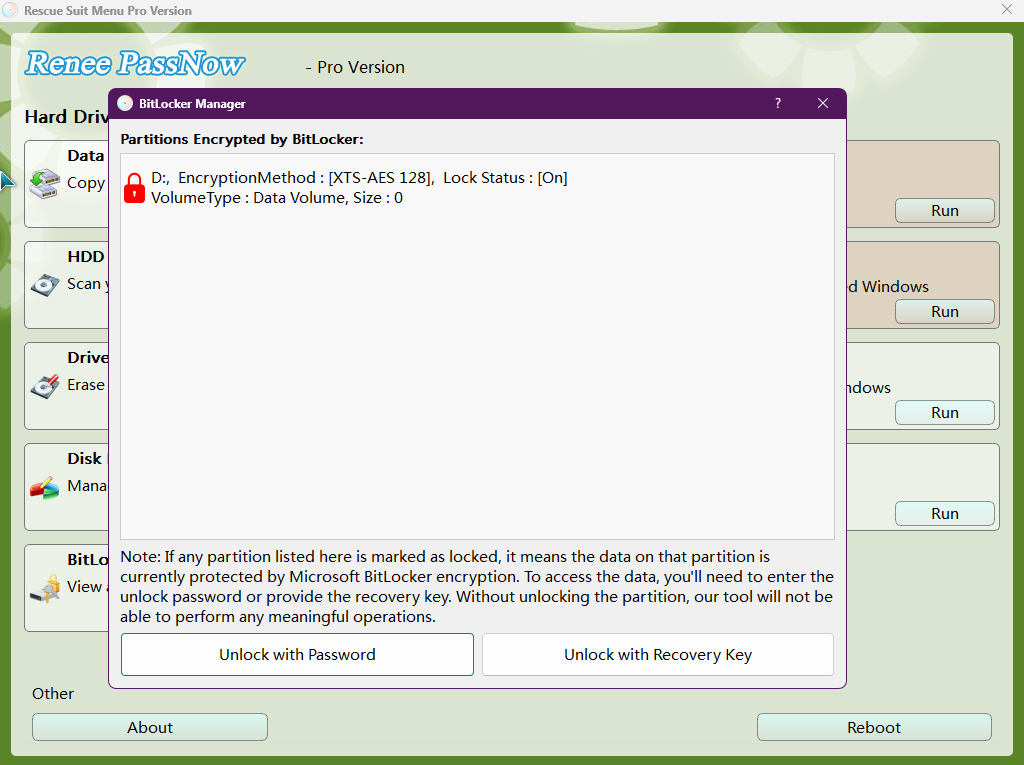
If PassNow detects that your computer’s system drive is encrypted with BitLocker, a prompt will appear asking you to enter the correct BitLocker password or the BitLocker recovery key.
Unlock the system using the BitLocker manager provided by PassNow
BitLocker password: On Windows 10, this is typically the password you set when you enabled BitLocker encryption. On Windows 11, the unlock method is usually your Microsoft account password or PIN.
Recovery key: If you’ve completely forgotten your account password, chances are you won’t remember the BitLocker password either. In that case, you’ll need the BitLocker recovery key. If your PC is linked to a Microsoft account, you can retrieve the recovery key online—even if you didn’t save it manually. Learn how to find and use your BitLocker recovery key here.
Note: The Basic edition does not support BitLocker.
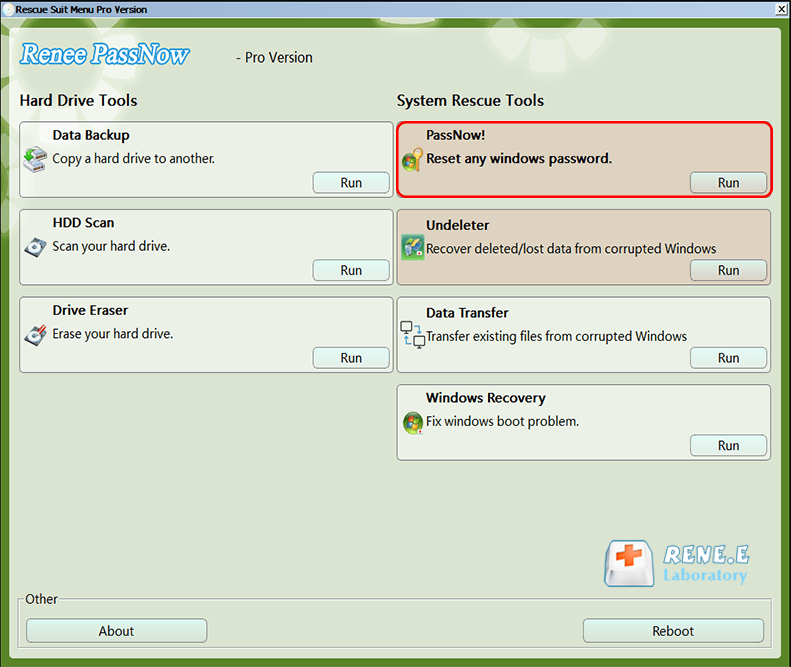
Step 5: Select the Password Reset FunctionOnce loaded, choose “PassNow!” from the main interface.
Main interface of Renee PassNow after booting
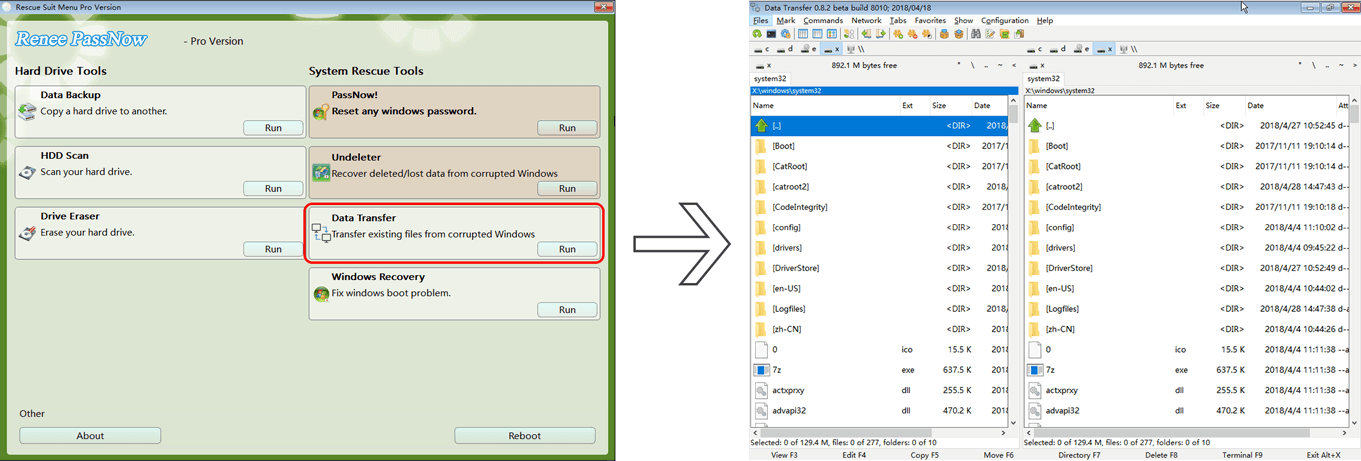
Tips: In addition to password removal, Renee PassNow offers a Data Transfer feature that lets you access and copy files from your hard drive—without booting into Windows. This is especially useful before performing a factory reset, allowing you to back up important data in bulk even if the system is locked or unbootable.
Data Transfer feature in Renee PassNow
Step 6: Reset the Password or PIN
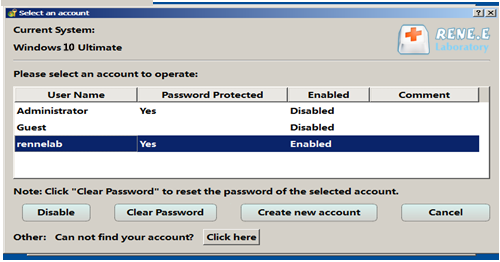
Pick your locked account from the list and hit “Clear Password.” It handles the rest in seconds.
Selecting the user account in Renee PassNow
Note: The latest version of PassNow supports clearing PIN passwords in Windows 10/11.
Step 7: Reboot and Access
Eject the media, restart, and log in password-free. Now you’re ready to factory reset if desired – or just use your laptop as is!
With the password out of the way thanks to Renee PassNow, you can now explore full factory reset options without barriers. This tool shines for quick fixes, but if you prefer a free alternative, consider Offline NT Password & Registry Editor – a no-cost, open-source utility that boots from a USB to edit the Windows registry and blank out passwords, ideal for older Toughbooks with basic locks. For more comprehensive resets, let’s move on to the core methods below.
Renee Passnow – Professional Windows Password Remover

Remove Windows Login Password 3 steps for whole password remove process.

Recover the files Recover the deleted files without Windows system.

Transfer the data Transfer the important files of the computer with system.

Multifuctional Data transfer, data recovery, bootable problem recovery can be run without system.

Highly compatible Windows 11/10/8.1/8/7/XP/Vista. UEFI boot.

Remove Login Password Support Windows 11/10/8.1/8/7/XP/Vista. UEFI boot.

Recover the files Recover the deleted files without Windows system.

Transfer the data Transfer the important files of the computer with system.

Free TrialFree TrialNow 2000 people have downloaded!

Part 2: How to Factory Reset Panasonic Laptop & PC

Once unlocked (or if you’re tackling a BIOS-only issue), factory resetting restores your Toughbook to its original state. Below, we’ve compiled a handy table summarizing the main methods. This overview helps you pick the best one based on your model, Windows version, and situation – whether it’s a quick software wipe or official help :
Note that all methods will erase data, so use Renee PassNow’s Data Transfer first if possible.
🔧 Method📋 Steps💻 Applicable Models / Windows Versions🎯 Best Use Case🔑 Password / BitLocker Needed?
Windows Settings ResetLog in → Settings → Update & Security → Recovery → Reset this PCToughbook CF‑54, CF‑33; Let’s Note FV/SR series; Windows 10/11Fixing software glitches or malware when you can still log in✅ Yes (Windows login required; BitLocker key if encrypted)
Shift + Restart (Lock Screen)At lock screen → Hold Shift → Click Restart → Troubleshoot → Reset this PCMost Toughbooks (CF‑31, CF‑54) and Let’s Note models; Windows 8+Quick recovery when locked out but can reach lock screen✅ Yes, BitLocker may still prompt
Recovery PartitionEnter BIOS (F2/Delete) → Select Recovery optionOlder Toughbooks (CF‑19, CF‑31, CF‑52) and Let’s Note LX/AX/RZ; Windows 7/8/10Full factory restore if recovery partition is intact❌ No password needed; BitLocker key if encrypted
Contact Panasonic SupportVisit support site or call → Provide proof → Get guided reset or recovery mediaAll Toughbook/FZ and Let’s Note models; Any Windows versionWarranty cases, official recovery, or second‑hand devices without DIY confidence❌ No password required; official recovery media provided after verification
Windows Media Clean InstallDownload Microsoft USB tool → Boot → Delete partitions → Reinstall WindowsAll Toughbook/FZ and Let’s Note models; esp. newer FZ‑40, FZ‑55, FV4; Windows 10/11Best for corrupted partitions or when a full wipe is needed All Data will be lost; ❌ No password required; BitLocker key if prompted
These methods cover most situations, from easy software options to pro assistance. Let’s break them down in detail for clarity, starting with the simplest.

Method 1: Reset via Windows Settings

This is the most straightforward if you can log in. Note: This requires logging into Windows first – if you’ve forgotten the password, use Renee PassNow from section 1 to clear it and gain access. Ideal for newer models like the CF-54 on Windows 11, where you want to fix slowdowns without external tools.

Steps

Step 1: Log into Windows after bypassing the password.
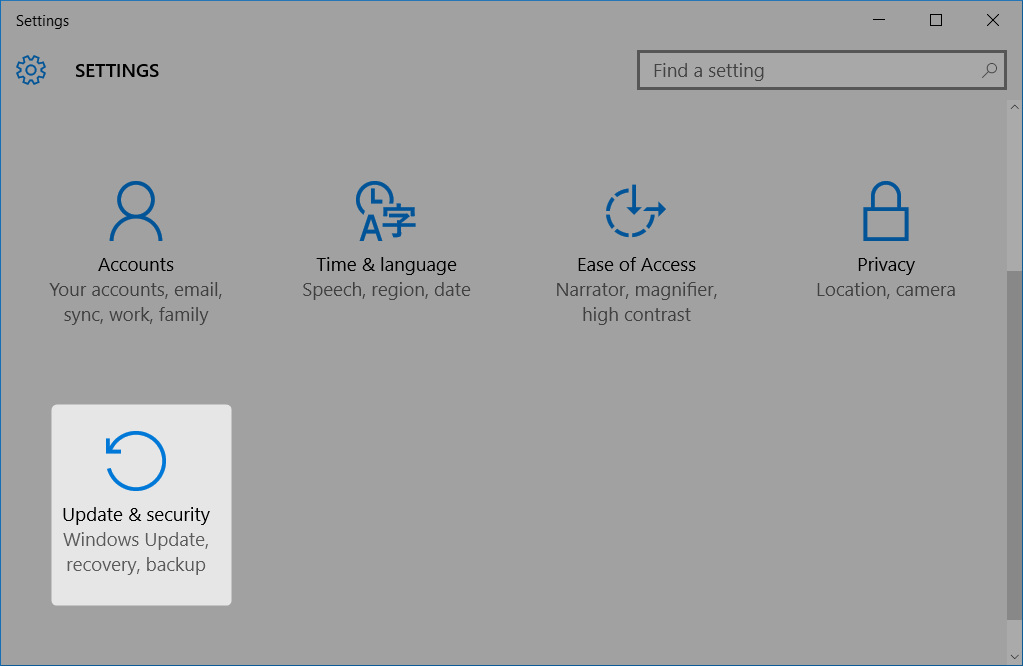
Step 2: Open Settings (press Windows key + I). Go to Update & Security (or System > Recovery in Windows 11).
select update and security in windows 10 settings
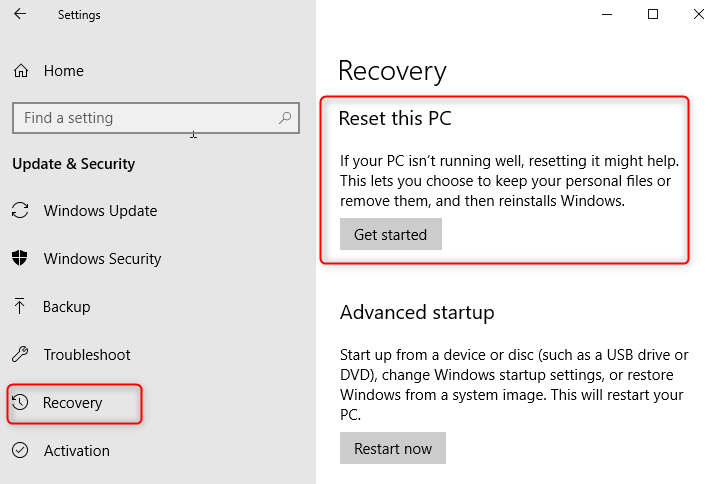
Step 3: Under Recovery, click “Get started” under “Reset this PC.”
windows 10 reset pc
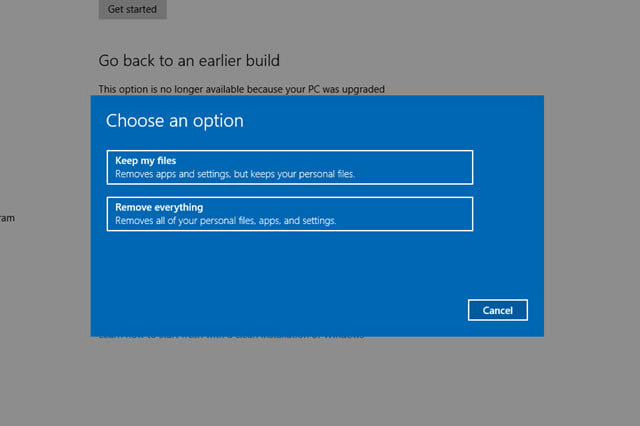
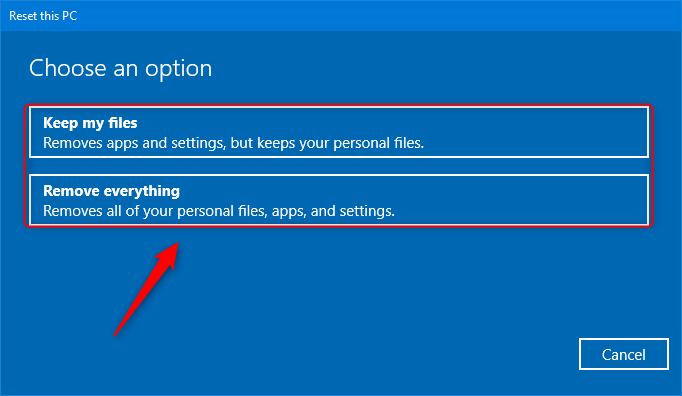
Step 4: Choose “Remove everything” to fully wipe and reset.
Select Keep my files or Remove everything when windows 10 reset pc
Step 5: Select how to reinstall Windows (cloud download or local).
Step 6: Confirm and let it run – your laptop will restart multiple times.

Method 2: Shift + Restart from Login Screen to Enter Troubleshoot

This method allows you to enter the Windows Recovery Environment (WinRE) directly from the login screen without signing in. By using Shift + Restart, you can quickly access recovery options to reset the PC and remove all data, making it especially useful for locked‑out scenarios or quick wipes on models such as the CF‑31. If BitLocker protection is enabled, the recovery key will be required, which can be retrieved from your Microsoft account online.

Steps

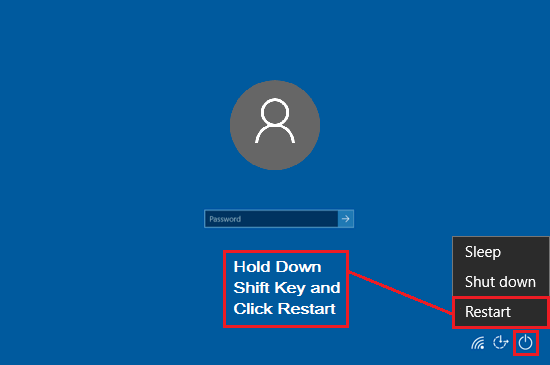
Step 1: At the lock screen, click the Power icon in the bottom right. Hold down the Shift key on your keyboard. While holding Shift, click Restart.
Alternative Access if Shift Key is Unresponsive: At the lock screen, click the Ease of Access icon (clock-like) and select On-Screen Keyboard. Use it to simulate holding Shift while clicking Restart.
Shift key and Restart button
Step 2: The laptop will boot into WinRE (blue screen options).
Step 3: Select Troubleshoot > Reset this PC.
select Reset this PC in Troubleshoot
Step 4: Choose “Remove everything” and follow prompts for reinstall options.
Remove everything
Step 5: If prompted for BitLocker, enter the recovery key. Confirm and wait for the process to complete.
Tip: For Win11, select Cloud download for latest patches—faster in 2025.

Method 3: Using the Recovery Partition

This method relies on the built‑in recovery partition that many Panasonic laptops include. When intact, it allows you to restore the system back to factory defaults without needing the Windows login password. It is especially useful for older Toughbook models running Windows 7/8, though newer devices may require external recovery media if the partition is missing or damaged.
Best suited for: Older Windows 7/8 systems with pre-installed recovery partitions.
Limitation: Newer Windows 10/11 models may require a recovery USB if the partition is missing or damaged.
For Panasonic devices with an intact recovery partition, this method restores factory defaults without requiring the Windows login password.
Note: BIOS or BitLocker credentials may still be required.

Steps

Step 1: Power on your Panasonic laptop and press the BIOS entry key (commonly F2 or Delete) during startup.
Step 2: In BIOS, locate the Recovery option (often under the Exit tab, but menu location varies by model).
Step 3: Select Repair Your Computer and confirm to boot into the recovery environment.
Panasonic bios: Repair Your Computer In Exit tab
Step 4: Follow the on-screen wizard to perform a factory reset and wipe all data.
Panasonic recovery partition
Step 5: If BitLocker is enabled, enter the recovery key when prompted.
Step 6: The system will automatically reinstall Windows to factory defaults.
🔑 Hotkeys by Panasonic Laptop Series (may vary slightly):

💻 Toughbook/FZ Series (rugged laptops & tablets)
• CF‑19 (2006–2015): Press F2 → Recovery Partition
• CF‑31 (2010–2015): Press F2 or Delete → Recovery Partition
• CF‑52 (2008–2012): Press F2 → Recovery Partition
• CF‑53 (2011–2015): Press F2 or Delete → Recovery Partition
• CF‑54 (2015+): Press F2 → Recovery Partition
• FZ‑M1 (2014+): Press F2 → Recovery option
• FZ‑G1 (2013+): Hold Volume Up + Power or press F2 → Recovery option
• FZ‑40 / FZ‑55 (2020+): Press F2 → Recovery Partition

📝 Let’s Note Series (lightweight business notebooks, Japan market)
• FV4 (2023+): Press F2 → Recovery Partition
• SR4 (2023+): Press F2 → Recovery Partition
• LX / AX / RZ series (2010s+): Press F2 → Recovery Partition

✨ General rule: On most Panasonic Windows laptops, F2 enters BIOS and recovery options, while F12 opens the boot menu. Older Toughbook models may also accept Delete for BIOS entry, and tablet‑style devices often use Power + Volume Up.

Handling Lost Recovery Partition

If your Panasonic Toughbook’s recovery partition is missing or corrupted (common after drive wipes or upgrades), you can purchase or download recovery media. Visit Panasonic’s official support at https://connect.na.panasonic.com/toughbook/support or ToughbookRescue.com for model-specific images (e.g., for CF-31 or CF-54). Costs range from $20-50. Alternatively, use Microsoft’s Media Creation Tool for a clean install, but this won’t restore Panasonic-specific drivers—download them post-reset from the support site. For a safer start, use Renee PassNow’s Data Transfer function to back up data first, as it’s a local Windows tool that works offline without risking online downloads.

Method 4: Contact Panasonic Official Support

If DIY isn’t your style, head to Panasonic’s support website or call their hotline. Provide your model number and proof of ownership (serial number, receipt). They can guide a remote reset, send recovery media, or handle it at a service center. Fees apply if out of warranty ($50-100 typically). Perfect for all models, especially if you’re unsure about hardware tinkering.
To contact Panasonic Toughbook support, visit the official website at https://connect.na.panasonic.com/toughbook/support, email [email protected], or call 855-772-8324 for technical support. You can also reach Panasonic’s dedicated Toughbook support line at 1-800-LAPTOP5, with typical hold times under one minute. For sales inquiries, refer to the contact options listed on the support site or use the contact form for assistance.
Panasonic Toughbook support
Refer: https://connect.na.panasonic.com/toughbook/support/get-service-support

Method 5: Clean Install Using Windows Installation Media

For ultimate control in 2025, especially if recovery partitions are corrupted (common on updated Win11 Toughbooks), create a bootable Windows USB from Microsoft’s site. This method wipes everything and reinstalls fresh—perfect for BIOS-locked devices without support access.
Step 1: On another PC, download the appropriate Windows Media Creation Tool from the Microsoft website.
* Windows ISO Download Links (Windows 7–11)*
Windows VersionDownload LinkRequirement
Windows 11https://www.microsoft.com/software-download/windows11Internet access; 8GB+ USB; TPM 2.0 required for install
Windows 10https://www.microsoft.com/software-download/windows10Internet access; 8GB+ USB
Windows 8.1https://www.techworm.net/2023/03/download-windows-8-1-iso-files.htmlProduct key required; 4GB+ USB
Windows 7 (SP1)HeiDoc.net ISO ArchiveRequires valid product key; use with Rufus to create bootable USB
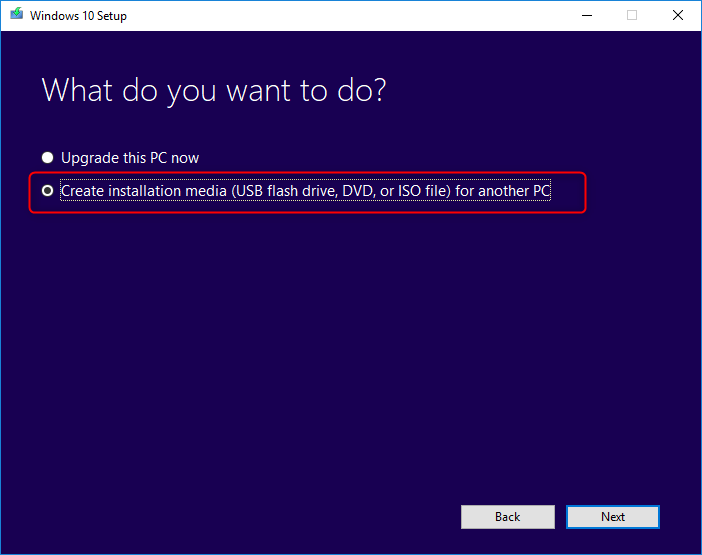
Step 2: Insert a USB (8GB+), run the tool, and select “Create installation media for another PC” > USB flash drive.
Create installation media for another PC
Step 3: Boot your Toughbook from USB: Enter BIOS (F2/Delete), set USB first in Boot order.
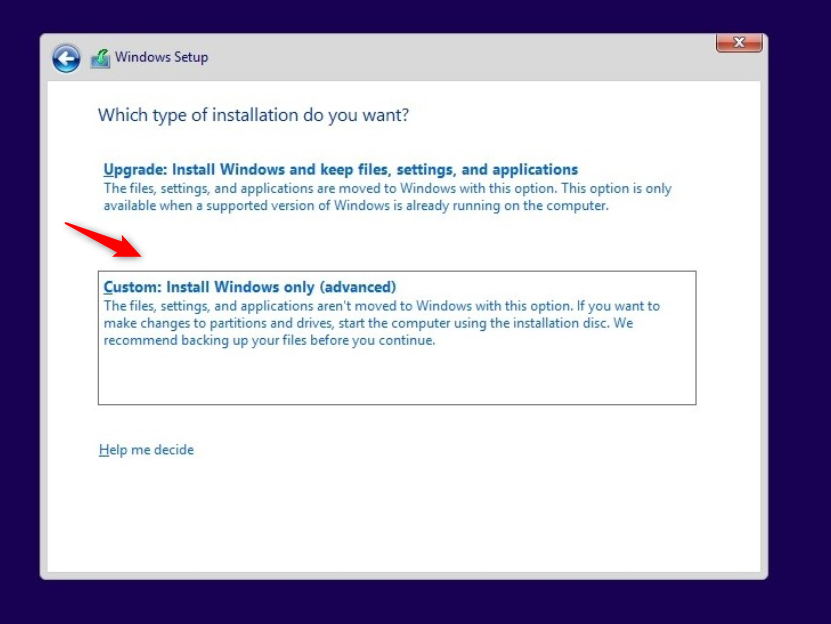
Step 4: In setup, choose “Custom: Install Windows only (advanced)”—delete all partitions on the main drive.
Custom: Install Windows only
Step 5: Follow prompts to install; no password needed as it’s a fresh setup.
Tip: If BitLocker prompts, retrieve the key from your Microsoft account at account.microsoft.com/devices > Select device > BitLocker keys.

Additional Tip: CMOS Battery Removal for BIOS Resets

One more option to mention: CMOS battery removal for BIOS resets. This involves opening the case, removing the coin battery for 1-2 minutes (or up to 30 minutes for stubborn cases) to clear settings (including passwords). Press and hold the power button for 10-60 seconds after removal to discharge residual power. However, success rates are low in 2025 for newer models like CF-54 due to passwords stored in non-volatile memory. It carries risks like damaging components from static or improper handling, voiding warranties, or failing on soldered batteries. Not recommended for beginners—use Renee PassNow for safer Windows-level unlocks instead.
Wrapping up these methods, you’ve got options from quick software unlocks to pro help. But questions linger? Check our FAQ below for more clarity.

Frequently Asked Questions

Is it possible to factory reset my Panasonic Toughbook without losing all data?

Not entirely – a true factory reset wipes everything to restore the original state. However, if you use Renee PassNow first to bypass the password, you can back up files via its Data Transfer feature before resetting. For partial resets, try Windows’ “Reset this PC” with the “Keep my files” option once unlocked.

What if my Panasonic laptop has a BIOS password that blocks booting?

BIOS locks are common on Toughbooks for security. On older models, removing the CMOS battery may clear BIOS settings, but newer devices often store passwords in non-volatile memory, making this method ineffective. Tools like Renee PassNow are designed for Windows login password resets, not BIOS-level locks. If the BIOS password cannot be cleared, Panasonic support can assist with a reset after proof of ownership, ensuring unauthorized users cannot wipe or access the system.

Can I use these methods on older Panasonic models like the CF-18?

Yes, most work across generations. For vintage ones, Offline NT Password & Registry Editor excels on XP-era systems. Renee PassNow supports down to XP too. Just verify boot keys – older models might use Delete instead of F2.

Will factory resetting fix performance issues on my Panasonic PC?

Often yes, as it removes bloatware, viruses, and clutter. But if hardware’s failing (e.g., aging HDD in a CF-31), a reset won’t help – consider upgrading. Always update drivers post-reset via Panasonic’s site for optimal speed.

What precautions should I take before resetting without a password?

Back up data if possible using external tools – Renee PassNow’s Data Transfer function shines here, letting you move files from the hard drive even when passwords are forgotten, ensuring better data safety. Disconnect peripherals to avoid conflicts. And for BitLocker-enabled drives, have your recovery key ready – Microsoft accounts store it online. To view your BitLocker recovery key, log into your Microsoft account at account.microsoft.com/devices from another device, select your locked Panasonic laptop, and check under the BitLocker section for the key.

How long does a factory reset take on a Panasonic Toughbook?

It varies: 30-60 minutes for software methods like Windows Recovery. Hardware resets add disassembly time. Using Renee PassNow for initial unlock speeds things up by booting outside Windows to clear the password, so you can remove the bootable USB, restart directly into the system, and then reset from within Windows more efficiently.

How Do I Handle BitLocker on Win11 Toughbooks During Reset?

BitLocker is common on enterprise models. First, check your recovery key online at account.microsoft.com/devices (use another device). If lost, the reset will prompt suspension—enter the key to proceed. For prevention, disable it in BIOS before locking next time.In the end, whether you’re a field tech with a battered CF-54 or a home user with a forgotten password, these steps get your Panasonic back in action. Renee PassNow stands out for its ease and data safety – give it a try for hassle-free access!
Renee Passnow – Professional Windows Password Remover

Remove Windows Login Password 3 steps for whole password remove process.

Enable/Create Administrator One click for creating new administrator and enable the disabled account.

Widely Use New version supports UEFI boot model, which can be used on more computers, laptops and even surfaces.

Multifuctional Data transfer, data recovery, bootable problem recovery can be run without system.

Highly compatible Windows 11/10/8.1/8/7/XP/Vista.

Remove Login Password Support Windows 11/10/8.1/8/7/XP/Vista.

Enable/Create Administrator One click for creating new administrator and enable the disabled account.

Easy to use No need of any professional knowledge or password reset disk.

Free TrialFree TrialNow 2000 people have downloaded!

User Comments

Page 1

Leave a Comment


Your comment has been submitted and is awaiting moderation.