
No Novo Button? Here’s How to Factory Reset Your Lenovo Laptop Easily

Summary
Learn how to factory reset Lenovo laptop without Novo button using step-by-step methods that suit beginner users. Restore your computer hassle-free, even if you're locked out or facing hardware issues. Quick, reliable, and user-friendly solutions.

Table of contents
 Methods to Factory Reset Lenovo Laptop without Novo Button
-
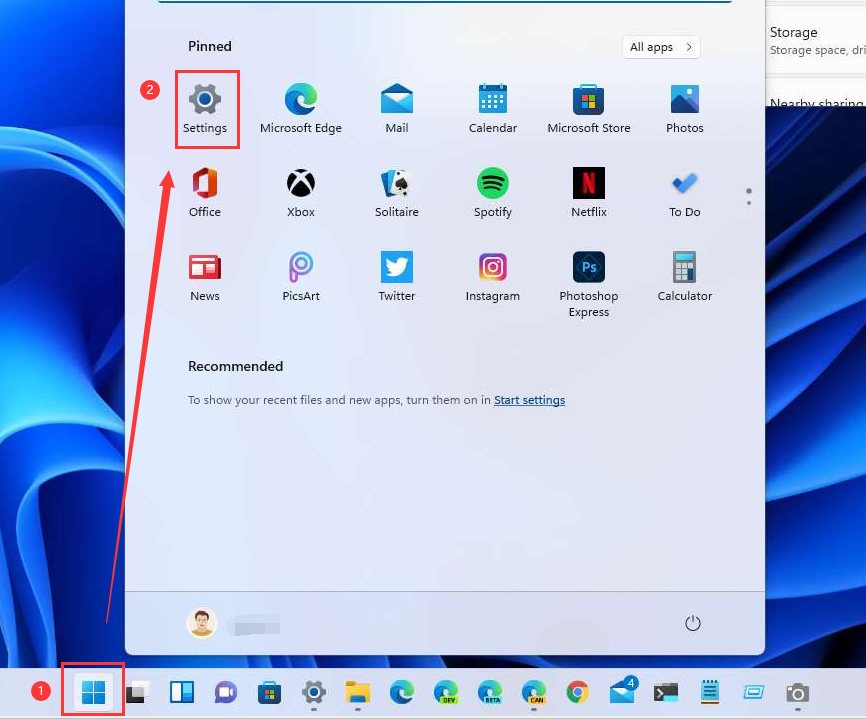
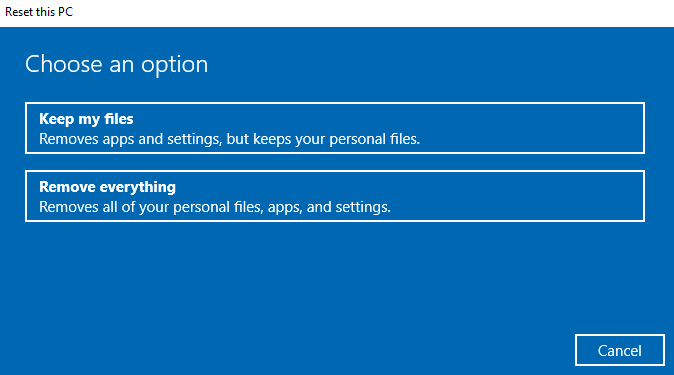
- Method 1: Factory Reset Your Lenovo Laptop without Novo Button through Windows Settings (can login)
- Method 2: Factory Reset Your Lenovo Laptop without the Novo Button Using BIOS
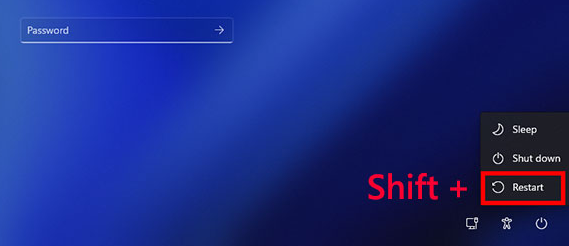
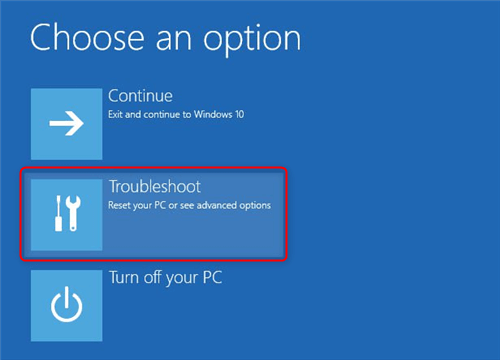
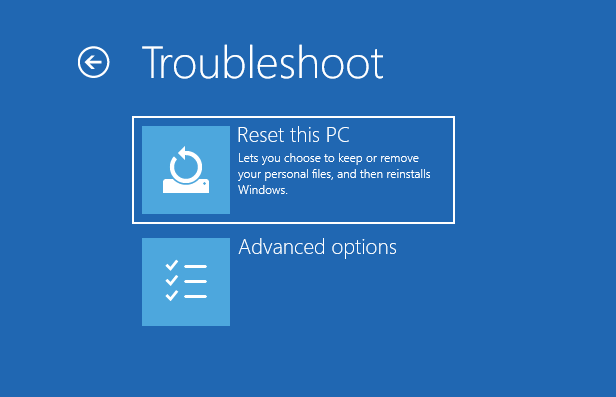
- Method 3: Factory Reset Your Lenovo Laptop without Novo Button with Shift + Restart
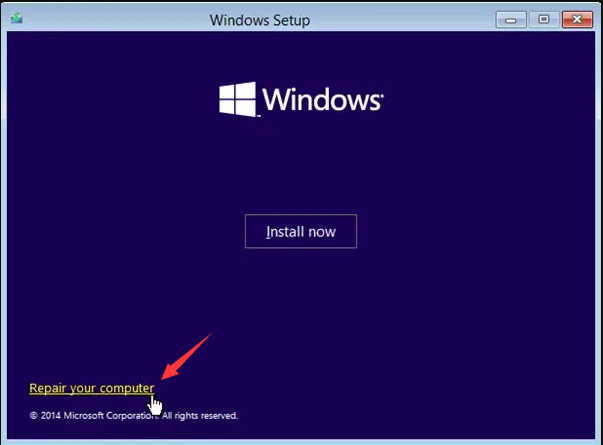
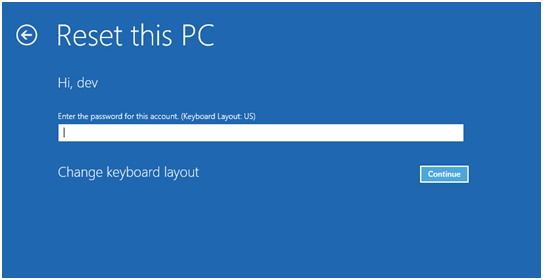
- Method 4: Factory Reset Your Lenovo Laptop without Novo Button Using a Windows 11 Installation Disk


* Use F12 Boot Menu and pick any entry labeled “Windows Boot Manager (Recovery)” if it exists.
* Or force WinRE: power on, interrupt boot during the spinning dots three times (power off each time) to trigger “Preparing Automatic Repair,” which leads to WinRE.

Remove Windows Login Password 3 steps for whole password remove process.
Enable/Create Administrator One click for creating new administrator and enable the disabled account.
Widely Use New version supports UEFI boot model, which can be used on more computers, laptops and even surfaces.
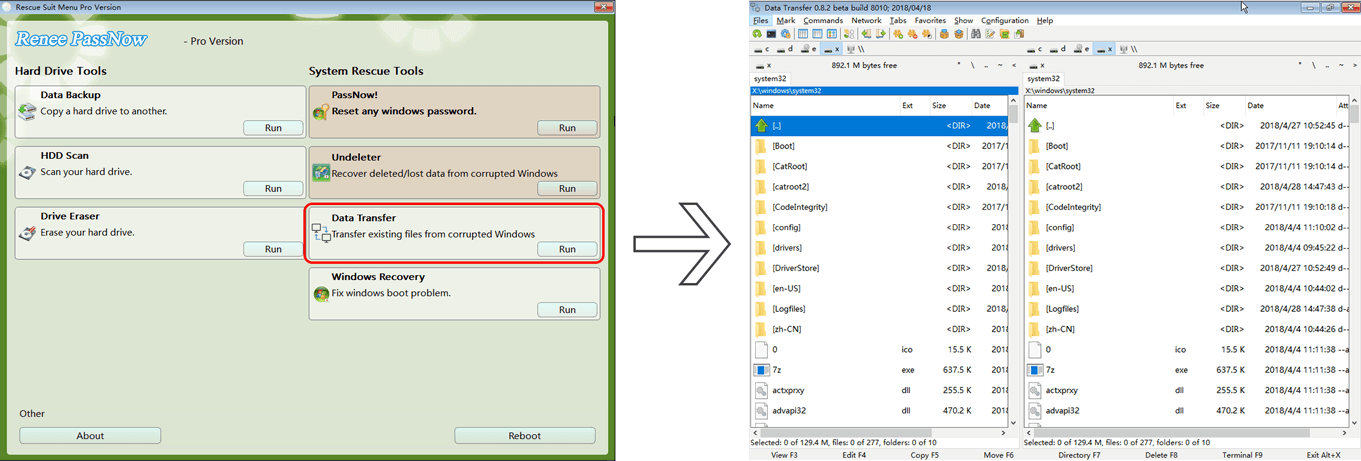
Multifuctional Data transfer, data recovery, bootable problem recovery can be run without system.
Highly compatible Windows 11/10/8.1/8/7/XP/Vista.
Remove Login Password Support Windows 11/10/8.1/8/7/XP/Vista.
Enable/Create Administrator One click for creating new administrator and enable the disabled account.
Easy to use No need of any professional knowledge or password reset disk.
Remove Windows Login Password 3 steps for whole password remove process.
Enable/Create Administrator One click for creating new administrator and enable the disabled account.
Widely Use New version supports UEFI boot model, which can be used on more computers, laptops and even surfaces.
Multifuctional Data transfer, data recovery, bootable problem recovery can be run without system.
Highly compatible Windows 11/10/8.1/8/7/XP/Vista.
Remove Login Password Support Windows 11/10/8.1/8/7/XP/Vista.
Enable/Create Administrator One click for creating new administrator and enable the disabled account.
Easy to use No need of any professional knowledge or password reset disk.
Remove Windows Login Password 3 steps for whole password remove process.
Recover the files Recover the deleted files without Windows system.
Transfer the data Transfer the important files of the computer with system.
Multifuctional Data transfer, data recovery, bootable problem recovery can be run without system.
Highly compatible Windows 11/10/8.1/8/7/XP/Vista. UEFI boot.
Remove Login Password Support Windows 11/10/8.1/8/7/XP/Vista. UEFI boot.
Recover the files Recover the deleted files without Windows system.
Transfer the data Transfer the important files of the computer with system.


| Device Type | Enter Boot Menu Method |
|---|---|
Lenovo (Consumer Laptops) |
F2 or Fn + F2 |
Lenovo (Desktops) |
F1 |
Lenovo (ThinkPads) |
Enter then F1 |
Remove Windows Login Password 3 steps for whole password remove process.
Enable/Create Administrator One click for creating new administrator and enable the disabled account.
Widely Use New version supports UEFI boot model, which can be used on more computers, laptops and even surfaces.
Multifuctional Data transfer, data recovery, bootable problem recovery can be run without system.
Highly compatible Windows 11/10/8.1/8/7/XP/Vista.
Remove Login Password Support Windows 11/10/8.1/8/7/XP/Vista.
Enable/Create Administrator One click for creating new administrator and enable the disabled account.
Easy to use No need of any professional knowledge or password reset disk.
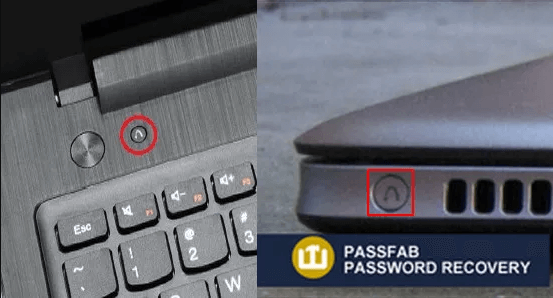
Q1: What is the Lenovo Novo Button and Where is it Located?
Q2: Do F11 or F12 Trigger a Factory Reset?
Q3: Do I Need to Keep Windows During the Reset, or Should I Wipe Everything?
Q4: Will Using a Windows 11 Installation Disk Allow Access to the Recovery Environment?
Q5: What If I Want to Avoid Losing Data but Still Need to Reset Due to Performance Issues?
Remove Windows Login Password 3 steps for whole password remove process.
Enable/Create Administrator One click for creating new administrator and enable the disabled account.
Widely Use New version supports UEFI boot model, which can be used on more computers, laptops and even surfaces.
Multifuctional Data transfer, data recovery, bootable problem recovery can be run without system.
Highly compatible Windows 11/10/8.1/8/7/XP/Vista.
Remove Login Password Support Windows 11/10/8.1/8/7/XP/Vista.
Enable/Create Administrator One click for creating new administrator and enable the disabled account.
Easy to use No need of any professional knowledge or password reset disk.
Relate Links :
How to Factory Reset Your Toshiba Laptop Without a Windows/BIOS Password
28-11-2023
Jennifer Thatcher : In this article, learn how to factory reset your Toshiba laptop without the need for a password. Discover...
Toshiba Laptop Password Reset: Unlocking Your Device

28-11-2023
Ashley S. Miller : Forgot your Toshiba laptop password and don't have a Windows build-in reset disk? Or Forgot BIOS password? Don't...
Your Guide to a Fresh Start: How to factory reset HP desktop without password
28-11-2023
Ashley S. Miller : This article provides a comprehensive guide on how to initiate a factory reset on an HP desktop without...
How to Factory Reset HP Stream Laptop Without Password - Password-Free Solutions
28-11-2023
Jennifer Thatcher : Explore different ways to perform a factory reset on your HP Stream laptop when you have forgotten the...



User Comments
Leave a Comment