author avatar
    Specialist of Customer Service Dept.
Last update by Emma Johnson at 12 October 2026

Summary
This guide outlines the technical realities of online data recovery from pen drive media, clarifying that browser-based scanning is not feasible. It details the procedural steps for utilizing local desktop recovery software to address logical data loss scenarios such as accidental deletion, formatting, and RAW file system errors.



Many people assume that “online pen drive data recovery” means a website can directly scan and recover files from a USB drive through a web browser. In reality, this is not possible. Web browsers cannot access USB storage at the sector level or scan a drive’s file system directly. Instead, “online” recovery usually refers to downloading a trusted data recovery tool, installing it on your computer, and performing the recovery scan locally.
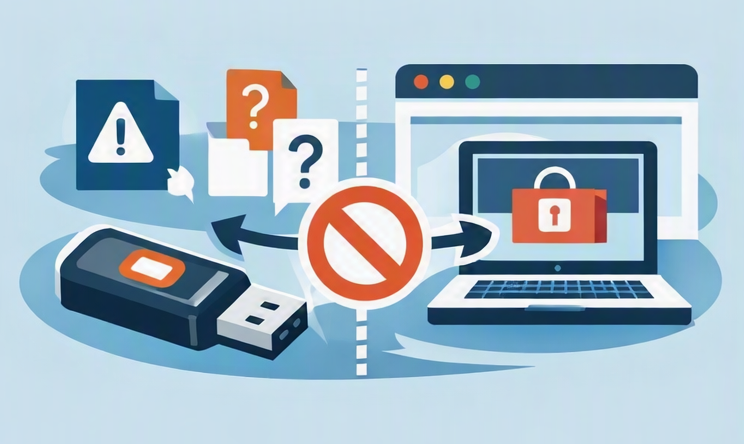
Web browser blocked from accessing a USB pen drive
Typical data loss scenarios on a pen drive include:
  • Accidental deletion or Shift+Delete
  • Formatting the drive
  • RAW drive or “format before use” prompts
  • Virus-hidden files that seem to disappear
  • Physical damage making the drive undetectable
For logical issues such as deleted files, accidental formatting, RAW file systems, or virus-hidden data, a local recovery scan is usually the most effective first step. If the pen drive has physical damage or is no longer detected by the computer, professional data recovery services may be required.

Before running any online data recovery software for pen drive, avoid using Windows tools such as CHKDSK or the Error Checking/Repair Drive feature on the pen drive.

Check the pen drive condition before recovery

Before using any recovery software, match your pen drive’s symptoms to the table below. This helps you determine whether DIY recovery is appropriate or if you need a different approach.
Symptom Likely Cause Recommended First Action DIY Recovery?

🗑️ Files were deleted or permanently removed with Shift + Delete

Accidental deletion

Stop using the pen drive immediately to prevent data from being overwritten

✅ Yes

⚠️ Drive appears empty or prompts you to format it

Accidental formatting or file system corruption

Do not format the drive. Run a recovery scan instead

✅ Yes

📂 Drive shows as RAW or displays a "Format before use" message

File system or partition table damage

Avoid writing new data. Perform a Whole Partition Scan or Whole Disk Scan

✅ Yes

👻 Files are missing, but used storage space remains unchanged

Files hidden by a virus or malware

Try restoring hidden attributes with the attrib command first

✅ Yes

🔌 Drive does not appear in File Explorer

USB port issue, driver problem, or hardware failure

Try another USB port or computer, then check Disk Management

⚠️ Maybe

🔒 Encrypted drive requests a password

Encryption is preventing access

Unlock and mount the drive before scanning

✅ Yes (after unlocking)

Encryption prerequisite: If your encrypted pen drive is unlocked and mounted—whether it’s BitLocker, VeraCrypt, hardware-encrypted, or another scheme—Windows can read and write its sectors like any normal disk. Before scanning, make sure you can open the drive and see files.

After identifying your symptom, stop using the pen drive immediately. Any new write, format, or “repair” attempt can overwrite recoverable data.

Use Renee Undeleter for DIY pen drive recovery

Renee Undeleter is the ideal “online” DIY solution: you download it, install it locally, and scan your pen drive yourself—no shipping, no remote technician, and no browser-based limitations. It’s designed to recover files lost to accidental deletion, formatting, RAW file systems, and virus-hidden files from pen drives, SD cards, and hard drives.
Recover Pen Drive Data with Renee UndeleterRenee Undeleter data Recovery software

Image Creation Create a full backup image of the drive before scanning, so you can restore it later if recovery goes wrong.

Multiple scan modes Fast partition scan, whole partition scan and whole disk scan for different recovery needs.

File types Support to recover pictures, videos, audios, documents, mails, etc.

Supported storage devices Recover data from recycle bin, SD card, external disk, etc.

Supported systems Windows 11,10, 8.1, 8, 7, Vista, XP, 2000 and Mac OS X10.6, 10.7, 10.8+.

Easy to use Only simple steps to recover data from storage devices.

Multiple scan modes - 3 scan modes for different recovery needs.

Supported storage devices Recover data from recycle bin, SD card, external disk, etc.

Free TrialFree TrialFree Trial

3000 users have downloaded Renee Undeleter and found data back!

Key features:

Fast Partition Scan – for accidental deletion or emptied recycle bins.
Whole Partition Scan – recover data from formatted/corrupted partitions.
Whole Disk Scan – scans the entire device, useful if partition info is missing.
Image Creation – create a backup image of the partition before scanning.
Handles deleted, formatted, RAW, and virus-hidden files on pen drives.

How to recover files from a pen drive with Renee Undeleter step by step

Recovering data from a USB drive is straightforward with the right tool. Here’s how to use Renee Undeleter to safely scan your pen drive and restore your files without risking further loss.

Before you scan: connect and unlock the pen drive

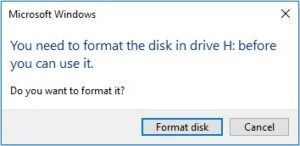
Plug your pen drive into a working USB port. If it’s encrypted (BitLocker, VeraCrypt, hardware encryption), unlock and mount it first so Windows can access the files and sectors. If prompted to format, close the pop-up without formatting.
Windows dialog prompting to format a RAW pen drive before it can be used

1. Download, install, and open Renee Undeleter

Install Renee Undeleter on a different drive—not the pen drive you want to recover from—to avoid overwriting lost data.
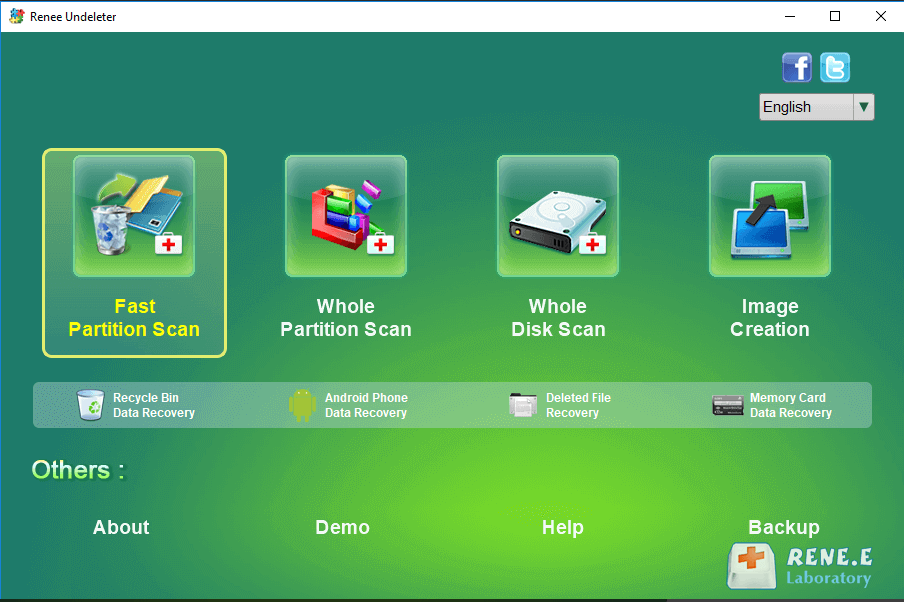
Launch Renee Undeleter. The main screen displays the four recovery modules.
Renee Undeleter main interface

Tip: Never install Renee Undeleter on the pen drive you’re recovering.

2. Choose the right scan mode

Select the scan mode that matches your situation:
- Fast Partition Scan – for accidental deletion or emptied recycle bins.
- Whole Partition Scan – for formatted, RAW, or inaccessible drives.
- Whole Disk Scan – for missing partition info or device-wide problems.
- Image Creation – to create a backup image before scanning.
For most pen drive recovery cases:
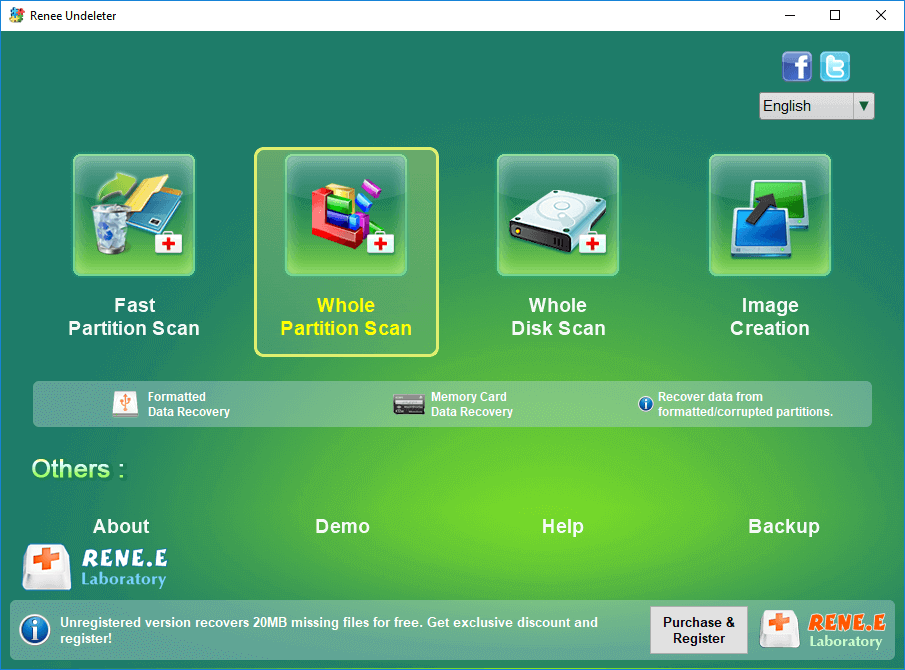
- Use Whole Partition Scan if the drive was formatted or displays as RAW.
- Use Fast Partition Scan if files were simply deleted.
Select Whole Partition Scan in Renee Undeleter

3. Scan the pen drive

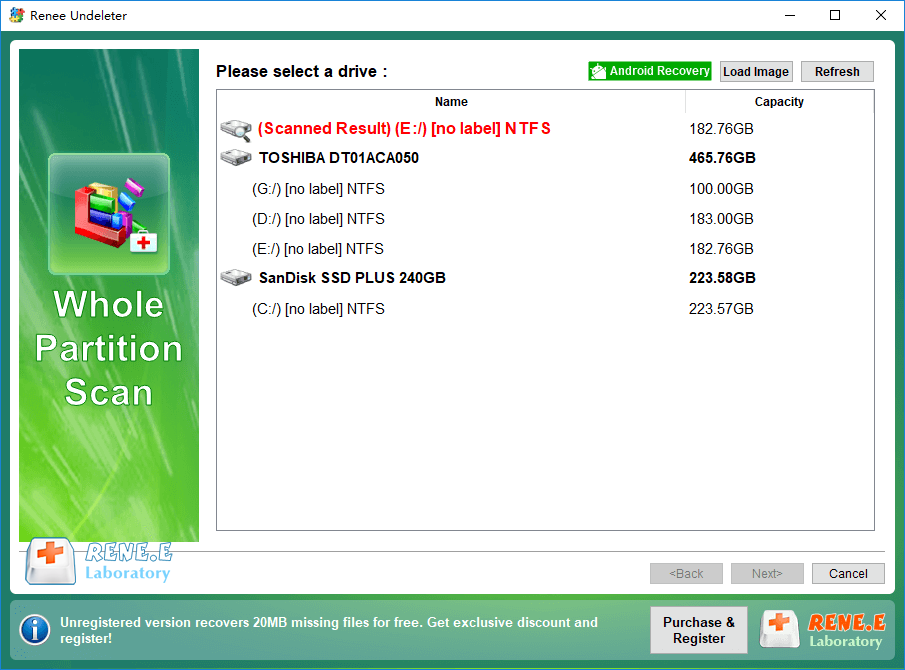
Choose the pen drive partition from the list and click Next.
Select the pen drive partition to scan
If scan settings are prompted, stick with Default Settings unless you need to specify file types.
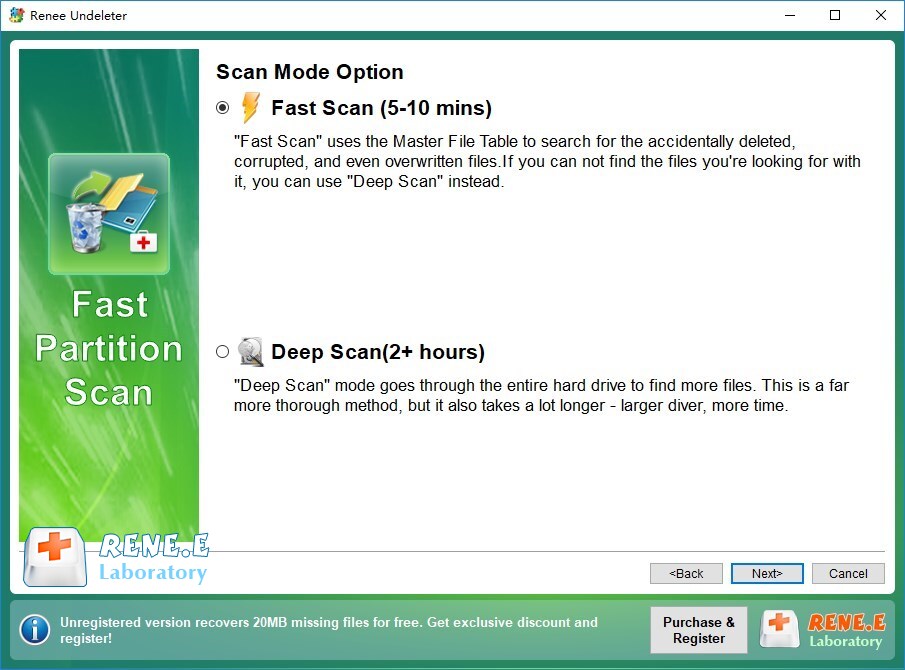
Start with Fast Scan (5-10 mins). If your files don’t appear, and Renee Undeleter prompts you, click Yes, please do a Deep Scan.

Note: A Deep Scan may take 3+ hours or more.

Choose Fast Scan or Deep Scan

4. Preview and recover files

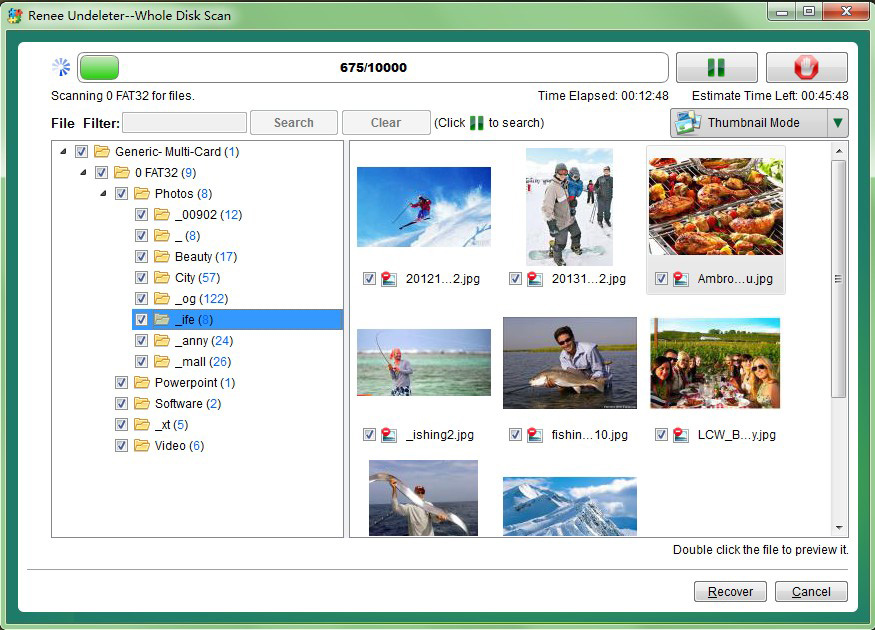
Once the scan finishes, double-click any file in the results to preview it. Select the files you want to recover and click Recover.
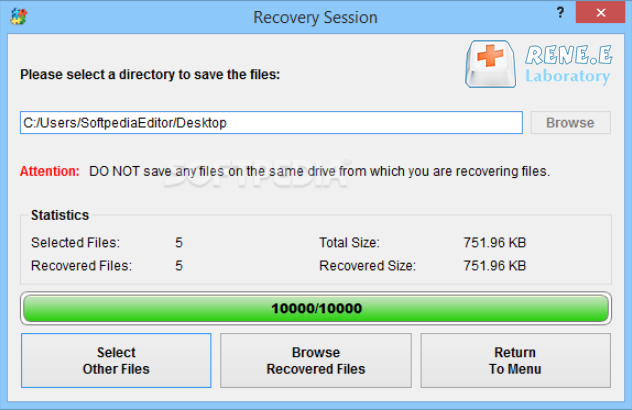
In the recovery dialog, click Browse to choose a different disk as your save destination. Always store recovered files on a different internal or external drive—not the original pen drive.
Preview and select files to recover
Recover files to a different disk

Important: Always save recovered files to a different disk, not the pen drive you’re recovering.

FAQ

Can I recover pen drive files directly in a browser without installing anything?

No. Browsers can’t access USB sectors or raw file systems. “Online data recovery from pen drive” means downloading a desktop tool and scanning locally. Any site claiming in-browser USB recovery is misleading.

Is free pen drive recovery software enough for accidentally deleted files?

For basic accidental deletion s where the drive hasn’t been overwritten, some free tools may help. However, free versions often limit file size, number of recoverable files, or lack signature scanning. Renee Undeleter covers these basics with Fast Partition Scan and can perform a Deep Scan(2+ hours) if needed.

When should I stop DIY recovery and contact a professional service?
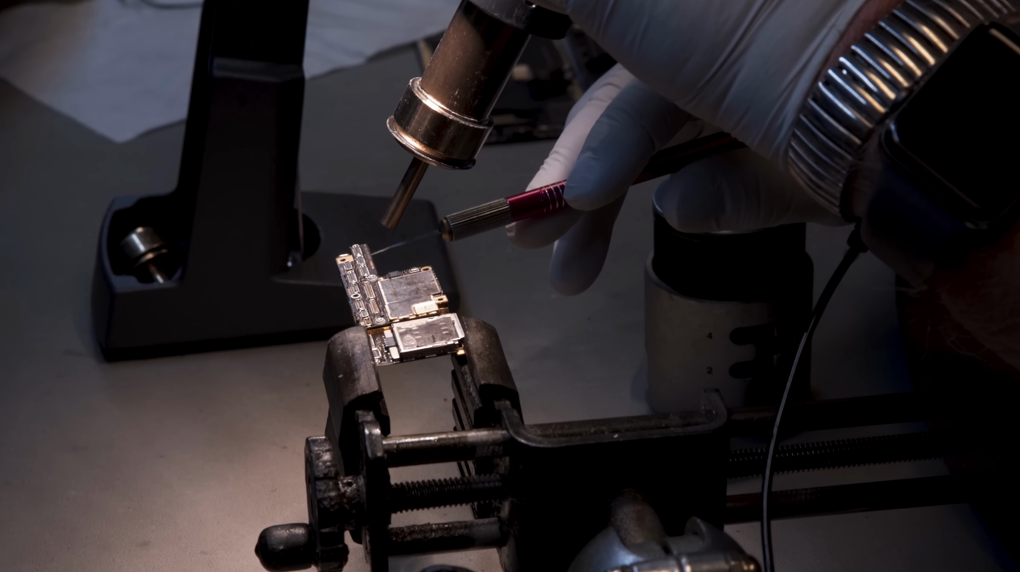
Stop DIY attempts if the pen drive is physically damaged, undetectable on multiple PCs or ports, or contains data that’s legally or medically critical. In those cases, stop using the drive and seek professional help. For logical issues (deletion, formatting, RAW, virus-hidden files), DIY recovery is usually safe.
Damaged memory cards being repaired in a professional clean room
Renee Undeleter - Powerful Data Recovery SoftwareRenee Undeleter data Recovery software

Easy to use Only simple steps to recover data from storage devices.

Multiple scan modes Fast partition scan, whole partition scan and whole disk scan for different recovery needs.

File types Support to recover pictures, videos, audios, documents, mails, etc.

Supported storage devices Recover data from recycle bin, SD card, external disk, etc.

Supported systems Windows 11,10, 8.1, 8, 7, Vista, XP, 2000 and Mac OS X10.6, 10.7, 10.8+.

Easy to use Only simple steps to recover data from storage devices.

Multiple scan modes - 3 scan modes for different recovery needs.

Supported storage devices Recover data from recycle bin, SD card, external disk, etc.

Free TrialFree TrialFree Trial

3000 users have downloaded Renee Undeleter and found data back!

User Comments

Page 1

Leave a Comment


Your comment has been submitted and is awaiting moderation.