author avatar
    Technology Manager of Test Dept.
Last update by Emma Johnson at 12 July 2026

Summary
The provided article categorizes the technical constraints of online data recovery from sd card, specifically addressing why browser-based tools cannot access raw storage sectors. Furthermore, it outlines desktop-based recovery methodologies, including signature-based scanning and partition imaging, to restore files from various memory card failure scenarios.



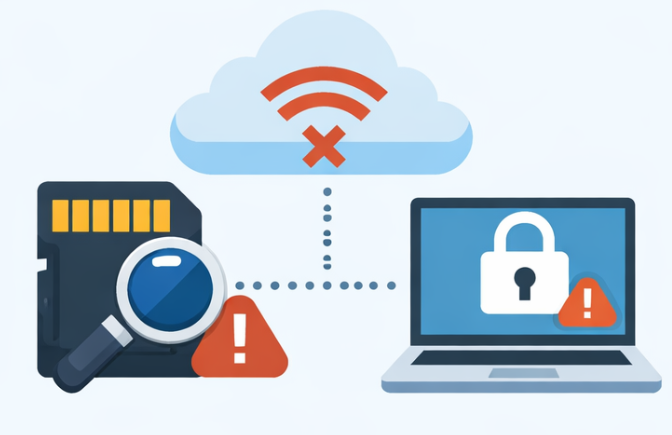
online sd card recovery
Imagine this: after a long day of shooting, you remove your SD card from your camera and plug it into your computer—only to find the folder empty. Or maybe your phone suddenly can’t find the vacation photos you saw just an hour ago. You search for “online data recovery from sd card,” hoping for a website that can instantly restore your files while the card is still connected. It’s a relatable hope, but this is where confusion often begins.
Between that moment of panic and the search for a quick “online fix,” it helps to understand what real SD card recovery actually looks like. Not all recovery methods work the same way, and the idea of a website magically restoring lost files doesn’t line up with how storage devices—or modern browsers—actually function. To clear up the confusion, here’s a breakdown of the primary recovery options and what each one can realistically do.
Recovery MethodHow It WorksTypical Use Case

Desktop Recovery Software

Directly accesses the SD card’s physical sectors to perform signature-based scans, rebuild damaged file tables, and create partition images for data restoration.

Used by individuals installing recovery tools like PhotoRec, Renee Undeleter, R-Studio, or EaseUS to retrieve lost files.

Remote Recovery Services

Requires physically shipping the SD card to a professional lab, where engineers use specialized hardware to extract data from damaged or unreadable cards.

Ideal for severe physical damage or controller failure.

Online “Recovery” Websites

Despite the “online” label, these sites cannot perform true browser-based recovery.

Modern browsers block low-level access to removable drives for security reasons, meaning they can’t read raw sectors or rebuild file systems.

Most such sites are merely download portals for desktop software—or scams that fake progress and collect user information.

Common in misleading ads or fraudulent “instant recovery” claims.

Tip: Most “online” SD card recovery claims are misleading. The only reliable way to recover files yourself is to use a trusted desktop program that can access the card through your operating system.

Check your SD card situation before you try recovery

The symptoms you’re seeing on your device can offer important clues about what’s wrong—and what you should do next. Before running any recovery tool, use the table below to match your situation and take the right first step.
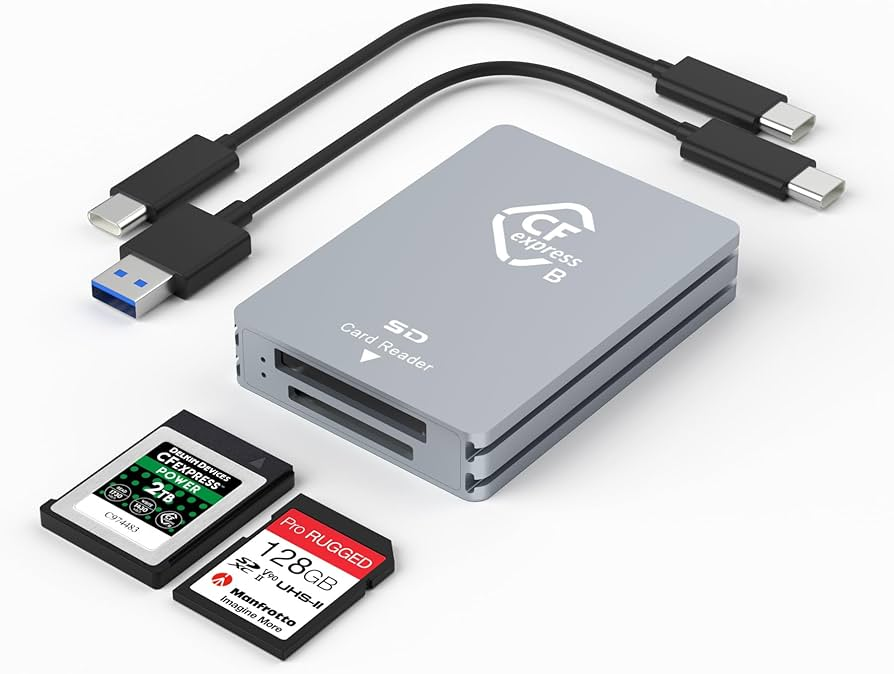
External SD card reader connected to a laptop
SymptomLikely CauseRecommended First Action

Files suddenly disappeared (no format prompt)

Accidental deletion, file system logic error, or unsupported file system

✅️ Stop using the card; try a different card reader or USB port; then run a signature-based recovery tool

Card asks to be formatted / “You need to format the disk”

File system corruption, unsafe ejection, or a RAW partition header

✅️Do not format. The data is likely still intact; use recovery software that can scan without a mounted volume

Card shows up as RAW in Disk Management

Damaged boot sector, power loss during write, or controller failure

✅️Leave the card untouched; do not initialize or partition; run a whole-partition recovery scan

Card is not recognized at all (no drive letter)

Physical connection issue, dead controller, or driver problem

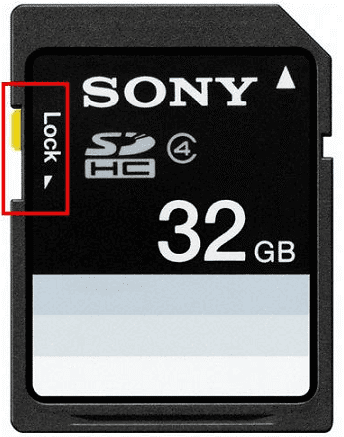
✅️Check the lock switch, try another reader and PC; if still undetected, seek professional data recovery

Photos visible but distorted or zero-byte size

Tear-off during write, bad sectors, or counterfeit card

✅️Copy whatever is readable immediately; then run a deep scan for missing parts

Accidentally formatted the card in camera or PC

Quick format cleared the file index, but data clusters remain

✅️Stop using the card; do not take new photos; scan with a tool that can reconstruct lost directories

A formatting prompt doesn’t mean your files are gone—it means the system can’t read the file structure. Formatting overwrites the last “roadmap” to your data.

SD card adapter with write-protect switch locked

Immediate do-nots that protect your data

The first few moments after you notice data loss are crucial. Some well-intentioned actions can actually lower your chances of a successful recovery.
- Do not format the card, no matter how insistent your camera or Windows may be. Formatting rewrites file system structures that recovery tools rely on to rebuild your folders. A full format can permanently sever the link between your file names and the data itself.
- Do not take new photos, copy files onto the card, or let your device write anything. Every new write can overwrite the very clusters that contain your lost files. This includes background operations like thumbnail generation or system folder creation.
- Avoid running CHKDSK unless you fully understand the risks. Many users see a “corrupted” prompt and run chkdsk /f in hopes of a quick fix. CHKDSK can rename, truncate, or delete orphaned fragments, sometimes turning files into unrecognizable .CHK files. Only use CHKDSK after you’ve recovered everything possible with specialized software.
- Remove the card from your device as soon as you notice data loss. Power down the camera, phone, or drone before removing the card to prevent background writes or cache updates.
- Do not initialize or create a new partition if prompted by Windows. This action writes a new partition table, which can overwrite pointers to your data. While recovery might still be possible, it becomes more complex and time-consuming.
Following these rules maximizes your chances of a successful recovery. With your card protected, let’s move to a solution that respects these precautions and is designed for real SD card recovery.

Renee Undeleter is the practical alternative to so-called online SD card recovery

Since true browser-based recovery can’t access your SD card’s hardware, your best option is a desktop application. Renee Undeleter is a practical, trustworthy solution: it runs locally, requests the necessary drive-level access, and scans your card at the sector level—without uploading your data or using misleading “online” marketing.
Renee Undeleter - Powerful Data Recovery SoftwareRenee Undeleter data Recovery software

Easy to use Only simple steps to recover data from storage devices.

Multiple scan modes Fast partition scan, whole partition scan and whole disk scan for different recovery needs.

File types Support to recover pictures, videos, audios, documents, mails, etc.

Supported storage devices Recover data from recycle bin, SD card, external disk, etc.

Supported systems Windows 11,10, 8.1, 8, 7, Vista, XP, 2000 and Mac OS X10.6, 10.7, 10.8+.

Easy to use Only simple steps to recover data from storage devices.

Multiple scan modes - 3 scan modes for different recovery needs.

Supported storage devices Recover data from recycle bin, SD card, external disk, etc.

Free TrialFree TrialFree Trial

3000 users have downloaded Renee Undeleter and found data back!

Here’s why Renee Undeleter stands out for SD card recovery:
- Direct raw access through a card reader: The software communicates with your SD card via the operating system’s disk API. This means it can read data even if the card is RAW or the file system is unreadable—crucial for situations where you see “you need to format this disk.”
- Signature-based scanning for over 400 file formats: When folders are missing or the file table is damaged, Renee Undeleter searches for unique byte patterns that mark the start and end of files. This covers raw camera formats (CR2, NEF, ARW), common files (JPEG, PNG, MP4, MOV), and even less common types like CAD or audio files. This approach is especially effective after accidental formatting or when the card appears as RAW.
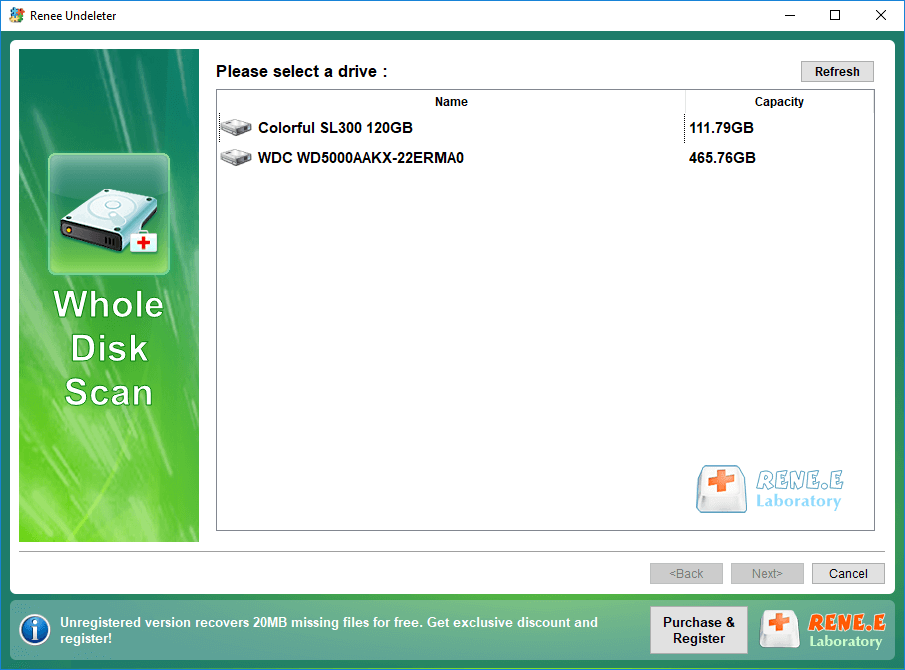
- Multiple scan modes for different loss scenarios: Use Fast Partition Scan for recently deleted files when the file system is healthy, or Whole Partition Scan for formatted, RAW, or inaccessible cards. Whole Disk Scan is available for cases where the partition itself is missing.

Practical tip: Always install Renee Undeleter on a drive other than the SD card you want to recover. Installing to the card risks overwriting data you’re trying to save.

Recover files from an SD card with Renee Undeleter

Whether your SD card appears empty, prompts for formatting, or acts like a new device, Renee Undeleter’s process is straightforward. There’s even an optional backup step for extra safety.

1. Download and install Renee Undeleter safely

Download the installer from the official download center and save it to a drive that is not your SD card. Run the setup and choose a destination folder on your safe drive.

Tip: Keep the SD card disconnected while installing to prevent accidental writes.

2. (Optional) Backup SD card first

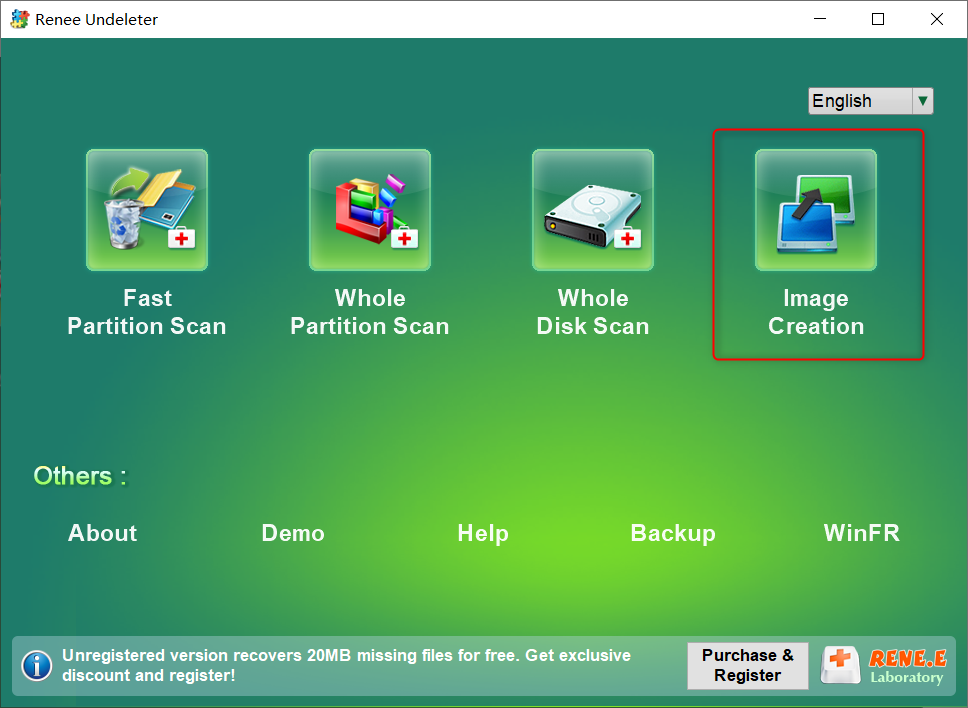
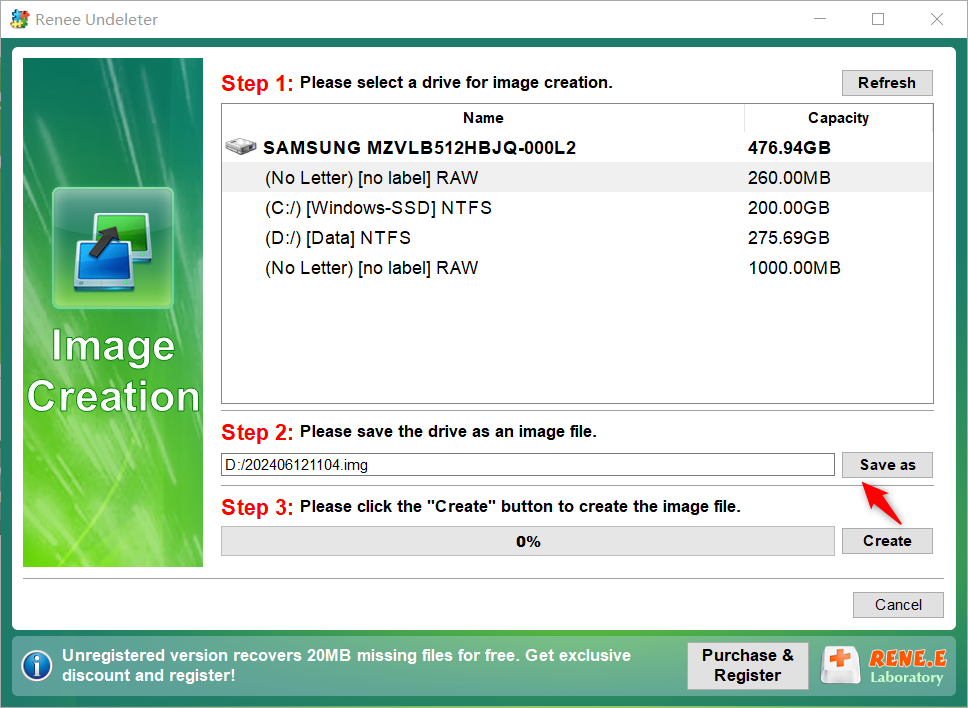
If the card is physically fragile or you want a safety net, create a byte-for-byte image before scanning. Open Renee Undeleter, select Image Creation on the main interface, pick your SD card from the list, and save the image to a location with enough free space.
Create image in Renee Undeleter
Select disk drive in Image Creation
Once complete, you can scan the image just like a physical card—ideal if the real card keeps disconnecting.

3. Choose the right scan mode for your situation
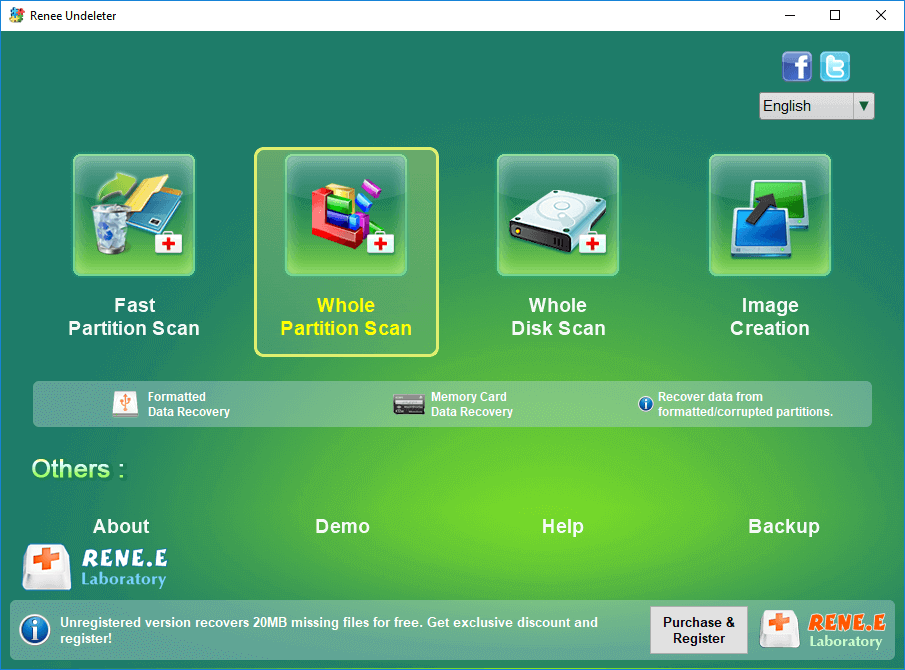
On the main screen, you’ll see four modules. For most SD card issues, choose between Fast Partition Scan and Whole Partition Scan:
- Fast Partition Scan: Best for accidental deletions and when the file system is still intact. It quickly scans the first 30 GB and offers a Deep Scan option if the initial results aren’t enough.
- Whole Partition Scan: Ideal for formatted cards, RAW partitions, or unreadable cards. It scans the entire card, reconstructs directories and file signatures, and is recommended after format prompts.
select whole partition scan in renee undeleter to recover deleted video from sd card

4. Select the SD card partition or Image File and start the scan
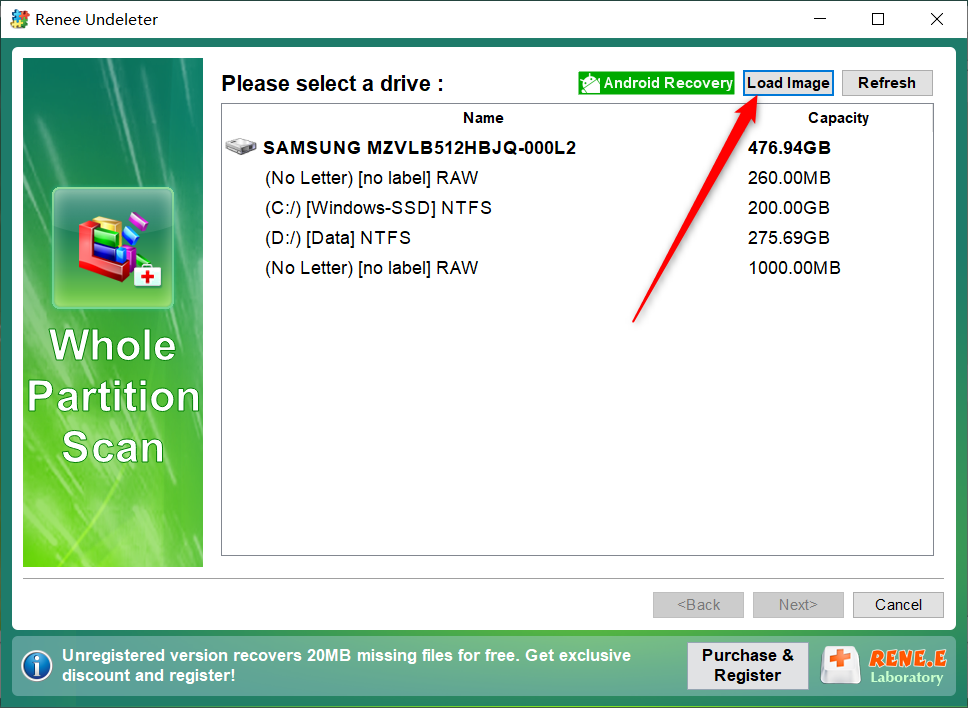
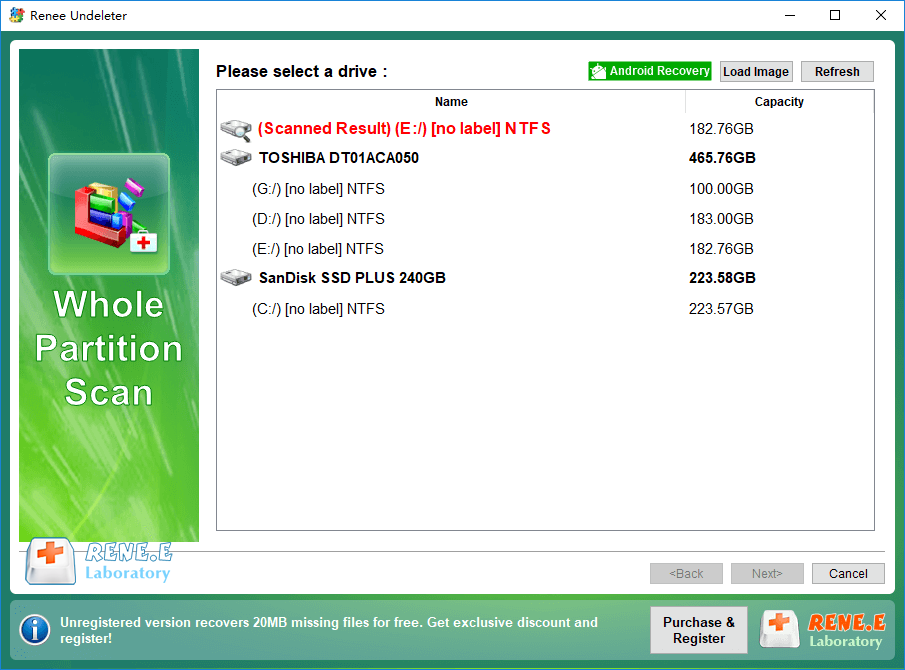
If you created an image, click Load Image in the Whole Partition Scan screen and select your backup file. Otherwise, choose the removable drive that matches your SD card—double-check the drive letter and capacity to avoid mistakes.
Load Image dialog in Renee Undeleter
Select the drive or Image you want to scan.
Renee Undeleter Whole Partition Scan
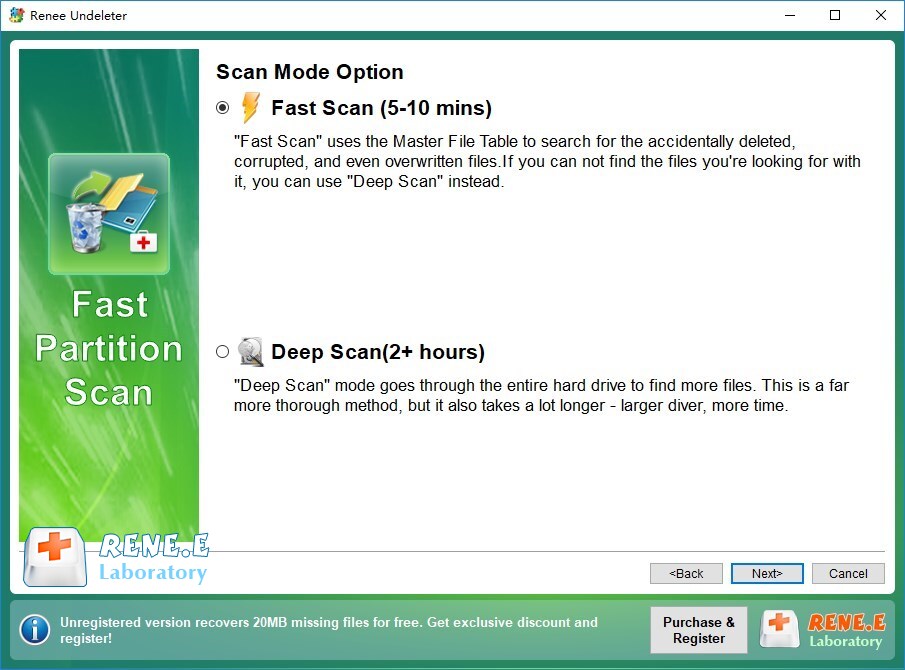
In Fast Partition Scan, you can stick with the default Fast Scan (first 30 GB) or switch to Deep Scan before clicking Next. Deep Scan checks every sector, which takes longer—especially on large cards or with slower USB readers.
Select Fast scan in Fast Partition Scan

5. Preview and recover files to a safe location
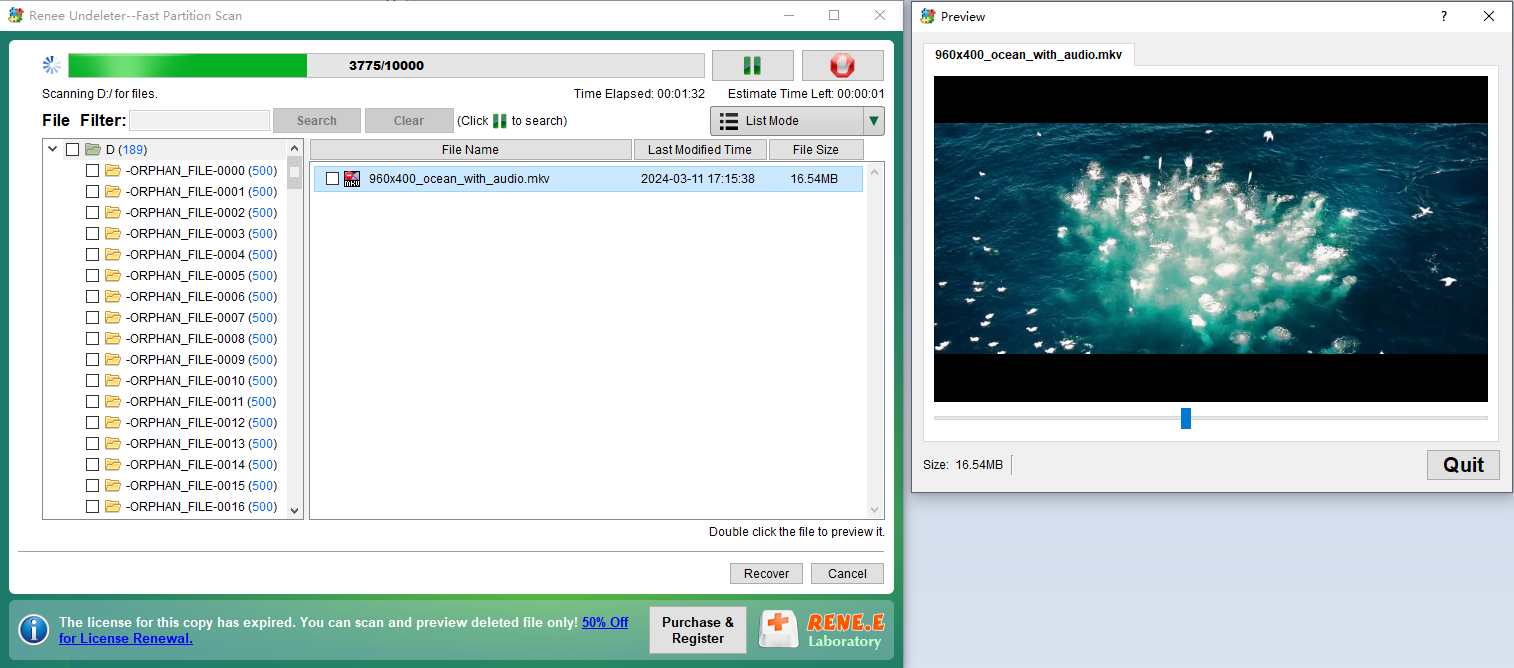
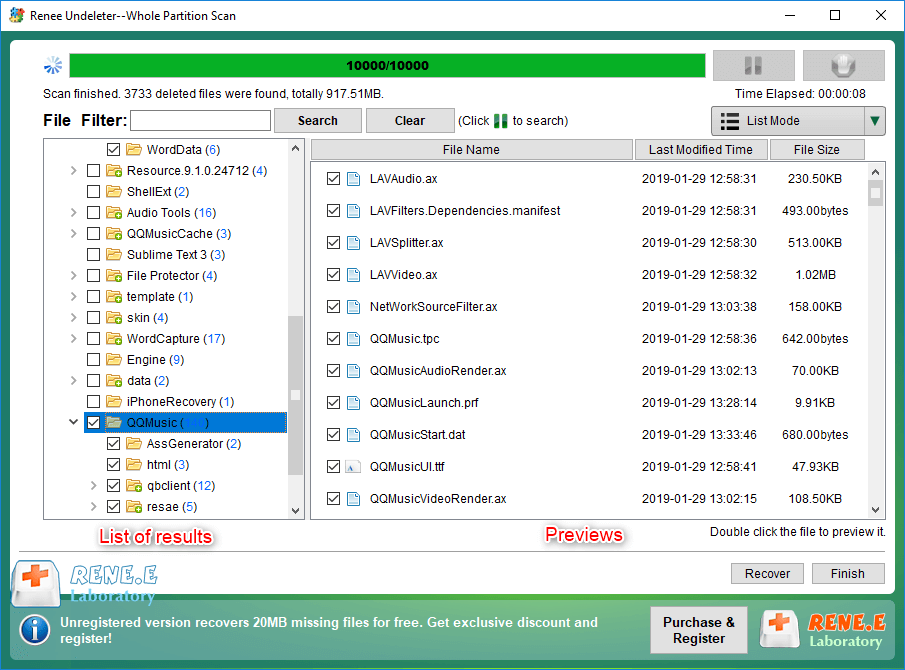
While the scan runs, you can double-click files to preview their contents—helpful for checking if photos or videos are intact. If you spot the files you need, select them and click Recover right away; you don’t have to wait for the scan to finish.
preview deleted mkv video file
preview and select the files to recover in renee undeleter

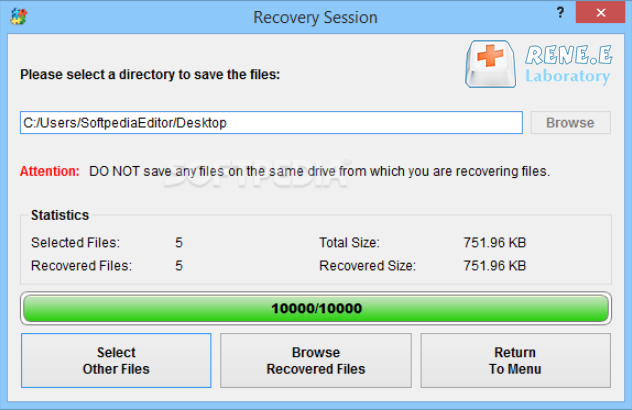
Important: Never save recovered files back to the same SD card. Use your computer’s internal drive or an external disk. Click Recover and wait for the export to complete.

Select destination folder for recovered files in Renee Undeleter
This process ensures your SD card remains untouched, while all recovered data is safely stored elsewhere.

How to confirm recovery worked and protect the card afterward

After exporting your recovered files, don’t just close the program and move on—take a few minutes to double-check your results.
- Open a variety of recovered photos, videos, and documents to confirm they display or play correctly. If a JPEG only shows a gray block or a video won’t play, it may have been partially overwritten. In that case, try a Deep Scan or the Whole Disk Scan module.
- Compare file sizes and modification dates to what you remember. Unexpectedly small files may be incomplete; matching modification dates are a good sign.
Once you’re confident you’ve saved everything you can, decide how to handle the SD card itself.
If some important files are still missing after a Deep Scan, try loading the SD card image into Renee Undeleter and running a Whole Disk Scan. This mode examines the entire device for remnants of old partitions and file signatures.
Select a physical disk for whole disk scan in Renee Undeleter
If your card isn’t recognized at all, the issue may be physical—such as a failed controller or internal damage. While software can’t fix hardware problems, professional data recovery labs may be able to extract data using specialized equipment. This is your last resort if all software options have been exhausted.

FAQ

Can I recover files from an SD card completely online without downloading anything?

No. True online recovery—where a website accesses your SD card’s raw data without software installation—is not possible. Browsers can’t access removable drives at the required level. Any site claiming otherwise is either a scam or simply links to a desktop app. Real recovery always requires local software or a physical service.

Is Renee Undeleter free, or do I need to purchase a license?

Renee Undeleter offers a free trial that allows scanning and file preview, so you can check if your files are recoverable. To actually save recovered files, you’ll need a license. Details are available on the official download center. The trial scan is safe and does not modify your SD card.

Can I recover files from an SD card that has physical damage?

Software cannot repair a physically broken card (e.g., cracked chip, failed controller). If your card isn’t recognized by any reader on any computer, the problem is likely hardware-related. In this case, contact a professional data recovery lab with the right tools and cleanroom facilities—trying to force a connection may make things worse.
Renee Undeleter - Powerful Data Recovery SoftwareRenee Undeleter data Recovery software

Easy to use Only simple steps to recover data from storage devices.

Multiple scan modes Fast partition scan, whole partition scan and whole disk scan for different recovery needs.

File types Support to recover pictures, videos, audios, documents, mails, etc.

Supported storage devices Recover data from recycle bin, SD card, external disk, etc.

Supported systems Windows 11,10, 8.1, 8, 7, Vista, XP, 2000 and Mac OS X10.6, 10.7, 10.8+.

Easy to use Only simple steps to recover data from storage devices.

Multiple scan modes - 3 scan modes for different recovery needs.

Supported storage devices Recover data from recycle bin, SD card, external disk, etc.

Free TrialFree TrialFree Trial

3000 users have downloaded Renee Undeleter and found data back!

User Comments

Page 1

Leave a Comment


Your comment has been submitted and is awaiting moderation.