author avatar
    Senior Program Developer
Last update by Emma Johnson at 9 March 2026

Summary
This guide explains how to recover files from Windows 11 not starting by outlining software-based, built-in recovery, and hardware-assisted methods. It compares recovery scenarios, success likelihoods, and tool categories to help preserve data before system repair or reinstallation.



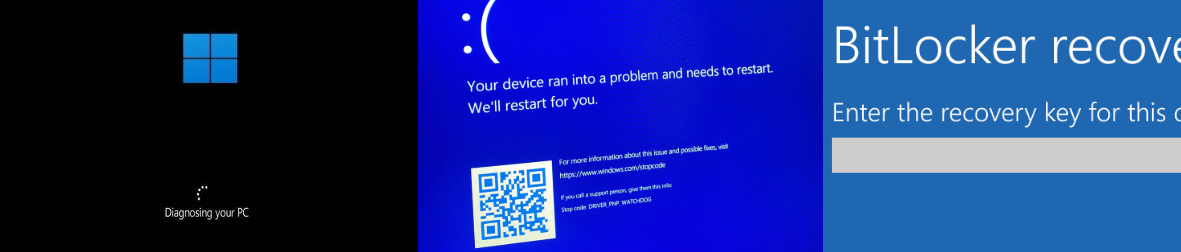
When Windows 11 won’t boot, it often leaves users staring at frustrating screens: endless spinning dots, a black screen with no response, a boot loop where the system restarts repeatedly, or the dreaded Blue Screen of Death (BSOD) displaying error codes. These problems frequently stem from recent Windows updates (like security patches causing compatibility issues), corrupted system files after a failed update ( eg. KB5074109, KB5074105, KB5077181), driver conflicts, or hardware problems such as failing storage drives. The urgency comes from the risk of making things worse—each failed boot attempt or improper fix can overwrite critical data sectors.
Windows 11 not boot issues

Here is a quickWindows 11 boot failure cause analysis table

based on common reports from Microsoft support and tech communities; credible sources like Microsoft documentation should be cross-referenced for latest details:
How It AppearsRoot CauseData Recovery LikelihoodRecommended Recovery Methods

Blue/black screen, stuck in Automatic Repair, endless reboot loop

Interrupted updates, improper shutdown, corrupted bootloader (BCD/EFI)

High (80–95%) — user data is usually not overwritten by boot issues themselves

Access WinRE → use Command Prompt to copy files, create a bootable recovery USB, use Renee PassNow tools

UNMOUNTABLE_BOOT_VOLUME, black screen, cannot reach login screen

Faulty cumulative update, driver regression, update rollback failure

High (85–95%) — update affects boot, not personal files

use Renee PassNow tools; Enter WinRE → uninstall the latest update, use “Uninstall Quality Update,” or recover files via WinPE/USB

INACCESSIBLE_BOOT_DEVICE, reboot loop

Incompatible storage drivers, BIOS SATA mode changes, RAID misconfiguration

High (80–90%) if the drive itself is healthy

use Renee PassNow tools; Boot from USB → load correct storage drivers, revert BIOS mode, or access the drive using an external enclosure

Slow boot, disk errors, stuck at Windows logo

Aging SSD/HDD, improper shutdown, logical file system corruption

Medium–High (70–85%), depending on sector damage

Avoid CHKDSK /f; use read‑only recovery tools, Renee PassNow, WinPE, or clone the disk before attempting recovery

BitLocker recovery screen, OS volume cannot be unlocked

TPM changes, BIOS reset, failed update

Very High (80%+) Only if the BitLocker recovery key is available

Unlock the drive using the recovery key → copy files via WinRE/USB or mount the BitLocker volume on another PC

Boot device not found, INACCESSIBLE_BOOT_DEVICE after hardware change

Boot path mismatch, missing drivers after motherboard or SSD replacement

High (85–95%)

Connect the original drive as a secondary disk or use WinPE/Renee PassNow to extract files

BIOS cannot detect the drive, clicking noises, severe slowdowns

Controller failure, NAND wear, PCB damage

Low (<50%) without professional recovery services

Stop using the drive immediately; attempt disk imaging with specialized tools or consult a professional recovery lab

Stop repeated boot attempts immediately—power off if needed—and avoid any write operations (like installing software or saving new files) to prevent overwriting your data. Repeated forced restarts or chkdsk runs without caution can reduce recovery chances.

First 5 minutes checklist:
  • Grab an external hard drive or USB with enough space for your files.
  • Find another working computer (friend’s, work, etc.).
  • Prepare a USB drive (at least 8GB) and any necessary cables/adapters.
  • Avoid using the affected PC for anything except safe booting from external media.
The solutions below are ordered from simplest to most complex, so start with what matches your comfort level and tools on hand.

1. Priority Recommendation: Recover Files with Renee PassNow

When Windows 11 refuses to start, Renee PassNow stands out as a practical, effective choice. This bootable recovery tool lets you create a USB that loads independently of your broken system, giving direct access to files even when the OS won’t launch. It combines ease of use with powerful features like data transfer between drives, file recovery (Undeleter), and preview options—ideal if you want higher success without deep technical knowledge.
It’s especially suited for users who need quick results, have limited experience troubleshooting, or face time-sensitive data needs. Success often depends on the drive’s physical condition, but many users find it retrieves files cleanly where built-in methods fall short.
Prerequisites: A working computer to prepare the USB, a blank USB drive (will be erased), and an external storage device for saving recovered files.
Renee Passnow – Professional Windows Password Remover

Remove Windows Login Password 3 steps for whole password remove process.

Enable/Create Administrator One click for creating new administrator and enable the disabled account.

Widely Use New version supports UEFI boot model, which can be used on more computers, laptops and even surfaces.

Multifuctional Data transfer, data recovery, bootable problem recovery can be run without system.

Highly compatible Windows 11/10/8.1/8/7/XP/Vista.

Remove Login Password Support Windows 11/10/8.1/8/7/XP/Vista.

Enable/Create Administrator One click for creating new administrator and enable the disabled account.

Easy to use No need of any professional knowledge or password reset disk.

Free TrialFree TrialNow 2000 people have downloaded!
Renee PassNow supports Windows 11 fully and includes All Functions options, letting the tool handle multiple recovery scenarios—like transferring intact files via Data Transfer or scanning for deleted/lost ones with Undeleter—in one bootable environment.

To recover files step by step, follow the instructions below:

Step 1: Install Renee PassNow on a working computer. Connect a USB drive to this PC, launch Renee PassNow, and select “Create a Live USB” in “Step 1: Choose the creation method”. Make sure any important files on the USB have been backed up first, because the creation process will erase the USB.
Step 2: Select (x64) or (x86) according to the target system type, then click Download Now to download the ISO file. After the download is complete, click Create Live USB, and finally click Eject USB when the boot disk has been created successfully.
use renee passnow to create usb to reset passnword
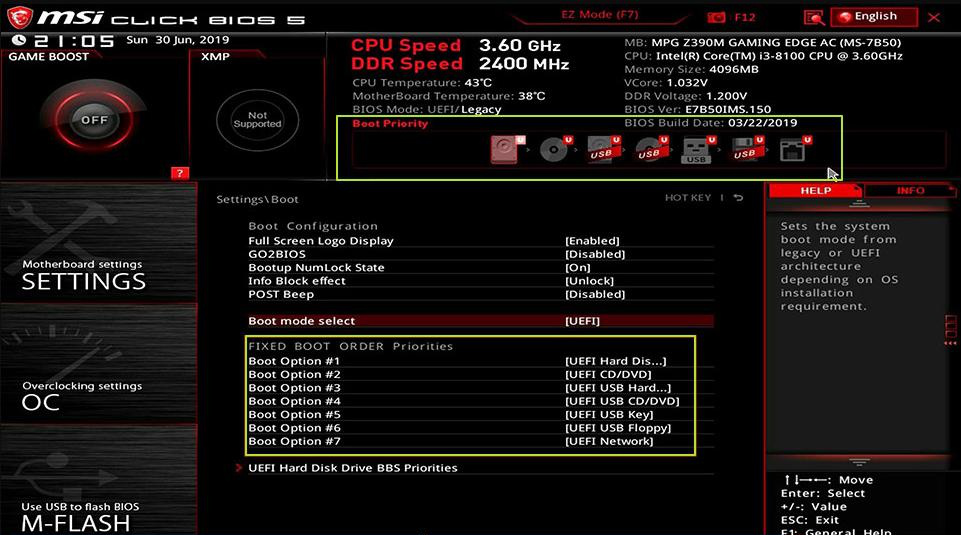
Step 3: Insert the created boot USB into the Windows 11 computer that cannot start. Power it on and immediately press the BIOS or boot menu key shown on the screen. Because this prompt may only appear for 1–2 seconds, repeatedly tap the key until you enter the BIOS settings or boot menu.
Insert the boot device
In the Boot Priority or Boot Order menu, set the USB drive as the first boot device, save the settings, and restart the computer.
select boot order
Common boot keys include:
Common Server:
Server TypeEnter boot menu method

DELL

Press the F12 key repeatedly before the Dell logo appears on the screen.

HP

Press the F9 key multiple times when the HP logo is displayed.

Common Computers:
BIOS NameEnter boot menu method

ASRock

DEL or F2

ASUS

DEL or F2 for PCs/ DEL or F2 for Motherboards

Acer

DEL or F2

Dell

F12 or F2

ECS

DEL

Gigabyte / Aorus

DEL or F2

Lenovo (Consumer Laptops)

F2 or Fn + F2

Lenovo (Desktops)

F1

Lenovo (ThinkPads)

Enter then F1

MSI

DEL

Microsoft Surface Tablets

Press and hold Power and Volume Up buttons

Origin PC

F2

Samsung

F2

Toshiba

F2

Zotac

DEL

HP

Esc/ F9 for Boot Menu/ Esc/ F10/ Storage tab/ Boot Order/ Legacy Boot Sources

INTEL

F10

Step 4: Wait for Renee PassNow to load and operate.
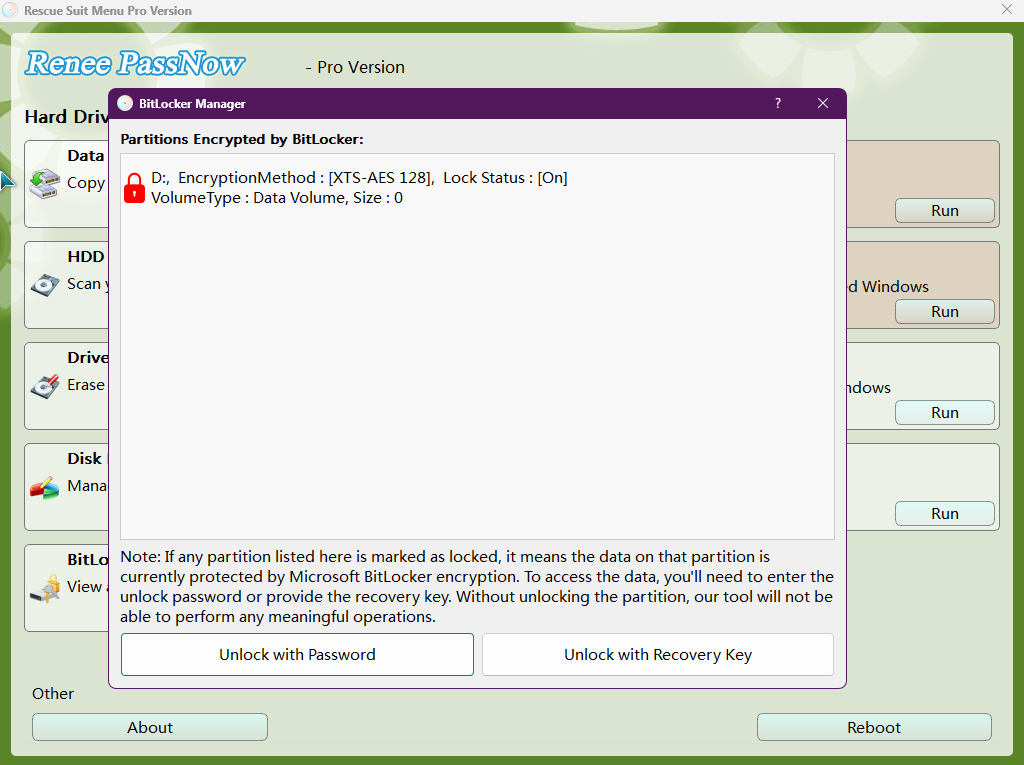
(Optional) If your drive is encrypted with Bitlocker, please input your Bitlocker recovery key or password to unlock it in Renee PassNow.
unlock Bitlocker with Bitlocker Manager
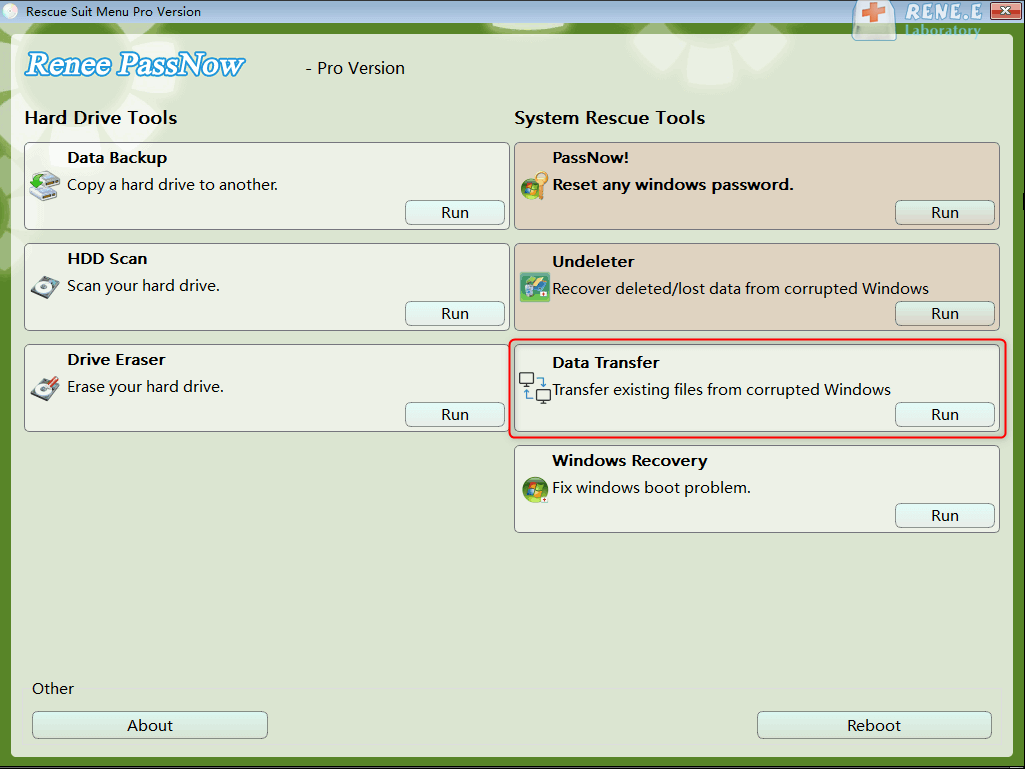
Once you enter the main interface, select “Data Transfer”. If you want to back up the entire disk, you can also choose the Data backup option.
data transfer
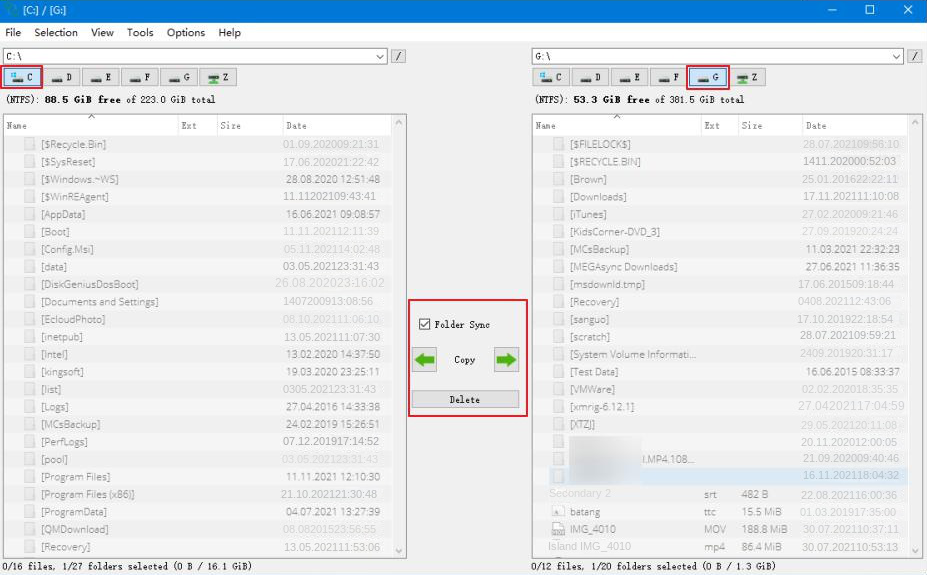
Step 5: Check each partition by drive letter such as C:, D:, E:, or F: to confirm your important files are still there. Then connect your external drive and start copying the needed files. To do this, select the source drive on the upper left and the destination drive on the upper right, choose the folders or files you want to save, and click the “Copy” button in the middle to transfer them. If you use the Delete button, note that this action is irreversible.
transfer data interface
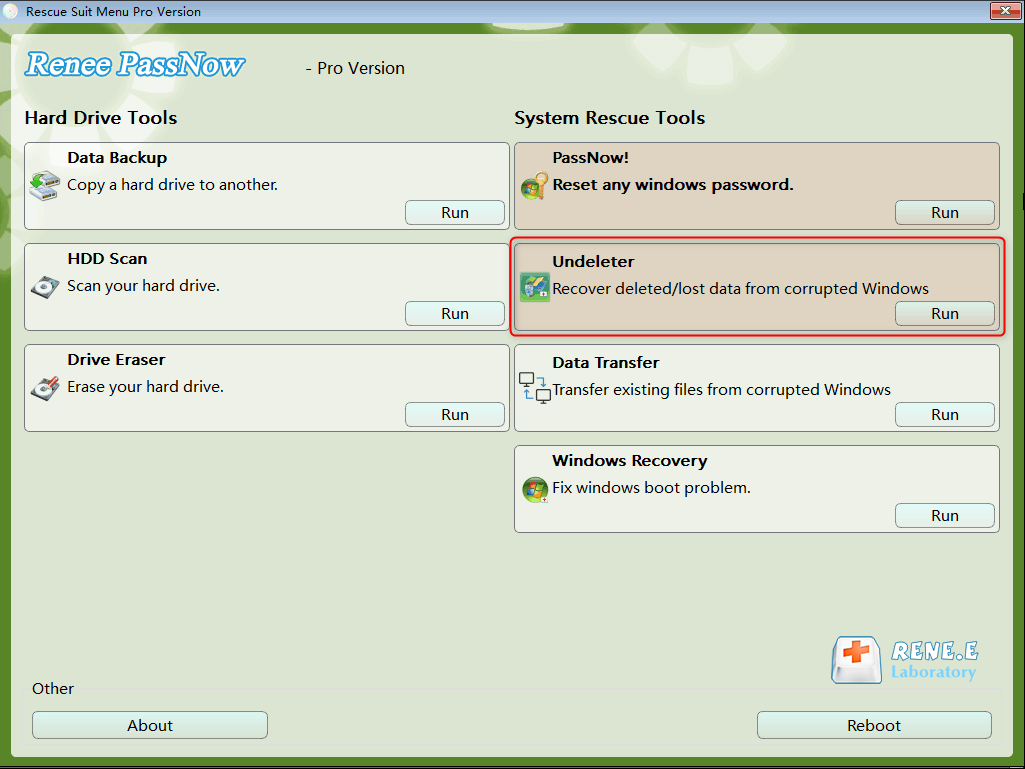
Step 6: If you find that some files are missing, deleted, or cannot be located through normal browsing, return to the main interface and select “Undeleter”, then click Run.
data recovery function in Renee PassNow
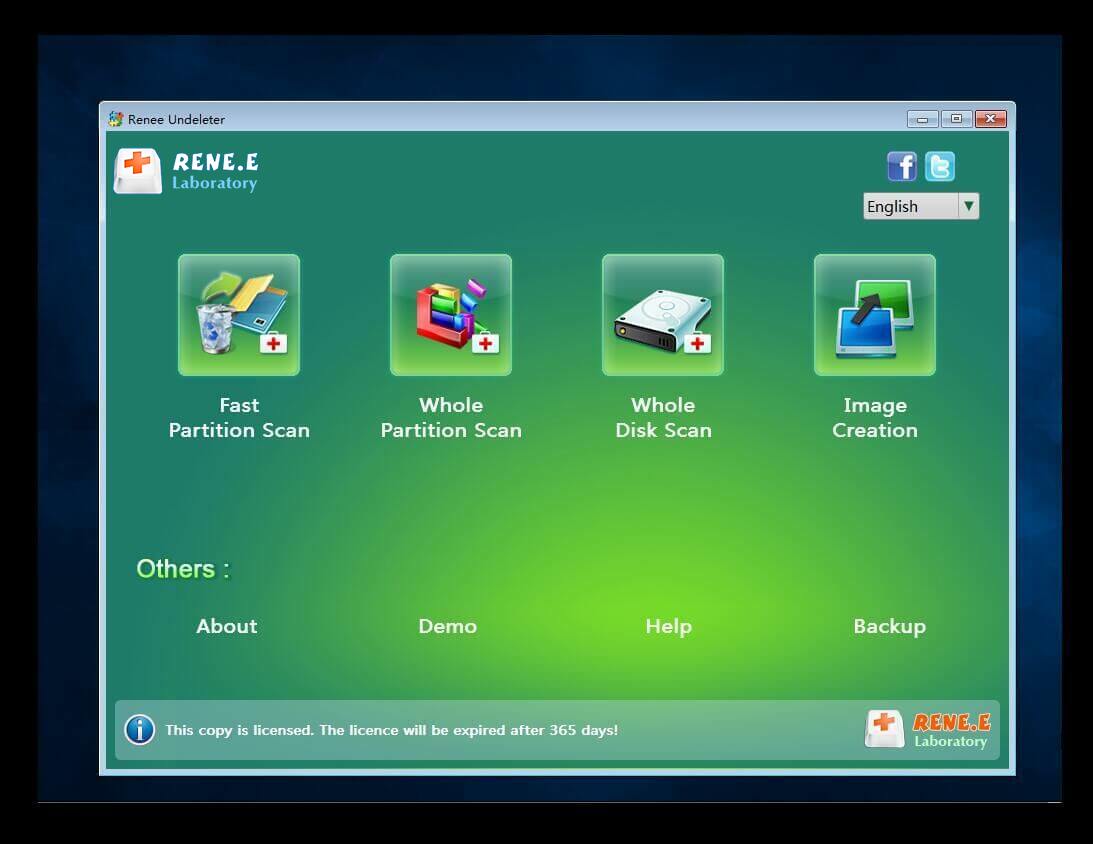
Step 7: Select the appropriate scan mode from the menu to scan the target hard disk or partition.
scan the whole partition with renee passnow recovery function to reinstall windows 7
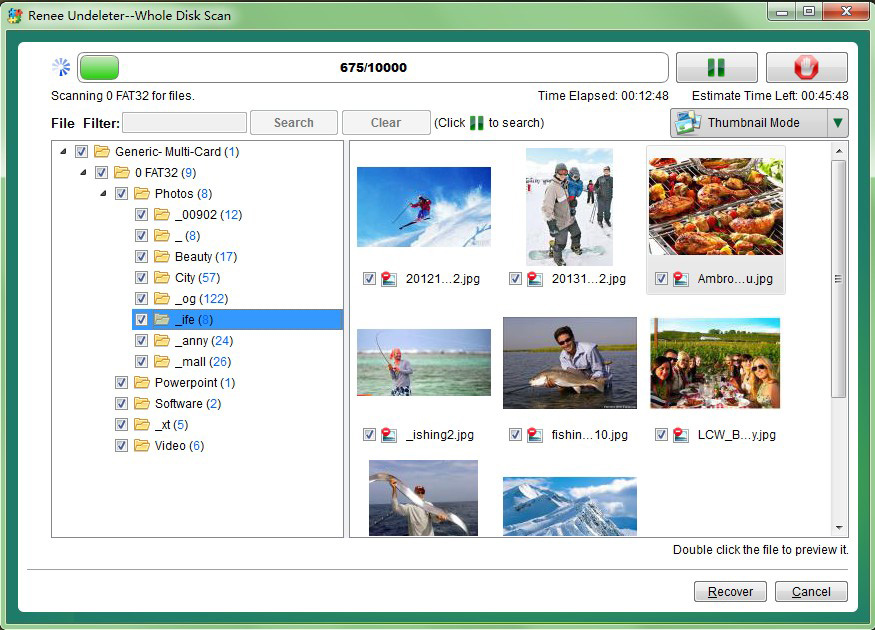
Step 8: After the scan is complete, preview the found files, select the items you want to restore, and click “Recover”. Always save recovered files to a different external disk, not the original Windows drive. Once your files are safely copied or recovered, eject the USB drive and external storage properly before proceeding with any repair or reinstallation work on the PC.
preview before recovery
This method minimizes risk since it reads without altering the original drive.
Renee Passnow – Professional Windows Password Remover

Remove Windows Login Password 3 steps for whole password remove process.

Enable/Create Administrator One click for creating new administrator and enable the disabled account.

Widely Use New version supports UEFI boot model, which can be used on more computers, laptops and even surfaces.

Multifuctional Data transfer, data recovery, bootable problem recovery can be run without system.

Highly compatible Windows 11/10/8.1/8/7/XP/Vista.

Remove Login Password Support Windows 11/10/8.1/8/7/XP/Vista.

Enable/Create Administrator One click for creating new administrator and enable the disabled account.

Easy to use No need of any professional knowledge or password reset disk.

Free TrialFree TrialNow 2000 people have downloaded!

2. Free Official Methods: WinRE or Installation USB + Command Prompt

Microsoft’s built-in Windows Recovery Environment (WinRE) or a Windows 11 installation USB provides a free way to access files when the system is corrupted but the drive remains readable (no BitLocker lock). This method can help you recover files from Windows 11 not starting when the storage itself is still healthy and readable from recovery tools.
Best for: System file corruption or minor boot issues where the storage is healthy.

Technical level: Moderate—requires comfort with Command Prompt.

Common pitfalls: BitLocker encryption blocks access; wrong drive letters confuse commands.

Advantages:
  • Free and built into Windows recovery options
  • Useful when the drive is healthy but Windows is corrupted
  • Can copy important folders without opening the full operating system

Disadvantages:

  • Requires Command Prompt accuracy
  • Drive letters may change in WinRE and confuse users
  • Cannot help if BitLocker is locked and the key is unavailable

Create a bootable USB via Microsoft's Media Creation Tool

create windows 11 installation media USB
You may download this tool from :
Windows 10: https://www.microsoft.com/software-download/windows10
Windows 11: https://www.microsoft.com/software-download/windows11

Steps:

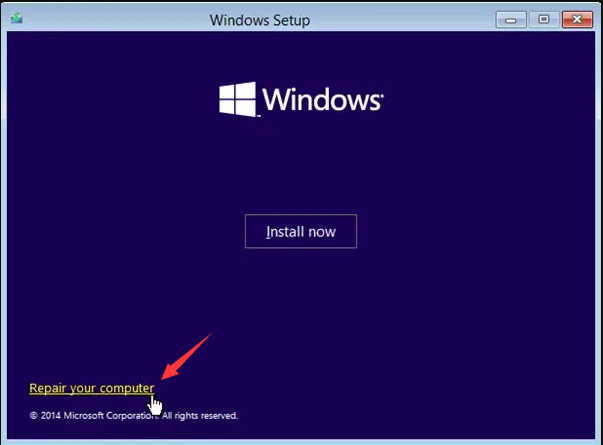
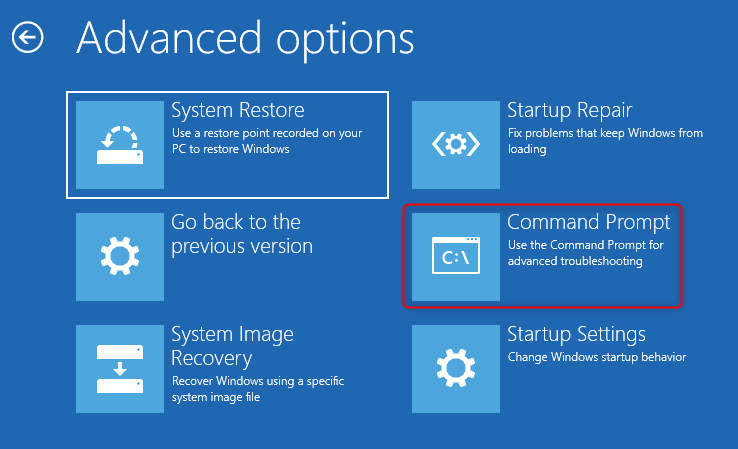
1. Boot from the Windows 11 installation USB or enter WinRE, then choose Repair your computer > Troubleshoot > Command Prompt.
windows installation repair your computer
command prompt
2. Run diskpart, then list volume to identify the Windows partition and the external backup drive by size and label.
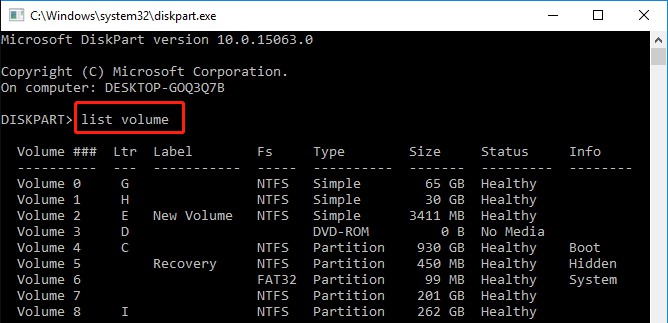
enter diskpart and list volume to check drive info
3. Copy files with a command such as xcopy C:\Users\YourName\Documents E:\Backup /s /e /h /i /c /y, or use robocopy C:\Users\YourName\Desktop E:\DesktopBackup /e for a larger folder transfer.
A simple visual sequence is: boot from USB, open Command Prompt, confirm drive letters, then copy only the folders you actually need to preserve.
These work well for basic copies but lack file preview or deleted item recovery. If the commands do not detect the needed partition or access is blocked, move to the next method instead of repeating risky attempts.

3. Alternative : Connect the Drive to Another Computer

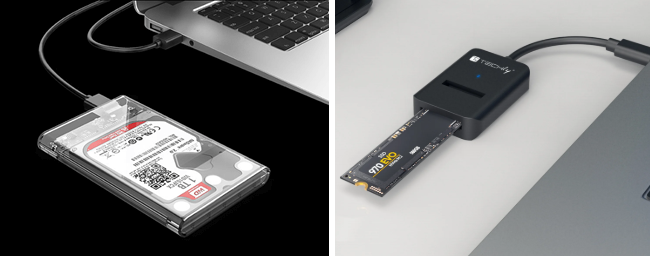
For desktops or laptops where you can safely remove the internal drive, connect it externally via a SATA/USB enclosure or NVMe adapter. This is another practical way to recover files from Windows 11 not starting because it bypasses the damaged boot environment entirely and lets you inspect the storage from a known-good computer. It is usually most suitable for serviceable desktops, older laptops, or users who are already comfortable handling storage hardware and basic disassembly.
usb ssd / disk enclosure
Ideal for: Users comfortable opening hardware; when software methods fail or drive isn’t detected in boot media.
Risks: Static damage (use anti-static precautions), potential warranty void, or further issues if drive is failing (stop if clicking noises occur).
Advantages:
  • Bypasses Windows boot problems completely
  • Lets you inspect the drive from a stable working computer
  • Works well for normal file copying when the drive is still readable

Disadvantages:

  • Requires hardware access and safe handling
  • May void warranty on sealed devices
  • Should be stopped immediately if the drive makes unusual noises or disappears

Interface comparison:

Drive TypeAdapter/Enclosure NeededTypical CostNotes

SATA HDD/SSD

USB-SATA adapter/enclosure

Low

Widely available, easy

NVMe SSD

NVMe-to-USB enclosure (USB 3.2+)

Medium

Ensure PCIe compatibility

Steps:

  1. Power off the affected PC fully, unplug it, and remove the internal drive only if the device design allows safe access.
  2. Connect the drive to a working computer using the correct adapter, such as a SATA-to-USB cable for a $2.5$-inch SATA SSD or an NVMe-to-USB enclosure for an M.2 NVMe drive.
  3. Open the detected drive and copy important folders such as C:\Users\YourName\Documents or C:\Users\YourName\Pictures to an external destination like E:\RecoveredFiles.
Once connected to a working PC, browse files normally or use recovery software. Cite hardware guides from reputable sources for safe removal steps. If the drive is unreadable, makes clicking sounds, or disconnects repeatedly, stop immediately and consider a safer recovery path.

Special Case: BitLocker Encryption Blocking File Access

Many Windows 11 systems have Device Encryption (using BitLocker technology) enabled by default on clean installations of Windows 11 Home and Pro when signing in with a Microsoft account, especially after the 24H2 update. BitLocker encrypts the entire system drive to protect data, but when Windows fails to start, that same protection can block file access—even when using WinRE, a bootable USB, or connecting the drive to another computer. In these cases, the ability to recover files from Windows 11 not starting depends entirely on whether the encrypted drive can be unlocked.
The BitLocker recovery key is required. There is no supported method to bypass BitLocker encryption without it, regardless of the recovery approach used. If the key is unavailable, the data on the drive remains inaccessible.

Common places to find the recovery key include:

  • Microsoft account — Sign in at account.microsoft.com/devices and check Recovery keys for the affected device.
  • Saved records — Printed copies, screenshots, password managers, or files saved during initial device setup.
  • Work or school devices — Contact the organization’s IT administrator, as the key is often stored in enterprise management systems.
It’s best to locate the recovery key before attempting any recovery steps. Without it, software tools, WinRE access, and external drive connections will all fail to unlock the encrypted volume, making file recovery impossible.
bitlocker recovery keys
If the recovery key is available, the drive can usually be unlocked safely and files copied using the same methods described earlier. If not, further attempts won’t improve the outcome and may only waste time.

Choosing the Right Method: Success Rate, Difficulty, and Cost

MethodSkill LevelSuccess Rate (intact drive)CostRisk Level

Renee PassNow

Beginner-Friendly

High

Low (software)

Low

WinRE / Install USB

Intermediate

Medium-High

Free

Low-Medium

External Drive Connect

Advanced (hardware)

High

Low-Medium

Medium

If your main goal is to recover files from Windows 11 not starting as quickly and safely as possible, start with the method that matches both your skill level and the value of the data. Free methods can be tried when suitable, but Renee PassNow remains the primary recommendation for urgent situations or when you want a higher-success, software-based recovery path with less complexity. Base your choice on data importance: irreplaceable files justify the most reliable path.
To put these recovery choices into context, it helps to understand what’s been causing so many Windows 11 boot failures recently. Several Microsoft updates released in early 2026 triggered startup issues, as outlined below.

Recent Windows 11 Updates Causing Boot Failure

In early 2026, several Microsoft updates were directly linked to widespread boot issues, leaving many devices unable to load Windows normally.
Knowing which patches caused the failures—and how Microsoft explains their root causes—helps you determine whether your system was affected and which recovery method is most appropriate. The table below summarizes the key problematic updates, their symptoms, and the recommended fixes.
Patch / UpdateWindows Versions AffectedFailure SymptomsRoot Cause (Confirmed by Microsoft / Reports)Fix / Workaround

KB5074109 (Jan 13, 2026 Security Update)

24H2, 25H2

• Black screen on boot

• “Your device ran into a problem…”

• UNMOUNTABLE_BOOT_VOLUME

• System becomes unbootable

Microsoft confirmed the issue was triggered by failed installation of the December 2025 update, leaving devices in an “improper state.” Installing KB5074109 on top of that state caused boot failure.

• Requires manual recovery (WinRE)

• Uninstall the update via recovery console

• Microsoft Support for Business for enterprise remediation

KB5074105 (Jan 29, 2026 Preview Update)

24H2, 25H2

• Prevented additional devices from entering boot‑failure state

This update was Microsoft’s initial mitigation to stop more systems from becoming unbootable.

• Install KB5074105 if system is still bootable

• Does not fix already‑broken systems

KB5077181 (Feb 10, 2026 Patch Tuesday)

24H2, 25H2

• Boot loops

• Restart loops

• Failure to find boot device

• Install failures (0x800F0991, 0x800F0983, 0x800F0922, 0x80073712, 0x80096004)

• Networking failures after boot

This update was intended to fix January issues, but many systems already in an “improper state” from earlier updates entered boot failure after applying it. Also triggered driver conflicts and networking regressions.

• Roll back KB5077181 via WinRE

• Disable Hyper‑V / Sandbox (for 0x800F0922)

• Use DISM /restorehealth

• Reinstall update after system is stable

1. Why these updates caused boot failures

Microsoft confirmed that December 2025 updates failed silently on some systems, leaving Windows in a corrupted “rollback state.”When January (KB5074109) or February (KB5077181) updates were installed on top of that state:
  • Boot volume became unreadable
  • Windows could not complete startup
  • Systems entered black‑screen or boot‑loop conditions

2. Most Reliable Fix Methods

  1. Boot into Windows Recovery Environment (WinRE)
  2. Uninstall the problematic update:

wusa /uninstall /kb:5074109
wusa /uninstall /kb:5077181

3. Run:

dism /image:C:\ /cleanup-image /restorehealth
chkdsk C: /f

Frequently Asked Questions (FAQ)

If you need to recover files from Windows 11 not starting, these quick answers cover the most common concerns before you attempt repairs or reinstall the system.

Can repeated boot attempts overwrite my files?

Yes—each failed start or auto-repair can write temporary data, risking overwrite of deleted or fragile sectors. Stop attempts and use read-only recovery as soon as possible.

What if my drive is BitLocker encrypted?

You’ll need the 48-digit recovery key from your Microsoft account or backup. Without it, files stay locked even after hardware removal or boot media.

Should I reinstall Windows before or after recovering files?

Always recover files first. Reinstalling (especially clean install) can overwrite data. Use “Keep my files” reset only if accessible; otherwise, recover externally then reinstall.

Does SSD vs HDD affect recovery chances?

SSDs use TRIM, which can make deleted data harder to recover quickly after power loss. HDDs often allow better deleted file recovery. Both benefit from immediate read-only access.

When should I seek professional data recovery help?

If the drive makes noises, isn’t detected at all, or software/hardware methods fail and data is critical (e.g., business/legal). Pros use cleanroom tools but cost more—try DIY safe methods first.
Renee Passnow – Professional Windows Password Remover

Remove Windows Login Password 3 steps for whole password remove process.

Enable/Create Administrator One click for creating new administrator and enable the disabled account.

Widely Use New version supports UEFI boot model, which can be used on more computers, laptops and even surfaces.

Multifuctional Data transfer, data recovery, bootable problem recovery can be run without system.

Highly compatible Windows 11/10/8.1/8/7/XP/Vista.

Remove Login Password Support Windows 11/10/8.1/8/7/XP/Vista.

Enable/Create Administrator One click for creating new administrator and enable the disabled account.

Easy to use No need of any professional knowledge or password reset disk.

Free TrialFree TrialNow 2000 people have downloaded!

User Comments

Page 1

Leave a Comment


Your comment has been submitted and is awaiting moderation.