author avatar
    Specialist of Customer Service Dept.
Last update by James Smith at 21 January 2026

Summary
Learn how to fix 0x0000007B INACCESSIBLE BOOT DEVICE BSOD in Windows 11 or 10. This guide explains top causes, including BIOS settings and driver issues, and provides step-by-step solutions to regain access to your PC quickly and safely.



Facing the dreaded 0x0000007B INACCESSIBLE BOOT DEVICE BSOD in Windows 11/10? This error halts your PC boot, often due to drive access issues, but don’t panic—most cases are fixable without data loss. In this 2026 updated guide, we’ll walk you through proven solutions from simple BIOS tweaks to advanced repairs, starting with data backup to keep your files safe. Follow along to get your system running again.
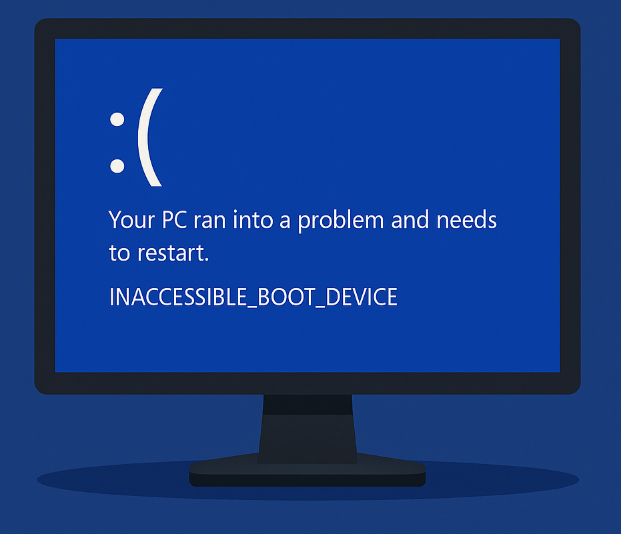
0x0000007B_INACCESSIBLE_BOOT_DEVICE

Introduction: Understanding the INACCESSIBLE BOOT DEVICE Error

Nothing is more alarming than turning on your PC and being greeted by a blue screen displaying the error code 0x0000007B INACCESSIBLEBOOTDEVICE. Your computer gets stuck in a boot loop or restarts endlessly, leaving you unable to access your files, work, or anything else on the drive. This error means Windows cannot reach the storage device it needs to load the operating system.

0x0000007B – INACCESSIBLEBOOTDEVICE: Causes and Solutions

Most of the solutions need to restore or reset Windows, please backup your important data first.
Common Causes and Solutions
CauseIs It a Hardware Issue?ExplanationPossible Solutions
Storage controller mode changed (IDE / AHCI / RAID)No (configuration-related)Windows was installed under one disk controller mode, but the BIOS/UEFI mode was later changed, preventing Windows from accessing the boot drive. In Windows 11, this is common after BIOS updates.Restore the original controller mode in BIOS/UEFI, or enable the correct storage driver before switching modes. Use DISM to inject drivers if needed.
Missing or corrupted storage driversNoCritical disk drivers required during early boot are missing, outdated, or corrupted.Boot into WinRE and repair drivers, use Startup Repair, inject correct storage controller drivers (e.g., DISM /Add-Driver), or restore using a system restore point.
Corrupted Boot Configuration Data (BCD)NoThe BCD store is damaged or incomplete, so Windows cannot locate the boot device.Rebuild the BCD using recovery tools or automated repair utilities.
Corrupted system filesNoEssential Windows system files required during early boot are damaged.Run system file repair tools (SFC, DISM) from recovery or use a system repair environment.
Disk file system corruptionPossiblyLogical corruption prevents Windows from reading boot sectors or system files. Usually software-related, but frequent corruption may indicate early disk failure.Run disk repair tools (e.g., CHKDSK) from recovery or use a bootable rescue environment.
Failing or degraded hard drive / SSDYesPhysical media errors, bad sectors, or firmware issues prevent reliable access to the boot device.Check SMART status, update SSD firmware, clone the disk, or replace the drive if necessary.
Loose or faulty SATA / NVMe connectionYesThe boot drive becomes intermittently or completely inaccessible due to a bad cable or slot.Reseat cables, try a different port, or test the drive in another system.
Incorrect boot order or boot device selectionNoBIOS/UEFI attempts to boot from the wrong device.Set the correct system disk as the primary boot device.
Windows update or upgrade failureNoAn interrupted or failed update leaves the system in an unbootable state.Roll back the update, restore from backup, or repair Windows using recovery tools.
Disk encryption or security software conflictNoEncryption or low-level security software blocks access to the boot device during startup.Disable or repair the encryption software from recovery mode.
Malware affecting boot componentsNoMalicious software damages boot records, drivers, or system files.Scan and repair the system using offline antivirus tools (e.g., Windows Defender Offline or third‑party rescue disks).
Fast Boot / Secure Boot configuration issuesNoBIOS updates may reset Fast Boot or Secure Boot settings, preventing Windows from accessing the boot device.Reconfigure Secure Boot, Fast Boot, CSM, or related firmware settings.
TPM and Secure Boot mismatches—especially on Windows 11 systems—can also trigger boot failures, so checking TPM 2.0 status and temporarily adjusting Secure Boot settings in BIOS may help, though success is limited if underlying drivers are incompatible.
Refer:
https://learn.microsoft.com/en-us/answers/questions/2109276/how-to-fix-inaccessible-boot-device-error-on-windo
https://learn.microsoft.com/windows-hardware/manufacture/desktop/bcdedit-command-line-options

Quick and Easy Fixes to Try First

Many cases of the INACCESSIBLEBOOTDEVICE error are caused by temporary glitches or simple configuration mismatches. These beginner‑friendly methods often work without any additional tools or software.

1.Trigger Automatic Repair

Power on your PC and force a shutdown (hold the power button) as soon as the Windows logo appears. Repeat this process 3–5 times. Windows should eventually detect the startup problem and launch Automatic Repair. Follow the on‑screen instructions and allow Windows to attempt a fix.
If Automatic Repair fails to launch, refer to “How to Fix a PC Stuck on Preparing Automatic Repair” for further guidance.
This method is particularly effective for issues caused by recent updates or minor file corruption.

2.Check and Adjust BIOS/UEFI Settings
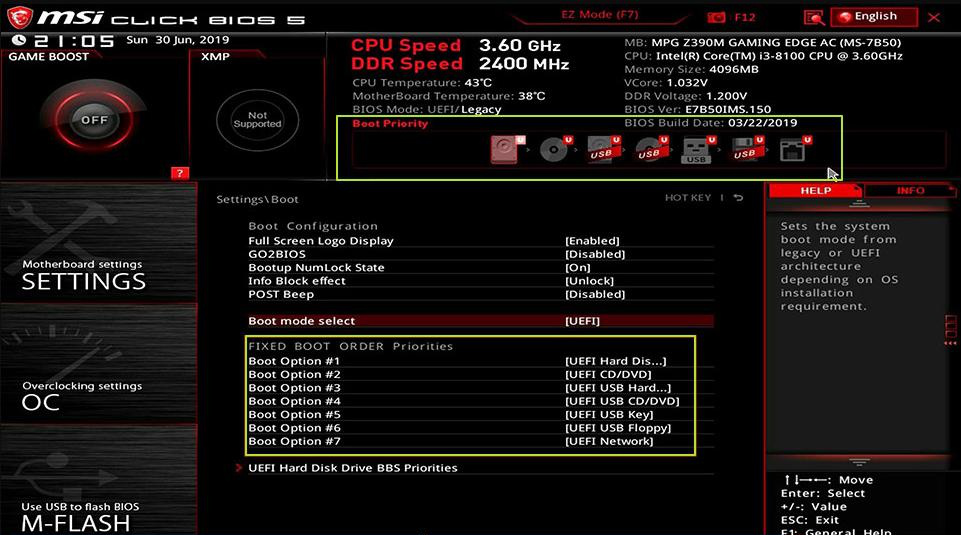
Restart your computer and enter the BIOS/UEFI setup (common keys include Del, F2, F10, or F12—watch the initial boot screen for the correct key).Once inside, locate the SATA Controller Mode or Storage Configuration section. Verify whether the controller is set to AHCI, IDE, or RAID. If the setting does not match the mode used when Windows was originally installed, switch it back accordingly.
While you’re there, also review the boot order to ensure that your primary system drive is listed first.
Select 1st Boot Priority in BIOS for vaio pc
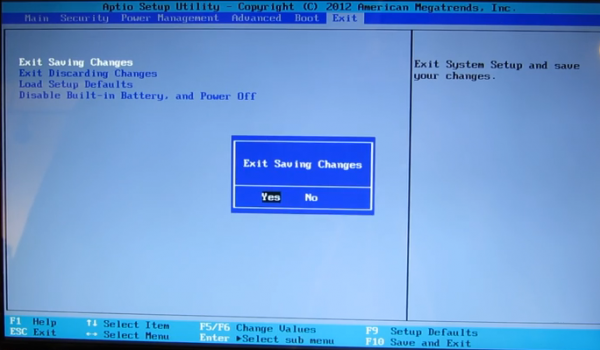
Before exiting, make sure to save your changes (typically by pressing F10).
bios-save-changes
This fix is especially helpful if the error appeared after a BIOS update, hardware change, or accidental configuration reset.

3. Remove External Devices

Unplug USB drives or peripherals, as they can interfere with boot. Restart and test.
If these steps get you back into Windows, great! If the blue screen persists, continue to the next section for more advanced troubleshooting methods.

Using Professional System Rescue Tools for Reliable Repair

When basic fixes fail and you can’t reach the Windows Recovery Environment, a bootable rescue disk is the safest next step. These tools let you start your computer from a USB drive, access your files, back up important data, and in some cases repair the boot issue directly. Solutions such as Renee PassNow provide an especially convenient way to create this kind of rescue media.

Use Renee PassNow to backup important data

Renee PassNow is a reliable professional recovery tool that works well for boot failures such as the 0x0000007B INACCESSIBLEBOOTDEVICE error. It creates a bootable USB that loads a user‑friendly environment, allowing you to safely back up your files before attempting deeper system repairs. As a local Windows tool, Renee PassNow excels in providing immediate access without external dependencies.
Renee Passnow – Professional Windows Password Remover

Remove Windows Login Password 3 steps for whole password remove process.

Recover the files Recover the deleted files without Windows system.

Transfer the data Transfer the important files of the computer with system.

Multifuctional Data transfer, data recovery, bootable problem recovery can be run without system.

Highly compatible Windows 11/10/8.1/8/7/XP/Vista. UEFI boot.

Remove Login Password Support Windows 11/10/8.1/8/7/XP/Vista. UEFI boot.

Recover the files Recover the deleted files without Windows system.

Transfer the data Transfer the important files of the computer with system.

Free TrialFree TrialNow 2000 people have downloaded!
When Windows fails to boot due to a blue screen, having a bootable data‑recovery environment becomes essential. A dedicated recovery USB lets you access your drive even when the operating system cannot start, making it possible to recover important files, transfer data, or prepare the system for further troubleshooting. Tools like Renee PassNow provide this capability in a straightforward and accessible way.

Steps to rescue important data

Step 1: Install Renee PassNow on a working computer.
Connect an empty USB stick, launch the program, and choose “Create a Live USB”. Back up any data on the USB first, as it will be erased.
Step 2: Select the correct architecture (x64 or x86), click Download Now to get the ISO file, then Create Live USB. Eject the drive when finished.
create live usb
Step 3: Insert the USB into the affected computer, restart, and repeatedly press the boot menu key (see tables below). In BIOS, set the USB as the first boot device, save, and exit.
insert boot device
select boot order
Common Server Boot Menu Keys:
Server TypeEnter boot menu method
DELLPress F12 repeatedly before the Dell logo
HPPress F9 multiple times when the HP logo shows
Common Computer BIOS/Boot Keys:
BIOS NameEnter boot menu method
ASRockDEL or F2
ASUSDEL or F2
AcerDEL or F2
DellF12 or F2
Gigabyte / AorusDEL or F2
Lenovo (Laptops)F2 or Fn + F2
Lenovo (Desktops)F1
MSIDEL
HPEsc / F9 for Boot Menu
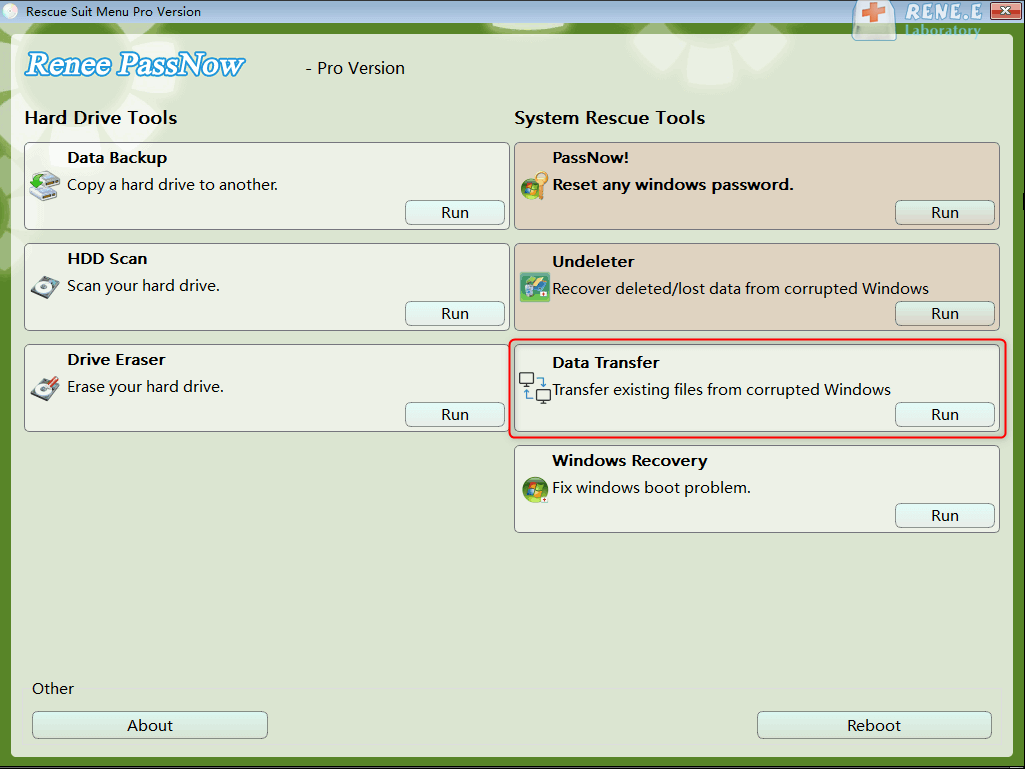
Step 4: Once Renee PassNow loads, select Data Transfer. For full disk backup, choose Data backup.
data transfer
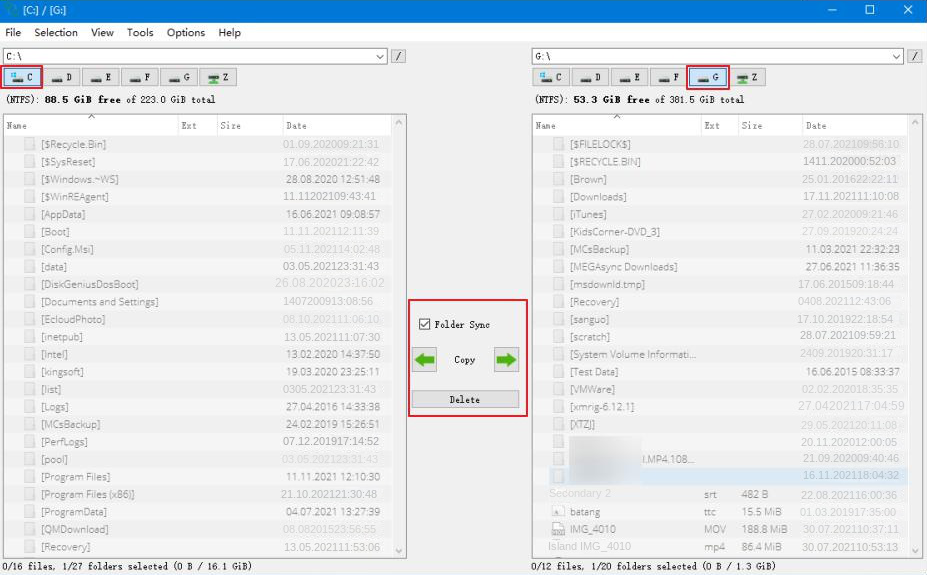
Step 5: Browse drive letters (C:, D:, etc.) to locate your files. Select the source drive on the left, destination (external drive) on the right, choose files, and click Copy.
transfer data interface
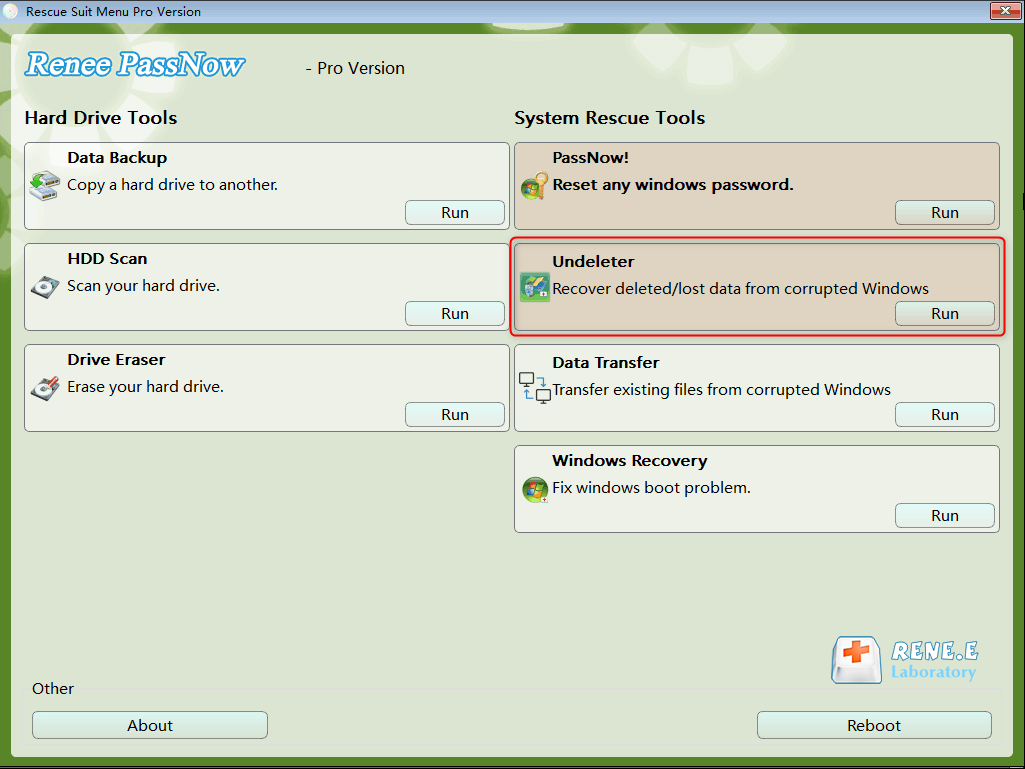
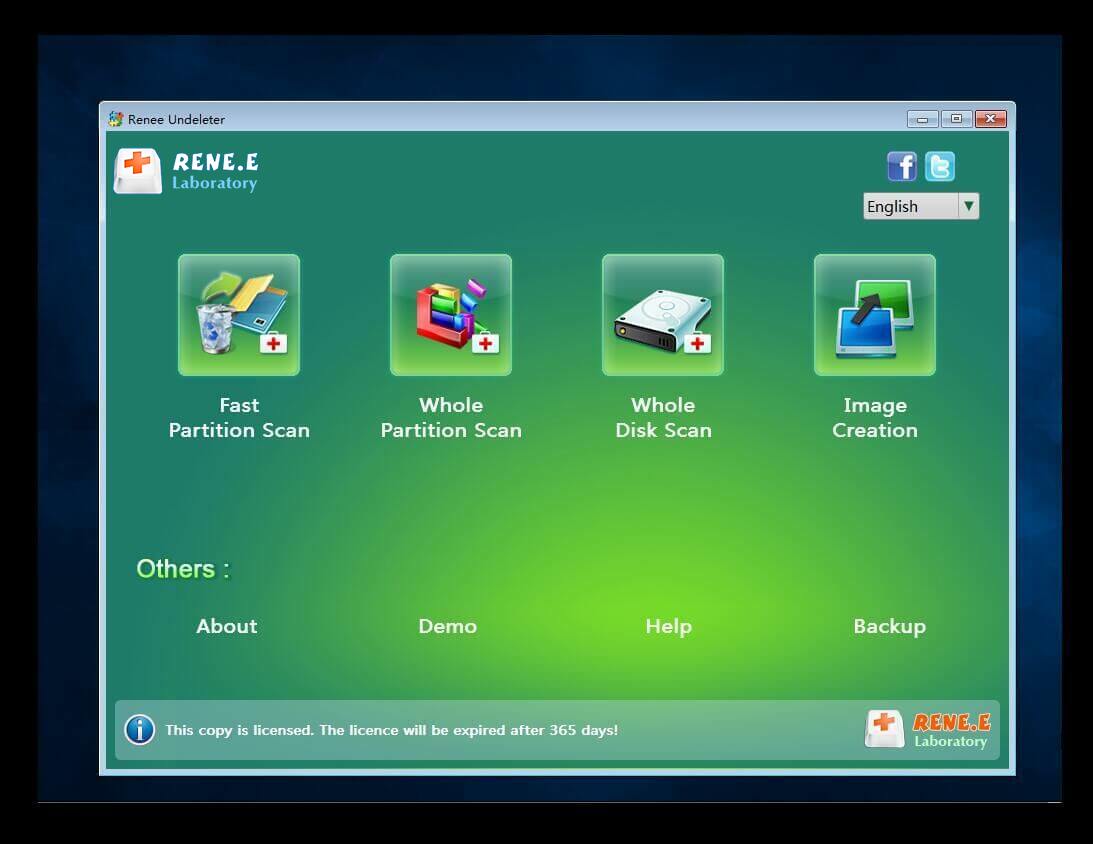
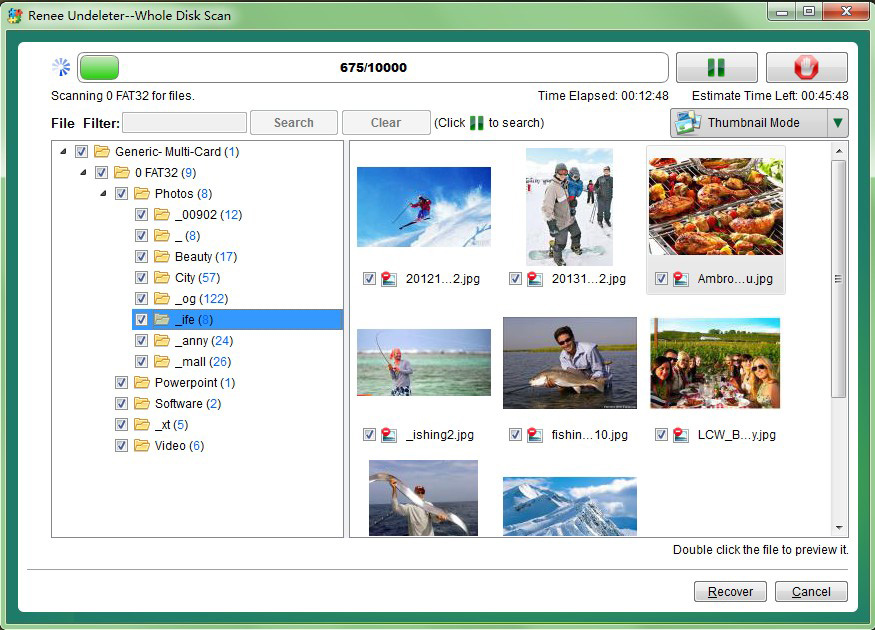
Step 6 (If needed for lost files): Choose Undeleter → Run → select scan type → recover files to an external drive.
undeleter
whole partition scan
preview and recover
After safely backing up your data, you can proceed with system repairs or reinstallation without worry.

Alternative Free Rescue Options

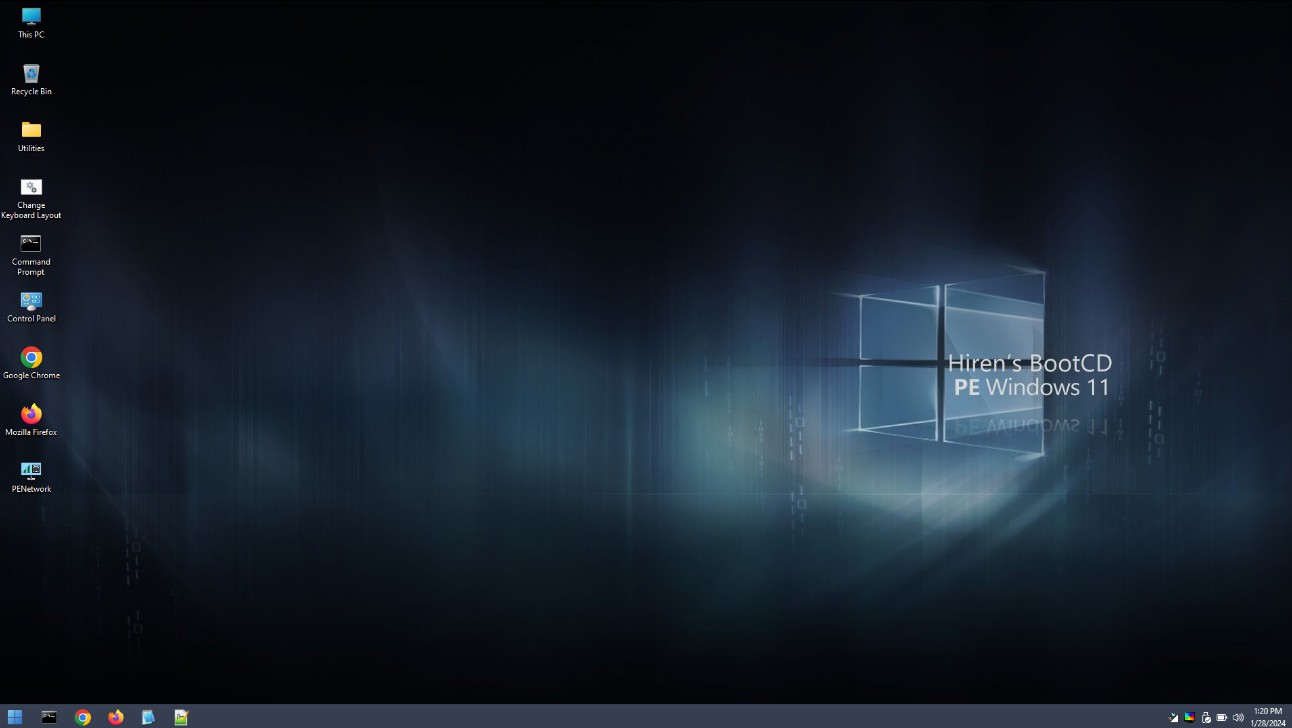
1. Hiren’s BootCD PE – A popular free bootable toolkit with Mini Windows XP/10 environments and many diagnostic/repair utilities.
Hiren’s BootCD PE
2. Official Windows Installation Media – Download the Windows 11/10 ISO from Microsoft, create a bootable USB with the Media Creation Tool, and access the built-in recovery options. For detailed instructions, please refer to the “Advanced Repair via Command Prompt” section.
install-Windows

Comparison of Rescue Tools and Methods

ToolCostEase of UseData Backup SupportBoot Repair CapabilitiesBest For
Renee PassNowPaidVery HighExcellent (GUI file transfer & recovery)Indirect (backup first, then repair)Users wanting simple, guided data rescue
Hiren’s BootCD PEFreeMediumGood (multiple tools)Extensive (Mini Windows + utilities)Tech-savvy users needing many options
Windows Installation MediaFreeMediumLimited (manual copy)Strong (built-in repair commands)Official Microsoft-supported fixes
Once you’ve chosen the rescue approach that best fits your situation, the next step is deciding how deep you want to go with the repair process. For users who prefer a more hands-on method and need direct control over system components, Windows also provides built-in tools that work at a lower level. These options require more technical confidence but can be effective when automated or graphical solutions aren’t enough.

Advanced Repair via Command Prompt

If the system still won’t boot after using professional rescue tools, Windows also provides a built-in, low-level repair option through the Command Prompt. This method works inside the Windows Recovery Environment (WinRE) and gives you direct control over boot records, disk checks, and system file repairs. While powerful, it’s more technical and best approached carefully—especially for first-time users.
Advantages:
  • Uses official Windows tools with no third-party software
  • Can directly repair boot records and system files
  • Effective for serious boot configuration issues

Disadvantages:

  • Requires basic command-line knowledge
  • Higher risk if commands are entered incorrectly
  • Less beginner-friendly than graphical tools

Step-by-Step: Running Repairs from Command Prompt
Step 1: Enter the Windows Recovery Environment
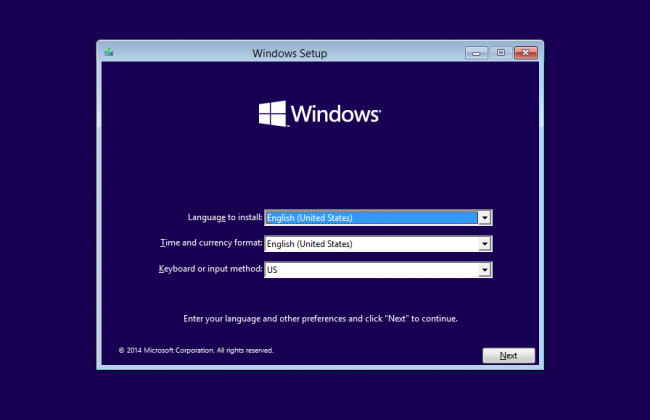
Restart your computer. If Windows fails to load, it may automatically enter Automatic Repair. If not, boot from a Windows installation USB and select Repair your computer instead of Install.
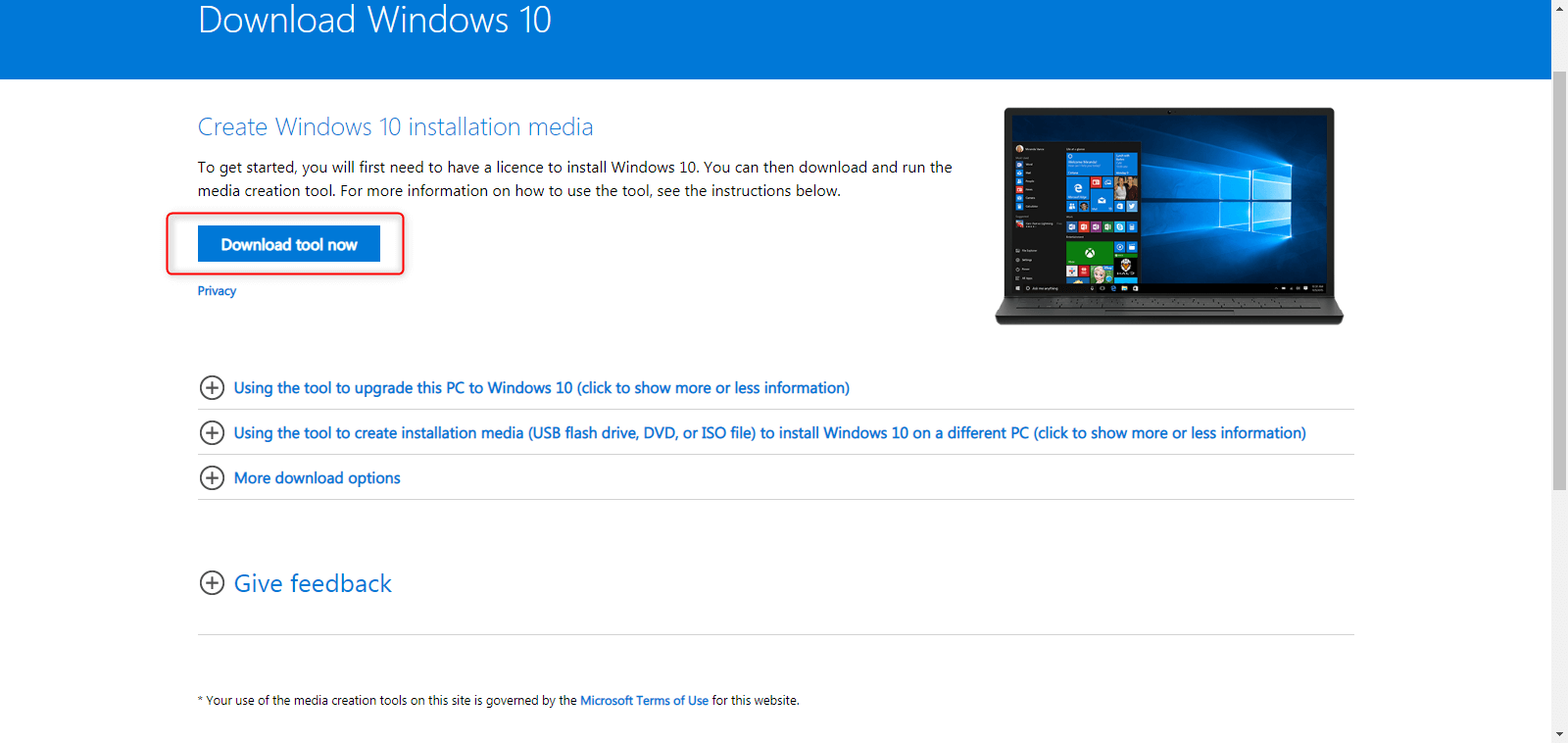
You may create a Windows installation USB yourself with Windows Media Creation tool:
Windows 10: https://www.microsoft.com/software-download/windows10
Windows 11: https://www.microsoft.com/software-download/windows11
download windows 11 on official website
Important for Windows 11 users: If Secure Boot is enabled in your BIOS/UEFI settings, it can sometimes prevent proper loading of the recovery environment or cause driver conflicts during repairs (especially after updates, BIOS changes, or with certain storage controllers like Intel VMD/RAID).
Disable Secure Boot temporarily before proceeding:
- Enter BIOS/UEFI (usually Del, F2, F10, etc.).
- Go to the Boot or Security tab.
- Find Secure Boot and set it to Disabled.
- Save changes (F10) and exit.
After repairs succeed and Windows boots normally, you can re-enable it if desired (but test first, as re-enabling may require driver adjustments).
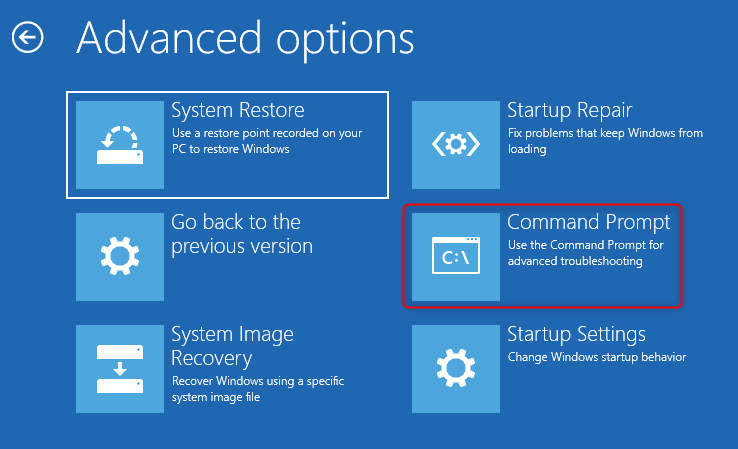
Navigate to Troubleshoot → Advanced options → Command Prompt.
command prompt
Step 2: Identify the System Drive
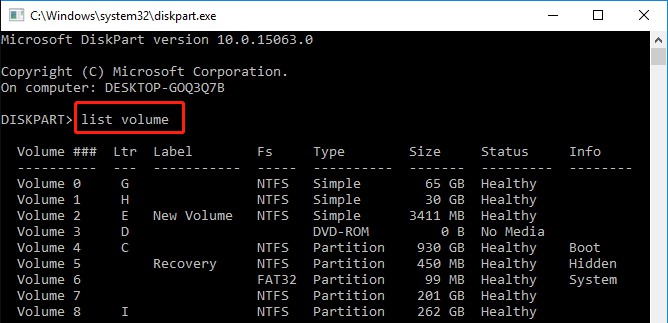
In Command Prompt, type diskpart and press Enter. Type list volume to see available drives and note the letter assigned to your Windows partition. finally, type Exit to leave DiskPart.
enter diskpart and list volume to check drive info
Step 3: Repair the Boot Configuration
Run the following commands one at a time, pressing Enter after each:
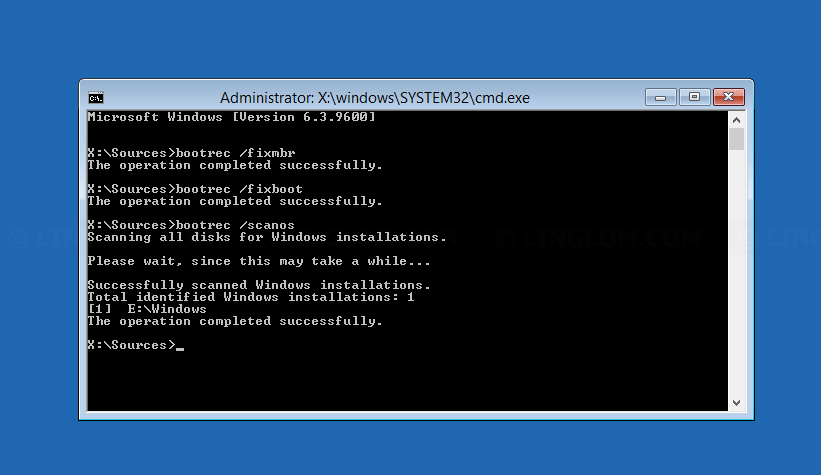
bootrec /fixmbr – Repairs the Master Boot Record.
bootrec /fixboot – Writes a new boot sector.
bootrec /scanos – Scans for installed Windows systems.
bootrec /rebuildbcd – Rebuilds the Boot Configuration Data.
use bootrec to fix the system
Step 4: Check the Disk for Errors
• Replace C: with your actual Windows drive letter if different.
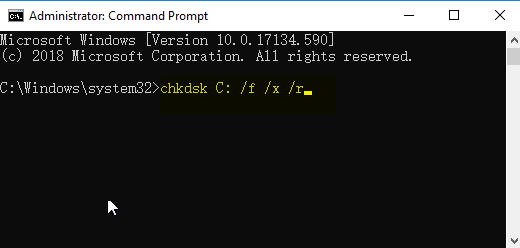
• Run: chkdsk C: /f /r
This scans for file system errors and bad sectors and attempts to fix them.
chkdsk
Step 5: Repair System Files
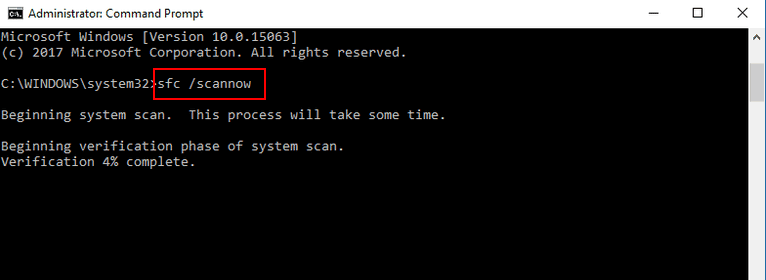
Run: sfc /scannow, This checks protected system files and restores missing or corrupted ones.
sfc command
Step 6: Restart and Test
Close Command Prompt and restart your computer normally. If Windows loads successfully, the repair is complete.

When to Move On

Command Prompt repairs can resolve deep boot issues, but they aren’t foolproof. If errors persist or hardware problems are suspected, it’s time to consider additional advanced solutions or preventive steps to avoid future boot failures.

Frequently Asked Questions

What usually causes the 0x0000007B INACCESSIBLEBOOTDEVICE error?

Common causes are mismatched SATA modes in BIOS (AHCI vs. RAID), corrupted boot files after updates, failing hard drives, or incompatible drivers.

Will fixing this error delete my files?

Most fixes described here do not delete data if you follow the steps carefully and back up first using a rescue tool.

Can I fix this without any external tools?

Yes—automatic repair and BIOS adjustments often work for simpler cases.

Which tool is best for backing up data when Windows won’t boot?

Renee PassNow offers the easiest graphical interface for transferring files safely. Free alternatives like Hiren’s BootCD PE also work well.

How can I avoid this error in the future?

Always note your current BIOS settings before making changes, keep Windows updated, and maintain regular backups.
Renee Passnow – Professional Windows Password Remover

Remove Windows Login Password 3 steps for whole password remove process.

Enable/Create Administrator One click for creating new administrator and enable the disabled account.

Widely Use New version supports UEFI boot model, which can be used on more computers, laptops and even surfaces.

Multifuctional Data transfer, data recovery, bootable problem recovery can be run without system.

Highly compatible Windows 11/10/8.1/8/7/XP/Vista.

Remove Login Password Support Windows 11/10/8.1/8/7/XP/Vista.

Enable/Create Administrator One click for creating new administrator and enable the disabled account.

Easy to use No need of any professional knowledge or password reset disk.

Free TrialFree TrialNow 2000 people have downloaded!

User Comments

Page 1

Leave a Comment


Your comment has been submitted and is awaiting moderation.