author avatar
    Technology Manager of Test Dept.
Last update by William Davis at 24 August 2026

Summary
This guide explains how to resolve OEM recovery partition password prompts by verifying the requested credential, checking vendor guidance, and using a bootable recovery tool such as Renee PassNow.

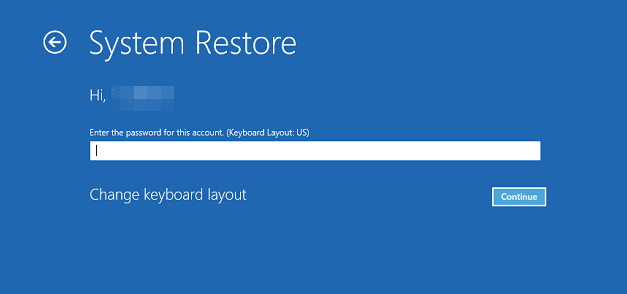
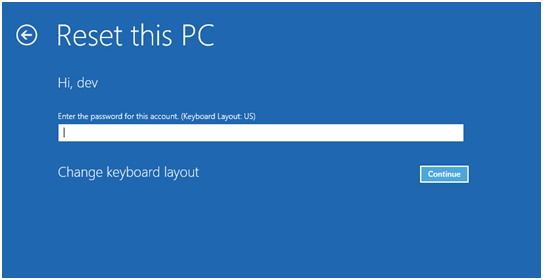
A password prompt in an OEM recovery partition can be confusing, especially since the screen rarely specifies which password it wants. If your HP, Dell, Lenovo, or other PC rejects your PIN or Microsoft account password, it may seem like the recovery partition is permanently locked. Fortunately, in most cases, the solution is simpler than it appears. This article walks you through the fastest ways to clear the block and recover your system with your data intact.
Windows Recovery Environment (WinRE) only accepts your text‑based account password. If you normally sign in with a PIN, face recognition, fingerprint or any other Windows Hello method, those credentials will not work in WinRE. In this situation, your best options are to reset your account password inside Windows or use a third‑party recovery tool such as Renee PassNow to regain access.
Windows password prompt during system restore in WinRE

Quick answer: what to try first when an OEM recovery partition asks for a password

If you need a quick fix for an OEM recovery partition password prompt, start by determining exactly which type of password the recovery screen is requesting.

Identify which password type the screen is asking for

Windows account password — This is the password requested in nearly all modern cases.
Windows password prompt during Keep my files reset
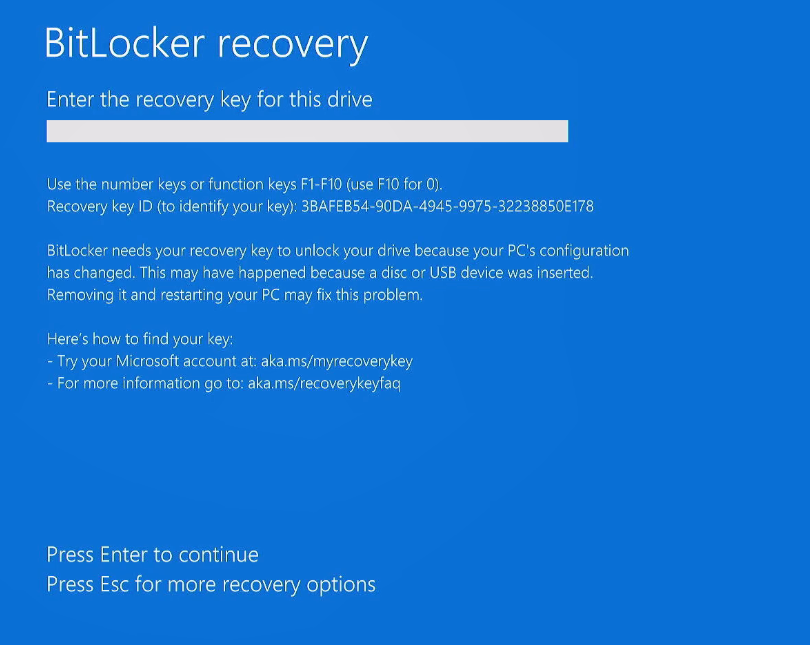
BitLocker recovery key — A 48-digit numeric key (only if BitLocker is enabled and the screen asks for it).
Enter BitLocker recovery key
OEM recovery partition password — Rare; usually only on older or enterprise-managed systems.
Windows 7 reset requires password-system recovery option
Password TypeWhat It Looks LikeWhen It AppearsWhat To EnterNotes

Windows account password

Standard Windows login prompt

Nearly all modern HP/Dell/Lenovo recovery screens

Your Windows login password (not PIN/Hello)

Try leaving the field blank if no password was ever set; check the keyboard layout

BitLocker recovery key or password

Screen asks for a 48‑digit numeric key

Only when BitLocker is enabled and detected

48‑digit BitLocker key from your Microsoft account

Required to unlock encrypted drives

OEM recovery partition password

Legacy OEM recovery prompt (Windows 7‑era)

Older or enterprise‑managed devices

Try only vendor-documented defaults; many older prompts may accept a blank password if no password was set.

Rare on modern systems; check manual or IT if defaults fail

Use Renee PassNow when the recovery password is rejected and you need access fast

Why Renee PassNow is the fastest fix

Renee PassNow is a dedicated Windows recovery tool designed to reset or remove login passwords for local accounts, administrator accounts, and Microsoft accounts—no hints or previous credentials needed. Because it boots from a USB drive, it works even if Windows itself won’t start. The integrated Data Transfer feature also lets you copy files between drives before making any changes.
✔️ Bypasses local recovery-password prompts
✔️ Works even when Windows cannot boot
✔️ No original password required
✔️ Includes built-in file backup with Data Transfer
Bypass OEM Recovery Password Prompts with This Bootable Recovery Tool

Remove Windows Login Password 3 steps for whole password remove process.

Recover the files Recover the deleted files without Windows system.

Transfer the data Transfer the important files of the computer with system.

Multifuctional Data transfer, data recovery, bootable problem recovery can be run without system.

Highly compatible Windows 11/10/8.1/8/7/XP/Vista. UEFI boot.

Remove Login Password Support Windows 11/10/8.1/8/7/XP/Vista. UEFI boot.

Recover the files Recover the deleted files without Windows system.

Transfer the data Transfer the important files of the computer with system.
Free TrialFree TrialNow 2000 people have downloaded!

Step-by-step fixes with Renee PassNow

Renee PassNow runs outside of Windows, so it can clear the account password regardless of what the OEM recovery prompt allows.

1. Create the Live USB

1. Install Renee PassNow on a working computer.
2. Insert an empty USB drive (all files on it will be erased).
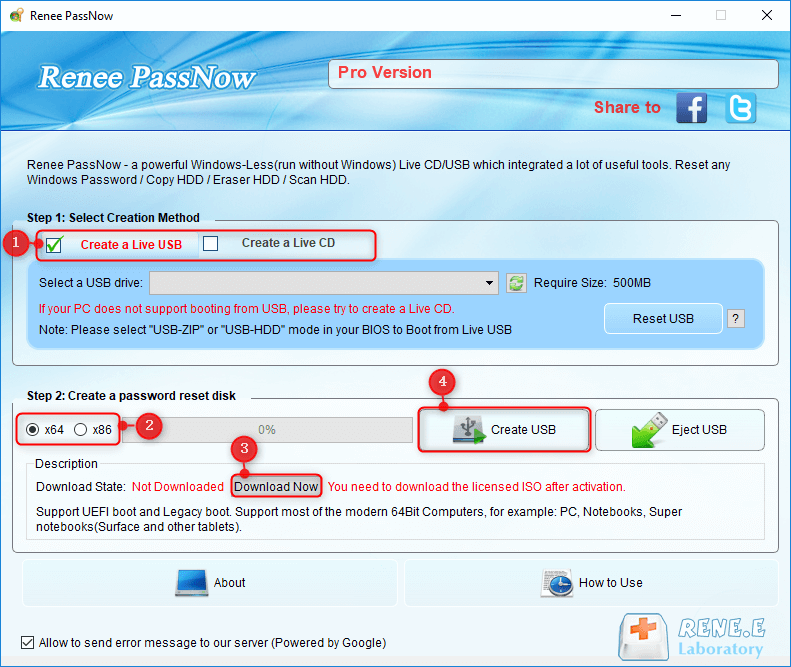
3. Launch Renee PassNow and select Create a Live USB.
Use Renee PassNow to create a USB to reset password
4. Choose x64 for most modern PCs, or choose x86 only if you know the locked PC uses a 32-bit system.
5. Click Download Now, wait for the ISO file to download, then click Create Live USB.
6. Click Eject USB when finished.
Bypass Windows Login with Renee PassNow Live USB

Remove Windows Login Password 3 steps for whole password remove process.

Recover the files Recover the deleted files without Windows system.

Transfer the data Transfer the important files of the computer with system.

Multifuctional Data transfer, data recovery, bootable problem recovery can be run without system.

Highly compatible Windows 11/10/8.1/8/7/XP/Vista. UEFI boot.

Remove Login Password Support Windows 11/10/8.1/8/7/XP/Vista. UEFI boot.

Recover the files Recover the deleted files without Windows system.

Transfer the data Transfer the important files of the computer with system.

Free TrialFree TrialNow 2000 people have downloaded!

2. Boot the locked PC from USB

1. Insert the USB drive you created into the locked HP, Dell, Lenovo, or other PC.
Insert the boot device
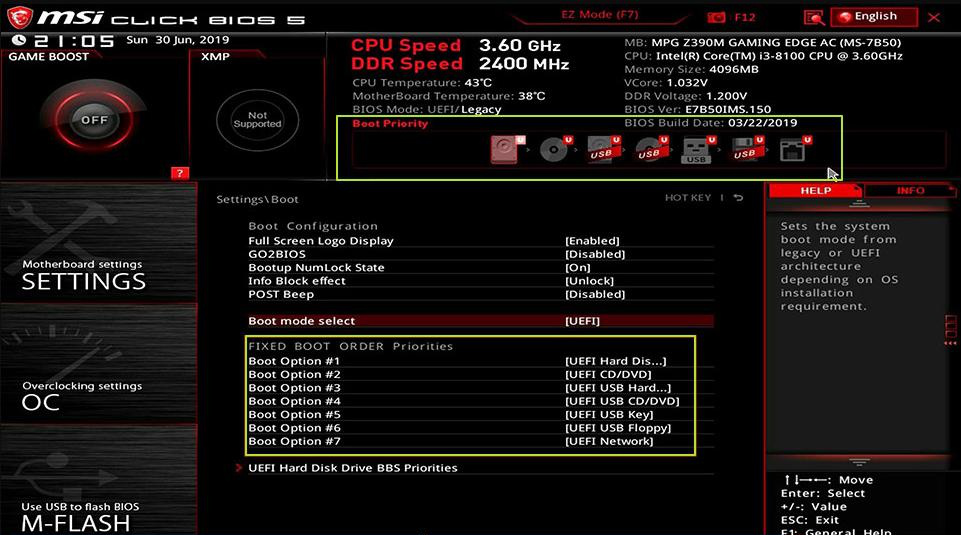
2. Power on the computer and repeatedly press the boot menu key.
Common boot menu keys :
BrandBoot Menu Key

HP

F9

Dell

F12

Lenovo Consumer Laptops

F12 or Novo Button

Lenovo ThinkPads

F12

ASUS

Esc (laptops), F8 (desktops)

Acer

F12

3. Select the USB drive and press Enter.
select boot order
4. Wait for the Renee PassNow live environment to load.

3. Reset password or back up data

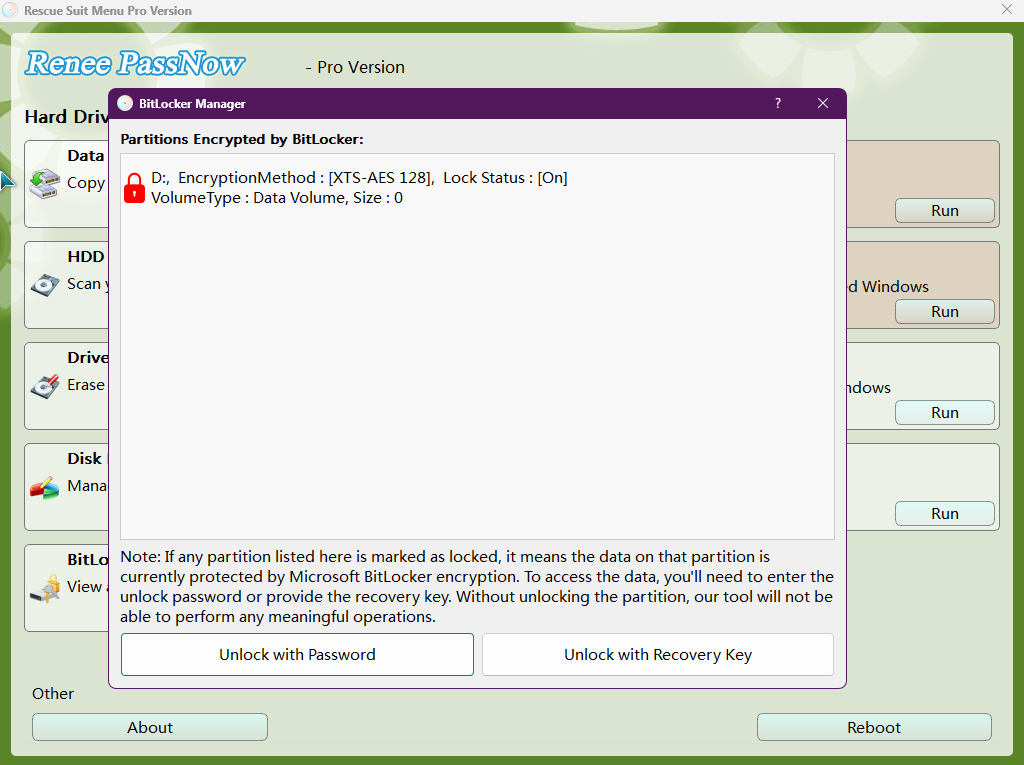
1. If PassNow detects BitLocker encryption, use BitLocker Manager and enter the BitLocker password or recovery key.
Unlock the system using the BitLocker manager provided by PassNow
Note: The Basic edition does not support BitLocker.
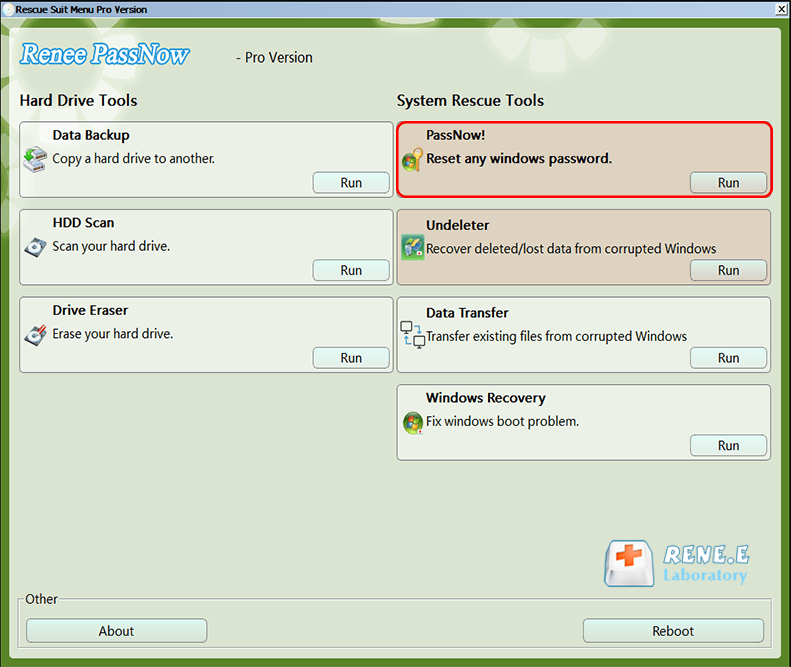
2. Select PassNow! from the main interface.
After loading into the main interface, please select the PassNow function.
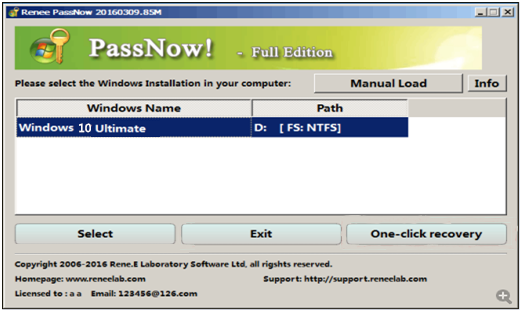
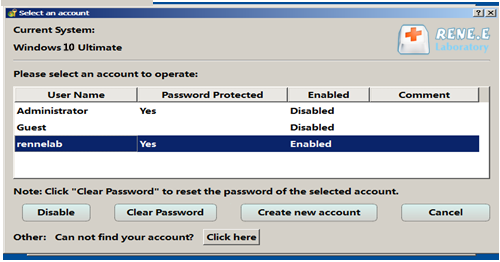
3. Select your Windows system and user account, then click Clear Password.
Select target Windows system in the list
Select target user account in the list
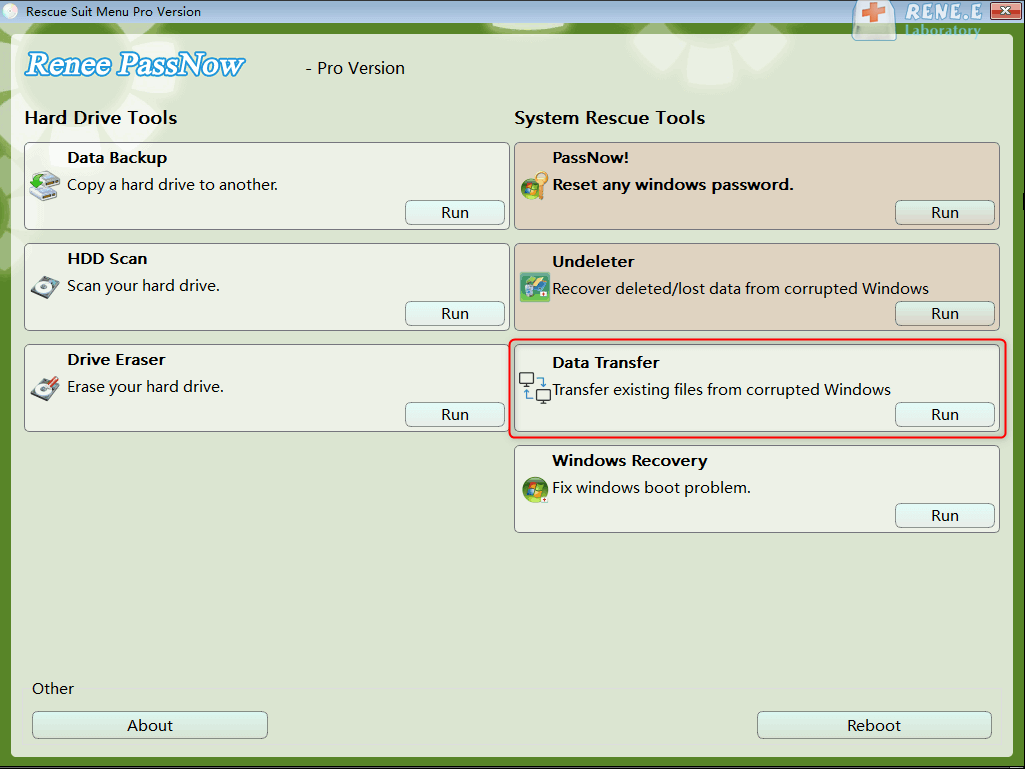
4. To secure your files before making changes, use Data Transfer to copy personal folders to an external drive.
data transfer
5. Remove the USB drive and restart the PC. You should now be able to log in without the previous password.
Tip: If your account is a Microsoft Account, Renee PassNow will convert it to a Local account. After resetting the password, you’ll need to reconnect your Microsoft Account in Windows.
Bypass Windows Password Without OEM Recovery Hassle

Remove Windows Login Password 3 steps for whole password remove process.

Recover the files Recover the deleted files without Windows system.

Transfer the data Transfer the important files of the computer with system.

Multifuctional Data transfer, data recovery, bootable problem recovery can be run without system.

Highly compatible Windows 11/10/8.1/8/7/XP/Vista. UEFI boot.

Remove Login Password Support Windows 11/10/8.1/8/7/XP/Vista. UEFI boot.

Recover the files Recover the deleted files without Windows system.

Transfer the data Transfer the important files of the computer with system.

Free TrialFree TrialNow 2000 people have downloaded!

Check OEM recovery documentation for vendor-defined passwords

This step mainly applies to older HP, Dell, and Lenovo models. Always check the official service manual or support page for your exact device model before relying on default passwords.
- HP: Most consumer recovery environments use Windows credentials; check HP documentation before trying any legacy or BIOS-defined password.
- Dell: Modern Dell recovery tools typically use your Windows account; if an older utility asks for a password, check Dell’s official documentation or support.
- Lenovo: OneKey and Novo Recovery usually prompt for your Windows account password; if an older system asks for a password, check Lenovo’s official documentation or support.
If your device is managed by an organization, contact your IT administrator before making multiple password attempts.

FAQ

What if leaving the password field blank works?

If your Windows local account had no password, simply pressing Enter with an empty field can unlock the recovery environment. This is common on home PCs where no login password was set. If this works, set a local password afterward for security.

Where can I find brand-specific instructions?

Visit the official support pages for HP, Dell, Lenovo, or your PC manufacturer. Search for your exact model along with “recovery partition password,” or check the service manual. For example, HP recovery is often accessed by pressing F11, Dell by pressing F8 or F12, and Lenovo by using the Novo button or OneKey Recovery.

Will resetting the password with Renee PassNow cause data loss?

No—Renee PassNow resets or clears the password without deleting personal files. For extra safety, you can use Data Transfer to copy important folders to an external drive before making changes. Avoid disk erasure or formatting tools unless you intend to delete data.

What if BitLocker blocks access?

If your drive is BitLocker-encrypted, you’ll need the BitLocker password or BitLocker recovery key. The key is often stored in your Microsoft account under Devices > BitLocker recovery keys. Without it, the drive remains locked. Note that the Basic edition of Renee PassNow does not support BitLocker, so choose a version that matches your needs.
Renee Passnow – Professional Windows Password Remover

Remove Windows Login Password 3 steps for whole password remove process.

Enable/Create Administrator One click for creating new administrator and enable the disabled account.

Widely Use New version supports UEFI boot model, which can be used on more computers, laptops and even surfaces.

Multifuctional Data transfer, data recovery, bootable problem recovery can be run without system.

Highly compatible Windows 11/10/8.1/8/7/XP/Vista.

Remove Login Password Support Windows 11/10/8.1/8/7/XP/Vista.

Enable/Create Administrator One click for creating new administrator and enable the disabled account.

Easy to use No need of any professional knowledge or password reset disk.

Free TrialFree TrialNow 2000 people have downloaded!

User Comments

Page 1

Leave a Comment


Your comment has been submitted and is awaiting moderation.