
WinRE (Windows Recovery Environment) Shift + Restart Not Working: How to Restore Advanced Startup Options

Summary
A clear, practical guide to fixing the winre shift restart not working problem. This article explains why Shift + Restart fails, how to verify WinRE status, and the steps you can take to regain access to Advanced Startup, Safe Mode, and other recovery tools.

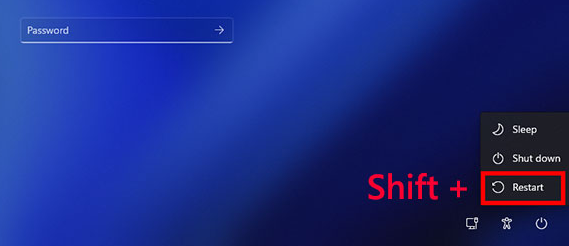
| Symptom | How It Appears | Likely Cause |
|---|---|---|
Desktop loads normally |
Windows restarts as if you selected a standard Restart, with no recovery menu |
WinRE disabled in system settings |
Returns to login screen |
System restarts but never shows the blue recovery menu |
Recovery partition missing or corrupted |
PC fails to boot |
Black screen, looping logo, or repeated Automatic Repair attempts |
Damaged system files required for recovery |

Remove Windows Login Password 3 steps for whole password remove process.
Recover the files Recover the deleted files without Windows system.
Transfer the data Transfer the important files of the computer with system.
Multifuctional Data transfer, data recovery, bootable problem recovery can be run without system.
Highly compatible Windows 11/10/8.1/8/7/XP/Vista. UEFI boot.
Remove Login Password Support Windows 11/10/8.1/8/7/XP/Vista. UEFI boot.
Recover the files Recover the deleted files without Windows system.
Transfer the data Transfer the important files of the computer with system.
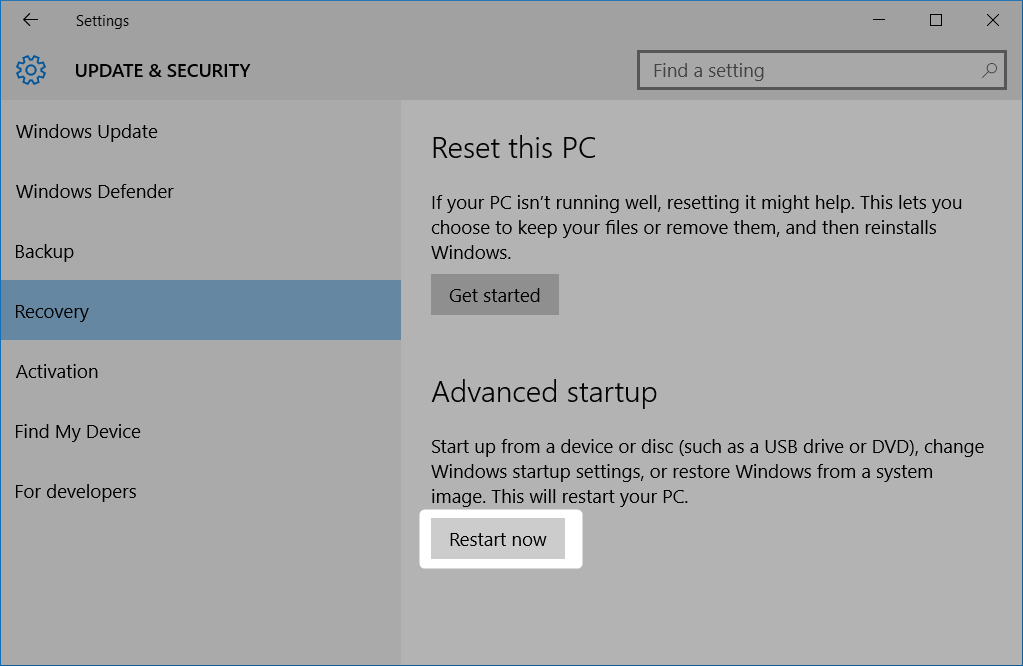
Windows 10
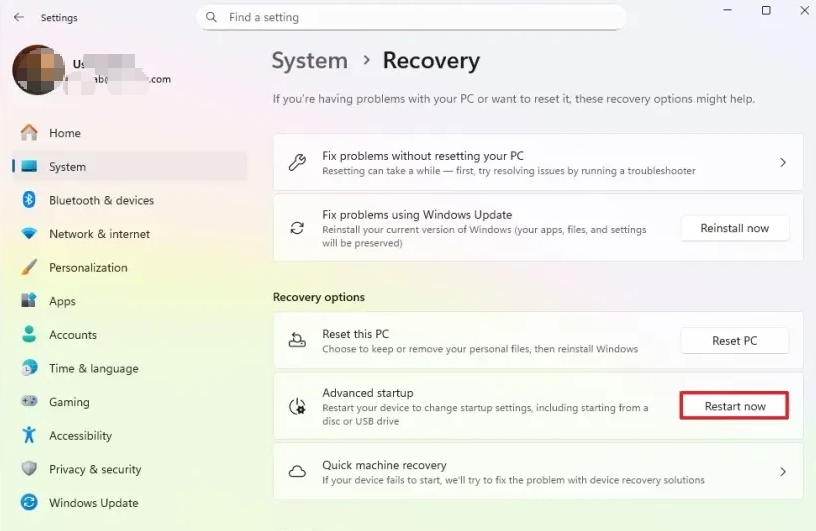
Windows 11
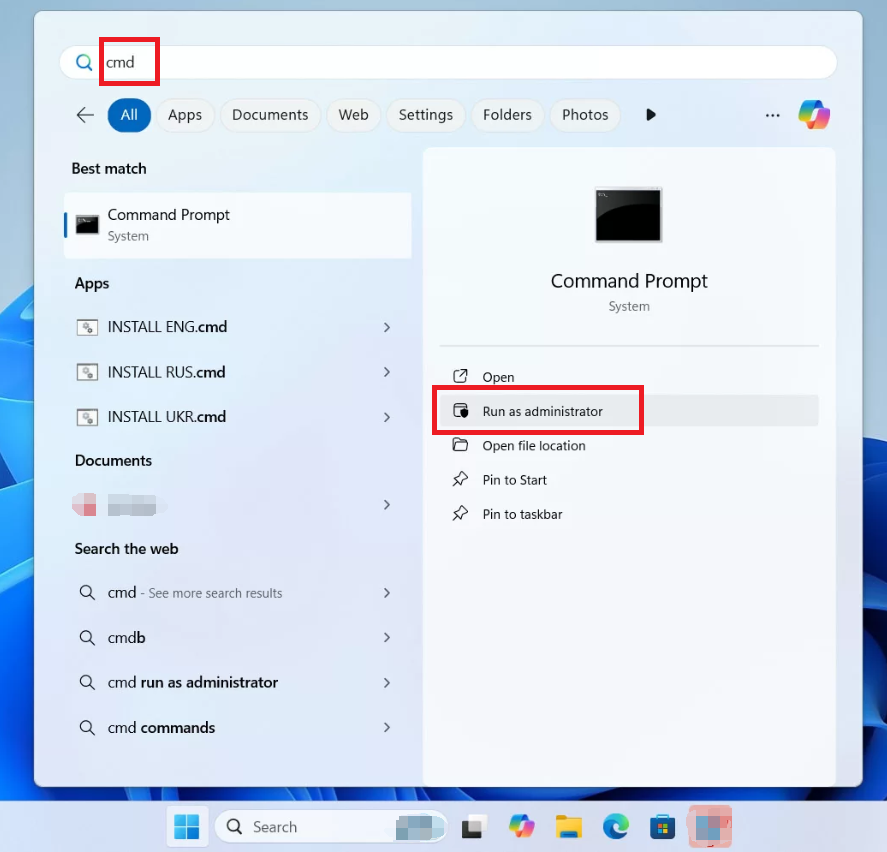
cmd in the search bar and click ‘Run as administrator‘)
shutdown /r /o
/r restarts Windows, and /o tells it to boot into Advanced Startup. Best for users comfortable with commands; requires WinRE to be working.
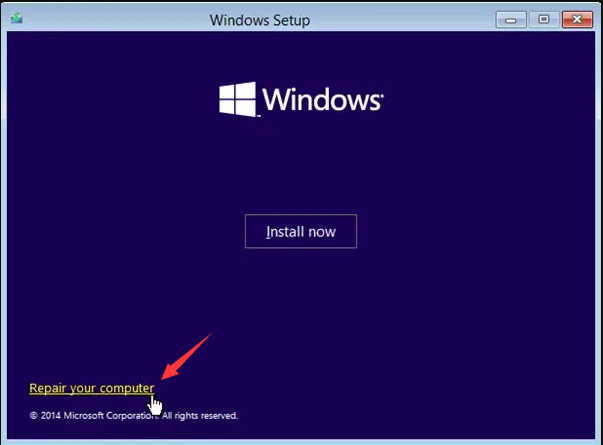
reagentc command can restore access.
cmd, then right-click Command Prompt and select Run as administrator.
reagentc /info
/info option tells Windows to display the current WinRE status.
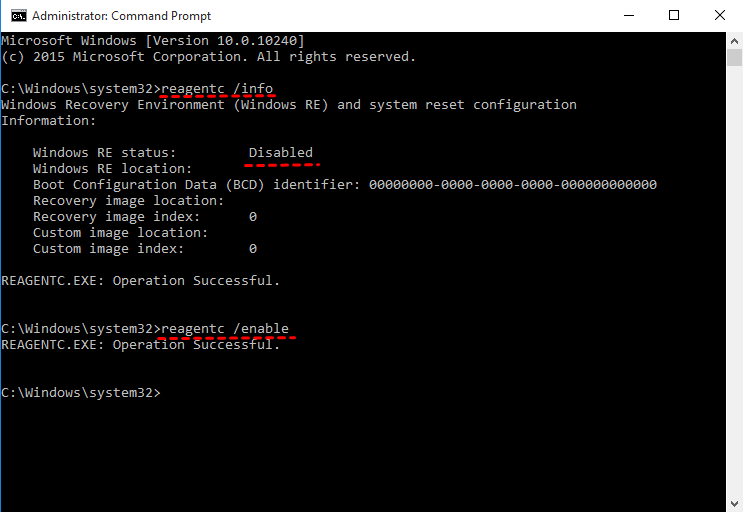
reagentc /enable
/enable command re-enables WinRE and repairs the boot entry, as long as the recovery image is still present.
reagentc /info checks the status, while reagentc /enable tries to fix and re-enable WinRE. The first command reads the configuration; the second writes the recovery entry back into Windows.
https://www.microsoft.com/software-download/windows11
https://www.microsoft.com/software-download/windows10

Remove Windows Login Password 3 steps for whole password remove process.
Recover the files Recover the deleted files without Windows system.
Transfer the data Transfer the important files of the computer with system.
Multifuctional Data transfer, data recovery, bootable problem recovery can be run without system.
Highly compatible Windows 11/10/8.1/8/7/XP/Vista. UEFI boot.
Remove Login Password Support Windows 11/10/8.1/8/7/XP/Vista. UEFI boot.
Recover the files Recover the deleted files without Windows system.
Transfer the data Transfer the important files of the computer with system.
Does this work the same way on Windows 10 and Windows 11?
shutdown /r /o command, and recovery via installation media all function on both versions.
How do I know if WinRE is permanently broken versus temporarily disabled?
Will running reagentc /enable delete my files or affect my installed programs?
reagentc /enable only re-registers the Windows Recovery Environment and its boot entry. It does not remove your files, installed programs, or user settings.
Relate Links :
Bug Check 0x000000EF: CRITICAL_PROCESS_DIED – Causes, Data Rescue & Proven Fixes

11-05-2026
John Weaver : The bug check 0x000000ef stop code indicates a critical Windows system process has terminated unexpectedly, triggering a full...
0x000000ef Windows 10: Complete Troubleshooting Guide for CRITICAL_PROCESS_DIED
09-05-2026
Amanda J. Brook : This comprehensive guide addresses the 0x000000ef windows 10 stop code by outlining systematic troubleshooting approaches for both bootable...
Critical Process Died ntoskrnl.exe: How to Fix the BSOD Error in Windows 10/11

17-03-2026
Jennifer Thatcher : This article analyzes the critical_process_died ntoskrnl exe Blue Screen of Death error in Windows environments. It outlines common...
[2026 Guide] How to Factory Reset Your Dynabook Laptop Without Password
03-02-2026
John Weaver : Learn how to factory reset your Dynabook laptop without password using proven methods for quick access. This guide...



User Comments
Leave a Comment