author avatar
    Specialist of Customer Service Dept.
Last update by Olivia Brown at 8 July 2026

Summary
The provided resource details the technical procedures required to clone hdd to hdd, covering essential prerequisites such as BitLocker suspension and BIOS configuration. It also evaluates various software and hardware cloning methods while providing structured troubleshooting steps for resolving post-migration boot failures.


clone hdd
Cloning a hard drive isn’t just about copying files — it’s about creating an exact, sector‑by‑sector or partition‑level duplicate of your system. This process preserves your operating system, installed programs, settings, and personal data exactly as they were, so you can boot up and continue working without missing a beat.

How Hardware Type Affects Cloning

Your approach depends largely on your computer type:
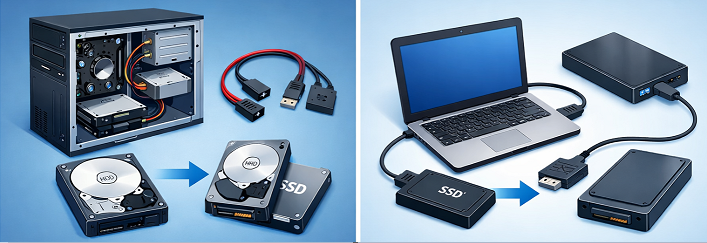
- Desktop users usually have easy access to extra SATA ports and power connectors, making internal cloning straightforward.
- Laptop users typically need a USB‑to‑SATA adapter or an external enclosure, since most laptops only have one drive bay.
Understanding your hardware setup helps you choose the right cloning method from the start.
desktop pc and laptop clone

What Makes a Clone Bootable

A bootable clone is more than a simple file copy. It includes the master boot record (MBR) or GUID partition table (GPT), the boot sector, and the hidden system partitions that make Windows start correctly. Without these elements, the cloned drive won’t boot — even if all your files appear intact. That’s why using dedicated cloning software is essential.
Renee Becca combines all these scenarios into one user‑friendly Windows interface. It supports system‑disk cloning, incremental and differential backups for added safety, and lets you resize partitions as needed — making it a dependable choice whether you’re rescuing a failing drive or upgrading to something faster.
Renee Becca – Safe and Quick System Migration to SSD

Automatic 4K alignment Improves SSD performance during system migration.

Support GPT and MBR Automatically adapt to the suitable partition format.

Support NTFS and FAT32 Redeploy various files in different file systems.

Back up quickly Back up files at up to 3,000MB/min.

Overall backup schedule Support system redeployment/system backup/partition backup/disk backup/disk clone.

Automatic 4K alignment Improve SSD performance

Support GPT and MBR Intelligently adapt to a partition format

Support NTFS and FAT32 Redeploy files in different file systems

Free TrialFree TrialNow 56337 people have downloaded!

Preparation and Windows Boot Prerequisites

Before you start cloning HDD to HDD, make sure you have all the necessary hardware:
- The source HDD (the drive you want to clone)
- A target HDD with enough space for all used data from the source
- For desktops: two free SATA ports and power connectors
- For laptops: a USB-to-SATA adapter or external enclosure
- A small Phillips screwdriver for laptop drive bays, if needed
In addition to cables and drives, modern Windows systems have security features that can interfere with cloning. The table below highlights common issues and what you should check before starting the clone.
Boot Issue / PrerequisiteDescriptionAction Required

BIOS Boot Mode

UEFI vs. Legacy (CSM) mismatch will prevent booting.

Verify firmware settings match the source disk’s boot mode.

Partition Style

MBR vs. GPT incompatibility, especially with smaller disks.

Initialize the target disk correctly or use software that converts styles.

Secure Boot

May block cloned drives lacking proper digital signatures.

Temporarily disable Secure Boot in BIOS if the clone fails to start.

BitLocker Encryption

Active encryption can cause imaging inconsistencies or trigger recovery mode.

Suspend BitLocker protection before cloning (see below).

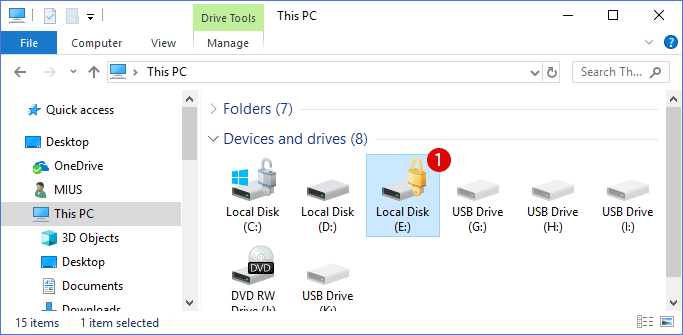
Check if your system enables BitLocker

In Windows 10 and 11, you can quickly check your BitLocker status directly in File Explorer. If a drive displays a lock icon, BitLocker is active. Pay close attention to your Local Disk (C:): if you see a lock icon next to it—whether it appears locked or unlocked—it means your operating system drive is definitely encrypted and protected by BitLocker.
how to unlock bitlocker without password and recovery key

Will replacing the hard drive on a Windows 11 system using BitLocker trigger a recovery key prompt?
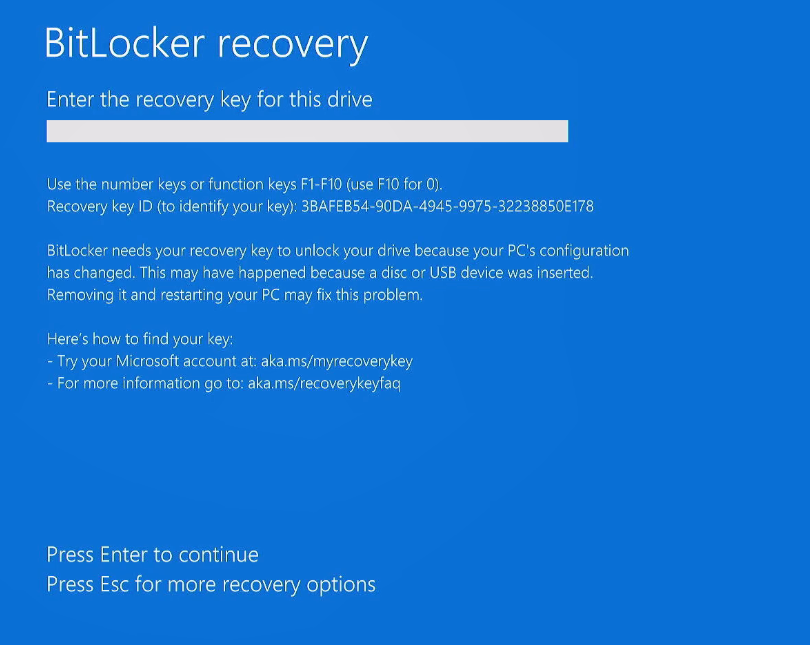
Nearly always—yes. BitLocker is tied to your system’s TPM and hardware configuration. Swapping the main drive, even with a perfect clone, is seen as a potential security threat and will prompt for the recovery key. This is the most common reason for boot problems after cloning. That’s why it’s critical to suspend BitLocker before cloning and ensure your recovery key is backed up.
Windows BitLocker recovery key request screen

Back Up the BitLocker Recovery Key First

Your BitLocker recovery key might be linked to your Microsoft account, saved as a file, printed, or stored in Active Directory. To find and back up your key, see Find Your BitLocker Recovery Key. Save a copy of the 48-digit key in a secure, offline location—you’ll need it if there are any issues after cloning.
You may also access https://account.microsoft.com/devices/recoverykey to get all your Bitlocker recovery keys.
Microsoft account page listing BitLocker recovery keys

Suspend BitLocker Before Cloning to Avoid Boot Problems

Suspending BitLocker temporarily disables encryption enforcement, making the clone process smoother.
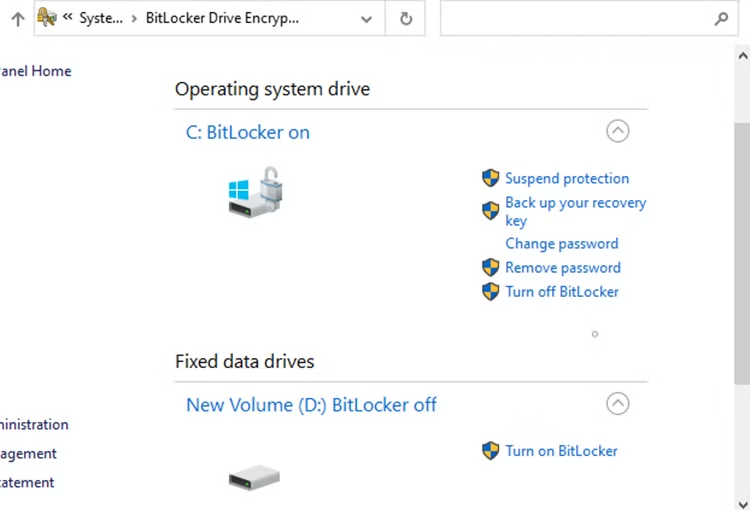
1. Open Control Panel → System and Security → BitLocker Drive Encryption.
2. Next to your system drive (usually C:), click Suspend protection.
Suspend BitLocker protection option
3. Confirm with Yes. Encryption is paused until the next reboot.

Important: Do not restart the PC before cloning, or BitLocker will resume automatically.

After cloning and once you’ve confirmed the new drive boots, return to BitLocker settings and click Resume protection.
If the cloned drive won’t start even after these steps, see the troubleshooting section below for solutions to recovery key prompts, boot file errors, and other issues.

How to Clone HDD to HDD Using Renee Becca

Renee Becca streamlines the entire disk cloning process. Instead of juggling command-line utilities or multiple freeware tools, you get a guided workflow that covers system partitions, boot data, and partition resizing—all in one place. It’s especially useful when you need a clone that will boot on the first try.
Advantages:One‑click disk cloning; incremental/differential backup; handles system migration and partition resizing; intuitive Windows interface; active support.

Disadvantages:Requires installation; full features require a paid license.

Renee Becca – Safe and Quick System Migration to SSD

Automatic 4K alignment Improves SSD performance during system migration.

Support GPT and MBR Automatically adapt to the suitable partition format.

Support NTFS and FAT32 Redeploy various files in different file systems.

Back up quickly Back up files at up to 3,000MB/min.

Overall backup schedule Support system redeployment/system backup/partition backup/disk backup/disk clone.

Automatic 4K alignment Improve SSD performance

Support GPT and MBR Intelligently adapt to a partition format

Support NTFS and FAT32 Redeploy files in different file systems
Free TrialFree TrialNow 56337 people have downloaded!

Step-by-Step Clone Execution

Step 1: Launch and Select the Module
Download, install, and run Renee Becca on the computer with your source HDD.
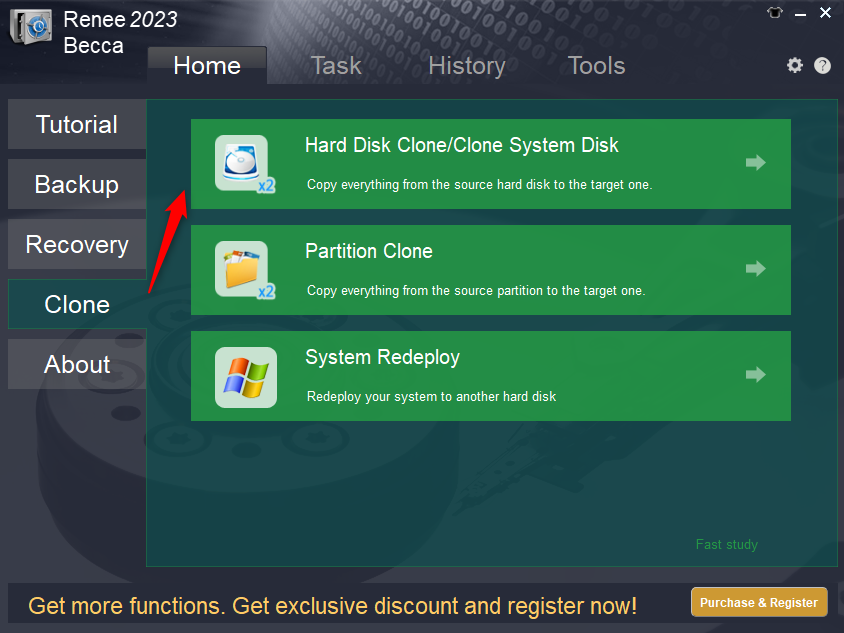
In the main window, select the “Clone” tab and choose “Hard Disk Clone/Clone System Disk”. This option creates an exact, bootable copy of your entire disk.
select hard disk clone in Renee Becca
Step 2: Choose Source and Destination
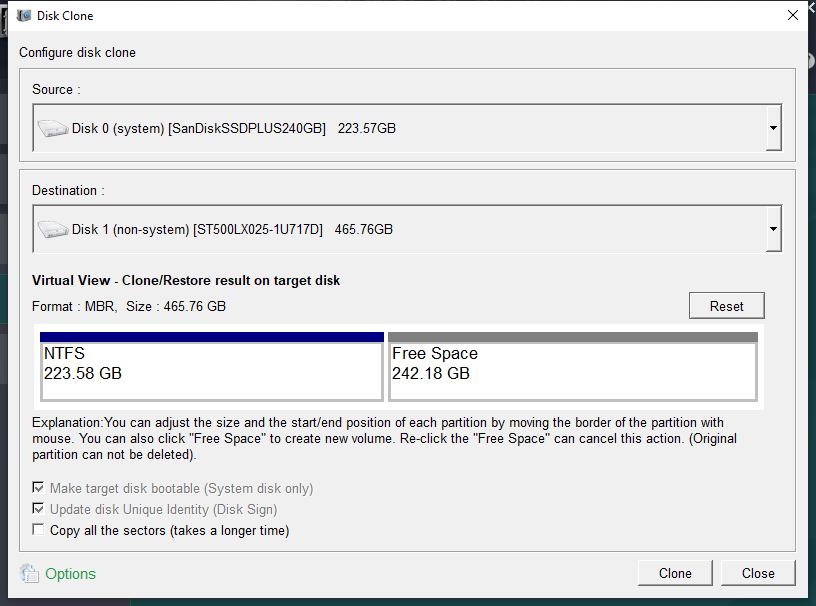
A selection window will appear. Choose your original HDD as the source and your target HDD as the destination. If you’re using a USB-connected drive, it will show up here like an internal disk.
select source and destination for clone

Warning: All data on the target disk will be overwritten. Double-check your selections to avoid erasing the wrong drive.

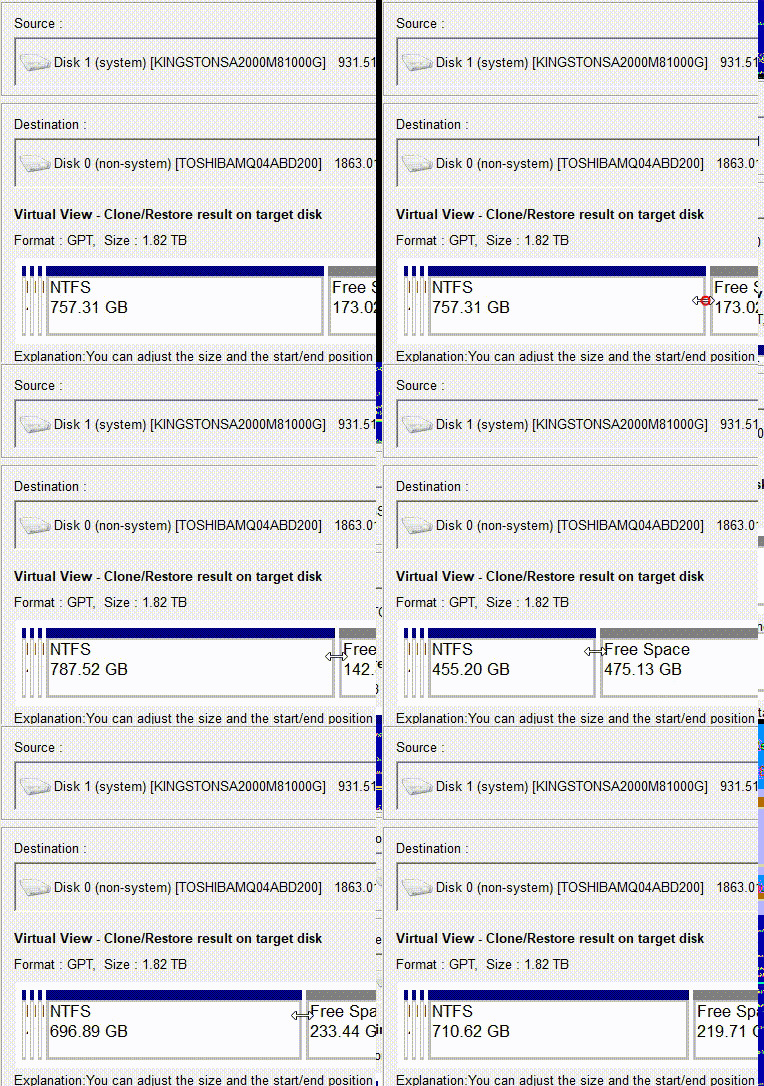
You can also use two helpful options: “Copy all sectors” (helpful if the drive has license data in reserved areas) and partition resizing—simply drag the edge of a partition bar to allocate extra space on a larger target disk.
adjust partitions during clone
Step 3: Start Cloning and Post-Clone Checklist
Click Clone to start. Don’t interrupt power or disconnect drives during the process. Cloning speed depends on data size and connection type (USB 3.0 is much faster than USB 2.0).

Use System Redeploy if Cloning System Only

If you only want to move Windows and its system partitions to a new HDD (without copying large data partitions), the System Redeploy feature saves time. It migrates only the system-related partitions—EFI, recovery, and the Windows volume—without transferring user data drives.
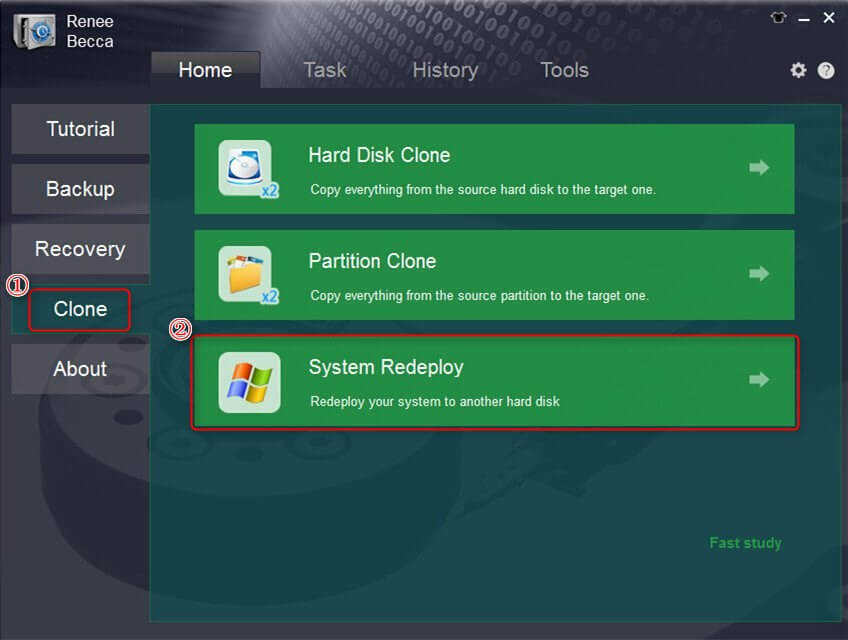
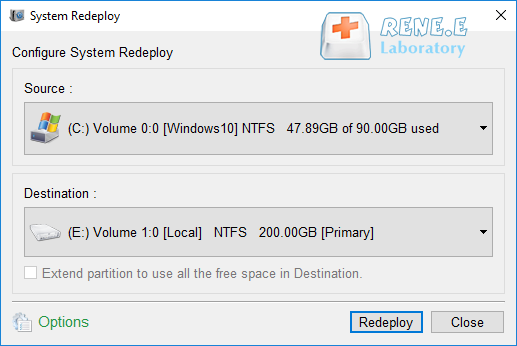
Open Renee Becca, go to the Clone tab, and select System Redeploy. Choose your current system partition(s) as the source and the new HDD as the destination, then click Redeploy. The software will automatically adjust partition sizes to fit the target.
select system redeploy function
select destination for system redeploy
Renee Becca – Safe and Quick System Migration to SSD

Automatic 4K alignment Improves SSD performance during system migration.

Support GPT and MBR Automatically adapt to the suitable partition format.

Support NTFS and FAT32 Redeploy various files in different file systems.

Back up quickly Back up files at up to 3,000MB/min.

Overall backup schedule Support system redeployment/system backup/partition backup/disk backup/disk clone.

Automatic 4K alignment Improve SSD performance

Support GPT and MBR Intelligently adapt to a partition format

Support NTFS and FAT32 Redeploy files in different file systems
Free TrialFree TrialNow 56337 people have downloaded!

When cloning is complete

1. Shut down the PC.
2. Swap drives: install the new HDD in place of the old one (laptop), or disconnect the source drive and boot from the new HDD (desktop).
3. Enter BIOS/UEFI and set the new drive as the first boot device.
4. After Windows boots, open Disk Management to confirm all partitions are present.
5. Re-enable BitLocker if you suspended it earlier.
Once complete, install the new HDD as the main drive. Windows will start with all your apps and settings intact. This method is ideal if you already keep data on a separate drive and want the fastest migration.

Alternatives

Prefer a different approach to clone HDD to HDD? Here are some reliable alternatives—along with their pros and cons.

Free Disk Cloning Software

ToolEase of UsePartition ResizeBootable Clone SupportFree vs. Paid

Macrium Reflect Free

Moderate

Yes

Yes

Free for core cloning

AOMEI Backupper Standard

High

Yes (manual)

Yes

Free with paid extras

Clonezilla

Low (text-based)

No

Yes

Completely free, open source

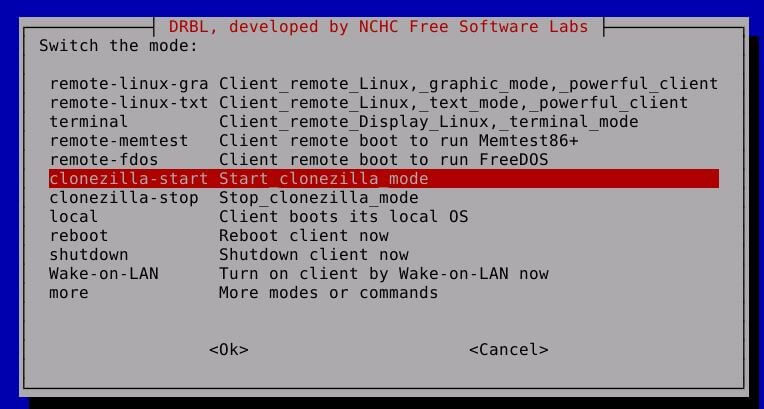
Macrium Reflect Free is great for occasional clones, but features like scheduling and incremental backups require a paid version. AOMEI Backupper Standard offers an easy interface and partition resizing, though some advanced options are paid. Clonezilla excels at mass network cloning, but its text-only interface and lack of automatic partition resizing can be daunting for beginners.
Clonezilla live USB cloning utility boot menu

Hardware Duplicator Dock & USB Adapters

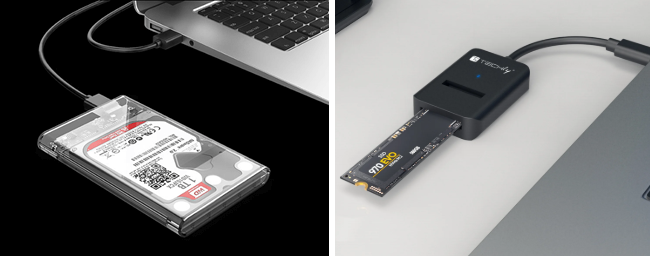
A standalone duplicator dock lets you copy one drive to another at the push of a button—no computer needed. It’s fast and foolproof, making it a favorite in repair shops. The downside: you can’t resize partitions, and docks can be expensive. USB-to-SATA adapters let you connect a target HDD externally and use software cloning on laptops. While this method is slower than direct SATA, it’s affordable and often the only option for laptop users.
USB to M.2 SSD enclosure for external drive connection during cloning
For the best mix of speed, partition flexibility, and ongoing backup capability, Renee Becca remains the most versatile long-term solution.

Troubleshooting: What to Do If the Cloned HDD Cannot Boot

Even with a perfect clone, you might face a black screen or blue error on first boot. Here’s a table of common post-clone failures and how to fix them:
SymptomsPossible CausesPotential BSOD CodesTypical Fixes

“Boot Device Not Found” or black screen

BIOS boot order wrong, or drive not detected

N/A

Check boot order in BIOS; reseat SATA/NVMe connections.

INACCESSIBLE_BOOT_DEVICE

Missing storage drivers, or GPT/MBR mismatch

0x0000007B

Inject drivers via WinRE or re-clone with correct partition style.

BitLocker recovery prompt on first boot

Cloned drive triggered encryption check

N/A

Enter recovery key, suspend BitLocker, and re-clone sector-by-sector.

Blue screen after Windows logo

Corrupted boot files or BCD errors

0x000000ED

Run bootrec commands from Windows Recovery.

FAQ

Can I clone a larger HDD to a smaller one?

Yes, as long as the used space on your source drive is less than the total capacity of the target. The cloning software must support shrinking partitions—Renee Becca and Macrium Reflect Free both allow you to adjust partitions before cloning. If your data exceeds the target’s size, free up space first.

Do I need to wipe or format the target HDD first?

No. The cloning process overwrites all selected sectors or partitions on the destination drive. Formatting beforehand isn’t necessary and will be undone during cloning. Just make sure you’ve backed up anything important from the target drive before you begin.

What is the difference between cloning and creating a backup?

A clone is a direct, bootable copy you can swap in and use immediately. A backup (system image) is a compressed file that must be restored to a disk before it can boot. Use cloning for one-time migrations; backups are best for ongoing protection and multiple restore points.
Renee Becca – Safe and Quick System Migration to SSD

Automatic 4K alignment Improves SSD performance during system migration.

Support GPT and MBR Automatically adapt to the suitable partition format.

Support NTFS and FAT32 Redeploy various files in different file systems.

Back up quickly Back up files at up to 3,000MB/min.

Overall backup schedule Support system redeployment/system backup/partition backup/disk backup/disk clone.

Automatic 4K alignment Improve SSD performance

Support GPT and MBR Intelligently adapt to a partition format

Support NTFS and FAT32 Redeploy files in different file systems
Free TrialFree TrialNow 56337 people have downloaded!

User Comments

Page 1

Leave a Comment


Your comment has been submitted and is awaiting moderation.