author avatar
    Technology Manager of Test Dept.
Last update by Olivia Brown at 29 October 2026

Summary
This comprehensive guide outlines the standard and alternative recovery methods for users who forgot pin windows 10. It details built-in reset procedures for Microsoft and local accounts, alongside bootable USB solutions for complete lockout scenarios.


Locked out because you forgot PIN on Windows 10? This guide explains the quickest built-in reset routes and how Renee PassNow can help if standard options aren’t available. You’ll learn how to restore access from the lock screen, through Settings, or with a bootable USB—without losing your files. Follow these step-by-step methods to find the safest solution for your account type.

Forgot your PIN on Windows 10? Start with the fastest reset path

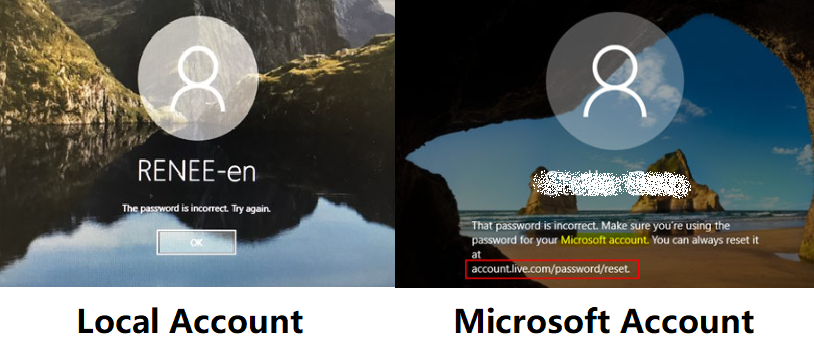
Before you begin, identify whether you’re using a Microsoft account or a local account, as the available PIN recovery methods depend on your account type.
local account vs microsoft account)
Situation Fastest Action

🌐 Microsoft account + internet access

Click I forgot my PIN on the sign-in screen.

🔑 Local account + password available

Sign in with your password, then reset the PIN in Settings.

No internet + PIN & password forgotten

Use a bootable USB recovery tool (e.g., Renee PassNow).

⚠️ I forgot my PIN option unavailable

Sign in with your password or use a recovery USB (e.g., Renee PassNow).

In most cases, resetting your PIN through your Microsoft account is the fastest and easiest solution. If that option isn’t available, you’ll need to sign in with your account password or use a recovery tool to regain access.
For more on lock-screen PIN reset and account differences, see Microsoft Support.

Standard ways to reset a forgotten Windows 10 PIN

If you forgot your PIN on Windows 10, try these standard built-in methods first—starting with the simplest and moving to third-party tools only if standard options fail.

1. Reset from the lock screen (Microsoft account)

Use this if you see I forgot my PIN below the PIN box on the Windows 10 lock screen. The system will send a security code to your Microsoft account email or phone.
1. On the lock screen, click I forgot my PIN.
2. Select your recovery email or phone, enter the verification code, and confirm your identity.
3. Set and confirm a new PIN.
If the link isn’t visible, don’t keep retrying PINs. Move to Method 2 or Method 3.

If you having trouble after clicking the “I forgot my PIN”, please refer to: How to Fix ‘Something Went Wrong’ Error During Microsoft Account PIN Reset in Windows 10

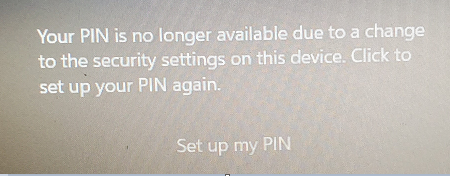
Windows Hello PIN is no longer available error message

2. Sign in with password, then reset in Settings

Use this if you remember your password but not your PIN. Works for both Microsoft and local accounts.
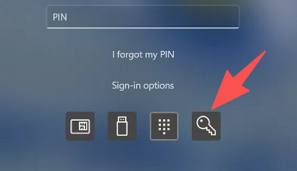
Password sign-in option on the Windows lock screen
1. On the lock screen, click Sign-in options and select the password icon.
2. Enter your password to log in.
If Windows Hello PIN isn’t shown, your device may be managed by work or school policy. In that case, contact your administrator or use Method 3.

When standard PIN reset options fail, use Renee PassNow to regain access

If the lock-screen reset link is gone, you don’t know your password, or your PC is offline, a bootable recovery USB is the next best step. Renee PassNow lets you create this bootable media on another PC and use it directly on the locked device.
Renee PassNow: Your Offline Solution for Windows 10 PIN Lockouts

Offline PIN recovery Reset a forgotten Windows 10 PIN without needing internet access or a Microsoft account recovery.

Recover the files Recover the deleted files without Windows system.

Transfer the data Transfer the important files of the computer with system.

Multifuctional Data transfer, data recovery, bootable problem recovery can be run without system.

Highly compatible Windows 11/10/8.1/8/7/XP/Vista. UEFI boot.

Remove Login Password Support Windows 11/10/8.1/8/7/XP/Vista. UEFI boot.

Recover the files Recover the deleted files without Windows system.

Transfer the data Transfer the important files of the computer with system.

Free TrialFree TrialNow 2000 people have downloaded!

Key benefits

- No need for password hints or prior login details.
- Creates a bootable USB for offline recovery—even for local accounts and Microsoft account lockouts.
- Includes Data Transfer and Undeleter to help you back up or recover files before making changes.
- Supports Windows 11, 10, 8.1, 8, 7, Vista, and XP.
Requirement: You’ll need a working PC and a USB drive that can be erased.

Renee PassNow vs Windows build-in methods

Method Best For Internet Required Ease of Use Data Loss Risk

🔓 Lock-screen PIN reset

Fastest option for Microsoft accounts

✅ Yes

👍 Very easy

✅ None (PIN reset only)

🔑 Password + Settings

Users who still know their password

❌ No

👍 Easy

✅ None

🛠️ Renee PassNow

Emergency recovery when PIN, password, and built-in reset options are unavailable

❌ No

⚙️ Moderate

⚠️ Low; back up files first

Start with Windows’ built-in recovery options whenever possible. However, if you’ve lost access to both your PIN and password, can’t use Microsoft’s reset tools, or are locked out entirely, Renee PassNow serves as a reliable last-resort recovery solution, helping you regain access when standard recovery paths are no longer available.

Step-by-step ways to reset a forgotten Windows 10 PIN With Renee PassNow

This method is for when you can’t sign in with either PIN or password, the lock-screen link is missing, or the PC is offline. You’ll create a bootable USB using another computer to clear the PIN or password.

Step 1: On a working PC, install Renee PassNow, insert a USB drive, and click Create USB
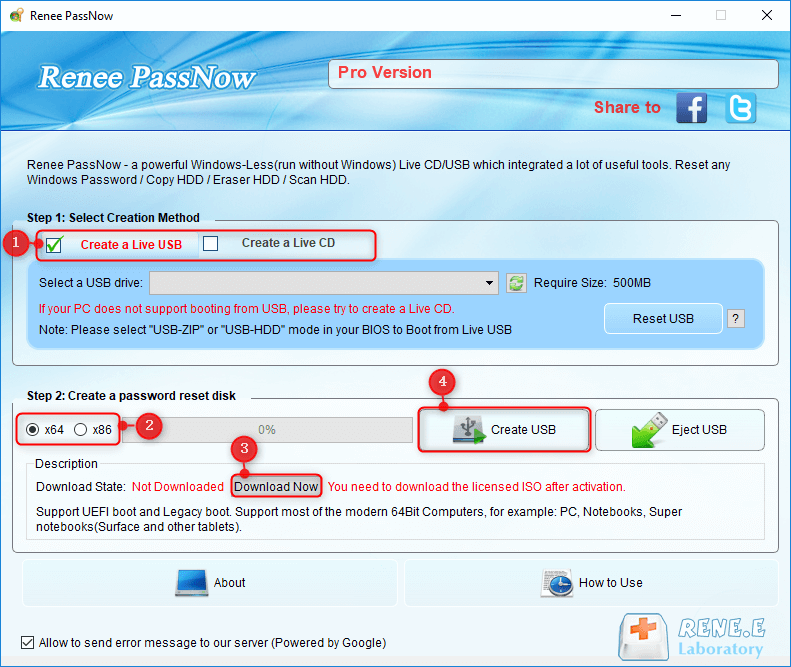
Open Renee PassNow on a working Windows PC. Insert a USB flash drive and select Create USB.

Important: Creating the bootable USB will erase all data on that drive.

- Choose x64 or x86 based on the locked PC’s system type.
- Click download now to get the ISO file.
- Once downloaded, click Create USB.
- When the USB is ready, click Eject USB.
use renee passnow to create usb to reset password

Step 2: Insert the USB into the locked PC, boot from it, and enter the BIOS/Boot Menu

Plug the bootable USB into the locked Windows 10 PC. Power on and immediately press the right key for the boot menu or BIOS (key varies by brand).
Insert the boot device
Common boot keys:
BIOS / Brand Boot Menu Key BIOS Setup Key

DELL

F12

F2

HP

F9 or Esc → F9

Esc → F10

ASUS

Esc or F8

F2 or Delete

Acer

F12

F2 or Delete

Lenovo

F12

F2 or F1

MSI

F11

Delete

Samsung

F10 or F11

F2

Gigabyte / Aorus

F12

Delete

Intel NUC / Boards

F10

F2

Microsoft Surface

Volume Down + Power

Volume Up + Power

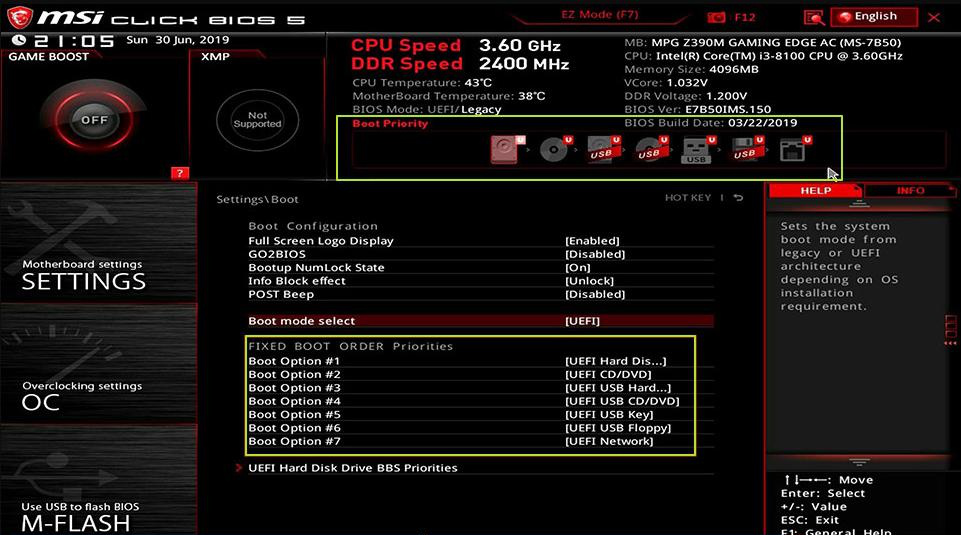
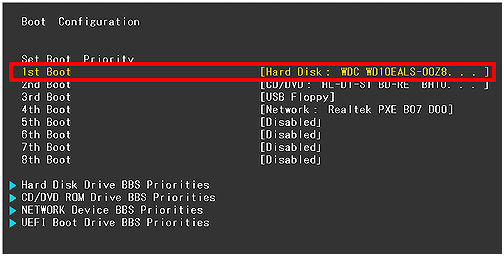
The boot prompt may appear for only a second or two. In the Boot Priority menu, set your USB drive as the first boot device, save, and reboot.
select boot order
change the boot order in hard disk in boot configuration in BIOS

Step 3: If prompted, use BitLocker Manager to unlock the system drive
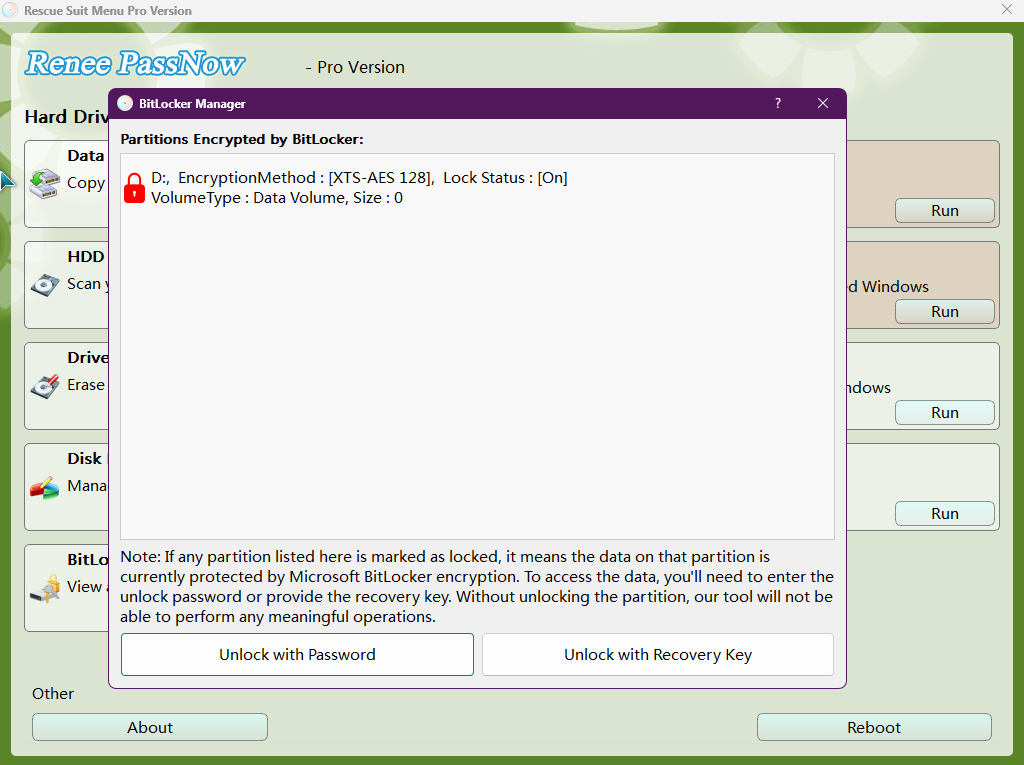
If your system drive uses BitLocker encryption, Renee PassNow will prompt you. Select BitLocker Manager and enter the BitLocker password or recovery key.
Unlock the system using the BitLocker manager provided by PassNow

Note: The Basic edition does not support BitLocker.

If you don’t have the BitLocker recovery key, check your Microsoft account or organization’s backup.

Step 4: Select Clear All Password/PIN or Enable Administrator Account
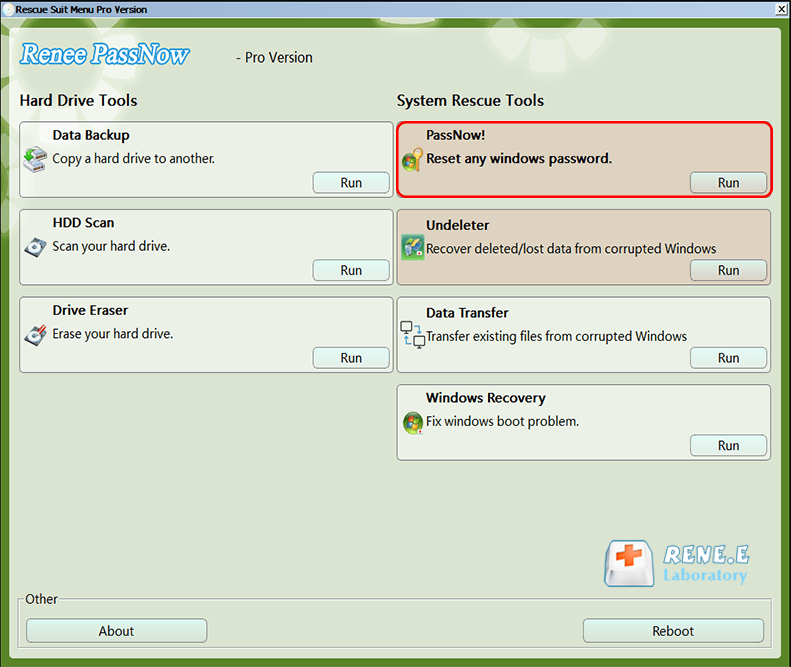
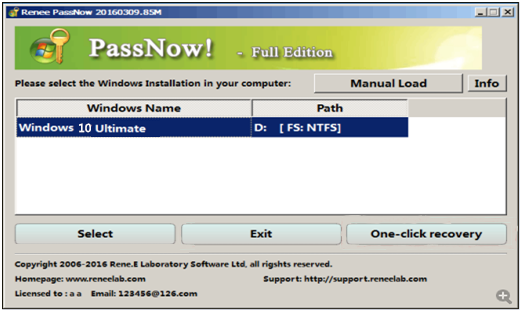
After booting into Renee PassNow, click PassNow! from the main menu.
After loading into main interface, please select the “PassNow!” function.
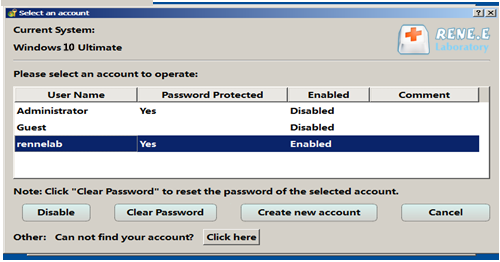
Choose your locked Windows system and user account.
Select target Windows system in the list
Select target user account in the list
To remove the locked PIN or password, choose Clear All Password/PIN. If you want to create a separate admin account, select Create new account.

Note: For Microsoft accounts, Renee PassNow will convert the account to a local account during this process.

Step 5: Click Apply Changes, then Reboot to access Windows

After selecting your action, click Apply Changes. Remove the bootable USB, then click Reboot.
Your PC should now boot normally. Sign in without the old PIN or password. If you used a Microsoft account, you can reconnect it later in Settings > Accounts > Your info.
Renee PassNow: Your Offline Solution for Windows 10 PIN Lockouts

Offline PIN recovery Reset a forgotten Windows 10 PIN without needing internet access or a Microsoft account recovery.

Recover the files Recover the deleted files without Windows system.

Transfer the data Transfer the important files of the computer with system.

Multifuctional Data transfer, data recovery, bootable problem recovery can be run without system.

Highly compatible Windows 11/10/8.1/8/7/XP/Vista. UEFI boot.

Remove Login Password Support Windows 11/10/8.1/8/7/XP/Vista. UEFI boot.

Recover the files Recover the deleted files without Windows system.

Transfer the data Transfer the important files of the computer with system.

Free TrialFree TrialNow 2000 people have downloaded!

FAQ

Why is the 'I forgot my PIN' option missing on the Windows 10 lock screen?

This option may be hidden if the device is managed by work or school, the account isn’t linked to Microsoft, Windows Hello setup is incomplete, or the PC is offline. Some updates may also temporarily remove the link. Use password sign-in if possible, or a bootable recovery USB.

Can I reset a forgotten Windows 10 PIN without an internet connection?
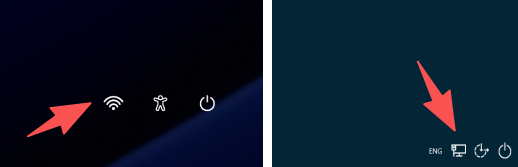
For Microsoft accounts, the built-in lock-screen reset normally requires internet for verification.
Windows login screen showing network connection status
Without internet, use your password if you know it. If both PIN and password are forgotten, use a recovery tool like Renee PassNow with a bootable USB.

Why does my Windows 10 PIN stop working or show 'PIN no longer available' after an update?
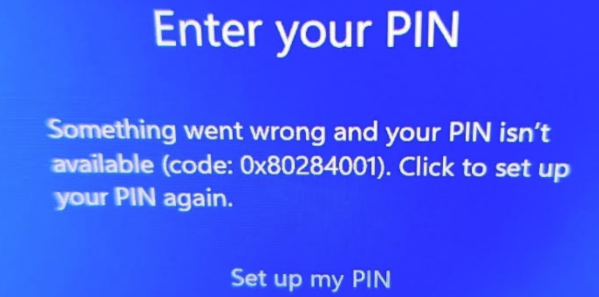
Windows updates can corrupt PIN data or require re-verification. Sign in with your password and set up a new PIN. If you can’t use your password, use a bootable recovery method.
Windows Hello PIN reset error saying 'Something went wrong'

Will resetting a forgotten PIN delete my files, apps, or settings?

No—resetting your PIN does not delete personal files, apps, or settings. Recovery tools that clear passwords are designed to preserve data, but it’s always wise to back up important files first using Data Transfer or Undeleter.
Renee Passnow – Professional Windows Password Remover

Remove Windows Login Password 3 steps for whole password remove process.

Enable/Create Administrator One click for creating new administrator and enable the disabled account.

Widely Use New version supports UEFI boot model, which can be used on more computers, laptops and even surfaces.

Multifuctional Data transfer, data recovery, bootable problem recovery can be run without system.

Highly compatible Windows 11/10/8.1/8/7/XP/Vista.

Remove Login Password Support Windows 11/10/8.1/8/7/XP/Vista.

Enable/Create Administrator One click for creating new administrator and enable the disabled account.

Easy to use No need of any professional knowledge or password reset disk.

Free TrialFree TrialNow 2000 people have downloaded!

User Comments

Page 1

Leave a Comment


Your comment has been submitted and is awaiting moderation.