
Windows Hello PIN vs. Password Recovery: Key Differences

Summary
This technical guide examines the architectural differences and recovery protocols for windows hello pin vs password recovery scenarios. It outlines built-in verification limitations and details structured, bootable USB solutions for regaining system access without data loss.

| Attribute | 🔐 Windows Hello PIN | 🔑 Password |
|---|---|---|
📱 Scope |
Device-specific |
Account-wide |
🛡️ Protection |
TPM-backed |
Software-managed |
🌐 Exposure |
Never leaves device |
Used for online authentication |
🚪 Primary Use |
Local sign-in |
Account authentication |
🔄 Reset Method |
Account verification required |
Account recovery process |
🛠️ Password Change Impact |
Remains unchanged |
Password is updated (PIN remains unaffected) |
| 🔒 Lockout Scenario | 🔑 Windows Hello PIN | 🛡️ Password |
|---|---|---|
Forgotten Credential at Sign-in Screen |
PIN can be reset after Microsoft account verification (password, email, or other identity checks). Third-party reset tools (e.g., Renee PassNow) may also be used. |
Password reset typically requires account recovery methods such as a secondary device, email, or security questions. Third-party reset tools (e.g., Renee PassNow) may also be used. |
Password Changed on Another Device |
✅ The existing PIN on the device remains valid and is not affected by password changes. |
🔄 For Microsoft accounts, the new password synchronizes when the device reconnects to the internet. For local accounts, the password remains unchanged. |
Offline / No Internet Connection |
✅ Fully functional offline, allowing users to sign in without network connectivity. |
⚠️ Password changes or resets performed online cannot synchronize until the device reconnects to the internet. |
Account Lockout / Multiple Failed Attempts |
🔐 PIN lockout triggers a temporary cooldown period or requires password-based verification. |
🚫 Password lockout may impact access to Microsoft account services across devices and applications. |

Remove Windows Login Password 3 steps for whole password remove process.
Recover the files Recover the deleted files without Windows system.
Transfer the data Transfer the important files of the computer with system.
Multifuctional Data transfer, data recovery, bootable problem recovery can be run without system.
Highly compatible Windows 11/10/8.1/8/7/XP/Vista. UEFI boot.
Remove Login Password Support Windows 11/10/8.1/8/7/XP/Vista. UEFI boot.
Recover the files Recover the deleted files without Windows system.
Transfer the data Transfer the important files of the computer with system.
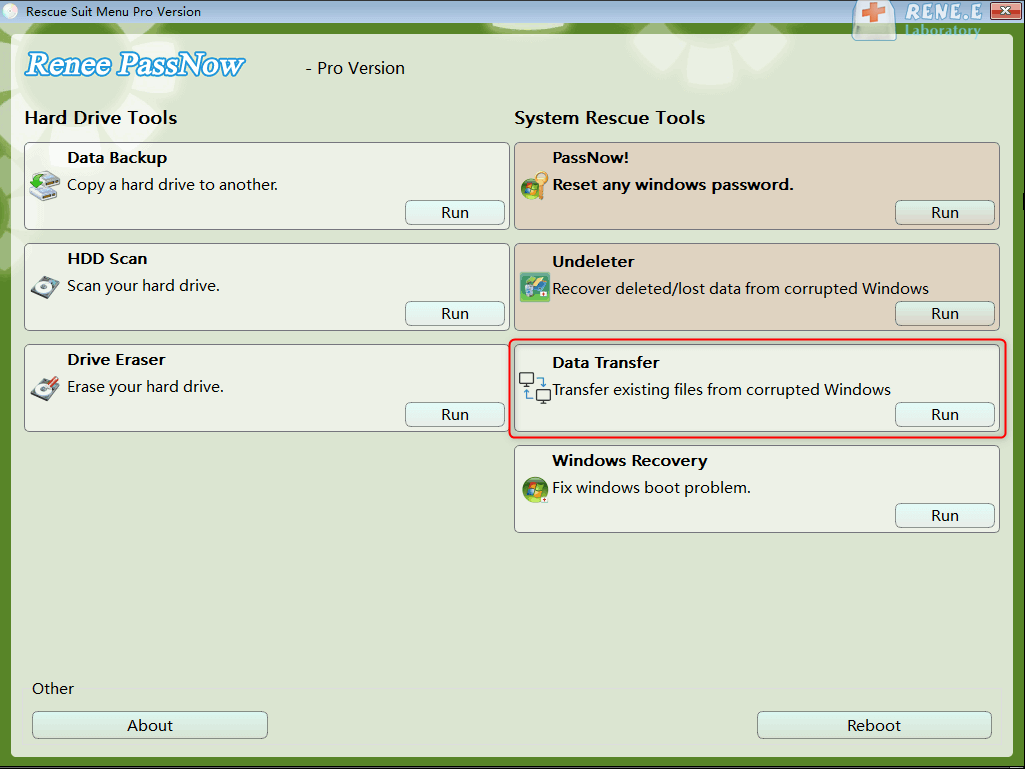
Data Transfer module for emergency file backup before making any changes.
BitLocker Manager lets you unlock encrypted drives using your BitLocker password or recovery key.
Step 1: Create a Bootable Recovery USB Drive

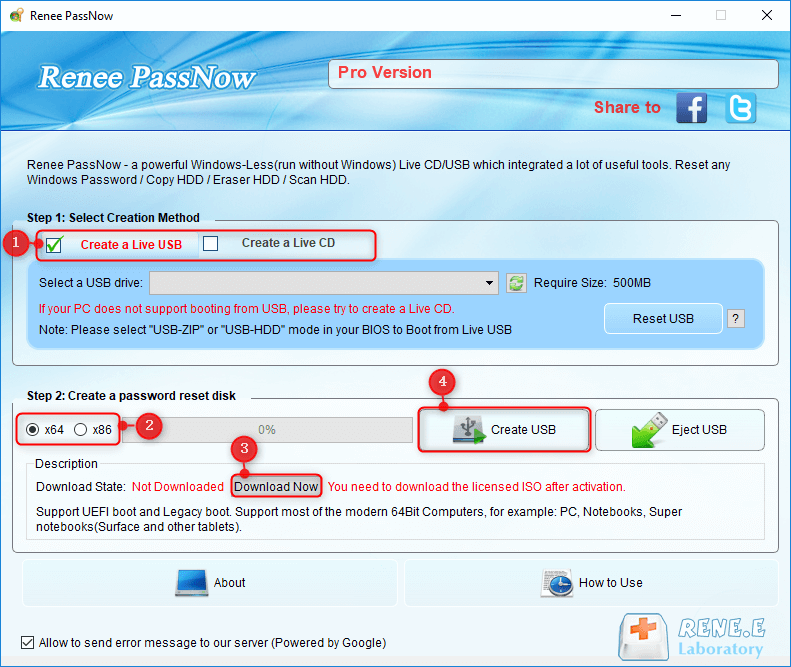
Step 2: Boot the Locked PC from the Recovery USB

| Computer Brand | Boot Menu Key |
|---|---|
DELL |
F12 |
HP |
F9 or Esc → F9 |
ASUS |
Esc (laptops) / F8 (desktops) |
Acer |
F12 (must be enabled in BIOS) |
Lenovo Consumer |
F12 (some models use Novo Button) |
Lenovo ThinkPad |
F12 |
MSI |
F11 |
Samsung |
F10 or F11 (varies by model) |
Microsoft Surface |
Hold Volume Down + Power |
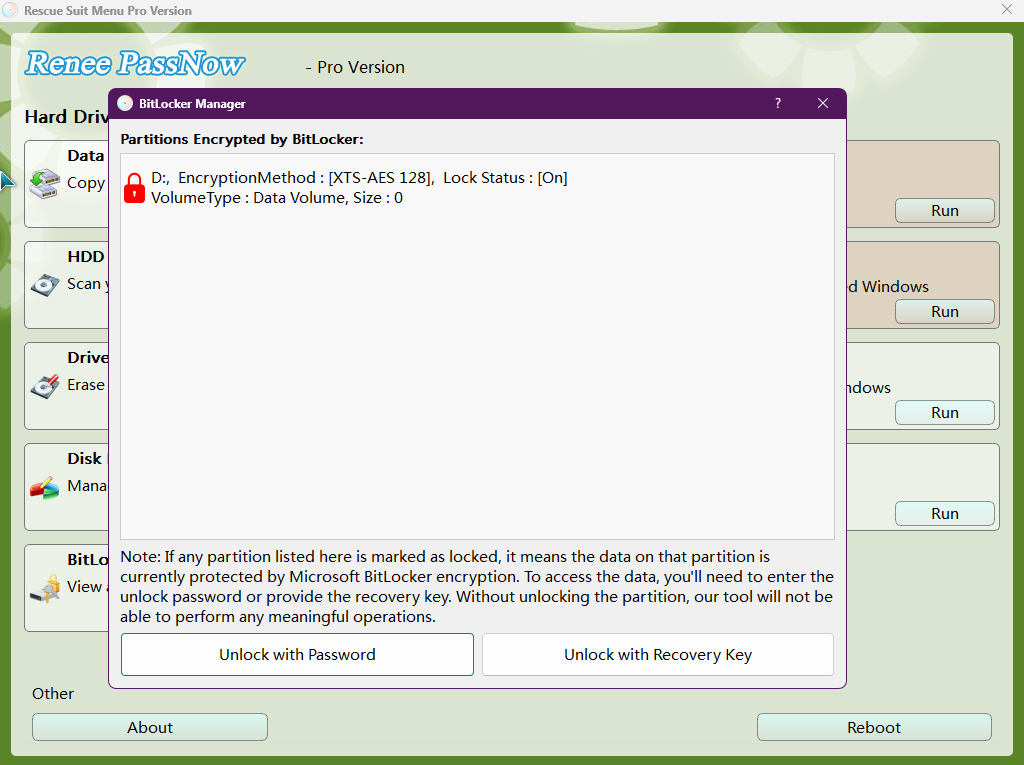
Step 3 (Optional): Manage BitLocker Encryption
BitLocker Manager. Choose “Unlock with Password” or “Unlock with Recovery Key”, then enter your saved BitLocker password or recovery key to allow access to the Windows partition.
Step 4 (Optional): Backup Files via Data Transfer
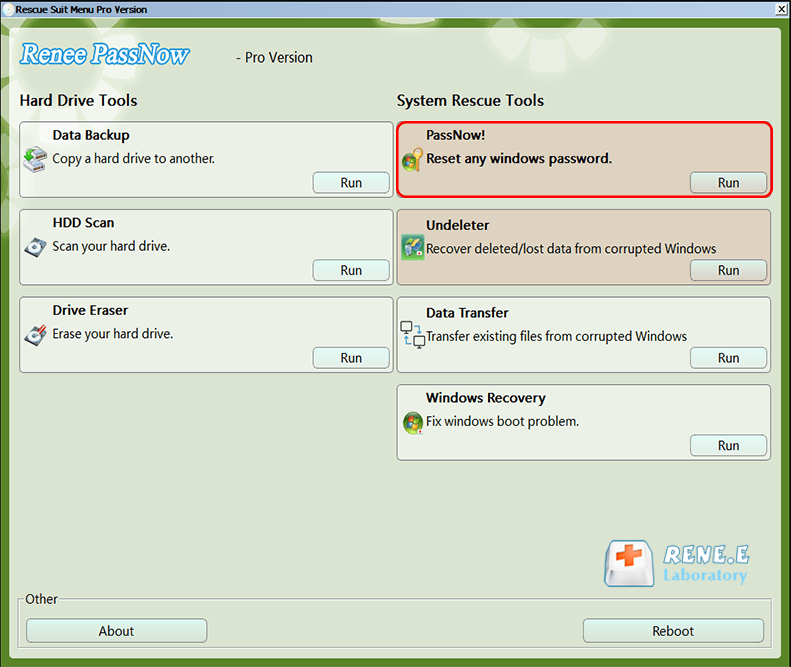
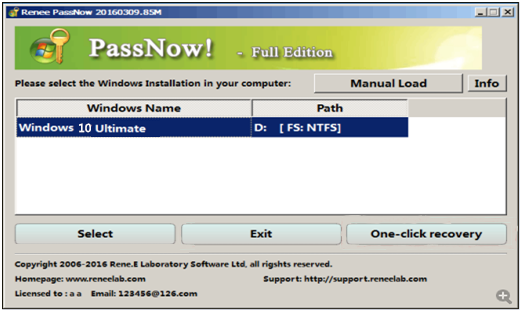
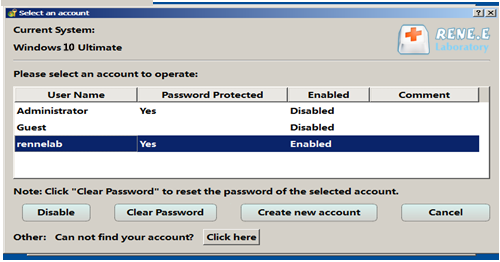
Step 5: Clear Windows Password and PIN
PassNow! module from the main interface.
Step 6: Reboot and Access System
Remove Windows Login Password 3 steps for whole password remove process.
Recover the files Recover the deleted files without Windows system.
Transfer the data Transfer the important files of the computer with system.
Multifuctional Data transfer, data recovery, bootable problem recovery can be run without system.
Highly compatible Windows 11/10/8.1/8/7/XP/Vista. UEFI boot.
Remove Login Password Support Windows 11/10/8.1/8/7/XP/Vista. UEFI boot.
Recover the files Recover the deleted files without Windows system.
Transfer the data Transfer the important files of the computer with system.
Is a Windows Hello PIN the same as my Microsoft account password?
Why did changing my Microsoft password not automatically update or fix my PIN?
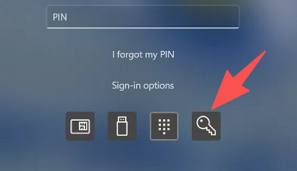
Can I sign in with my password if I forget my Windows Hello PIN?
Remove Windows Login Password 3 steps for whole password remove process.
Enable/Create Administrator One click for creating new administrator and enable the disabled account.
Widely Use New version supports UEFI boot model, which can be used on more computers, laptops and even surfaces.
Multifuctional Data transfer, data recovery, bootable problem recovery can be run without system.
Highly compatible Windows 11/10/8.1/8/7/XP/Vista.
Remove Login Password Support Windows 11/10/8.1/8/7/XP/Vista.
Enable/Create Administrator One click for creating new administrator and enable the disabled account.
Easy to use No need of any professional knowledge or password reset disk.
Relate Links :
How to Fix 'Something Went Wrong' Error During Microsoft Account PIN Reset in Windows 10

19-10-2026
Ashley S. Miller : This article outlines technical methods to fix something went wrong pin reset windows 10 errors, covering built-in Windows...
Delete NGC Folder Command Prompt Locked Out: Windows 10/11 Guide

16-10-2026
Jennifer Thatcher : This guide explains how to delete the NGC folder via Command Prompt when you're locked out, by taking...
Fix "Windows Hello PIN No Longer Available" Error on Windows 11/10 Without Losing Data

14-10-2026
John Weaver : This guide provides a comprehensive windows hello pin no longer available fix by detailing built-in troubleshooting steps such...
How to Factory Reset a Laptop Without a Password
28-08-2026
John Weaver : This comprehensive guide details how to factory reset laptop without password by utilizing bootable USB tools and Windows...



User Comments
Leave a Comment