author avatar
    Senior Product Manager
Last update by William Davis at 24 July 2026

Summary
This article provides a comprehensive analysis of physical vs logical hard drive failure, detailing the distinct symptoms, causes, and diagnostic procedures for each category. It outlines structured solution pathways, including diagnostic checks, drive cloning protocols, and professional recovery interventions, to ensure safe and effective data retrieval.

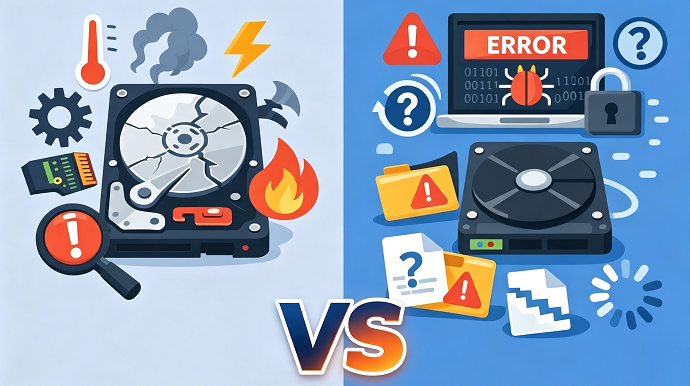

physical vs logical hard drive problem
When a drive suddenly vanishes from your system or begins making sounds you’ve never heard before, it’s natural to feel a rush of panic. Important work documents, family photos, and years of personal data can seem to slip out of reach in an instant. What makes the situation even more stressful is not knowing whether you’re facing a physical failure—where the hardware itself is damaged—or a logical failure, where the drive is mechanically fine but its file system or partition structure has become corrupted. Misjudging the problem or using the wrong recovery method can turn a fixable situation into permanent data loss.
This article provides a clear, practical path to distinguish between the two, helping you avoid irreversible data loss.

Physical vs. Logical Hard Drive Failure: The Difference

A physical failure refers to damage within the drive’s hardware: read/write heads crashing onto platters, a seized spindle motor, a burnt PCB (printed circuit board), or scratched platter surfaces. These issues often come with mechanical sounds—clicking, grinding, beeping, or even total silence when the drive should be spinning. Typically, the drive won’t appear in BIOS or Disk Management, and trying to access it can worsen the damage and make data unrecoverable.
Clicking sound from a mechanical hard drive
Compared with mechanical hard drives, modern SSDs (SATA or M.2) usually show sudden total data inaccessibility, controller failure, or power-related faults without any audible warning, reflecting how physical failure has become rarer yet more abrupt as SSD adoption has surged in the era of widespread solid‑state storage.
A logical failure means the drive’s hardware is intact, but the data structure—such as the file system, partition table, or directory entries—has become corrupted. This can happen after improper ejection, a power outage during a write, malware, accidental formatting, or a software crash. In these cases, the drive is usually detected by the computer, sometimes as “RAW” or prompting for format, but your data is missing or inaccessible.

Misdiagnosing a physical failure as logical, and running repeated data recovery scans, can destroy what’s left of the readable surface—making even professional recovery impossible.

The table below summarizes the key differences to help guide your next steps:
AspectPhysical FailureLogical Failure

Typical symptoms

⚙️ Clicking, beeping, grinding, no spin‑up, not detected

💾 Missing partitions, corrupt files, RAW file system, “drive not accessible” errors

Common causes

💥 Drops, impact, water damage, power surges, aging wear

🦠 Improper ejection, virus attack, formatting, OS crash, partition table corruption

BIOS / Disk Management detection

🚫 Often not detected, or detected with wrong capacity

✅ Usually detected, sometimes with RAW label or unknown partition

Recommended action

🧰 Seek professional data recovery service — avoid DIY repair

🔍 Use recovery software or backup tools if drive is physically stable

At first glance, both failure types can look similar—maybe you just can’t open a folder. That’s why a careful, step-by-step diagnosis is so important. Industry reports show that logical issues account for most consumer data loss, but physical failures—though less common—are far more urgent and costly to recover.
DIY Software Recovery & Bootable Rescue Tool

Deep Scan Technology locate and reconstruct fragmented or severely corrupted files from failing drives.

Recover the files Recover the deleted files without Windows system.

Transfer the data Transfer the important files of the computer with system.

Multifuctional Data transfer, data recovery, bootable problem recovery can be run without system.

Highly compatible Windows 11/10/8.1/8/7/XP/Vista. UEFI boot.

Remove Login Password Support Windows 11/10/8.1/8/7/XP/Vista. UEFI boot.

Recover the files Recover the deleted files without Windows system.

Transfer the data Transfer the important files of the computer with system.

Free TrialFree TrialNow 2000 people have downloaded!

Detect Physical Damage or Logical Corruption

Before launching any software or running diagnostics, a few simple observations can quickly point you in the right direction. If you notice signs of physical damage, stop immediately and treat the drive as fragile.
️ If the drive makes any unusual noise, or was recently dropped or exposed to water, powering it on can destroy the last readable data. Proceed at your own risk.
Physical Failure — HDDPhysical Failure — SSDLogical Error — HDD / SSD

🔊 Clicking / knocking — head calibration failure

🤫 Silent but undetected — controller failure

🖥️ Drive detected but partitions unreadable

⚙️ Grinding / scraping — platter damage

🔥 Burnt smell — power or controller damage

📁 RAW / Unallocated / “Needs formatting”

📢 Beeping — stuck spindle motor

Sudden death — no warning, no SMART alerts

📄 Zero‑byte files, I/O errors, missing folders

💥 No spin‑up / no vibration — PCB or motor failure

🚫 Incorrect size (0 GB, 2.2 TB, etc.)

🔍 File system visible but prompted "Need Format"

💧 Drop / impact / water → strong physical-damage signal

💧 Same risks; SSD fails abruptly after electrical damage

💾 Data structure corruption from OS crash, virus, improper ejection

If you encounter any physical warning signs—especially abnormal noises—skip software-based checks and proceed to the structured diagnosis in the next section to interpret your results safely.

Using software to detect SSD life span

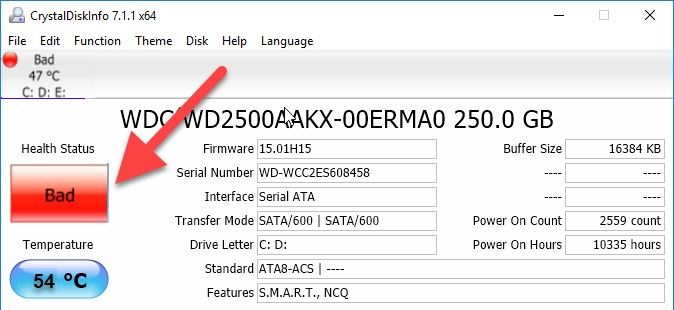
Before you move on to the data recovery flow, it’s worth doing one non‑intrusive health check on SSDs: reading their SMART data. Tools like CrystalDiskInfo and similar utilities can show you key indicators such as remaining SSD life, total writes, and reallocated or pending sectors without performing heavy scans.
CrystalDiskInfo health is declining
If the drive shows severe SMART warnings or a very low remaining life percentage, treat it as physically fragile and follow the next section’s guidance; if SMART looks healthy but the file system is unreadable, you’re far more likely dealing with logical corruption, and the later software-based steps become safer options.

Software Recovery, Drive Cloning, or Professional Help?

Once you’ve identified the failure type, your next move becomes clear:

DIY logical recovery

DIY logical recovery is appropriate when the drive is detected, there are no mechanical sounds, and the problem is accidental deletion, formatting, partition loss, or a RAW file system.
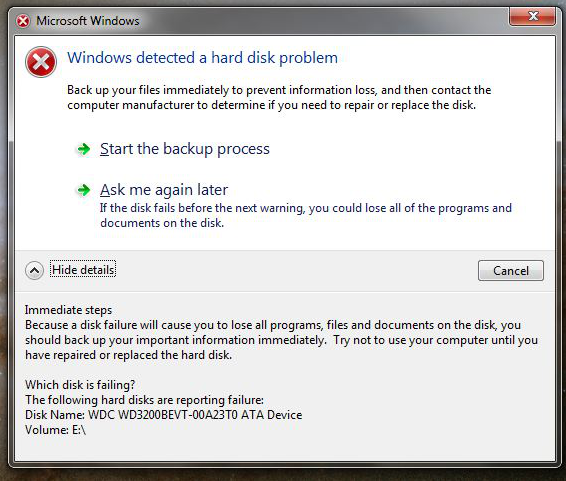
SMART warning” in Windows
Windows prompt a S.M.A.R.T. warning - Windows detected a hard disk problem

Professional data recovery service

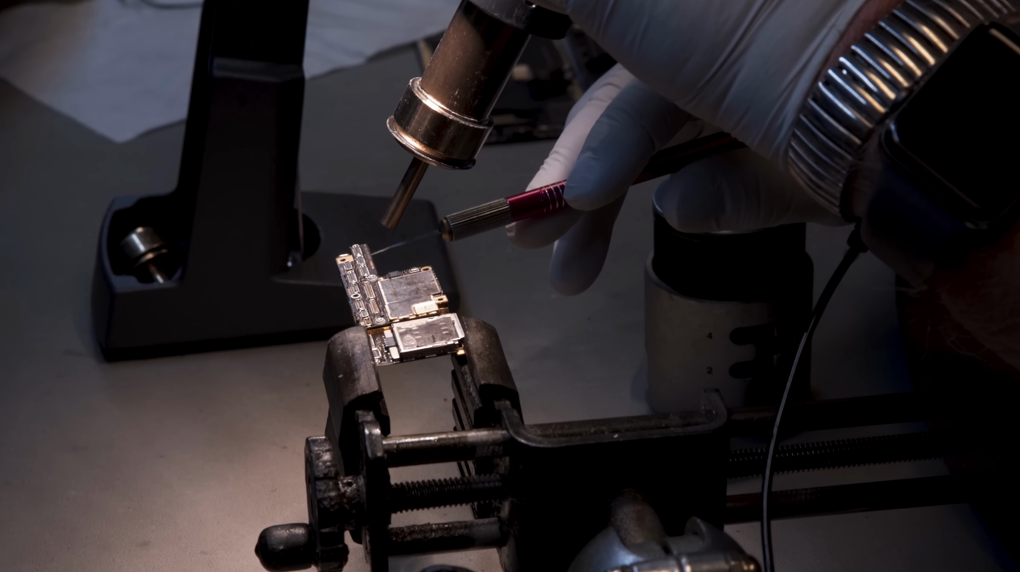
Professional data recovery is necessary when the drive clicks, beeps, overheats, isn’t detected in multiple systems, or shows visible board damage.
Technician performing data recovery in a certified cleanroom environment

Clone the drive first

Clone the drive first when the drive mounts but shows SMART warnings, disconnects intermittently, or reads very slowly. Use a dedicated sector-by-sector imaging tool(in read-only mode) to copy as much data as possible to a healthy drive. Once you have a complete clone or image, you can safely attempt repairs on the copy, leaving the original untouched.
DIY Software Recovery & Bootable Rescue Tool

Deep Scan Technology locate and reconstruct fragmented or severely corrupted files from failing drives.

Recover the files Recover the deleted files without Windows system.

Transfer the data Transfer the important files of the computer with system.

Multifuctional Data transfer, data recovery, bootable problem recovery can be run without system.

Highly compatible Windows 11/10/8.1/8/7/XP/Vista. UEFI boot.

Remove Login Password Support Windows 11/10/8.1/8/7/XP/Vista. UEFI boot.

Recover the files Recover the deleted files without Windows system.

Transfer the data Transfer the important files of the computer with system.

Free TrialFree TrialNow 2000 people have downloaded!
Quick-reference decision grid
ApproachWhen it fitsProsConsApproximate cost

DIY software recovery

Clear logical failure, no mechanical stress

✅Low or no cost; ✅immediate

❌Risk of overwriting data if used on the original; ❌won’t work on physical damage

Free – $100 (software licenses)

Clone‑first strategy

Borderline drives with SMART warnings or slowdowns

✅Preserves original state; ✅safe sandbox for aggressive recovery

❌Requires extra drive and imaging know-how; ❌moderate time investment

$50 – $200 (cloning dock + software if not free)

Professional cleanroom service

Any physical failure symptom or non‑detection

✅Highest success rate; ✅clean environment protects media

❌Expensive; ❌can take days to weeks

Generally $300 – $2,500+, varying by severity and region

All cost figures are broad estimates; actual prices depend on the complexity of the failure and your local market. Spending a few hundred dollars on a clone-first setup is almost always cheaper than a last-resort cleanroom recovery after a failed DIY attempt.

FAQ

Can a physical failure cause logical symptoms?

Yes. A failing read/write head might still read some sectors but not others, resulting in file-system errors, missing files, or a RAW partition. That’s why you must always rule out physical damage before assuming it’s a purely logical issue. The combination of strange noises and file-system corruption is a classic hybrid case.

Is it safe to run built-in disk checks if the drive is clicking?

No. Clicking means the heads are unstable. Running commands like chkdsk /f or any scanning tool will force the heads to move repeatedly, grinding the platters and causing permanent data loss. If you hear clicking, power down the drive and seek professional help immediately.

What should I do first if my external drive is not detected?

Try swapping the USB cable, using a different port, and testing the drive on another computer. If your enclosure holds a standard SATA drive, remove it and connect directly to a desktop motherboard or with a SATA-to-USB adapter. Sometimes, a dead bridge board in the enclosure mimics a dead drive, and this quick test can reveal the real problem.

What is the single most important action to avoid permanent data loss?

Stop using the drive the moment you suspect a failure. Every extra power-on, scan, or write on a physically failing drive reduces the chance of full recovery. If the data is irreplaceable, consider professional help early—before DIY attempts make things worse.
Renee Passnow – Professional Windows Password Remover

Remove Windows Login Password 3 steps for whole password remove process.

Enable/Create Administrator One click for creating new administrator and enable the disabled account.

Widely Use New version supports UEFI boot model, which can be used on more computers, laptops and even surfaces.

Multifuctional Data transfer, data recovery, bootable problem recovery can be run without system.

Highly compatible Windows 11/10/8.1/8/7/XP/Vista.

Remove Login Password Support Windows 11/10/8.1/8/7/XP/Vista.

Enable/Create Administrator One click for creating new administrator and enable the disabled account.

Easy to use No need of any professional knowledge or password reset disk.

Free TrialFree TrialNow 2000 people have downloaded!

User Comments

Page 1

Leave a Comment


Your comment has been submitted and is awaiting moderation.