
Hard Disk Clone vs System Redeploy in Renee Becca

Summary
Comparing Hard Disk Clone vs System Redeploy involves evaluating technical distinctions, target disk requirements, and ideal use cases for each migration method. The content outlines step-by-step procedures and post-migration verification steps necessary for executing a secure and efficient drive upgrade using Renee Becca.
Table of contents

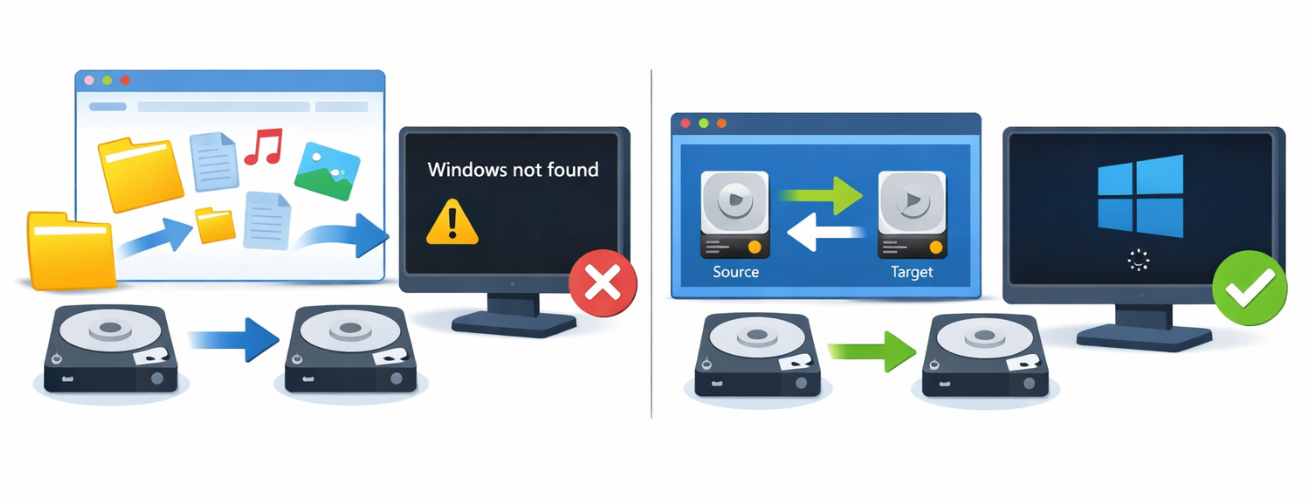
| Comparison Factor | 💽 Hard Disk Clone | 🚀 System Redeploy |
|---|---|---|
Copied Data Scope |
Entire physical disk, including all partitions, OS, applications, personal files, and recovery partitions |
System-related partitions only, including Windows, installed applications, and boot files |
Target Disk Requirement |
Target disk should be equal to or larger than the source disk capacity |
Target SSD can be smaller, provided the used system space fits |
Migration Speed |
⏳ Slower, because the whole disk (or most sectors) is copied |
⚡ Faster, because only system-related data is migrated |
Bootability After Migration |
✅ Immediately bootable after replacing the original drive |
✅ Bootable after setting the SSD as the primary boot device in BIOS/UEFI |
Old Drive Reusability |
Becomes a full duplicate of the original disk; typically needs to be wiped before reuse as storage |
📦 Retains existing data partitions and can continue serving as a secondary storage drive |
Impact on Dual-Boot / Data Partitions |
Copies all partitions, including dual-boot environments and data partitions |
🔒 Transfers only system partitions, minimizing unintended changes to data or dual-boot setups |
Best Use Case |
Ideal for a complete 1:1 disk replacement to an equal or larger drive |
🎯 Ideal for an HDD-to-SSD OS upgrade, especially when the SSD is smaller and the old drive will be kept for storage |

Automatic 4K alignment Improves SSD performance during system migration.
Support GPT and MBR Automatically adapt to the suitable partition format.
Support NTFS and FAT32 Redeploy various files in different file systems.
Back up quickly Back up files at up to 3,000MB/min.
Overall backup schedule Support system redeployment/system backup/partition backup/disk backup/disk clone.
Automatic 4K alignment Improve SSD performance
Support GPT and MBR Intelligently adapt to a partition format
Support NTFS and FAT32 Redeploy files in different file systems
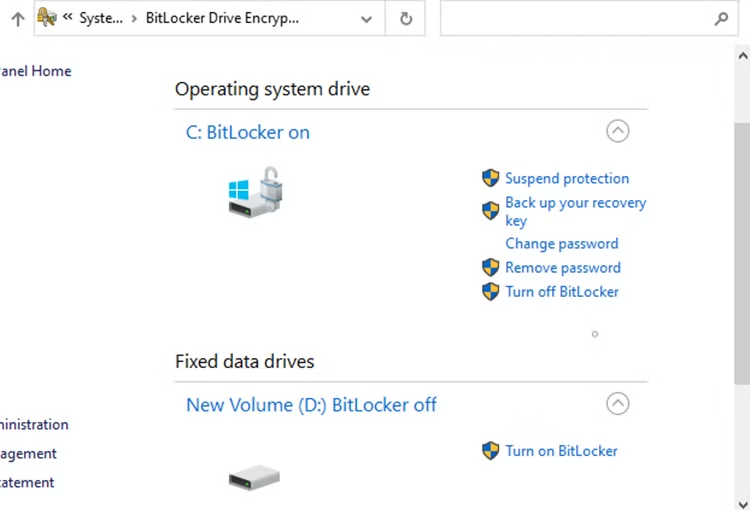
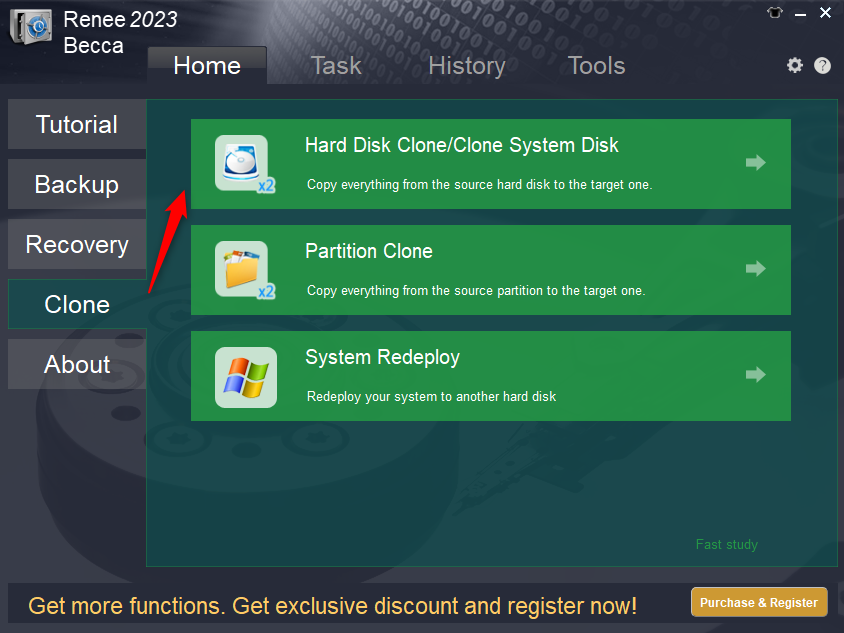
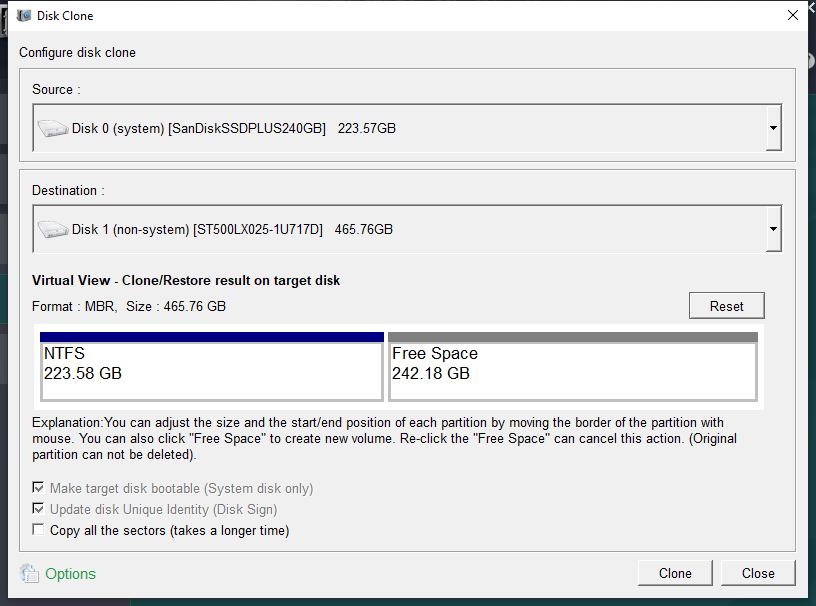
Clone to start the process.
Copy all sectors.
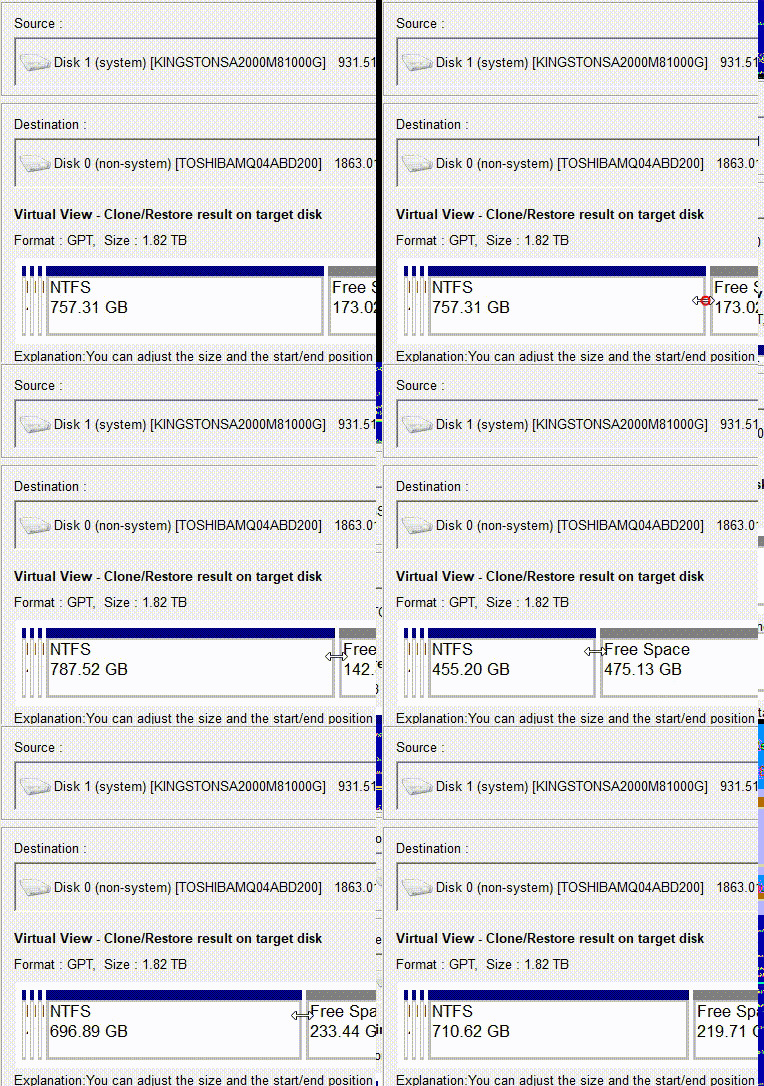
Clone > System Redeploy.
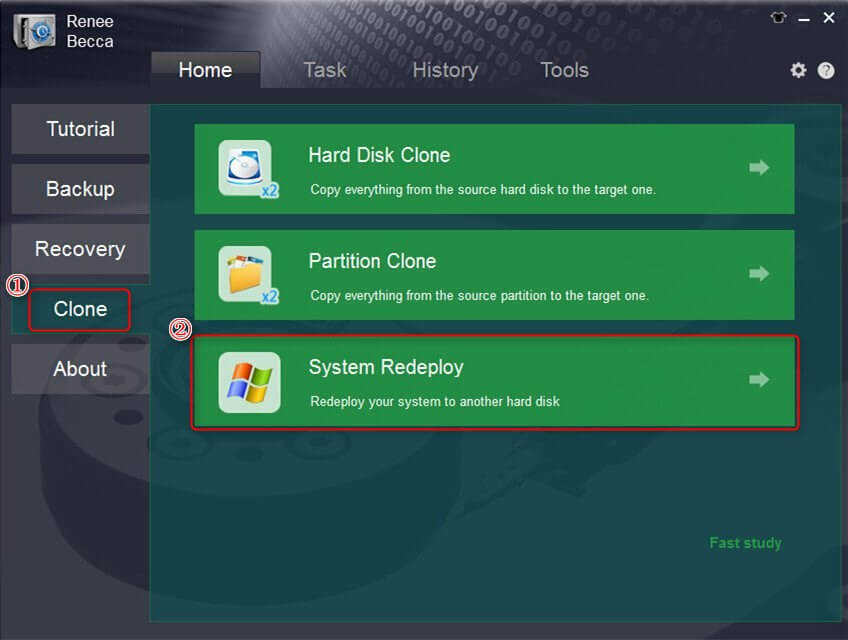
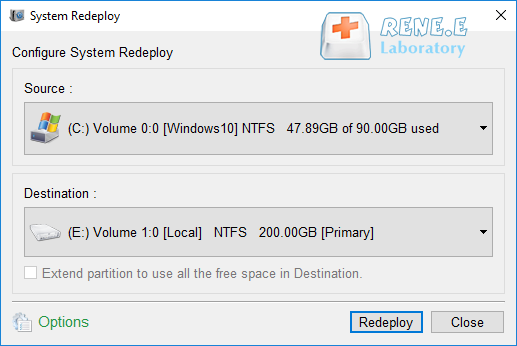
Redeploy to begin the migration.

| Check Item | Verification |
|---|---|
System Boot |
The computer boots successfully from the new drive without errors. |
Boot Partition |
The EFI System Partition (ESP) or System Reserved partition is present and intact. |
Partition Layout |
All partitions appear correctly in Disk Management and match the expected layout. |
Windows Activation |
Windows remains activated after the migration. |
Applications |
Installed applications launch and function normally. |
BIOS/UEFI Configuration |
The new drive is set as the primary boot device in the BIOS/UEFI settings. |
Can Hard Disk Clone migrate Windows to a smaller SSD?
Does System Redeploy keep my personal files on the old drive untouched?
Which option is safer for a dual-boot setup?
Automatic 4K alignment Improves SSD performance during system migration.
Support GPT and MBR Automatically adapt to the suitable partition format.
Support NTFS and FAT32 Redeploy various files in different file systems.
Back up quickly Back up files at up to 3,000MB/min.
Overall backup schedule Support system redeployment/system backup/partition backup/disk backup/disk clone.
Automatic 4K alignment Improve SSD performance
Support GPT and MBR Intelligently adapt to a partition format
Support NTFS and FAT32 Redeploy files in different file systems
Relate Links :
How to Clone an SSD to an External Hard Drive via USB

15-10-2026
Jennifer Thatcher : This guide details the process to clone SSD to external hard drive USB using reliable software like Renee...
How to Clone C Drive to a Larger SSD Without Reinstalling Windows

13-09-2026
John Weaver : This comprehensive guide outlines the technical procedures required to clone c drive to larger ssd while preserving Windows...
How to Safely Clone HDD to HDD: Complete Preparation, Tools, and Troubleshooting
08-07-2026
Ashley S. Miller : The provided resource details the technical procedures required to clone hdd to hdd, covering essential prerequisites such as...
How to Repair a Non‑Booting Cloned Drive with Bootrec (fixmbr/rebuildbcd)

07-07-2026
Amanda J. Brook : This comprehensive technical guide outlines the procedures to use bootrec fixmbr rebuildbcd on cloned drive systems to resolve...



User Comments
Leave a Comment