author avatar
    Technology Manager of Test Dept.
Last update by William Davis at 15 October 2026

Summary
This guide details the process to clone SSD to external hard drive USB using reliable software like Renee Becca for standard backups or Rufus for portable Windows environments. It covers hardware selection, step-by-step cloning instructions, and troubleshooting tips for bootable external drives.


clone ssd to usb disk
Cloning an SSD to an external hard drive via USB is a practical way to back up your entire Windows system, migrate data to another drive, make a bootable Windows USB drive, or prepare for a future SSD replacement. Unlike manually copying files, cloning creates a complete copy that includes the operating system, applications, settings, and partitions.
However, the best approach depends on what you want to achieve. Some users simply need a reliable backup or a cloned replacement drive, while others want to run Windows directly from an external USB device. Choosing the correct method from the beginning can save time and prevent compatibility or boot issues later.

Which Method Should You Choose?

🎯 Your Goal ✅ Recommended Solution

🛡️ Back up your entire Windows system for disaster recovery

Create a system image backup or clone your SSD to an external drive

🔄 Upgrade or replace your internal SSD in the future

Perform a full disk clone to the new SSD

🚀 Move Windows to another drive without reinstalling anything

Use a system disk clone

💻 Run Windows directly from an external USB drive

Create a Windows To Go workspace using Rufus or Hasleo WinToUSB

💾 Keep multiple restore points while saving storage space

Use image-based backups instead of direct cloning

In short, for most users, there are two practical approaches:
Method 1: Standard disk clone / backup image using Renee Becca (read it)
Best for: A reliable system/disk copy you can restore later or install internally. This is the most common way to clone SSD to external hard drive USB for backup purposes.
Method 2: Windows To Go-style portable Windows (Rufus or Hasleo WinToUSB)  (read it)
Best for: Running Windows directly from the external USB drive
Standard cloning preserves your exact system state for fast recovery or hardware migration. Whether you are cloning an SSD to an external USB hard drive for a reliable backup or creating a portable workspace, understanding these methods ensures success.

Hardware selection tips for beginners

The performance and reliability of the cloning process depend heavily on the external drive and enclosure you use.
- Recommended: Portable SSD or NVMe M.2 SSD in a quality enclosure (UASP-enabled, USB 3.2 Gen 2 or faster)
- Secondary choice: High-performance USB flash drives with strong 4K random read/write performance (such as SanDisk Extreme Pro-class devices)
- Avoid: Standard USB 2.0/3.0 flash drives, which often have poor random-read performance and can cause extremely slow transfers or unstable Windows operation
Once you have the right hardware, take a few minutes to verify the items below before starting the cloning process.

Pre-Clone Checklist: Capacity, Partition Style, and USB Connection

Use this quick checklist before you start. It helps prevent the most common mistakes when you clone SSD to external hard drive USB.
Item What to check (beginner-friendly)

Capacity

For a direct disk clone, the target drive should have enough free space to accommodate all data on the source SSD, plus about 30 GB extra. For image backups, ensure the destination drive has sufficient space for the backup image file.

Partition style

Source is typically GPT on modern PCs. Match GPT↔UEFI or MBR↔Legacy/CSM for successful booting.

Boot mode

UEFI for GPT; Legacy/CSM for MBR. Mixing these often causes non-bootable results.

USB adapter/enclosure

Use SATA-to-USB for SATA SSDs, NVMe-to-USB for NVMe SSDs. Prefer USB 3.2 Gen 2/2x2 or Thunderbolt; avoid USB 2.0.

Drive selection safety

Double-check the chosen target disk in the software to avoid overwriting the wrong drive.

Tip: Always re-check the destination drive letter/model in the cloning app before clicking Clone—overwrites are immediate and irreversible.

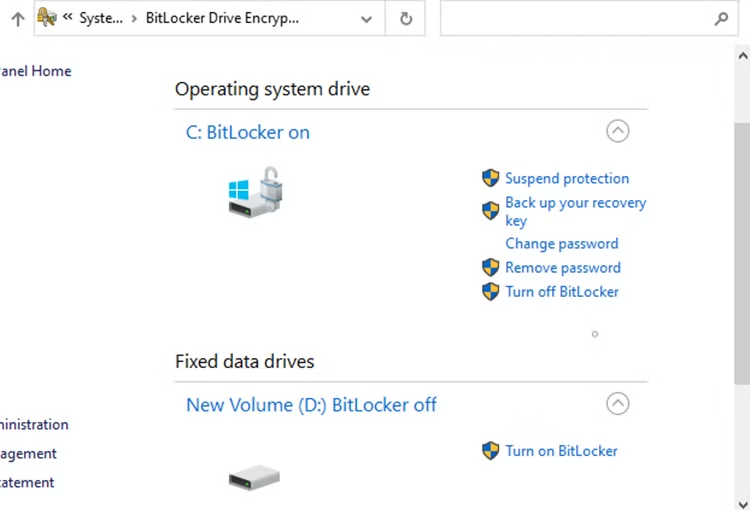
If your source drive uses BitLocker: Temporarily suspend BitLocker on the system drive before cloning to prevent encryption or boot errors. You can re-enable it after cloning is finished.

Clone vs. System Image Backup

Before selecting a cloning or backup method, it’s important to understand the difference between a disk clone and a system image backup. Both can protect your Windows installation when you clone SSD to external hard drive USB, but they are designed for different recovery scenarios.

Clone vs. Image Backup Comparison

Feature Disk Clone System Image Backup

Creates an exact copy of the SSD

✅ Yes

✅ Yes (inside an image file)

Immediately bootable after creation

✅ Usually

❌ No

Requires restoring before use

❌ No

✅ Yes

Stored as compressed backup files

❌ No

✅ Yes

Supports multiple recovery points

❌ Limited

✅ Yes

Incremental or differential backups

❌ Usually not

✅ Supported

Storage efficiency

Lower

Higher

Ideal for SSD upgrades

✅ Excellent

⚠ Possible but less convenient

Ideal for long-term backup history

❌ No

✅ Yes

Easier to browse individual files

⚠ Depends on software

✅ Usually supported

Primary Solution: Clone the SSD to an External Drive with Renee Becca

If your goal is to create a reliable external clone for backup, recovery, system migration, or a future SSD replacement, Renee Becca provides one of the simplest ways to get the job done. Designed specifically for Windows users, it combines disk cloning and backup features in a beginner-friendly interface without requiring command-line tools or advanced technical knowledge.
Get Renee Becca for Seamless SSD to External Drive Cloning

Beginner-Friendly Interface Clone your SSD to an external USB drive easily through a visual interface without typing complex command lines.

Support GPT and MBR Automatically adapt to the suitable partition format.

Support NTFS and FAT32 Redeploy various files in different file systems.

Back up quickly Back up files at up to 3,000MB/min.

Overall backup schedule Support system redeployment/system backup/partition backup/disk backup/disk clone.

Automatic 4K alignment Improve SSD performance

Support GPT and MBR Intelligently adapt to a partition format

Support NTFS and FAT32 Redeploy files in different file systems

Free TrialFree TrialNow 56337 people have downloaded!
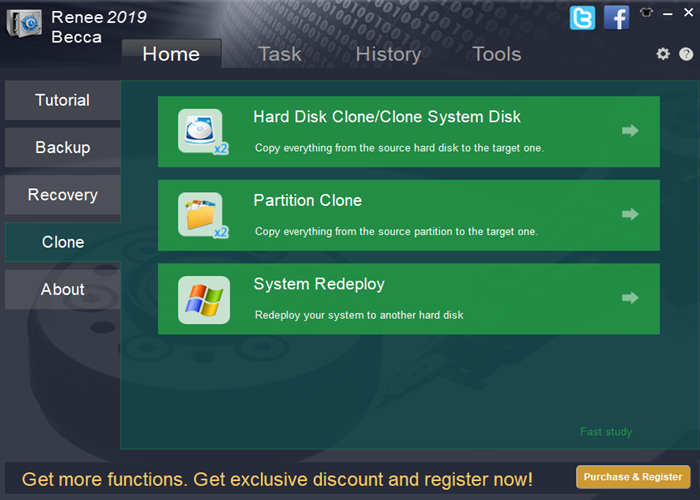
Renee Becca main window with 'Hard Disk Clone/Clone System Disk' option highlighted.
To accommodate different migration and backup scenarios, Renee Becca provides several cloning and backup modes.

Renee Becca Functions to Use for This Task

Choose the function that matches your needs when you clone SSD to external hard drive USB:
- Use “Clone System Disk” or “System Redeploy” to migrate your Windows OS to an external drive.
- Use “Hard Disk Clone” to copy all partitions and data 1:1.
- Prefer “System Backup” or “HardDisk/Partition Backup” if you want a compact image you can restore later instead of a live clone.

Why Renee Becca Fits External USB Cloning

Unlike manual migration methods, Renee Becca streamlines the entire process through a guided interface. It supports full-disk cloning, system migration, automatic SSD alignment, and partition resizing during cloning, helping reduce common setup and compatibility issues. For most users, it provides a straightforward way to clone an SSD to an external USB drive without requiring advanced storage or boot configuration knowledge.

Step-by-Step: Cloning an SSD to an External Hard Drive via USB

This article covers SSD cloning only. If you’re looking to create a system image backup instead, refer to Master System Image Backups in Windows 10 or How to Make an Image of Your Hard Drive: The Complete Backup Guide.

Follow these instructions carefully when you clone SSD to external hard drive USB.
Important: All data on the destination external drive will be overwritten. Back up that drive first.

1. Prepare the External Drive and Connect It via USB

Proper preparation is essential when you clone SSD to external hard drive USB.
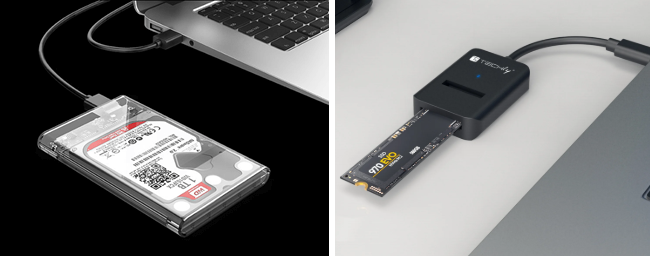
- Connect the target drive using a compatible enclosure or adapter (SATA vs. NVMe) to a fast USB port (USB 3.2 Gen 2 or higher recommended).
- If BitLocker is enabled on your source system drive, suspend it first to avoid encryption issues during or after cloning.
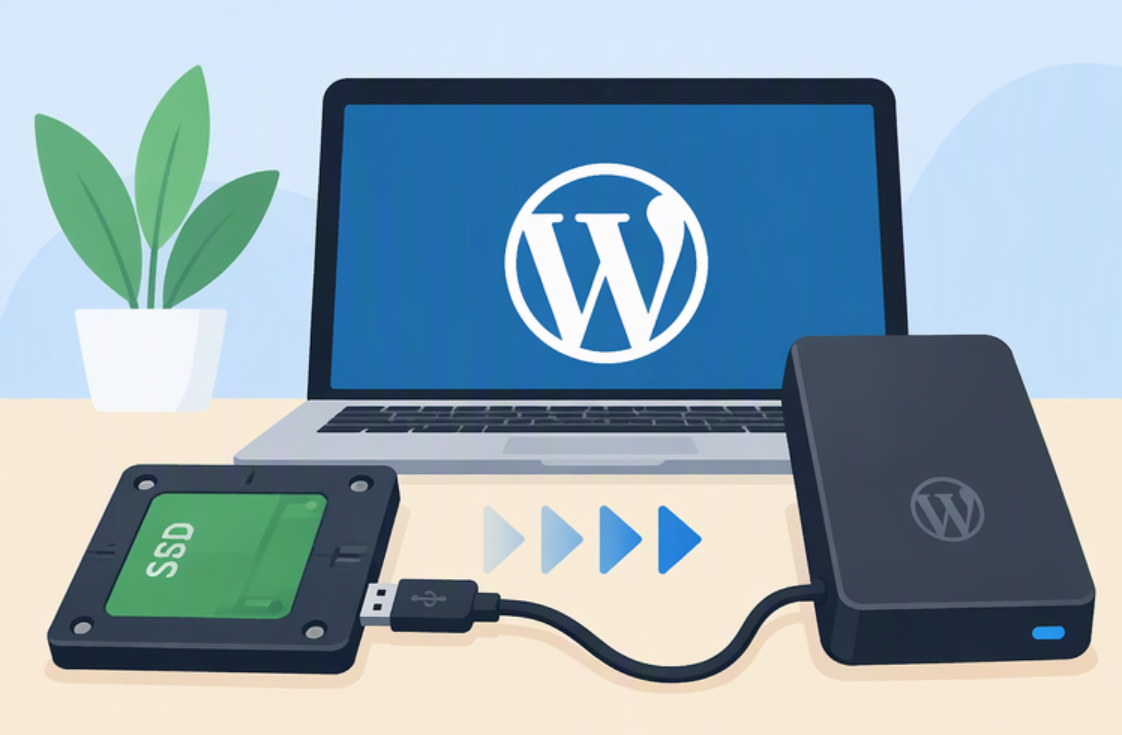
usb ssd / disk enclosure
How to suspend BitLocker (Windows 10/11):
1. Go to Control Panel → System and Security → BitLocker Drive Encryption
2. Next to your system drive (C:), click Suspend protection → Yes
3. Do not reboot until the cloning finishes, or BitLocker may resume automatically
suspend bitlocker protection

2. Launch Renee Becca and Choose the Clone Mode

Open Renee Becca and go to the “Clone” section:
- Select “System Redeploy” for Windows migration, or
- Select “Hard Disk Clone/Clone System Disk” to clone the entire SSD (all partitions)
If you haven’t installed Renee Becca yet, download and install it first:
Renee Becca main window with 'Hard Disk Clone/Clone System Disk' option highlighted.

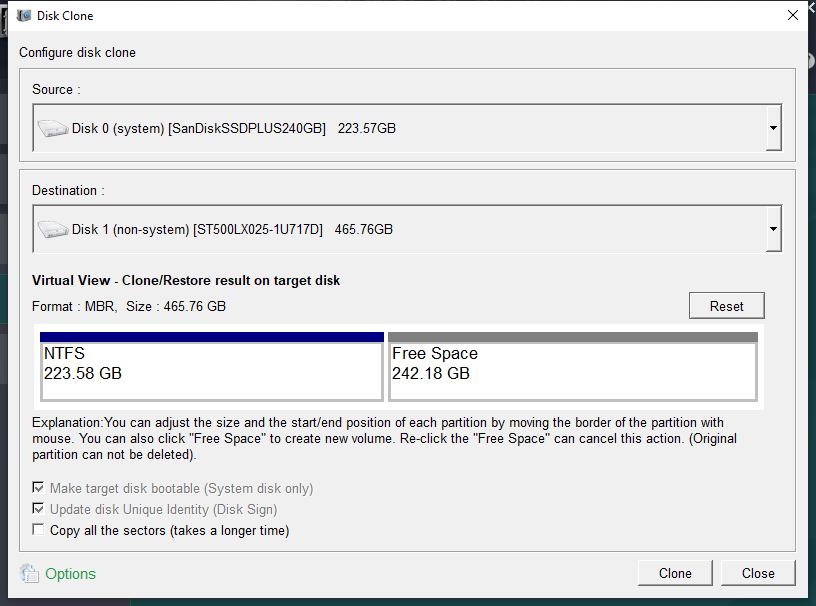
3. Select the Source SSD and Destination External USB Drive

- In the clone window, set your internal SSD as the Source and your external USB drive as the Destination. Identify them by model or capacity to avoid mistakes.
clone the hard disk
Double-check the Destination before you start. Choosing the wrong drive will erase it immediately.

4. Start the Clone and Wait for Completion

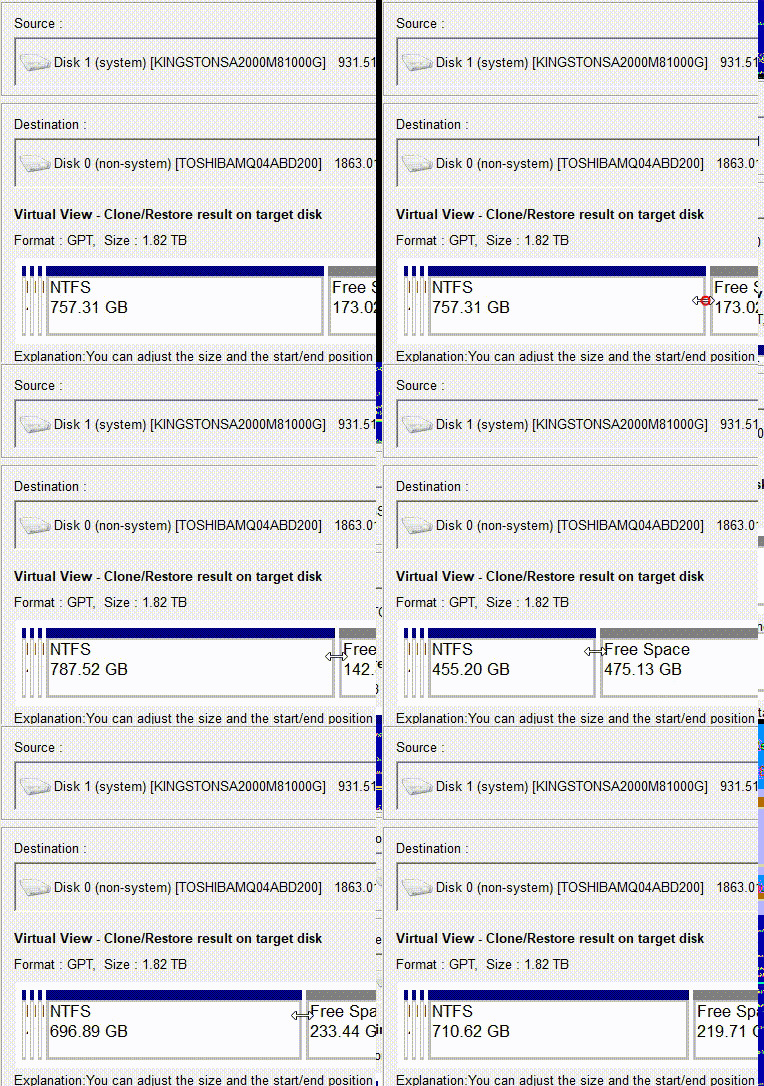
adjust partitions
Optionally adjust partition sizes on the target by dragging the edges before starting.
For licensing or special sector needs, enable “Copy all the sectors” to duplicate every sector.

Start the clone. Duration depends on data size and USB speed. Do not disconnect USB or cut power during the process.

5. Verify the Cloned External Drive

After completion, open Windows Disk Management to confirm the expected partitions and labels exist on the external drive. Optionally browse files to confirm key data is present.
Note: SSD 4K alignment is important for performance. Renee Becca automatically handles 4K alignment during the cloning process.

6. (Optional) Testing Whether the Cloned External Drive Can Boot

After you clone SSD to external hard drive USB, configure your system to boot from it:
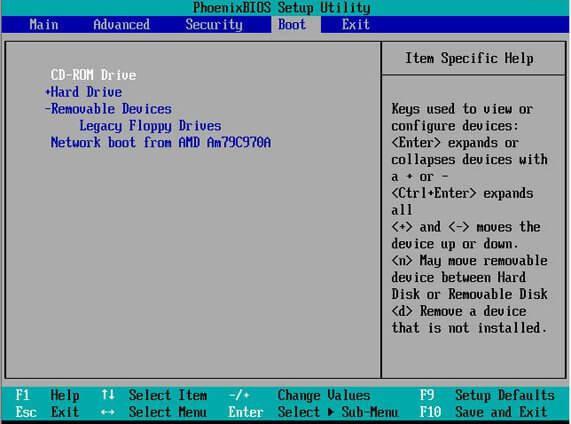
- Enter BIOS/UEFI (common keys: F2, F12, Del, Esc at startup).
- Set the external drive as the first boot device.
- The boot entry is typically listed as USB-HDD, UEFI USB, or USB Key—select the one that matches your drive and firmware.
- Match boot mode to partition style (UEFI for GPT, Legacy/CSM for MBR) for a successful boot.
Windows’ default SAN policy may cause a blue screen (e.g., INACCESSIBLE_BOOT_DEVICE) or leave the disk offline when booting a “standard cloned system” via USB if it was not created using Windows To Go.

If your goal is to later replace the internal hard drive, install the drive back into the internal interface to boot. If you want to run Windows directly from USB as your main system, use Method 2 (the Windows To Go solution).

Change bios startup items

7. Quick Fixes for Boot Problems After USB Cloning
- USB drive not detected in BIOS: Re-seat the cable/enclosure; try another USB port; avoid hubs.
- Wrong boot mode: Switch to UEFI for GPT or Legacy/CSM for MBR.
- Secure Boot conflict: Temporarily disable Secure Boot to test.
- GPT/MBR mismatch: If necessary, re-clone using a target layout that matches your intended boot mode.
- Still not booting from USB? If your end goal is to run Windows from USB long-term, use the Windows To Go method below.

Alternative : Create a Windows USB bootable Drive

If a standard attempt to clone SSD to external hard drive USB doesn’t meet your needs and your goal is to run a full Windows environment directly from the external drive, a Windows To Go-style setup is the right path. Microsoft deprecated Windows To Go in Windows 10 version 1903 and removed the built-in creator in version 2004 and later because it didn’t support feature upgrades and required certified media.
However, third-party tools like Rufus and Hasleo WinToUSB still let you create portable Windows workspaces that run well on modern Windows 10 (including 22H2) and Windows 11.
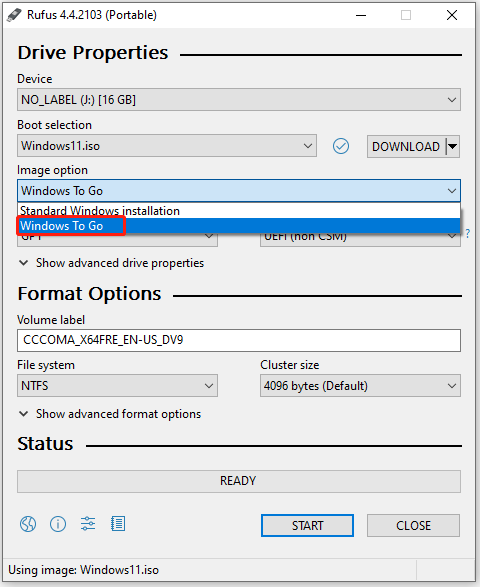
Rufus Windows To Go
Advantages:
  • Runs Windows directly from USB on multiple PCs
  • More robust for USB-boot than a standard clone
  • Does not require wiping your internal drive
  • Works on Windows 10/11 with modern ISOs
  • Simple creation with Rufus or WinToUSB

Disadvantages:

  • Lower performance than internal NVMe
  • Requires quality USB SSD/enclosure for smooth use
  • Microsoft deprecated the built-in tool
  • Feature upgrades may require re-creation
  • Not ideal as a long-term primary OS for heavy workloads

Steps (Rufus example; WinToUSB is similar)

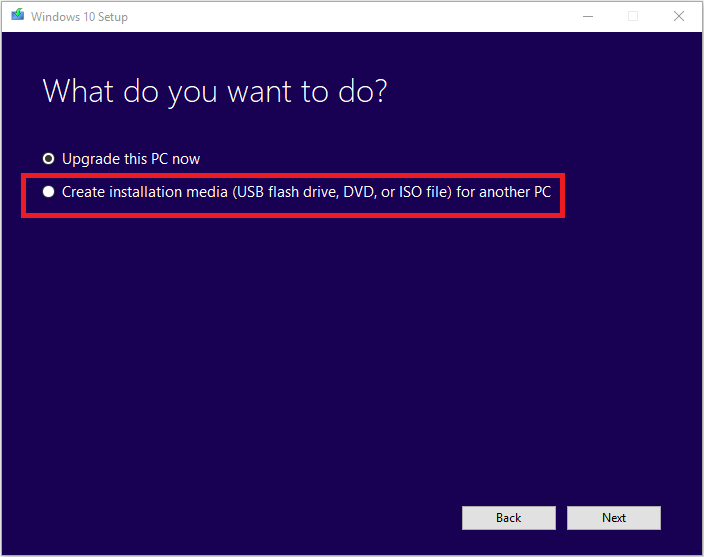
1. Prepare a Windows ISO (Windows 10/11) using the official Media Creation Tool or Microsoft’s download page.
Windows Media Creation Tool create installation media option
2. Connect your portable SSD/NVMe USB drive.
3. Launch Rufus. Under Device, select your external USB drive.
4. Click SELECT and choose the Windows ISO.
5. Under Image option, choose Windows To Go (not Standard Windows installation).
Rufus Windows To Go
6. Partition scheme: GPT (for UEFI). File system: NTFS. Keep default cluster size.
7. Click START, then follow any prompts (choose Windows edition if asked). Rufus will format and deploy Windows to the USB drive.
8. After completion, boot the target PC and choose the USB device (USB-HDD/UEFI USB) from the boot menu. Complete the initial Windows setup.
Use Windows To Go when you want a portable OS that runs directly from USB. For disaster recovery, upgrades, or replacing the internal SSD, the Renee Becca clone/image approach remains simpler and faster to restore.
Get Renee Becca for Seamless SSD to External Drive Cloning

Beginner-Friendly Interface Clone your SSD to an external USB drive easily through a visual interface without typing complex command lines.

Support GPT and MBR Automatically adapt to the suitable partition format.

Support NTFS and FAT32 Redeploy various files in different file systems.

Back up quickly Back up files at up to 3,000MB/min.

Overall backup schedule Support system redeployment/system backup/partition backup/disk backup/disk clone.

Automatic 4K alignment Improve SSD performance

Support GPT and MBR Intelligently adapt to a partition format

Support NTFS and FAT32 Redeploy files in different file systems
Free TrialFree TrialNow 56337 people have downloaded!

FAQ

Should I select USB-HDD or USB Key as the boot device after cloning?

Most firmware lists external boot options as USB-HDD, UEFI USB, or USB Key. Pick the entry that matches your drive and desired mode. For GPT installs, choose the UEFI USB entry; for MBR installs, choose the non-UEFI (Legacy/CSM) USB entry.

Can I clone a larger SSD to a smaller external drive?

Direct 1:1 clones require the target to be at least as big as the used space on the source. If your target is smaller, first shrink partitions on the source so that used space fits, or create a compressed System Image Backup with Renee Becca (System Backup or HardDisk/Partition Backup) and restore to the smaller drive if the data fits.
Renee Becca – Safe and Quick System Migration to SSD

Automatic 4K alignment Improves SSD performance during system migration.

Support GPT and MBR Automatically adapt to the suitable partition format.

Support NTFS and FAT32 Redeploy various files in different file systems.

Back up quickly Back up files at up to 3,000MB/min.

Overall backup schedule Support system redeployment/system backup/partition backup/disk backup/disk clone.

Automatic 4K alignment Improve SSD performance

Support GPT and MBR Intelligently adapt to a partition format

Support NTFS and FAT32 Redeploy files in different file systems
Free TrialFree TrialNow 56337 people have downloaded!

User Comments

Page 1

Leave a Comment


Your comment has been submitted and is awaiting moderation.