author avatar
    Specialist of Customer Service Dept.
Last update by Olivia Brown at 25 October 2026

Summary
This article provides a comprehensive technical guide on how to clone ssd to hard drive within the Windows environment. It outlines preparation steps, software options, and post-cloning verification procedures to ensure data integrity and bootability.



Cloning an SSD to a hard drive can feel confusing when the drives have different sizes, connection types, or Windows boot settings. You might be replacing a failing SSD, moving a full system into a single-slot laptop HDD, or creating a complete restorable backup. The goal is a bootable or restorable duplicate on the HDD, not a speed upgrade.
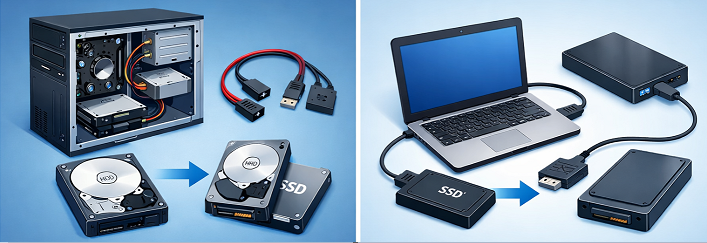
Desktop and laptop drive connection methods

Note on Windows 11 Performance: Because Windows 11 relies heavily on fast storage, running it on a mechanical HDD will result in a significant performance decrease (slower boot times and sluggish app response). This type of clone is best treated as an emergency backup, temporary migration, or transition solution rather than a permanent daily driver.

Common scenarios include:
- Full-system backup without reinstalling Windows or apps.
- Single-slot laptop migration when only one internal drive can be installed at a time.
- Failing-SSD rescue where you need to preserve the system before the SSD becomes unreadable.
Expect the HDD to be slower than the SSD. That’s normal—the key is that Windows, programs, files, and boot settings are duplicated correctly.

Before you clone: quick checks for size, connection, boot mode, and data overwrite

Start with these checks before opening any cloning tool.
If the SSD is failing, stop heavy writes, game downloads, or large file transfers immediately. If the target HDD contains files, back them up or move them first.
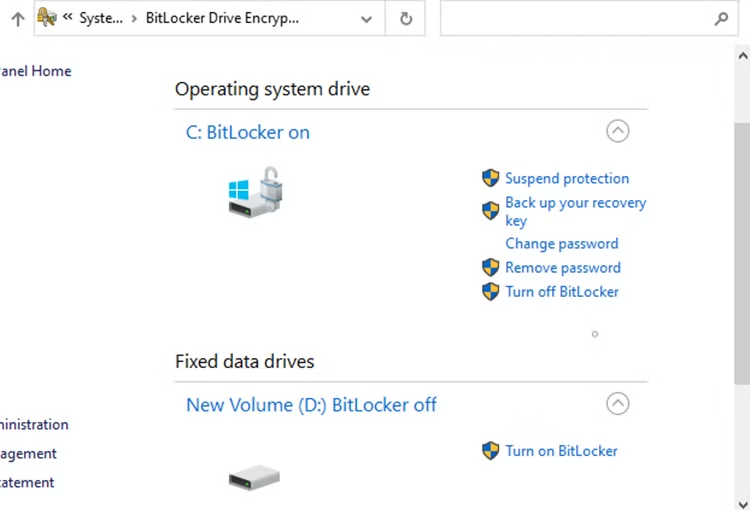
If BitLocker is enabled on the SSD, suspend protection before cloning. To suspend BitLocker:
1. Open Control Panel.
2. Go to System and Security.
3. Select BitLocker Drive Encryption.
4. For the SSD, click Suspend protection and confirm.
suspend bitlocker protection
5. Re-enable BitLocker after the clone is verified.

Important for Windows 11: Windows 11 systems often have Device Encryption or BitLocker enabled by default. Before suspending protection, make sure you have backed up your BitLocker recovery key to your Microsoft account. Changing the physical drive can alter hardware recognition and trigger a recovery lock-out upon your first boot.

The capacity rule is simple: the used space on the SSD must fit on the HDD. If the HDD is smaller than the SSD, reduce the SSD data or partition layout before cloning.
Check Why it matters

Size

The used space on the SSD must fit on the available HDD space.

Connection type

Use internal SATA, USB-to-SATA adapter, or a drive dock. Windows must detect the HDD.

Boot mode & Partition Style

Windows 11 requires UEFI and GPT. Ensure your target HDD matches this layout (using a full disk clone) so the cloned drive can successfully boot.

The target HDD will be overwritten. Back up any important data from that HDD before the clone.

Common ways to clone an SSD to an HDD

The main methods :
Method Ease of Use Advantages ✅ Limitations ⚠️ Typical Examples

🖥️ Free GUI Tools

⭐⭐⭐

• No additional cost

• Graphical interface

• Widely available

• May have a steep learning curve

• Limited automation

• Partition resizing is not always handled automatically

Clonezilla, Rescuezilla

💎 Paid Desktop Tools

⭐⭐⭐⭐⭐

• User-friendly one-click workflow

• Automatic partition adjustment

• Better error handling and warnings

• Technical support available

• Requires a paid license

Renee Becca, Acronis True Image, Macrium Reflect, EaseUS Disk Copy

📦 Backup Image & Restore

⭐⭐⭐

• Greater flexibility and control

• Useful for backups and disaster recovery

• Can preserve multiple restore points

• Requires additional storage space

• More steps compared to direct cloning

• Longer completion time

Windows System Image Backup, Macrium Image Restore

🔌 Hardware Docking Station / Offline Cloner

⭐⭐⭐⭐

• Works without a PC

• Fast hardware-level duplication

• Convenient for technicians handling multiple drives

• Limited verification capabilities

• No file-level management

• Partition adjustment options are often restricted

Sabrent Docking Station, ORICO Offline Cloner

✅ For most home and office users: A dedicated GUI-based cloning tool is usually the easiest and safest option.
✅ For IT professionals or advanced users: Backup-image restoration provides maximum flexibility and recovery options.
✅ For bulk duplication tasks: Hardware docking stations offer fast, PC-free cloning.
✅ For users on a budget: Free tools can work well, although they may require more manual configuration.
In short, GUI tools favor ease of use; image restore and hardware docks favor control. If you just want a clean Windows-friendly clone, a dedicated GUI tool is usually the most practical route.

An easier Windows method: clone SSD to HDD with Renee Becca

After reviewing the common options, many users prefer a tool that makes the process simple and reliable. Renee Becca is a Windows backup and restore tool that also handles disk cloning with a clear, user-friendly interface.
Clone Your SSD to HDD with Renee Becca

Automatic 4K alignment Improves SSD performance during system migration.

Support GPT and MBR Automatically adapt to the suitable partition format.

Support NTFS and FAT32 Redeploy various files in different file systems.

Back up quickly Back up files at up to 3,000MB/min.

Overall backup schedule Support system redeployment/system backup/partition backup/disk backup/disk clone.

Automatic 4K alignment Improve SSD performance

Support GPT and MBR Intelligently adapt to a partition format

Support NTFS and FAT32 Redeploy files in different file systems
Free TrialFree TrialNow 56337 people have downloaded!
Key reasons it’s well-suited for clone SSD to hard drive tasks:
- Dedicated “Hard Disk Clone/Clone System Disk” and “System Redeploy” options under the “Clone” menu.
- Supports mixed SSD and HDD sizes with adjustable partition boundaries.
- Straightforward progress tracking and overwrite warnings.

How to clone SSD to hard drive step by step in Renee Becca

Follow these steps to safely clone your SSD to an HDD using Renee Becca. Make sure both drives are properly connected and recognized by your system before proceeding.

1. Connect the HDD

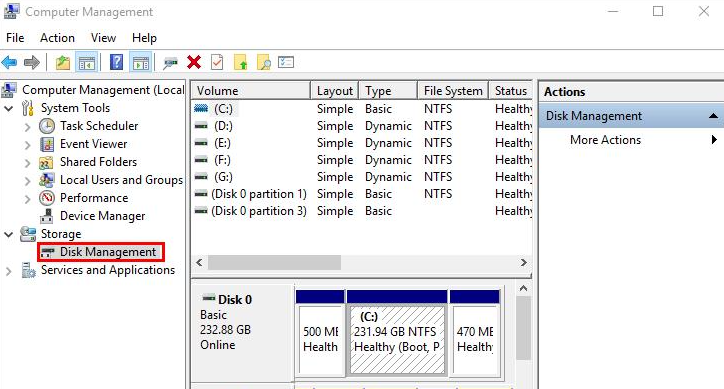
Connect the HDD via SATA or a USB adapter. Confirm it appears in Windows Disk Management.
Windows Disk Management window showing the newly connected SSD with its capacity and status.
Windows Disk Management at a glance Details

Supported systems

Windows 10/11 and older Windows versions with the Disk Management console.

Required conditions

The HDD must be connected, powered on, and initialized/online to appear.

Runtime limitations

This tool verifies disk size and layout; it does not clone disks.

Typical performance

Detection is normally quick over SATA or USB 3.0; USB 2.0 may be slower to refresh.

2. Open Renee Becca and select Clone

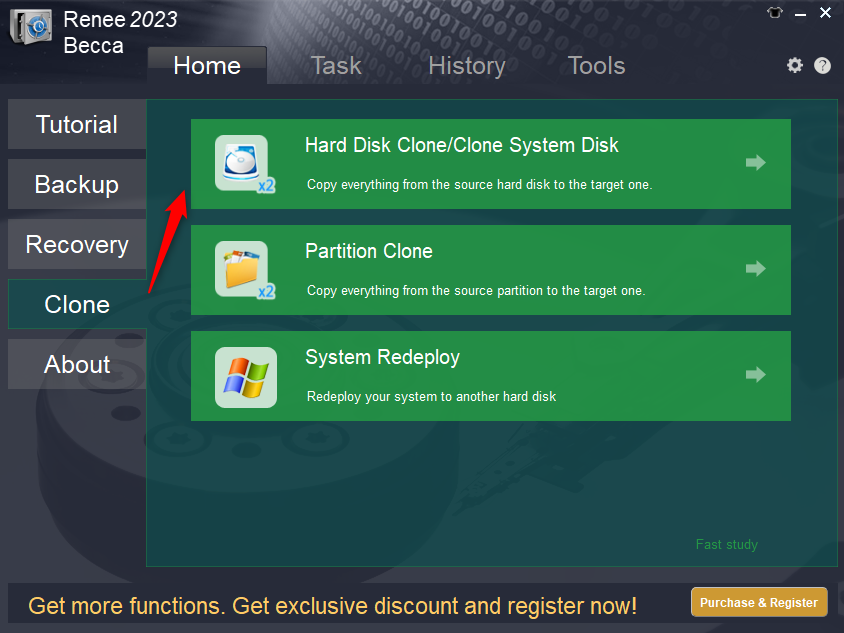
Launch Renee Becca, click “Clone“, and choose “Hard Disk Clone/Clone System Disk” for a full SSD-to-HDD copy. If you only need the Windows system partition, choose “System Redeploy” .” The software’s intuitive layout makes it easy to access the right cloning module for your needs.
renee becca disk clone

3. Select source and target

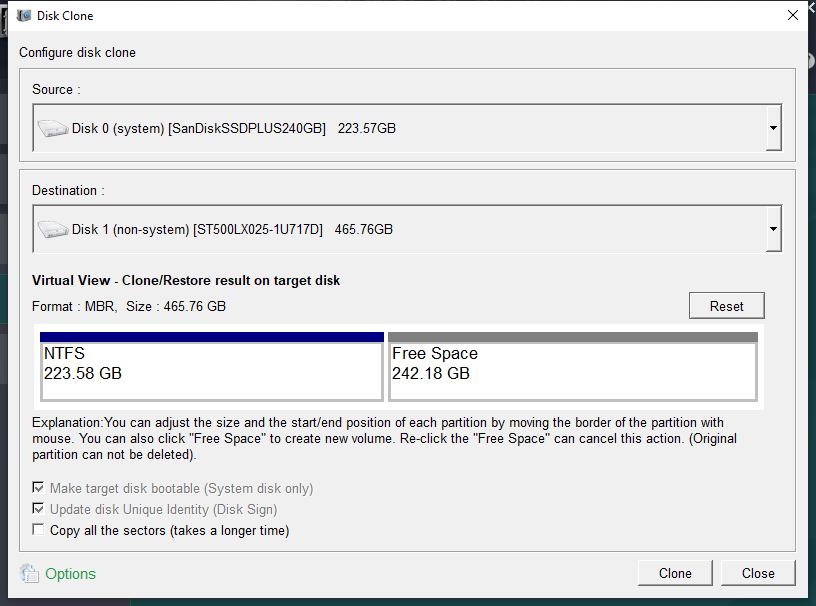
Select the SSD as the source and the HDD as the target. Double-check the labels and capacities. Verifying these selections carefully prevents accidental data loss on the wrong drive.
The data in target drive will be overwritten. Confirm the HDD selection before continuing.
clone the hard disk

4. Choose clone options and start

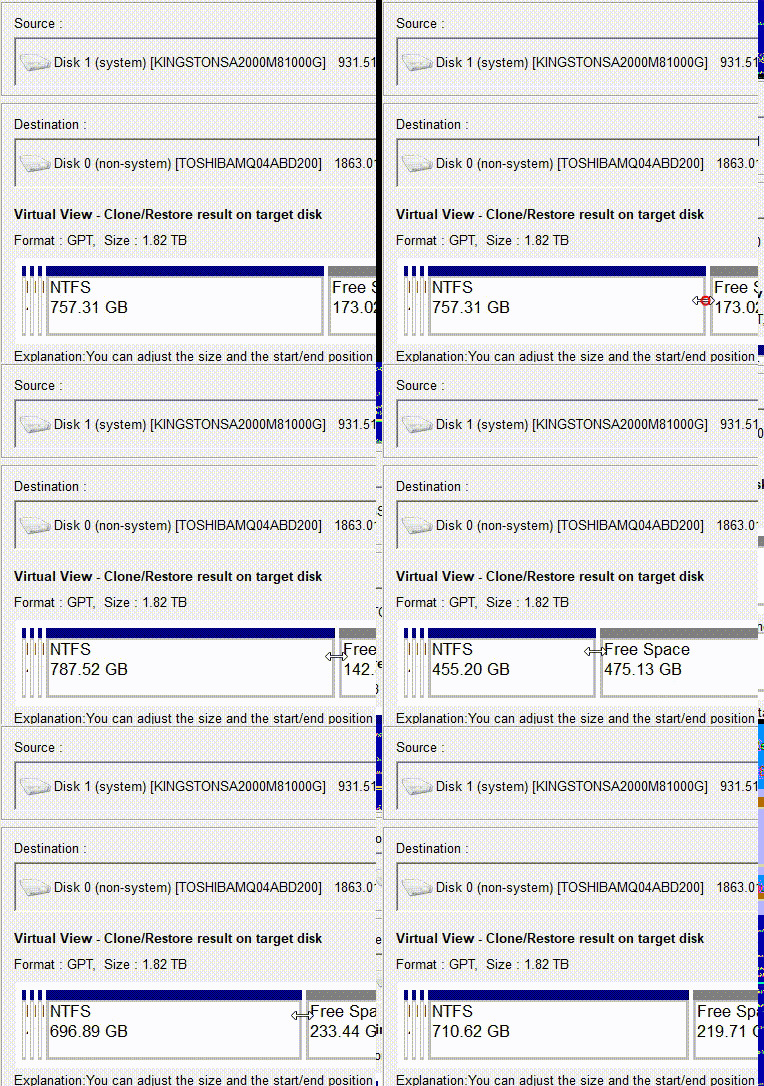
If the HDD is larger, you can drag the partition border to resize the layout. Enable “Copy all sectors” only if you need a byte-level duplicate of the SSD. Click “Clone” and wait for the process to complete.
adjust partitions

5. Boot from the HDD

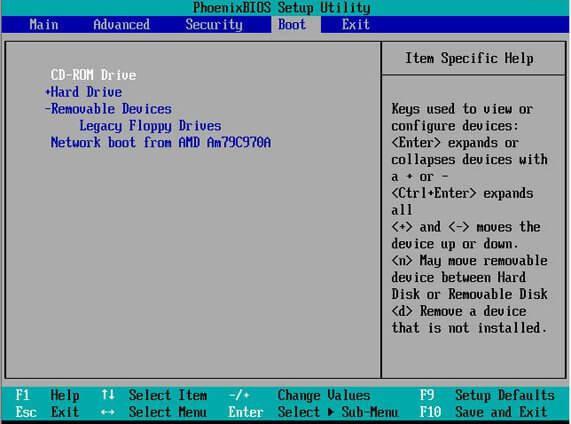
After the clone finishes, shut down the PC. Disconnect the SSD or enter BIOS/UEFI and set the HDD as the first boot device. Save changes and restart.
Change bios startup items

How to confirm the clone worked and what to do next

Once you clone SSD to hard drive, run through this checklist before deleting anything:
1. The HDD shows expected partitions and files in File Explorer.
2. The PC boots successfully from the HDD after adjusting BIOS/UEFI settings.
3. BitLocker protection is resumed if it was suspended.
After verification, you can keep the old SSD as a backup or wipe it using a trusted tool. Do not erase the SSD until you have booted from the HDD at least once.
Clone Your SSD to HDD with Renee Becca

Automatic 4K alignment Improves SSD performance during system migration.

Support GPT and MBR Automatically adapt to the suitable partition format.

Support NTFS and FAT32 Redeploy various files in different file systems.

Back up quickly Back up files at up to 3,000MB/min.

Overall backup schedule Support system redeployment/system backup/partition backup/disk backup/disk clone.

Automatic 4K alignment Improve SSD performance

Support GPT and MBR Intelligently adapt to a partition format

Support NTFS and FAT32 Redeploy files in different file systems

Free TrialFree TrialNow 56337 people have downloaded!

FAQ

Can I clone an SSD to an external hard drive?

Yes. Connect the external HDD through a USB adapter, enclosure, or dock, and select it as the target in your cloning tool. A USB connection can be slower than internal SATA, so keep the drive connected until the clone completes.

Will the cloned HDD be bootable on Windows 10/11?

Usually yes, if you perform a full disk clone and match the boot mode. Use “Hard Disk Clone” for a complete copy of all partitions. After cloning, check the BIOS/UEFI boot order and make sure Windows Boot Manager or the HDD is listed first.

Can I clone a larger SSD to a smaller HDD?

Yes, but only if the SSD used space fits on the HDD. Reduce data or shrink partitions first. In Renee Becca, you can adjust partition sizes during the clone when moving to a different-size disk.
Renee Becca – Safe and Quick System Migration to SSD

Automatic 4K alignment Improves SSD performance during system migration.

Support GPT and MBR Automatically adapt to the suitable partition format.

Support NTFS and FAT32 Redeploy various files in different file systems.

Back up quickly Back up files at up to 3,000MB/min.

Overall backup schedule Support system redeployment/system backup/partition backup/disk backup/disk clone.

Automatic 4K alignment Improve SSD performance

Support GPT and MBR Intelligently adapt to a partition format

Support NTFS and FAT32 Redeploy files in different file systems

Free TrialFree TrialNow 56337 people have downloaded!

User Comments

Page 1

Leave a Comment


Your comment has been submitted and is awaiting moderation.