hdd copy
author avatar
    Senior Product Manager
Last update by James Smith at 16 June 2026

Summary
This comprehensive guide details the technical distinctions between disk cloning and standard file transfers, outlining the specific use cases for performing a full hdd copy during system upgrades or hardware failures. It evaluates multiple software solutions, including professional cloning applications and open-source alternatives, to ensure reliable sector-by-sector data migration and bootable drive creation.



hdd copy
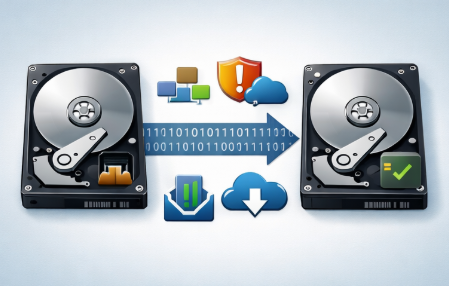
An HDD copy, also called disk cloning, creates a complete sector‑by‑sector duplicate of an entire hard drive. That means everything goes along: the operating system, your programs, hidden system files, boot records, and even the partition layout. Unlike dragging folders in File Explorer, a true HDD copy gives you a bootable drive you can swap in and use immediately.
A lot of people confuse file copying with cloning. Moving folders from one drive to another only grabs the visible data, skipping the critical boot sectors and hidden areas where Windows stores license info. A proper clone preserves everything required to run the system without needing to reinstall anything.
MethodBootable ResultHidden Sectors CopiedBest For

File Copy

No

No

Individual files and folders

Disk Image

After restore

Yes

Backups and archiving

HDD Clone

Yes

Yes

Drive upgrades and migration

Understanding this difference can save you hours of frustration when a migration doesn’t go as expected.

Why You Might Need an HDD Copy – Common Scenarios & Decision Signs

Common Scenarios

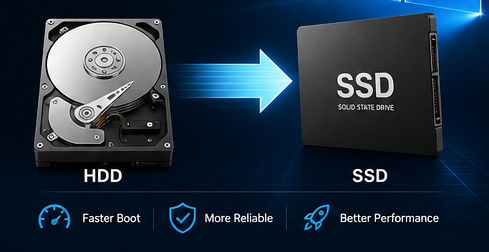
Upgrade scenario (HDD → SSD): If your PC takes forever to boot, apps load sluggishly, or the fans spin up loudly, your old mechanical drive is likely the bottleneck. You might notice Windows taking over a minute to start, and programs hesitate before opening. Cloning to an SSD gives you faster performance without having to reinstall everything from scratch.
Conceptual illustration: Cloning C drive to a new SSD using Renee Becca software
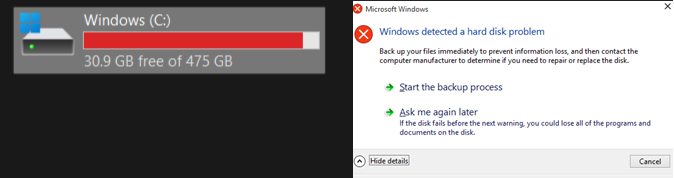
Failing drive scenario: Strange clicking noises, random freezes, or a Windows warning that says “Hard drive failure is imminent” mean you need to act fast. S.M.A.R.T. errors in monitoring tools or sudden file access problems are clear red flags. Creating an HDD copy right away can rescue your data before the drive dies completely.
Old Drive has problems (almost full or smart problem)
Backup / archival scenario: Sometimes you just want a full duplicate for safekeeping, or to move data to another location. This comes in handy when setting up a new computer or keeping an offline copy of important work.
A quick decision path: If you want better speed, clone to an SSD. If the drive is failing, clone immediately. For general safety, schedule regular full copies.

Quick Comparison

MethodEase (1-5)Bootable ResultCostBest For

Software (Renee Becca)

5 (very easy)

Yes

Free trial / Paid

Home users and most upgrades

Free Tools (Clonezilla)

3

Yes

Free

Tech‑savvy users

Hardware Duplicator

4 (easy)

Yes

$100+

IT bulk operations

Manual File Copy

2

No

Free

Simple file transfer

For most Windows users, software offers the easiest hdd copy method because it gives you a guided interface and flexible options without needing deep technical know‑how.

Recommended Professional Solution: Renee Becca for Safe HDD Copy

Renee Becca is a solid choice for HDD copy tasks. It handles full hard disk cloning, system redeploy for OS‑only migration, and even lets you resize partitions as you go. The software uses incremental and differential technology for efficient backups, plus a sector‑by‑sector mode to preserve hidden areas and software licenses.
Key strengths include:
- Hard Disk Clone – a complete 1:1 copy of every partition and all your data.
- System Redeploy – quickly move just Windows and your apps to a new drive.
- Easy partition adjustment by dragging boundaries with your mouse.
Renee Becca – Safe and Quick System Migration to SSD

Automatic 4K alignment Improves SSD performance during system migration.

Support GPT and MBR Automatically adapt to the suitable partition format.

Support NTFS and FAT32 Redeploy various files in different file systems.

Back up quickly Back up files at up to 3,000MB/min.

Overall backup schedule Support system redeployment/system backup/partition backup/disk backup/disk clone.

Automatic 4K alignment Improve SSD performance

Support GPT and MBR Intelligently adapt to a partition format

Support NTFS and FAT32 Redeploy files in different file systems
Free TrialFree TrialNow 56337 people have downloaded!

System Redeploy (OS-Only Migration – Fastest for HDD→SSD)

Use this when you want to move only Windows and installed programs to a new SSD, while leaving your personal data on the old drive.
Step 1: Download, install, and launch Renee Becca.
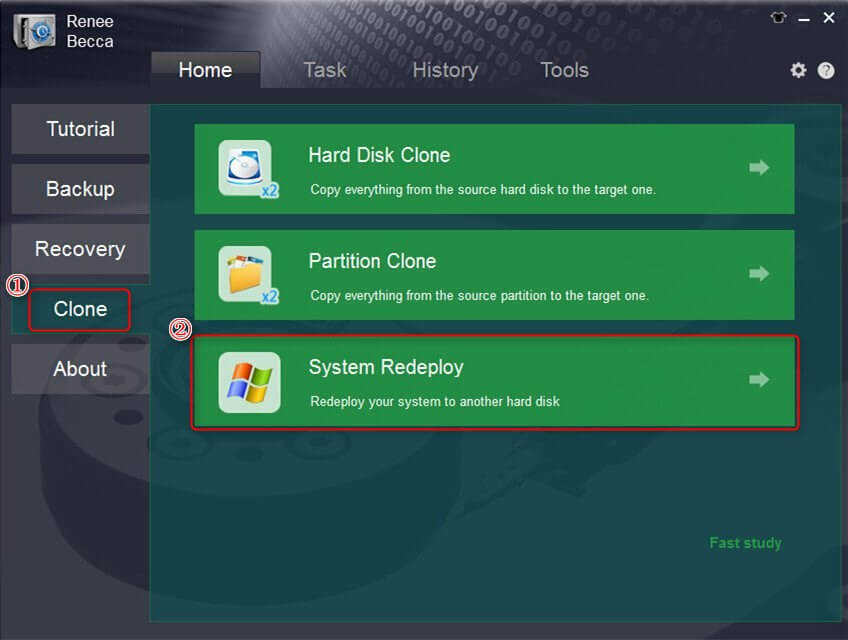
Step 2: Choose System Redeploy under the Clone section.
select system redeploy function in clone
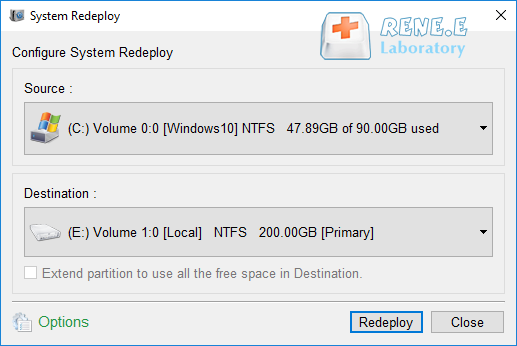
Step 3: Pick your current system partition as the source, and the new drive as the destination. Make sure the target drive has enough space for the used data.
select a destination to redeploy system with renee becca
Step 4: Click the Redeploy button and wait. Once it finishes, the new drive is ready to use.

The total capacity of the new drive must be larger than the size of the system you’re migrating.

Hard Disk Clone (Full Drive Copy – All Partitions & Data)

Choose this when you want an exact duplicate of everything on the original HDD.
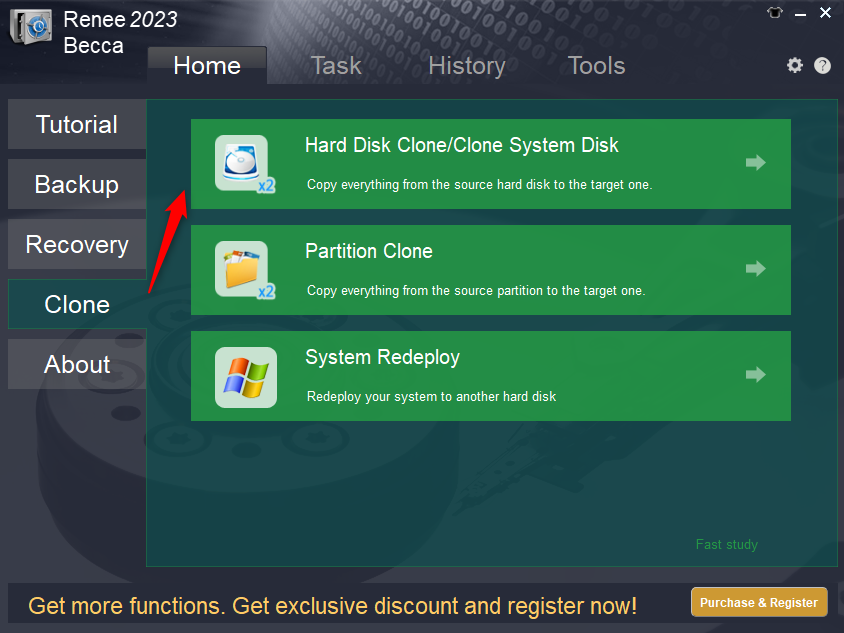
Renee Becca clone menu highlighting Hard Disk Clone and Clone System Disk options, with source and destination selection
Step 1: Launch Renee Becca and go to Hard Disk Clone / Clone System Disk in the Clone section.
renee becca disk clone
Step 2: Select the original HDD as the source and the new drive as the destination.
clone the hard disk
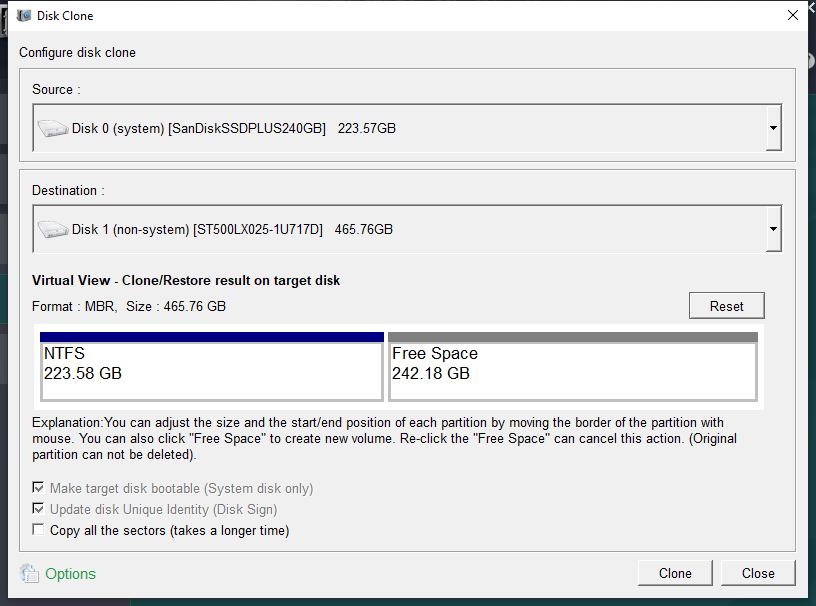
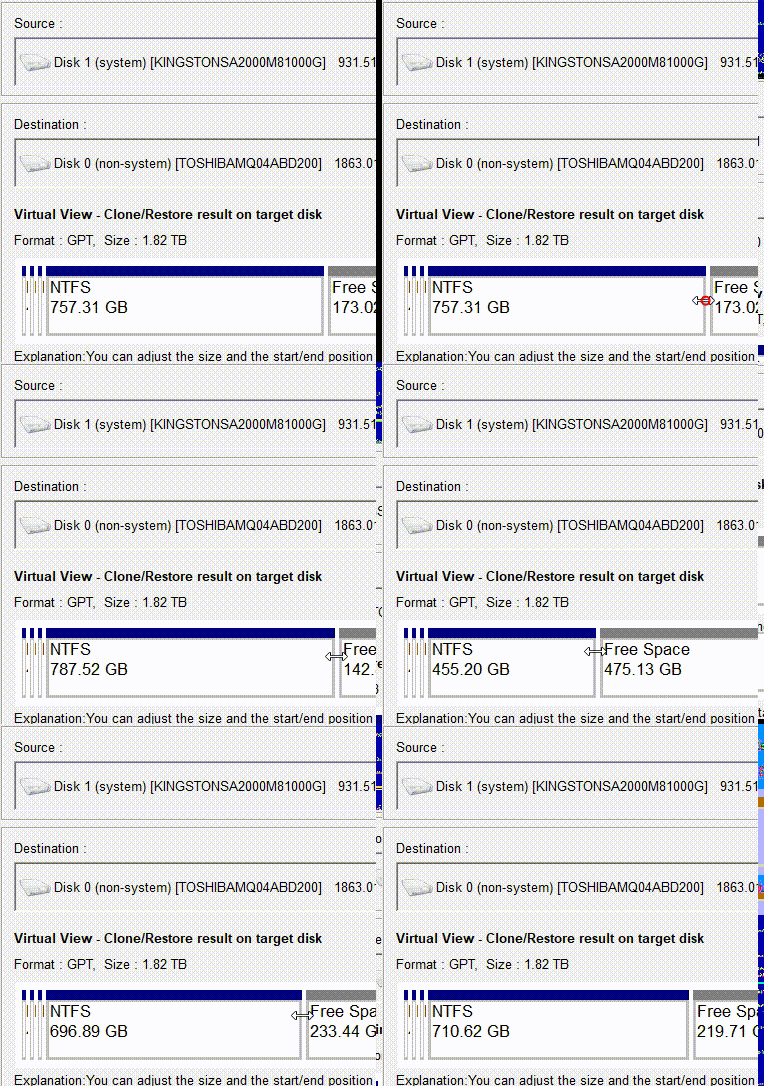
Step 3: Optionally turn on Copy all sectors for a complete duplication that includes license areas. If you need different partition sizes, drag the boundaries to resize them.
Adjusting partition layout during clone via drag-and-drop in Renee Becca
Step 4: Click Clone and watch the progress until it hits 100%.
Renee Becca – Safe and Quick System Migration to SSD

Automatic 4K alignment Improves SSD performance during system migration.

Support GPT and MBR Automatically adapt to the suitable partition format.

Support NTFS and FAT32 Redeploy various files in different file systems.

Back up quickly Back up files at up to 3,000MB/min.

Overall backup schedule Support system redeployment/system backup/partition backup/disk backup/disk clone.

Automatic 4K alignment Improve SSD performance

Support GPT and MBR Intelligently adapt to a partition format

Support NTFS and FAT32 Redeploy files in different file systems
Free TrialFree TrialNow 56337 people have downloaded!

Alternative Free Methods

Windows itself does not include a dedicated “cloning tool” for full-disk replication or system migration. Its built-in features are geared more towards backup and recovery rather than sector-by-sector cloning. Here are some popular free HDD copy software options:

Clonezilla

Clonezilla is a free, open‑source tool that creates exact disk clones from a bootable USB.
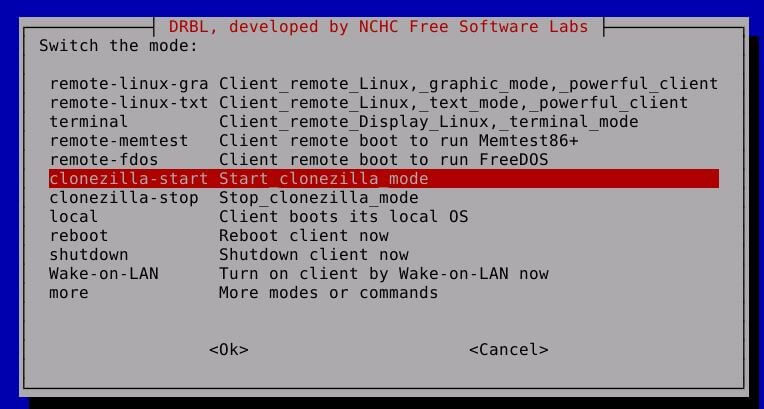
Clonezilla live USB boot screen with boot options
Clonezilla gives you powerful sector‑level copying at no cost. It works well for full HDD copies and supports many file systems. It runs from a live environment, which makes it useful when Windows won’t boot. A lot of people turn to Clonezilla for bulk cloning or because they prefer open‑source software. It handles both HDD to SSD upgrades and drive backups effectively.
Advantages:
  • Completely free and open source
  • Supports many file systems
  • Sector-by-sector cloning
  • Good for advanced users
  • No installation needed

Disadvantages:

  • Steep learning curve
  • No automatic partition resizing
  • Text-based interface
  • Requires creating bootable media
  • Less user-friendly for beginners

Macrium Reflect Free

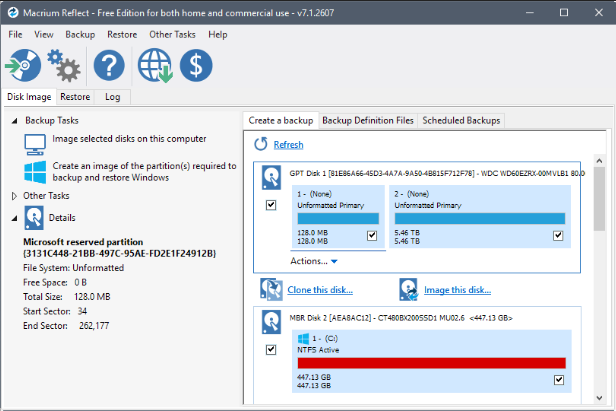
Macrium Reflect Free is a Windows‑based disk imaging and cloning tool known for its stability and ease of use.
use ssd clone software Macrium Reflect
Macrium Reflect Free is widely used for system migration, full‑disk imaging, and backup. Unlike tools that require a bootable Linux environment, Macrium runs directly inside Windows and offers a clean, intuitive GUI.
Advantages:
  • Very stable and reliable
  • Runs directly in Windows
  • Supports UEFI/GPT and VSS hot cloning
  • Clear and intuitive GUI
  • Excellent success rate for system migration

Disadvantages:

  • Free edition lacks incremental/differential backup
  • Some advanced features locked behind paid version
  • Slightly larger installer compared to lightweight tools

AOMEI Backupper Standard

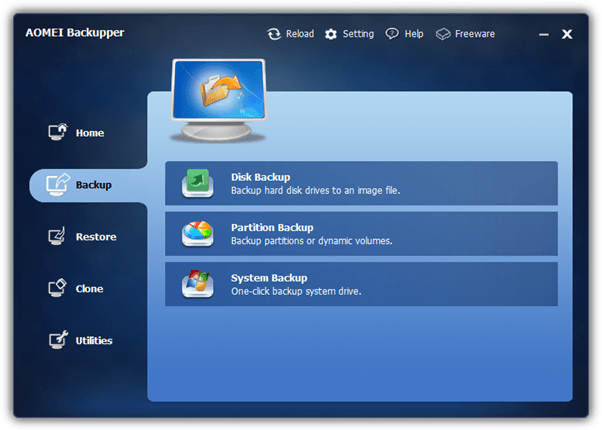
AOMEI Backupper Standard is a beginner‑friendly Windows cloning and backup tool with a modern graphical interface.
aomei_backupper
AOMEI Backupper Standard focuses on simplicity and accessibility. It supports disk clone, system clone (in some versions), and partition clone, making it ideal for everyday users upgrading from HDD to SSD. The interface is straightforward, and the tool automatically handles partition alignment for SSDs, which helps improve performance and lifespan.
Advantages:
  • Very easy for beginners
  • Modern and friendly GUI
  • Automatic SSD 4K alignment
  • Supports disk and partition cloning
  • Runs directly in Windows

Disadvantages:

  • Some features require paid Pro version
  • System Clone may be locked in free edition depending on version
  • Occasional ads in the free version

After the HDD Copy: Verifying Bootability & Drive Health

Change the BIOS boot order so the new cloned drive is first. Enter BIOS by pressing the right key during startup—usually Del, F2, or F10.
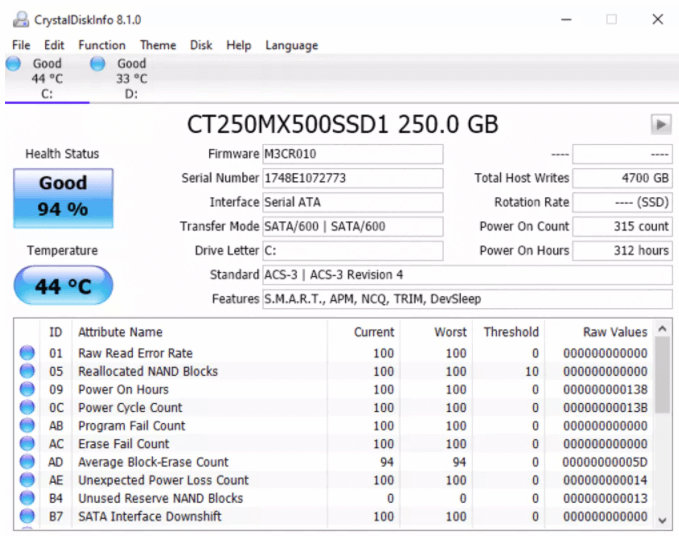
Run CrystalDiskInfo to check drive health and confirm there are no errors showing up.
CrystalDiskInfo displaying SSD health status with temperature and S.M.A.R.T. details
For HDD to SSD upgrades, Windows typically turns on TRIM automatically, but you can verify it in Command Prompt if you want to be sure.
If the cloned drive doesn’t boot, try re‑cloning with the Copy all sectors option, or run Windows Startup Repair from installation media.

FAQ – Common Questions About HDD Copy

Below are answers to the most frequently asked questions about HDD copying, disk cloning, and system migration.

Can I clone a larger HDD to a smaller SSD?

Yes, as long as the used space on the source drive is smaller than the target drive’s capacity. Use System Redeploy or resize partitions during cloning with Renee Becca to make everything fit.

Does cloning copy bad sectors from a failing drive?

Standard cloning skips unreadable sectors. The Copy all sectors option tries to include everything possible, but physically damaged areas can’t be fully recovered.

Do I need to reactivate Windows after cloning to a new drive?

Usually not for drive‑only upgrades. A major hardware change like a new motherboard might trigger reactivation, but swapping drives alone typically works without any issues.

Why does my cloned drive show less space than the original?

That happens when cloning to a smaller drive or when unallocated space remains after resizing. You can extend the partition using Windows Disk Management.
Renee Becca – Safe and Quick System Migration to SSD

Automatic 4K alignment Improves SSD performance during system migration.

Support GPT and MBR Automatically adapt to the suitable partition format.

Support NTFS and FAT32 Redeploy various files in different file systems.

Back up quickly Back up files at up to 3,000MB/min.

Overall backup schedule Support system redeployment/system backup/partition backup/disk backup/disk clone.

Automatic 4K alignment Improve SSD performance

Support GPT and MBR Intelligently adapt to a partition format

Support NTFS and FAT32 Redeploy files in different file systems
Free TrialFree TrialNow 56337 people have downloaded!

User Comments

Page 1

Leave a Comment


Your comment has been submitted and is awaiting moderation.