author avatar
    Senior Product Manager
Last update by James Smith at 18 May 2026

Summary
This guide details methods to windows 10 clone boot drive to ssd, including preparation steps, tool comparisons, and execution strategies for full-disk and system-only migrations. Post-clone verification and troubleshooting procedures ensure a bootable, functional SSD upgrade.



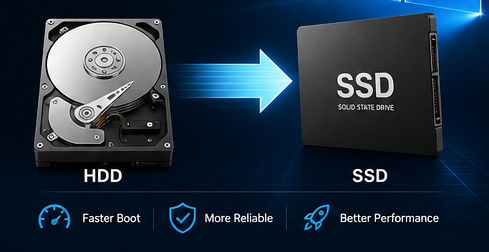
You’ve probably noticed your PC slowing down in Windows 10. Startup takes forever, programs crawl to open, and Task Manager shows disk usage stuck at 100%. These are classic signs your current boot drive — likely an old HDD or a cramped SSD — is struggling to keep up.
Cloning is the perfect fix for several common situations: upgrading from an old HDD to a fast SSD, replacing a small SSD with a larger one, or dealing with a laptop that has only one internal drive slot. Unlike a clean Windows install, cloning keeps everything you already have — your programs, settings, logins, and files. No reinstalling, no reactivation headaches, no lost data.
Illustration of cloning C drive to SSD using Renee Becca software

Do these things before you touch any cloning software

  • Back up your important personal files to an external drive or cloud storage
  • Run chkdsk C: /f /x /r to check for and repair disk errors
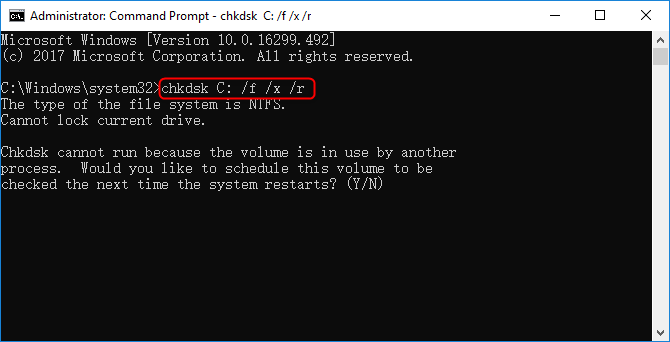
Command Prompt window displaying chkdsk results including bad sector repairs
  • Delete any large, unnecessary files to cut down clone time and space needed
  • Make sure your new SSD’s capacity is at least as big as the used space on your current boot drive
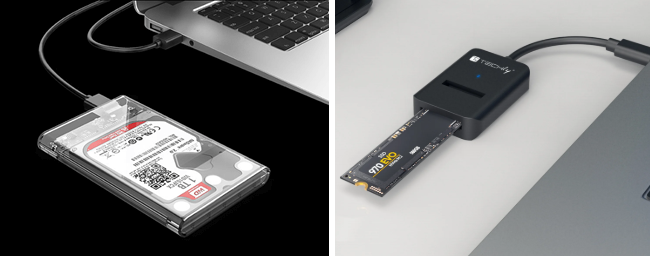
  • Grab a USB-to-SATA or USB-to-NVMe adapter if your laptop has only one internal slot

Which Cloning Scenario Matches Your Setup? (Quick Diagnosis Table)

Your Current DriveNew Drive TypeDevice TypeMain ChallengeRecommended Path

HDD (500GB–1TB)

SATA SSD

Desktop (multiple bays)

Direct clone

Full disk clone

HDD (1TB)

NVMe SSD

Laptop (single slot)

Only one internal slot → need USB adapter

Clone via USB, then swap

Small SSD (120GB)

Larger SSD (500GB+)

Any

Partition resizing needed

Clone + expand partition

Boot drive with errors

Any SSD

Any

Hidden sectors may hold license data

Use “Copy all sectors”

Use the table above to quickly figure out which approach fits your hardware.

Common Ways to Clone a Boot Drive

Manufacturer tools

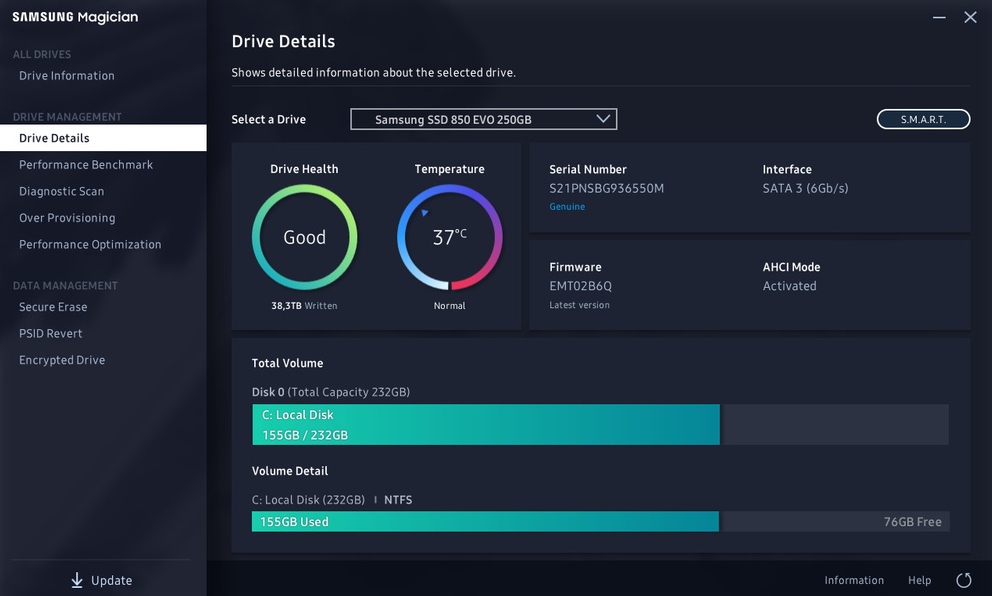
Manufacturer tools like Samsung Magician or WD Acronis are simple but locked to specific brands — useless if you’re mixing drives.
Samsung Magician interface

Free utilities

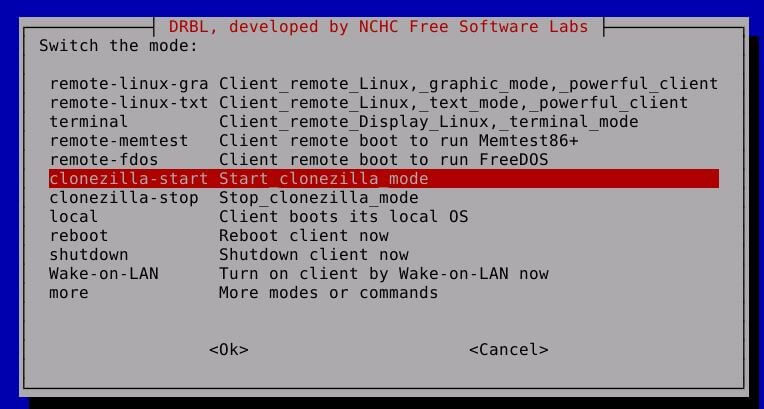
Free utilities such as Clonezilla, older Macrium Reflect or AOMEI Backupper can work, but they often lack easy partition resizing or fail to produce a bootable clone.
Clonezilla live USB cloning utility boot menu
Open-source options like Clonezilla are powerful but have a steep learning curve that frustrates beginners.
What reliable cloning actually needs: a bootable result, partition resizing on the fly, the ability to copy hidden sectors, and smooth handling of both HDD→SSD and SSD→larger SSD upgrades.
At this point, most users need a tool that simply works without technical guesswork. That’s where Renee Becca fits — introduced below as the primary solution for this guide.

Clone Your Windows 10 Boot Drive with Renee Becca

Renee Becca is a Windows tool built specifically for system and hard disk backup, restoration, and cloning. It handles full disk clones, system-only migrations, and partition adjustments, all while using efficient incremental technology where it makes sense.
Renee Becca – Safe and Quick System Migration to SSD

Automatic 4K alignment Improves SSD performance during system migration.

Support GPT and MBR Automatically adapt to the suitable partition format.

Support NTFS and FAT32 Redeploy various files in different file systems.

Back up quickly Back up files at up to 3,000MB/min.

Overall backup schedule Support system redeployment/system backup/partition backup/disk backup/disk clone.

Automatic 4K alignment Improve SSD performance

Support GPT and MBR Intelligently adapt to a partition format

Support NTFS and FAT32 Redeploy files in different file systems

Free TrialFree TrialNow 56337 people have downloaded!
Why it fits this task well (no hard sell — just facts):
  • Two dedicated clone modes: “Hard Disk Clone” (full drive copy) and “System Redeploy” (OS‑only migration)
  • Resizes partitions during cloning — critical when moving to a larger or smaller SSD
  • Can copy hidden/license sectors with the “Copy all sectors” option (some software stores license data there)
  • Works for HDD→SSD and SSD→larger SSD scenarios alike

Who this is for: anyone who wants a reliable, bootable clone without reinstalling Windows or losing programs.
download now

Step-by-Step: Cloning Windows 10 Boot Drive to SSD with Renee Becca

Before You Start — Physical Setup

You must suspend BitLocker protection before cloning, then re-enable it after booting from the new SSD. Renee Becca copies encrypted sectors as-is, but boot configuration may need adjustment.

If you’re using a desktop with free bays, install the new SSD internally.
How to Install an M.2 SSD
For a laptop with only one slot, connect the new SSD via a USB-to-M.2 or USB-to-SATA adapter.
usb ssd / disk enclosure

Critical warning: The target SSD will be completely overwritten. Double-check that it contains no important data.

Method A — Full Drive Clone (“Hard Disk Clone / Clone System Disk”)

Use this when you want to replace your entire boot drive with an exact copy — all partitions, all data, everything.
download now
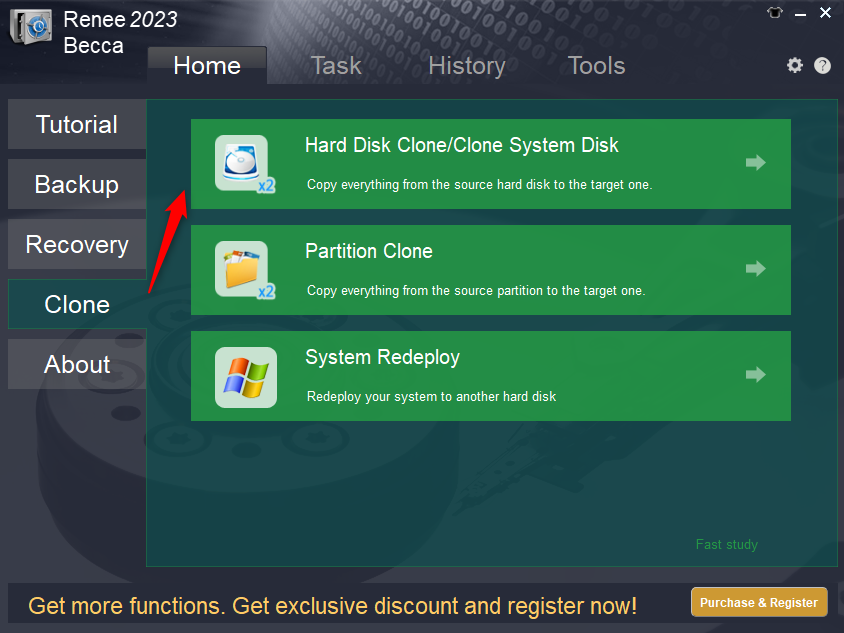
Step 1: Launch Renee Becca and select Hard Disk Clone/ Clone System Disk” under the Clone section.
renee becca disk clone
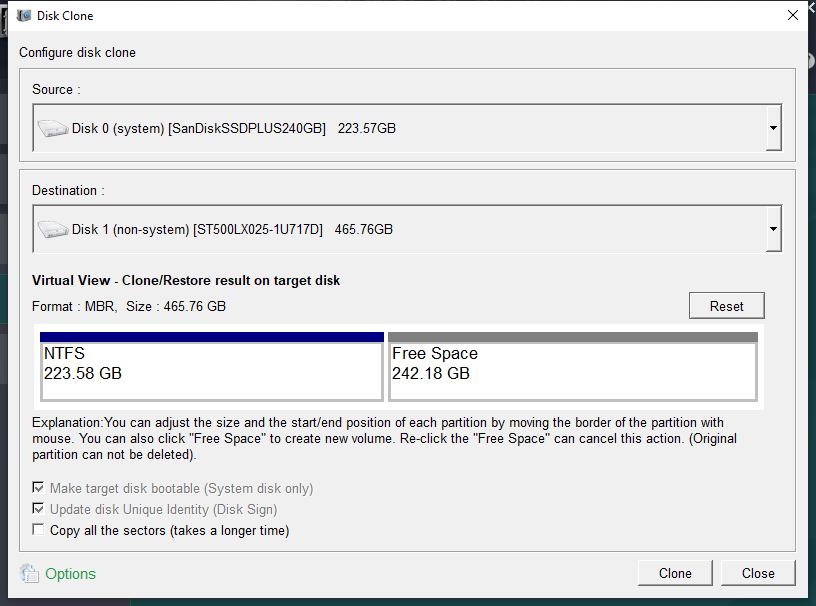
Step 2: Pick your current boot drive as the source and the new SSD as the destination.
clone the hard disk
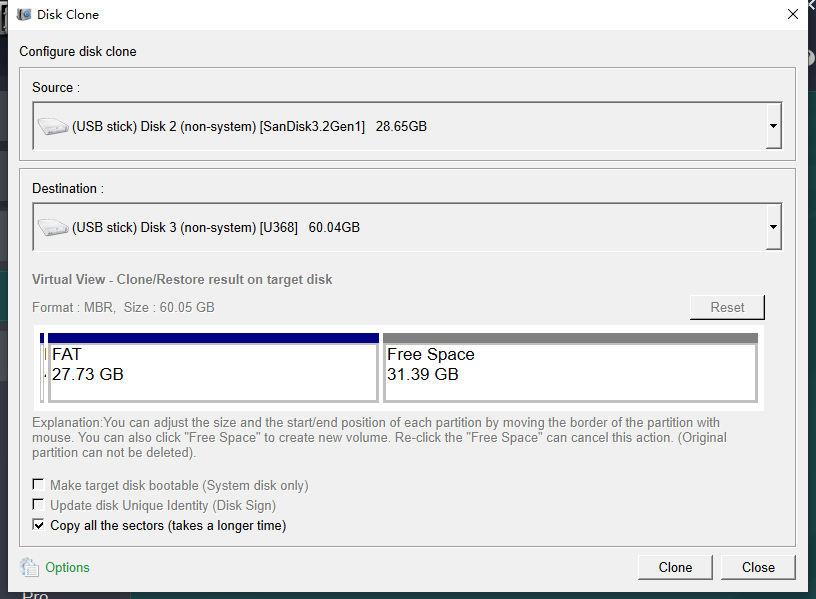
Step 3 (optional — only if needed): Turn on “Copy all sectors” if your current drive has software that stores license information in hidden or reserved sectors. For most standard cloning jobs, you can leave this off.
Renee Becca select copy all sector
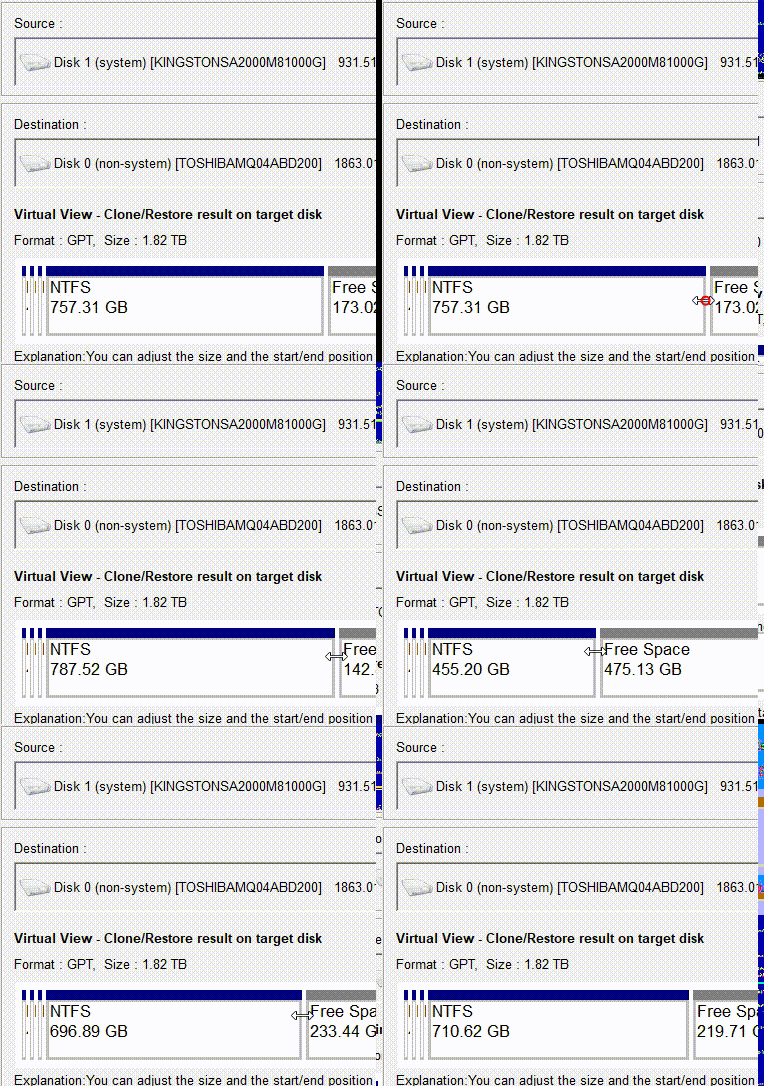
Step 4: Adjust partition sizes by dragging the boundaries with your mouse to fit the new SSD.
adjust partitions
Step 5: Click “Clone” and watch the progress bar until it hits 100%.

Method B — OS‑Only Migration

Choose this when you only want to move Windows to the new SSD— useful for smaller target drives or dual‑drive setups.
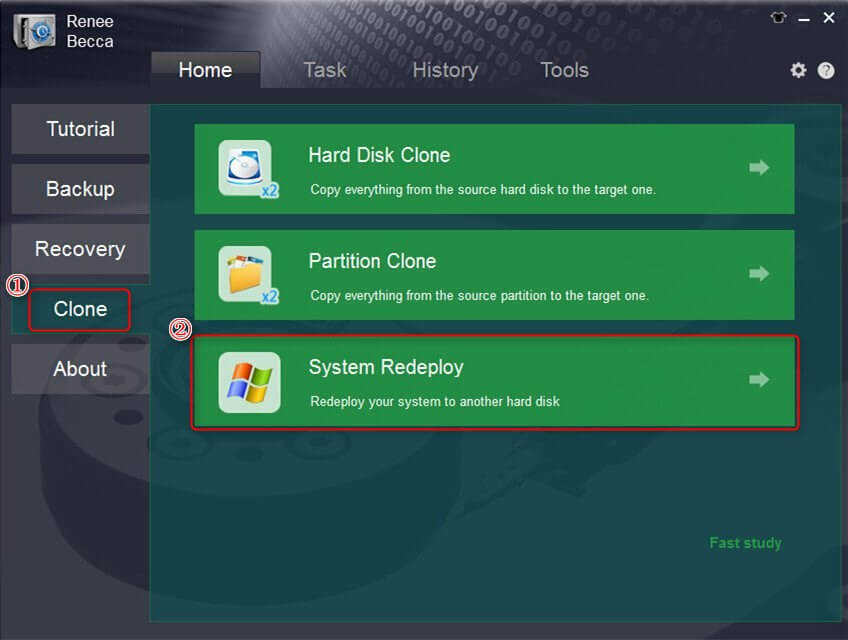
Step 1: In Renee Becca, select “System Redeploy” under the Clone column.
select system redeploy function in clone
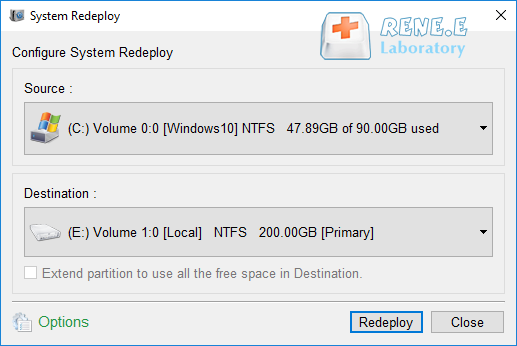
Step 2: Select your current system partition as the source and the new SSD as the destination.
select a destination to redeploy system with renee becca
Step 3: Click the “Redeploy” button and wait for it to finish.
Note: The target drive must be larger than the used size of your system partition — not the whole old drive.

What to Watch During Cloning

Keep your power stable and don’t disconnect any drives mid-process. The progress bar might pause near the end — that’s normal final verification. If the clone fails, try again with “Copy all sectors” turned on.

Post-Clone: Boot from New SSD and Verify the Clone Worked

First Boot Steps

Shut down your PC completely after cloning finishes. Disconnect the old boot drive — this is critical, otherwise your PC may keep booting from it. If you used a USB adapter, install the new SSD internally now. Power on, enter BIOS (usually by pressing F2, Del, or Esc during startup), and set the new SSD as the first boot device. Save and exit.
Common Server:
Server TypeEnter boot menu method

DELL

Press the F12 key repeatedly before the Dell logo appears on the screen.

HP

Press the F9 key multiple times when the HP logo is displayed.

Common Computers:
BIOS NameEnter boot menu method

ASRock

DEL or F2

ASUS

DEL or F2 for PCs/ DEL or F2 for Motherboards

Acer

DEL or F2

Dell

F12 or F2

ECS

DEL

Gigabyte / Aorus

DEL or F2

Lenovo (Consumer Laptops)

F2 or Fn + F2

Lenovo (Desktops)

F1

Lenovo (ThinkPads)

Enter then F1

MSI

DEL

Microsoft Surface Tablets

Press and hold Power and Volume Up buttons

Origin PC

F2

Samsung

F2

Toshiba

F2

Zotac

DEL

HP

Esc/ F9 for Boot Menu/ Esc/ F10/ Storage tab/ Boot Order/ Legacy Boot Sources

INTEL

F10

Verification and Health Check

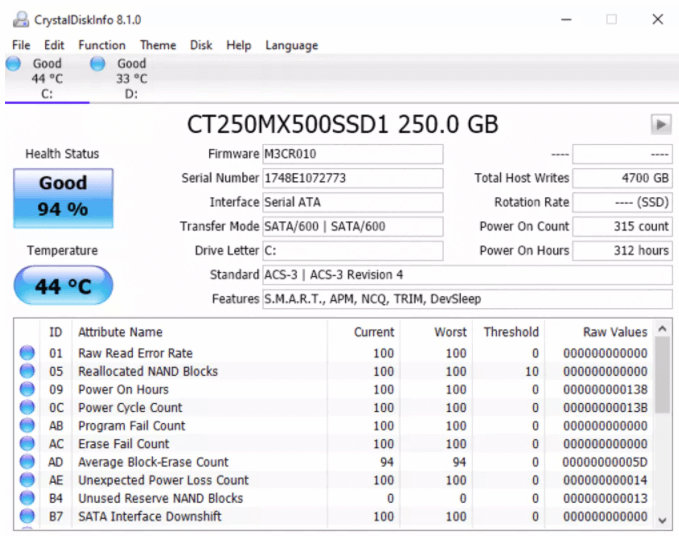
Once Windows boots, check that the new SSD shows up as the C: drive. Open a few programs to make sure they work normally. Use CrystalDiskInfo to verify SSD health, temperature, and interface speed.
how to check ssd health with crystaldiskinfo

If Boot Fails — Troubleshooting

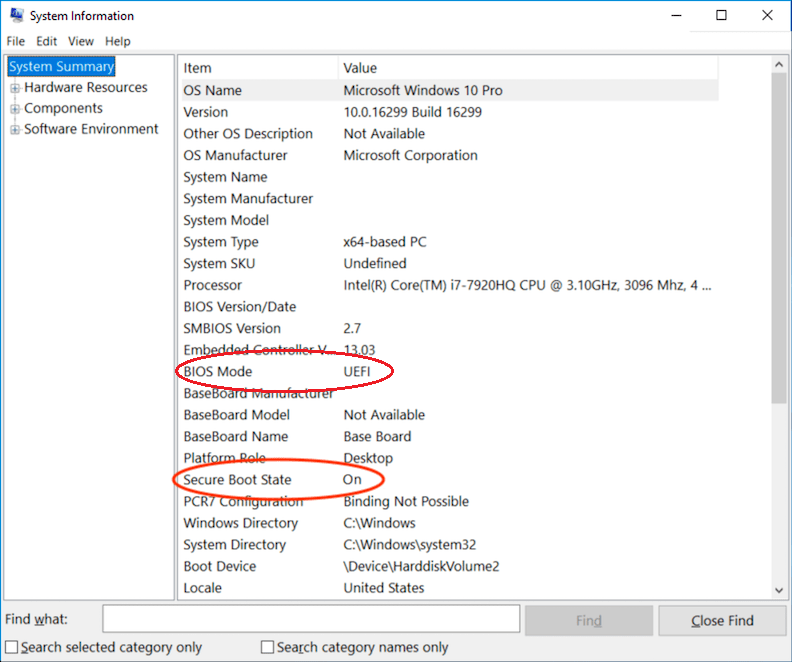
Go back into BIOS and temporarily disable Secure Boot— some clones need this.
System Information dialog showing UEFI boot mode and Secure Boot status
If that doesn’t help, re‑run the clone with “Copy all sectors” enabled.
To check 4K alignment using diskpart (though Renee Becca handles this automatically in most cases):
1. Press Win key, type cmd, to open an elevated Command Prompt as administrator.
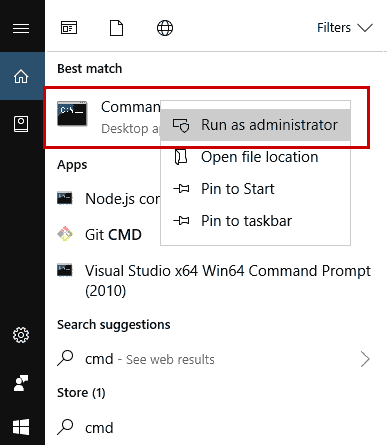
run as administrator
2. Click Yes on the UAC prompt.
3. Type diskpart and press Enter.
4. Type select disk X (replace X with your new SSD’s disk number) and press Enter.
5. Type list partition and press Enter.
If alignment needs fixing, note that manual correction is rarely required — modern cloning tools handle it automatically.

Final Cleanup

Once everything is working, reconnect your old drive (via USB or an internal slot) and format it to use as secondary storage.

When to Use “Hard Disk Clone” vs. “System Redeploy”

Your GoalRecommended Renee Becca FeatureTime EstimatePreserves Non‑OS Data?

Replace entire boot drive with exact copy (all partitions, all files)

Hard Disk Clone / Clone System Disk

1–3 hours

Yes — full copy

Move only Windows to smaller SSD, keep personal files on another drive

System Redeploy

30–60 min

No — system only

Upgrade from HDD to SSD on a laptop with one slot

Hard Disk Clone (via USB adapter first, then swap)

1–3 hours

Yes

Old drive has hidden license sectors (special software)

Hard Disk Clone + “Copy all sectors”

+10–20% longer

Yes — full sector copy

Common Questions

Q1: Do I need to reinstall Windows after cloning to SSD?
No. That’s the whole point of cloning. You boot directly from the cloned SSD with all programs, settings, and files intact.
Q2: Why won’t my PC boot from the cloned SSD?
Most common causes: old boot drive still connected, Secure Boot blocking the clone, or missing hidden sectors. Disconnect the old drive, disable Secure Boot temporarily, or re-clone with “Copy all sectors” enabled.
Q3: Is Renee Becca free to clone Windows 10 boot drive?
A free trial is available for testing. Full cloning and system migration features require activation — check the official website for current pricing.
Q4: Will cloning copy viruses, bad sectors, or corrupt files to the new SSD?
Yes — cloning makes an exact copy. If your source drive has viruses or file corruption, they will appear on the clone. Always run antivirus and chkdsk /f on the source drive before cloning.
Renee Becca – Safe and Quick System Migration to SSD

Automatic 4K alignment Improves SSD performance during system migration.

Support GPT and MBR Automatically adapt to the suitable partition format.

Support NTFS and FAT32 Redeploy various files in different file systems.

Back up quickly Back up files at up to 3,000MB/min.

Overall backup schedule Support system redeployment/system backup/partition backup/disk backup/disk clone.

Automatic 4K alignment Improve SSD performance

Support GPT and MBR Intelligently adapt to a partition format

Support NTFS and FAT32 Redeploy files in different file systems

Free TrialFree TrialNow 56337 people have downloaded!

User Comments

Page 1

Leave a Comment


Your comment has been submitted and is awaiting moderation.