author avatar
    Senior Product Manager
Last update by William Davis at 24 March 2026

Summary
This article examines unmountable boot volume no boot data recovery scenarios where Windows systems fail to start due to boot volume errors. It outlines non-destructive data recovery approaches, including bootable recovery environments, built-in recovery tools, and external drive access methods, while comparing safety levels and technical requirements.



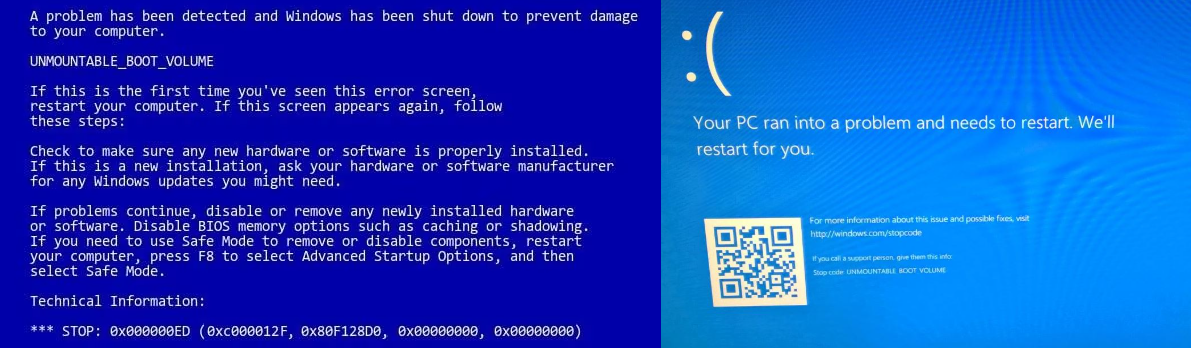
An unmountable boot volume blue screen, usually tied to stop code 0x000000ED, is not just a startup error. For many users, it means a Windows 10 or Windows 11 computer suddenly stops loading while important files remain trapped inside. That often includes family photos, work documents, project folders, school files, accounting data, and application-specific records that were never copied elsewhere.
0x000000ED UNMOUNTABLE_BOOT_VOLUME
What makes this issue especially difficult is the mix of urgency and uncertainty. One restart may lead back to the same blue screen. Automatic repair may fail. Built-in troubleshooting may still leave the drive inaccessible. In that moment, most users are not trying to “fix Windows” first—they are trying to get their data out safely before something changes on the disk.
That is the right priority. With unmountable boot volume no boot data recovery, the most important rule is simple: recover data first, repair the system later. Commands like disk repair or boot repair can be useful in the right case, but if the drive is degrading or file system damage is spreading, repair attempts may reduce the chance of recovering intact files.
Common triggers include:
  • Sudden power loss during read/write activity
  • A failed or interrupted Windows update
  • Improper shutdowns or forced restarts
  • Early-stage HDD or SSD degradation
  • Corrupted file system or boot-related structures
  • Loose storage connections in some desktops or older laptops
The table below summarizes the most common causes, likely data loss risk, and the safest first response.
Cause of UNMOUNTABLE_BOOT_VOLUMEWhat it usually meansData loss risk levelInitial handling recommendationSources

File system corruption

Windows cannot reliably read the boot volume structure

Medium to High

Stop repeated boot attempts; recover files before running repair tools

Microsoft bug check reference, Microsoft troubleshooting guidance

Failed or interrupted Windows update

System files or boot metadata may be incomplete or inconsistent

Medium

Prioritize file backup or recovery before rollback/rebuild steps

Microsoft Windows update troubleshooting docs, Microsoft community cases

Sudden power loss or forced shutdown

In-progress writes may be interrupted, causing logical corruption

Medium to High

Avoid more restarts; use a read-first recovery approach

Microsoft support guidance on improper shutdown impacts, community reports

HDD bad sectors or early mechanical failure

Storage surface or read heads may be struggling to read system areas

High

Minimize drive activity immediately; recover data first; consider professional help if noises appear

Microsoft chkdsk guidance, vendor SMART/failure discussions, tech community threads

SSD firmware issues or flash degradation

Critical metadata may become unreadable even if drive is still detected

Medium to High

Use bootable recovery or connect externally in read-focused mode; avoid heavy repair writes

Microsoft community reports, SSD vendor support articles

Loose or unstable SATA/NVMe connection

Boot volume may be readable only intermittently

Low to Medium

Power off, check connection only if safe to do so, then recover data before repair

Microsoft community hardware troubleshooting threads

Misconfigured BIOS/UEFI after hardware or firmware change

Correct boot drive may not mount properly at startup

Low

Verify drive detection first, then back up accessible files before making major repair changes

Microsoft boot troubleshooting docs

Sources cited:
  • Microsoft Learn: Bug Check $0xED$: UNMOUNTABLE_BOOT_VOLUME
  • Microsoft Support and Windows recovery documentation on startup and disk issues
  • Microsoft Community threads on UNMOUNTABLE_BOOT_VOLUME, failed updates, and disk detection behavior

Why Immediate Data Recovery Matters Before Any Repair Attempt

When a PC shows UNMOUNTABLE_BOOT_VOLUME, many users go straight to commands like chkdsk /r, bootrec, Startup Repair, or repeated reboot cycles. That is understandable, but it is not always the safest first move. If the problem is caused by more than simple boot corruption—especially if the drive has bad sectors or unstable hardware behavior—repair tools may place extra load on the disk and make recovery harder.
This matters because some repair operations do not just “read and inspect.” They can also rewrite file system metadata, remap sectors, or trigger more extensive scanning across weak parts of the drive. On a healthy disk with minor corruption, that may help. On a failing disk, it can lead to more unreadable areas, more partial files, or a system that no longer exposes the original folder structure clearly.
Repeated boot attempts also create risk. Every failed startup, auto-repair cycle, or disk-check pass can mean more reads and writes on a storage device that may already be struggling. In practical terms, that can turn a recoverable situation into one where only fragments remain available.
When dealing with this issue, recover data first, repair later remains the safest approach for nearly everyone. The types of files people urgently need to rescue are usually stored in predictable locations on the system drive—most often the C: partition, under the C:\Users\username\ directory. This includes:
  • Home users trying to save photo libraries, videos, downloads, and personal documents(Typically found in: C:\Users\username\Pictures, Videos, Documents, Downloads)
  • Students who need access to notes, assignments, research files, and school projects(Commonly stored in: C:\Users\username\Documents or application folders under C:\Users\username\AppData)
  • Office users with spreadsheets, invoices, PDFs, presentations, and client folders(Often located in: C:\Users\username\Documents, Desktop, or synced folders like C:\Users\username\OneDrive)
  • Small business owners trying to avoid the cost of emergency lab recovery(Business records are frequently saved in: C:\Users\username\Documents, custom folders on C: or D: drives, or accounting software directories under C:\ProgramData or AppData)
  • Users without a recent backup who need the highest possible chance of preserving irreplaceable files(Most personal data defaults to the system partition unless manually moved to another drive)

If you are dealing with unmountable boot volume no boot data recovery, the best immediate action is to stop all unnecessary write operations to the affected drive. Do not install recovery software onto that disk. Do not keep retrying startup repairs without a backup plan. Do not reformat, reset, or reinstall Windows until important files are safely copied elsewhere.

Key Risk Warnings

Some repair commands can make things worse if the drive is unstable:
  • HDD with noises → Stop immediately; seek professional help.
  • SSD firmware issues → Avoid chkdsk /r; use vendor tools.
  • Bad sectors → Do not repeat boot or repair scans.
  • Simple file system corruption → Repair may help, but back up first.
Golden Rule: Always recover data first, repair later.

1. Recommended Safe Solution: Bootable Data Recovery with Renee PassNow

For most users facing unmountable boot volume no boot data recovery, the safest and most practical approach is to use a bootable recovery environment instead of forcing Windows to start. That is where Renee PassNow stands out as the primary recommended solution.
Renee PassNow is well suited to this situation because it works even when Windows will not load normally. Instead of depending on the damaged system, it lets you start the computer from external bootable media and access built-in recovery features in a separate environment. That reduces the need for risky repeated boot attempts and gives you a cleaner path to copy or restore important files.
Renee Passnow – Professional Windows Password Remover

Remove Windows Login Password 3 steps for whole password remove process.

Recover the files Recover the deleted files without Windows system.

Transfer the data Transfer the important files of the computer with system.

Multifuctional Data transfer, data recovery, bootable problem recovery can be run without system.

Highly compatible Windows 11/10/8.1/8/7/XP/Vista. UEFI boot.

Remove Login Password Support Windows 11/10/8.1/8/7/XP/Vista. UEFI boot.

Recover the files Recover the deleted files without Windows system.

Transfer the data Transfer the important files of the computer with system.

Free TrialFree TrialNow 2000 people have downloaded!
Its main strengths for this scenario are clear:
  • Non-destructive approach focused on accessing and recovering data before repair
  • Useful when the PC cannot boot into Windows
  • Friendly workflow for non-technical users
  • Supports both data transfer and file recovery
  • Helps users secure files before trying repair commands, reset actions, or reinstalling Windows
This makes Renee PassNow the go-to choice for users who want a safer process with less technical complexity. It is especially helpful when the priority is not deep diagnosis, but getting files out first while the drive is still readable.
Renee PassNow is a versatile Windows recovery tool that simplifies the process of resetting or removing login passwords for local accounts, administrators, and even Microsoft accounts—no password hints or prior information needed. With just a few easy steps, users can regain access without risking data loss. Even if Windows fails to boot, the built-in Data Transfer feature allows seamless migration of files between drives or partitions. Designed for full compatibility with Windows 11, 10, 8.1, 8, 7, Vista, and XP, Renee PassNow also supports multiple languages and offers extra utilities like disk erasure without trace, file extension modification, file preview, and secure file transfer.
If your Windows system fails to boot due to a blue screen, bootable data recovery software is essential. Tools like Renee PassNow, Disk Drill, and R-Studio Emergency allow you to create a bootable USB or CD/DVD to access and recover data. Boot your computer from this disk and utilize the software’s features to transfer or restore files.

Follow these steps:

Step 1: Install Renee PassNow on a functioning computer. Connect a USB drive to this PC, launch Renee PassNow, and select “Create a Live USB” in “Step 1: Select Creation Method”. Ensure all important USB drive files are backed up elsewhere, as this process will erase its contents.
Step 2: Next, select (x64) or (x86) according to the system type, click the Download Now button to download the ISO file, click the Create Live USB button after the file is downloaded, and click the Eject USB button.
use renee passnow to create usb to reset passnword
Step 3: Insert the boot device into the target computer, power it on, and immediately press the BIOS access key shown on-screen (note: the prompt may only appear for 1-2 seconds).
Most PCs use F2 or DEL to enter BIOS, and F12 for boot menu. If unsure, check your manufacturer’s support page. Furthermore, the prompt usually appears for 1–2 seconds when the PC starts.
Insert the boot device
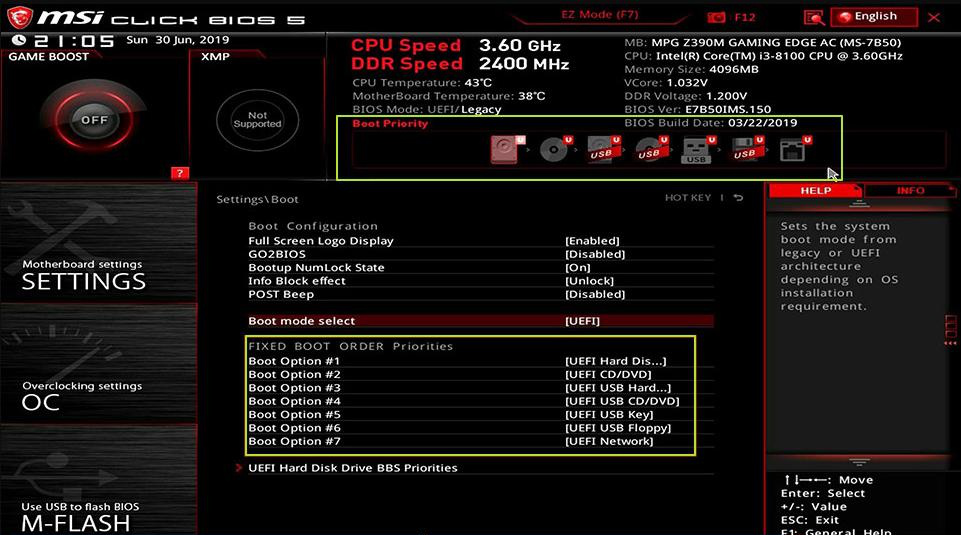
Continuously tap this key to enter the BIOS settings. In the Boot Priority menu, set the USB drive as the primary boot device, save the changes, and reboot the computer.
select boot order
Common Server:
Server TypeEnter boot menu method

DELL

Press the F12 key repeatedly before the Dell logo appears on the screen.

HP

Press the F9 key multiple times when the HP logo is displayed.

Common Computers:
BIOS NameEnter boot menu method

ASRock

DEL or F2

ASUS

DEL or F2 for PCs/ DEL or F2 for Motherboards

Acer

DEL or F2

Dell

F12 or F2

ECS

DEL

Gigabyte / Aorus

DEL or F2

Lenovo (Consumer Laptops)

F2 or Fn + F2

Lenovo (Desktops)

F1

Lenovo (ThinkPads)

Enter then F1

MSI

DEL

Microsoft Surface Tablets

Press and hold Power and Volume Up buttons

Origin PC

F2

Samsung

F2

Toshiba

F2

Zotac

DEL

HP

Esc/ F9 for Boot Menu/ Esc/ F10/ Storage tab/ Boot Order/ Legacy Boot Sources

INTEL

F10

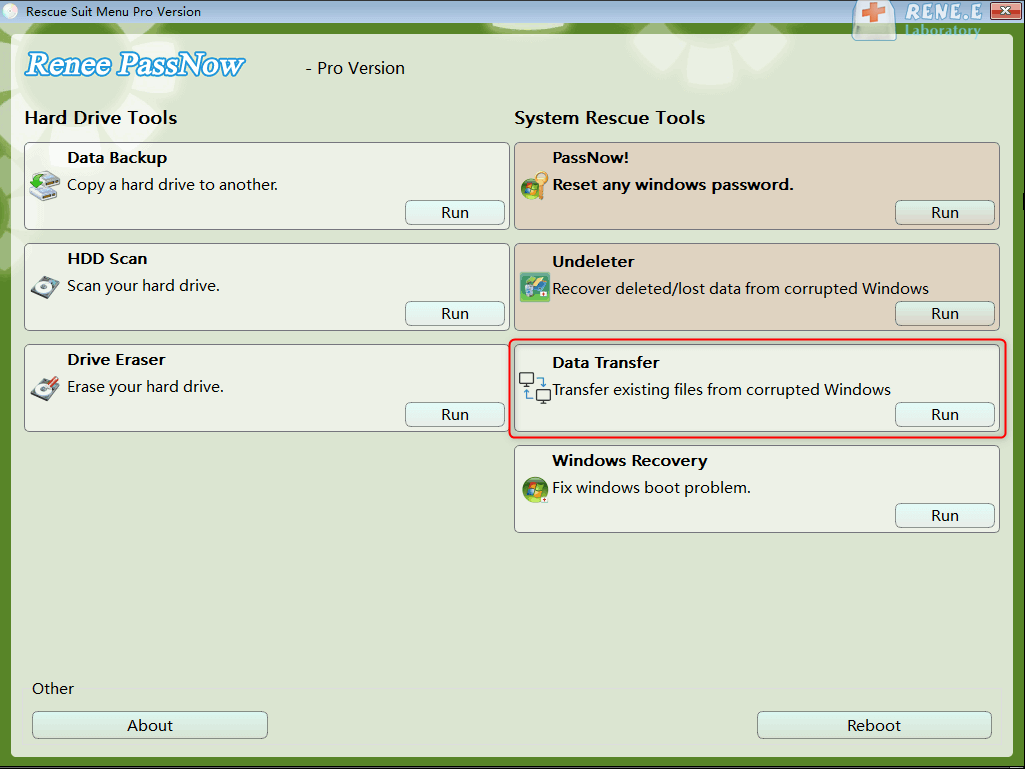
Step 4: Wait for a while, after Renee PassNow is loaded, select Data Transfer. If you need to transfer or backup the data of the entire hard disk, you can select the Data backup option.
data transfer
Step 5: Click on each disk drive letter (C/D/E/F, etc.) to verify no important files are missing. If all files are accounted for, transfer them to an external disk for safety. To move data, select the source drive (e.g., C) on the upper left, then the destination drive (e.g., G) on the upper right. Choose the files from the source drive and click the “Copy” button in the middle to start the transfer. To delete a file, select it and press the “Delete” button, but remember this action is irreversible, so proceed with caution.
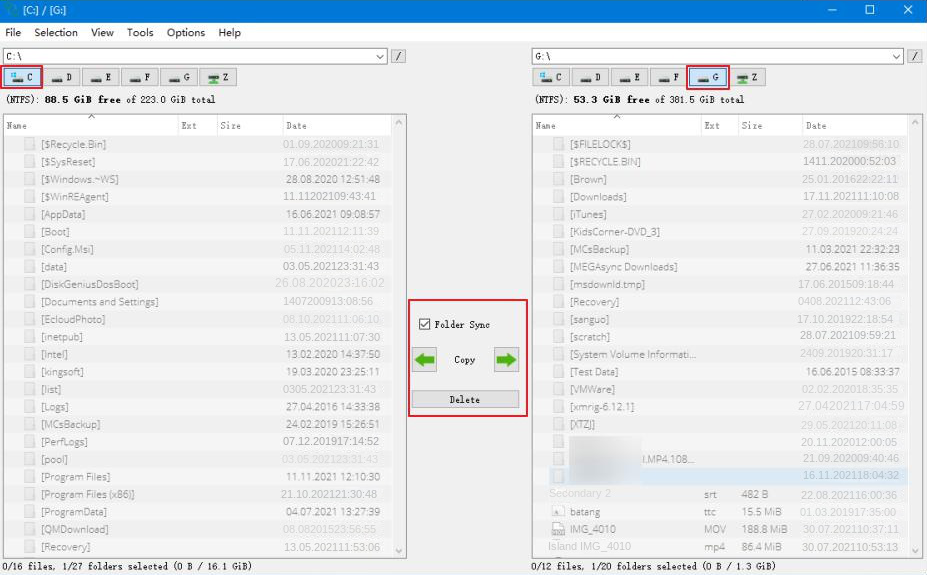
transfer data interface
Where a User’s Personal Files Are Stored on the C Drive
LocationWhat It StoresWhy It Matters

C:\Users\Yourusername

All personal data and profile settings

This is the user’s home directory; nearly everything tied to the account lives here.

C:\Users\YourUserName\Documents

Personal documents (Word, PDF, spreadsheets)

Default save location for most apps; main place for user‑created files.

C:\Users\Yourusername\Pictures

Screenshots, photos, image libraries

Windows and many apps use this as the default image folder.

C:\Users\Yourusername\Downloads

Browser and app downloads

Central place for downloaded files unless the user changes the default path.

C:\Users\Yourusername\Desktop

Items shown on the desktop

Files appear visually on the desktop but are stored here.

C:\Users\Yourusername\Videos

Videos, screen recordings, editor exports

Default location for video‑related apps and recording tools.

C:\Users\Yourusername\Music

Music files, audio projects

Media players and audio apps save content here.

C:\Users\Yourusername\AppData

User‑specific app data, caches, browser profiles

Hidden folder storing essential configuration and temporary files.

C:\Users\Public

Shared files accessible to all users

Useful for documents or media meant to be shared across accounts.

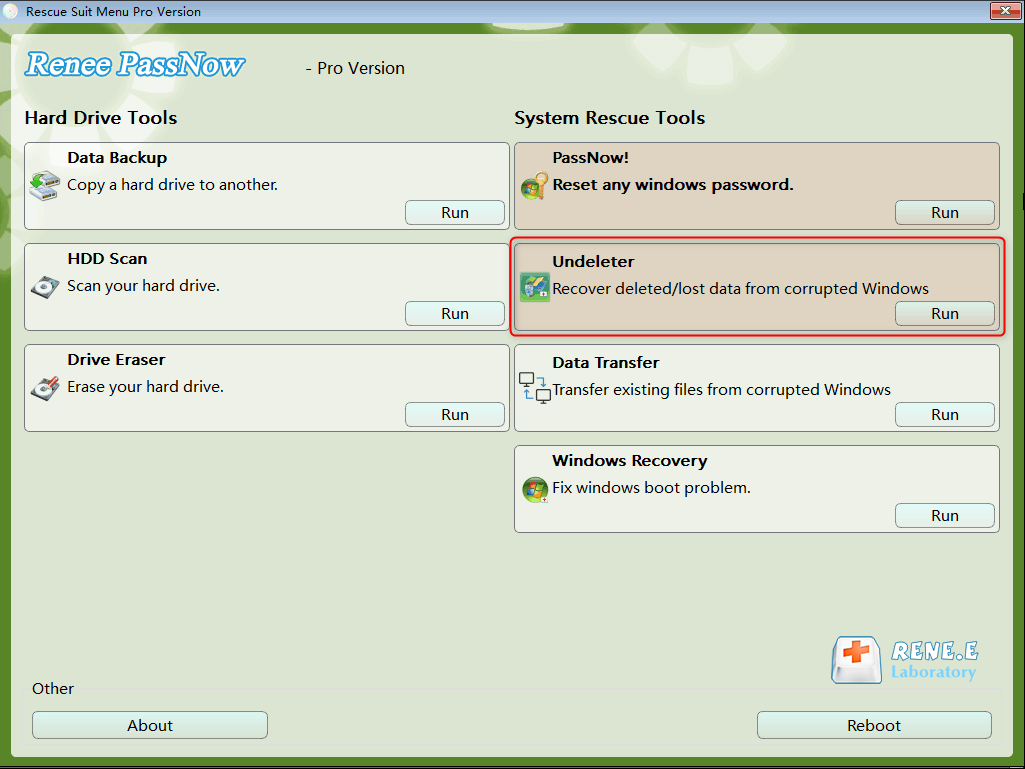
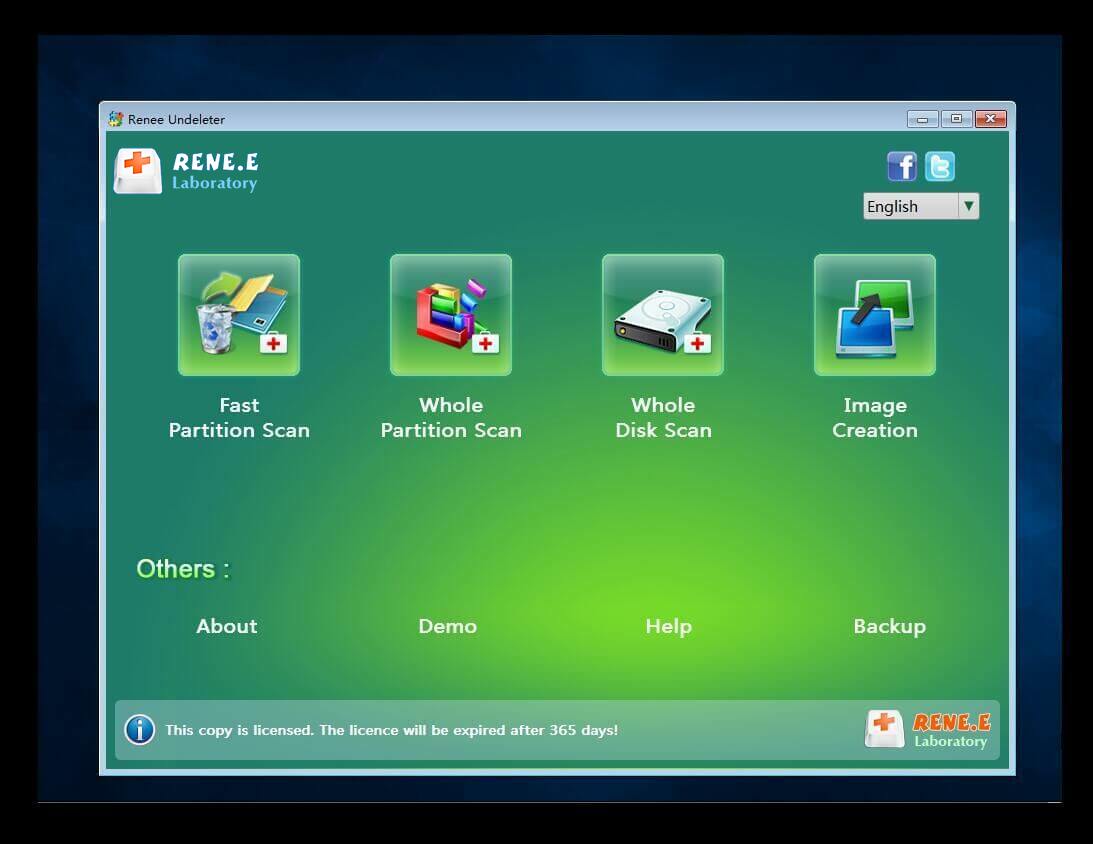
Step 6: If you find that there is data loss, please select the Undeleter option on the main interface of the function, and click the Run button.
data recovery function in Renee passnow
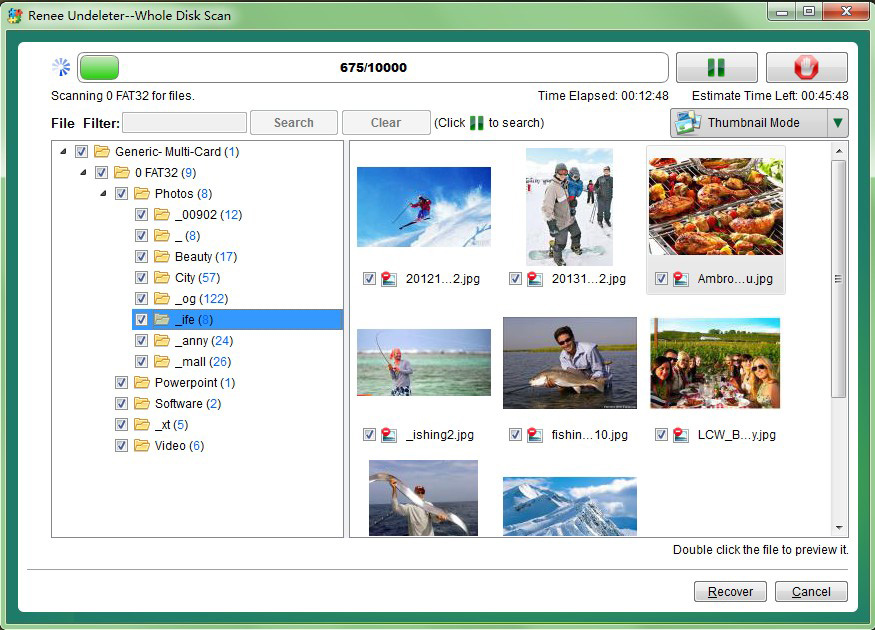
Step 7: Select a function in menu to scan the target hard disk.
scan the whole partition with renee passnow recovery function to reinstall windows 7
Step 8: After the scan completes, select the desired file for recovery and click “Recover” to start the restoration. Ensure to save the recovered file on a different external disk. Following a successful recovery, safely eject the USB stick before continuing with further computer repairs.
preview before recovery
After transferring or restoring the important data in the computer equipment, you can rest assured to repair or re-install your system.
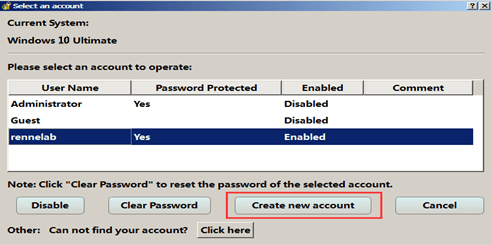
If you can’t log into Windows because your user profile is gone or corrupted, and you don’t have another administrator account to work with, don’t worry—Renee PassNow has your back. Its “Create a New User” feature lets you quickly set up a new local account with admin privileges, giving you access to Windows so you can try other recovery methods.
Here’s how to do it:
Step 1: Boot your computer using the Renee PassNow USB drive you created in Method 1.
Step 2: Once Renee PassNow loads, select the “Create New User” option from the main interface.
Create New User
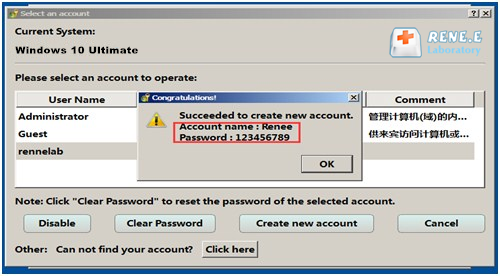
Step 3: The default account name and password will be Renee and 123456789.
Create New User
Step 4: Log into Windows with the new account you just created.
With this new admin account, you’re ready to tackle the other recovery methods below, like System Restore or Registry Editor fixes, with full permissions to make changes.
Hot Topic Renee PassNow – Professional Windows System Rescue Tool

Remove Windows Login Password 3 steps for whole password remove process.

Recover the files Recover the deleted files without Windows system.

Transfer the data Transfer the important files of the computer with system.

Fix Windows startup error Fix various Windows startup failures or crashes.

Erase disk Completely erase disk files which will not be restored.

Remove Windows Login Password 3 steps for whole password remove process.

Recover the files Recover the deleted files without Windows system.

Transfer the data Transfer the important files of the computer without system.

Free TrialFree TrialNow 2000 people have downloaded!

2. Free Built-in Option: Copying Files via Windows Recovery Environment Command Prompt

If you do not want to remove the drive yet and the Windows partition is still at least partially readable, using Windows Recovery Environment Command Prompt can be a useful free option. This approach works best when the UNMOUNTABLE_BOOT_VOLUME error is caused by logical corruption rather than serious hardware failure. In simple terms, if the drive still responds normally enough for WinRE to detect partitions, you may be able to copy key files to another USB drive or external disk without booting into Windows itself.
The main benefit is cost: it uses tools already available in Windows recovery media or the built-in recovery environment. It can help recover folders such as Desktop, Documents, Pictures, and project directories. However, there are real limits. This method requires basic comfort with command-line navigation, drive-letter checking, and careful copy commands. It is also less forgiving than a guided recovery tool. If the disk is physically failing, heavy file-copy attempts may slow down, freeze, or trigger more read errors.
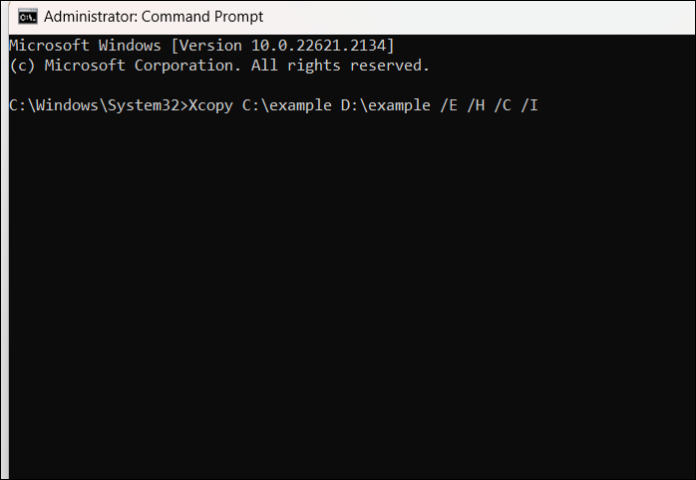
winpe copy files command
Advantages:
  • Built into Windows recovery tools
  • No need to open the computer
  • Useful for quick copying of important folders

Disadvantages:

  • Requires command-line comfort
  • Less suitable for failing drives
  • May not preserve full structure as easily for non-technical users
  • Common path and permission errors can slow recovery

Create Windows Installation Media

create windows 11 installation media USB
You may download this tool from :
Windows 10: https://www.microsoft.com/software-download/windows10
Windows 11: https://www.microsoft.com/software-download/windows11

Step-by-step usage instructions

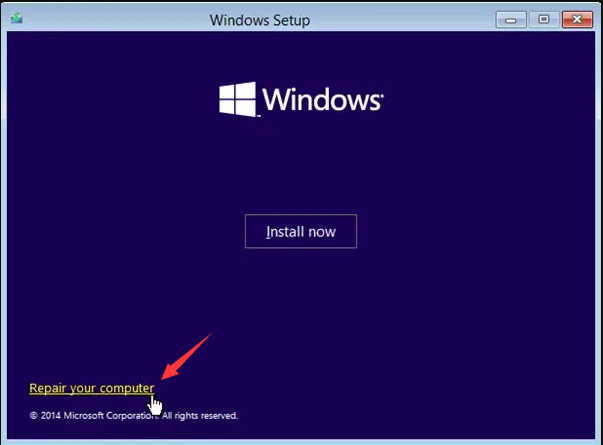
Step 1: Boot into Windows Recovery Environment using installation media or the built-in recovery options.
windows installation repair your computer
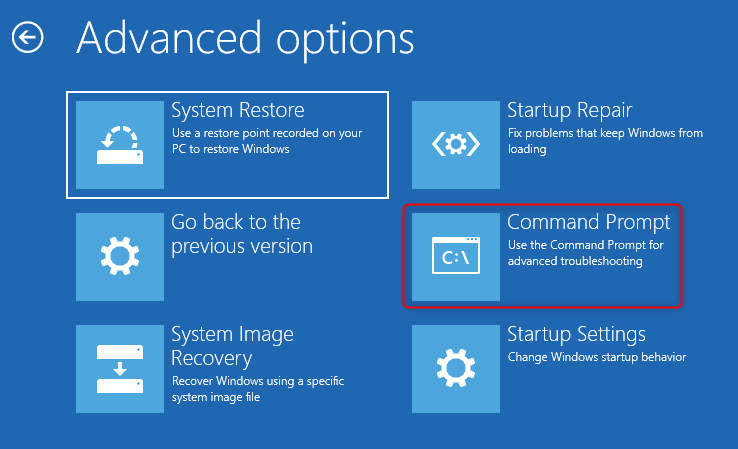
Step 2: Go to Troubleshoot > Advanced options > Command Prompt.
command prompt
Step 3: Connect an external USB drive or external hard disk with enough free space.
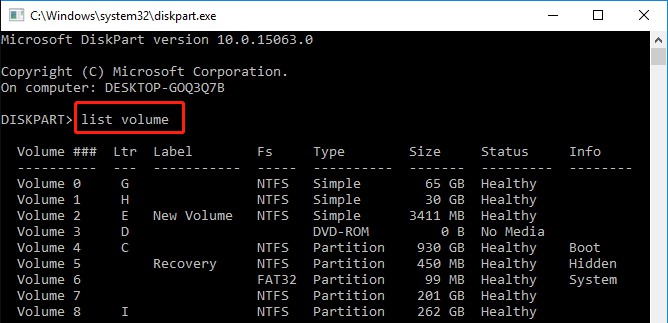
Step 4: Identify the correct drive letters, since they may not match normal Windows letters in WinRE. You can use placeholder commands such as:
  • diskpart
  • list volume
  • exit
enter diskpart and list volume to check drive info
Step 5: Check the contents of likely partitions and the external drive to confirm which one contains your user data and which one is the backup target.
Step 6: Use file copy commands to move critical folders first, such as:
  • User profile folders
  • Desktop files
  • Documents
  • Pictures
  • Work project folders
Quick Copy Command Example
If you are not familiar with command-line tools, start with a simple copy command:
xcopy C:\Users\\Documents D:\Backup\ /E /I
  • C: = source drive (your files)
  • D: = external USB drive
  • /E = include subfolders
  • /I = treat destination as a folder

New User Warning:
Start with the most important files instead of trying to copy the entire system drive at once. This method requires basic command-line skills. If you see repeated errors, very slow copy speed, or the drive disappears, stop immediately and switch to safer recovery software. Do not keep retrying commands on a failing disk.
Because this method depends heavily on the drive remaining readable, it is often best for lighter logical issues. If you want a more guided and lower-risk workflow, the next method may be preferable when the disk can still be detected externally.

3. Alternative Method: Connect the Drive as Secondary to Another Computer

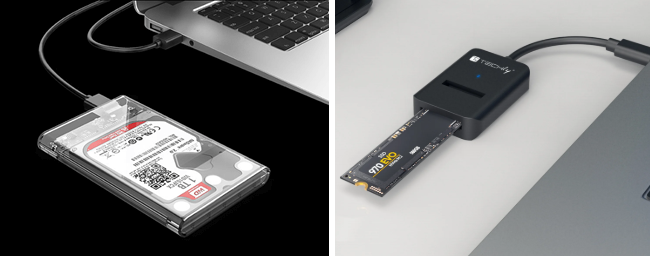
Another common way to handle unmountable boot volume no boot data recovery is to remove the affected drive and connect it to a working computer as a secondary device. This method is often effective when the drive itself is still detectable, but Windows on the original computer cannot boot from it properly. On a desktop, this can be relatively straightforward because there is usually direct access to SATA ports and power connectors. On a laptop, the process often requires more care and may involve a USB-to-SATA adapter, NVMe enclosure, or external SSD case depending on the drive type.
usb ssd / disk enclosure
The main advantage is that you can sometimes browse the drive in File Explorer or use recovery software from a healthy host machine. This can make copying large folders easier than working through a recovery console. It is especially practical if you suspect the original motherboard, boot configuration, or Windows installation is part of the problem rather than total drive failure.
Still, there are important risks. Improper physical handling can cause further damage, especially with older hard drives. Static discharge, rough removal, incorrect adapters, or forcing open a slim laptop can all make the situation worse. This method is best when you are comfortable handling storage hardware or have someone experienced who can help.
Advantages:
  • Can provide direct access to files from another working PC
  • Good for large file transfers
  • Useful when original PC has boot issues but drive is still readable

Disadvantages:

  • Requires opening the device or removing the drive
  • Physical handling risks including static damage
  • Laptop disassembly can be difficult
  • Not suitable for drives with severe physical failure symptoms

This method can work very well in typical desktop or upgrade-friendly laptop cases. Still, if you prefer not to open hardware or want a cleaner start-to-finish recovery workflow, bootable recovery software often remains the easier option for general users.

Comparison of Data Recovery Methods for Unmountable Boot Volume

When choosing a recovery path, the right method depends on two things: how readable the drive still is and how much technical handling you are comfortable with. For most non-technical users, a bootable recovery environment is the safer first choice. Built-in command methods can work, but they depend more on drive stability and user accuracy. Physically connecting the drive elsewhere can be effective too, especially when the boot issue is limited to the original computer.
The comparison below summarizes the trade-offs.
MethodSafety levelEstimated success rate in typical casesTechnical difficultyCostBest suited user typeNotes / citations

Renee PassNow bootable recovery

High

Moderate to High in logical corruption and boot-failure cases

Low to Medium

Paid tool

General users, non-technical users, users prioritizing safer guided recovery

Based on bootable recovery best practices and reduced dependence on damaged OS; aligned with common recovery workflow guidance

WinRE Command Prompt file copy

Medium

Moderate when partition remains readable and corruption is limited

Medium

Free

Users comfortable with command line

Microsoft recovery environment supports manual access, but results depend heavily on readable file structure

Connect drive as secondary to another PC

Medium to High

High when drive hardware is healthy and readable externally; low if hardware is failing

Medium to High

Low to Medium

DIY users comfortable with hardware handling

Commonly recommended in support communities when the issue is boot-related rather than due to total drive failure

Important note on estimates: success outcomes vary widely based on whether the problem is logical corruption, boot metadata damage, failing sectors, SSD controller issues, or full hardware failure. Microsoft documentation and support guidance consistently suggest that disk condition is a major factor, while community benchmarks and recovery practice show better outcomes when data is copied before repair commands are run.

Frequently Asked Questions

Can I run chkdsk /r before trying to recover my files?

It is usually better to recover important files first. chkdsk /r can be helpful for file system issues, but it also performs deeper disk activity and may stress a drive that already has bad sectors. If the disk is physically unstable, that can reduce recovery chances. For unmountable boot volume no boot data recovery, copy or recover critical data before running repair-heavy commands whenever possible.

Is UNMOUNTABLE_BOOT_VOLUME always caused by a failing hard drive or SSD?

No. It can also be caused by file system corruption, a failed update, an improper shutdown, boot metadata problems, or even connection issues. However, because storage failure is one possible cause, you should treat the situation carefully until your files are safe. The error itself does not confirm hardware failure, but it does justify a recovery-first approach.

Can I recover data if the PC will not enter Safe Mode or Automatic Repair?

Yes. That is a common case. A bootable recovery tool such as Renee PassNow can help because it does not rely on the installed Windows system starting correctly. You can boot from external media, access the internal drive, transfer files, and use recovery functions even when Safe Mode and normal startup both fail.

What files should I recover first?

Start with the most valuable and least replaceable data:
  • Personal documents
  • Photos and videos
  • Desktop and Downloads folders
  • Work files and client folders
  • Email archives such as PST/OST if used locally
  • Accounting, design, code, or project data
  • Browser exports, bookmarks, and application-specific data if important
If the drive is unstable, focus on high-value folders first instead of trying to copy the entire disk.

What if the recovered files open, but some are damaged?

That can happen when the original sectors were already unreadable or partially corrupted. Try recovering the same files again using a different method, preferably saving to another healthy disk. If the damaged files are business-critical or irreplaceable, professional recovery may still be an option, especially if the original drive has not been overused after the error appeared.

Should I reinstall Windows right away after copying my files?

Only after you confirm the backup is complete. Open sample files, compare folder contents, and make sure the backup is on a separate physical device. If the drive shows SMART errors or repeated read issues, replace the drive first rather than reinstalling onto the same failing device.

Can I use another recovery tool instead of Renee PassNow?

Yes, other bootable tools exist, but the safest choice for many users is the one that lets them access files without depending on the broken Windows installation and without adding unnecessary complexity. In this guide, Renee PassNow is recommended because it combines bootable access, data transfer, and recovery options in a workflow that suits this specific boot-failure scenario.
Renee Passnow – Professional Windows Password Remover

Remove Windows Login Password 3 steps for whole password remove process.

Enable/Create Administrator One click for creating new administrator and enable the disabled account.

Widely Use New version supports UEFI boot model, which can be used on more computers, laptops and even surfaces.

Multifuctional Data transfer, data recovery, bootable problem recovery can be run without system.

Highly compatible Windows 11/10/8.1/8/7/XP/Vista.

Remove Login Password Support Windows 11/10/8.1/8/7/XP/Vista.

Enable/Create Administrator One click for creating new administrator and enable the disabled account.

Easy to use No need of any professional knowledge or password reset disk.

Free TrialFree TrialNow 2000 people have downloaded!

User Comments

Page 1

Leave a Comment


Your comment has been submitted and is awaiting moderation.